
Business Models Keynote Diagrams
Formerly known as Business Models Keynote Diagrams - this collection now includes structured diagram templates covering business model canvases, value chain maps, revenue model frameworks, customer journey flows, and competitive analysis visuals, all formatted natively for Apple Keynote.
This category is built for consultants, corporate strategists, and startup founders who need to explain how a business creates, delivers, and captures value - without spending hours building diagrams from scratch. When a board meeting requires you to walk stakeholders through a revenue model or a pitch deck needs a visual business model canvas on slide three, these templates give you a credible starting point that you adapt in minutes rather than hours. Each diagram is fully editable in Keynote: shapes, colors, labels, and layout respond to your brand and content without requiring a designer. Browse the collection below and download the diagram set that fits your next strategic presentation.
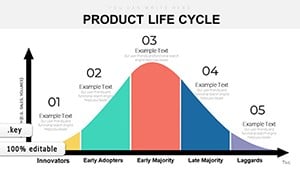 (475)
(475) From Seed to Success: The Ultimate Product Life Cycle Keynote ToolkitID: #KD00219$18.00
 (241)
(241) Custom Venn Diagrams for Keynote - 14 Pro SlidesID: #KD00218$18.00
 (474)
(474) Testing Web Keynote Diagrams Template | Download PresentationID: #KD00208$16.69
 (104)
Search Optimization Keynote Diagrams - Editable | ImagineLayoutID: #KD00207$18.00
(104)
Search Optimization Keynote Diagrams - Editable | ImagineLayoutID: #KD00207$18.00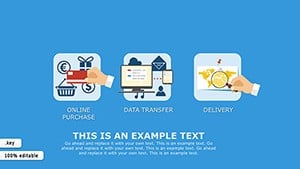 (814)
Professional Online Shopping Keynote Diagrams Template | Download NowID: #KD00206$18.00
(814)
Professional Online Shopping Keynote Diagrams Template | Download NowID: #KD00206$18.00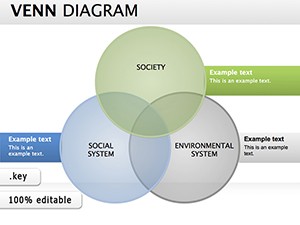 (913)
Selection Venn Keynote Diagrams: Reveal Hidden ConnectionsID: #KD00171$24.00
(913)
Selection Venn Keynote Diagrams: Reveal Hidden ConnectionsID: #KD00171$24.00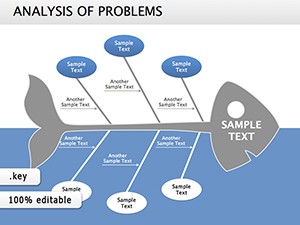 (1021)
Fishbone: Analysis of Problems Keynote diagramsID: #KD00167$22.00
(1021)
Fishbone: Analysis of Problems Keynote diagramsID: #KD00167$22.00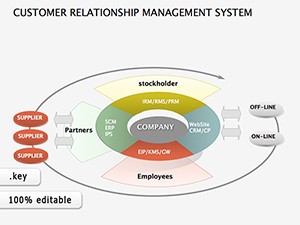 (863)
Customer Relationship Management System Keynote DiagramsID: #KD00161$21.00
(863)
Customer Relationship Management System Keynote DiagramsID: #KD00161$21.00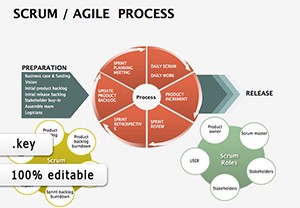 (321)
Scrum Agile Project Keynote Diagrams: Empower Your Team's EfficiencyID: #KD00152$20.00
(321)
Scrum Agile Project Keynote Diagrams: Empower Your Team's EfficiencyID: #KD00152$20.00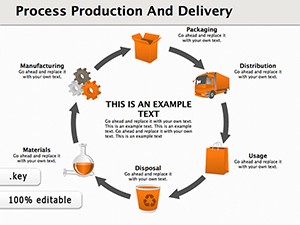 (1056)
Streamline Your Business Presentations with Keynote Diagrams on Process, Production, and DeliveryID: #KD00140$28.00
(1056)
Streamline Your Business Presentations with Keynote Diagrams on Process, Production, and DeliveryID: #KD00140$28.00 (187)
Marketable Basket Keynote Diagrams: 16 Editable Slides for Marketing InsightsID: #KD00139$26.00
(187)
Marketable Basket Keynote Diagrams: 16 Editable Slides for Marketing InsightsID: #KD00139$26.00 (759)
19 Currency Exchange Diagrams - Editable KEY | ImagineLayoutID: #KD00138$15.00
(759)
19 Currency Exchange Diagrams - Editable KEY | ImagineLayoutID: #KD00138$15.00 (139)
Social Connection Keynote Diagrams - Editable KeynoteID: #KD00120$18.00
(139)
Social Connection Keynote Diagrams - Editable KeynoteID: #KD00120$18.00 (1200)
Colored Domino Keynote Diagrams - Fully EditableID: #KD00118$22.00
(1200)
Colored Domino Keynote Diagrams - Fully EditableID: #KD00118$22.00 (230)
(230) Creating Brand Idea Keynote Diagrams TemplateID: #KD00117$23.00
 (383)
Observe, Think, Do: Keynote Diagrams Template for PresentationsID: #KD00116$16.00
(383)
Observe, Think, Do: Keynote Diagrams Template for PresentationsID: #KD00116$16.00 (2)
Communication Processes Keynote Diagrams - Visualize InteractionsID: #KD00106$20.00
(2)
Communication Processes Keynote Diagrams - Visualize InteractionsID: #KD00106$20.00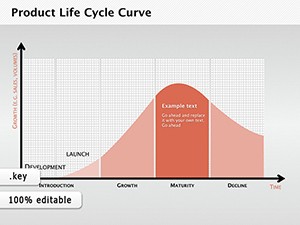 (1040)
Product Life Cycle Curve Keynote DiagramsID: #KD00101$12.69
(1040)
Product Life Cycle Curve Keynote DiagramsID: #KD00101$12.69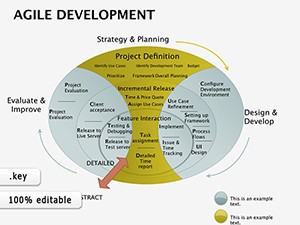 (111)
Agile Development Keynote Diagrams: Chart the Path to Iterative SuccessID: #KD00081$23.00
(111)
Agile Development Keynote Diagrams: Chart the Path to Iterative SuccessID: #KD00081$23.00 (860)
Business Network Keynote diagramsID: #KD00071$22.00
(860)
Business Network Keynote diagramsID: #KD00071$22.00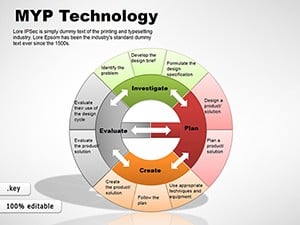 (355)
MYP Design Cycle Keynote Diagrams TemplateID: #KD00048$18.00
(355)
MYP Design Cycle Keynote Diagrams TemplateID: #KD00048$18.00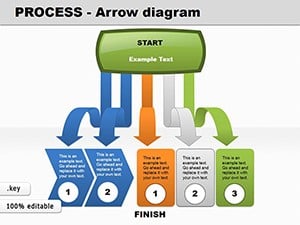 (120)
Process Arrow Keynote Diagrams: Adapt & VisualizeID: #KD00046$20.00
(120)
Process Arrow Keynote Diagrams: Adapt & VisualizeID: #KD00046$20.00 (1181)
Steps Keynote Diagram TemplateID: #KD00041$20.00
(1181)
Steps Keynote Diagram TemplateID: #KD00041$20.00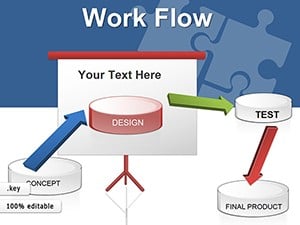 (73)
Workflow Keynote Diagrams: Chart Your Path to EfficiencyID: #KD00039$27.00
(73)
Workflow Keynote Diagrams: Chart Your Path to EfficiencyID: #KD00039$27.00 (287)
3D Arrows Keynote Template for Impactful FlowsID: #KD00034$24.00
(287)
3D Arrows Keynote Template for Impactful FlowsID: #KD00034$24.00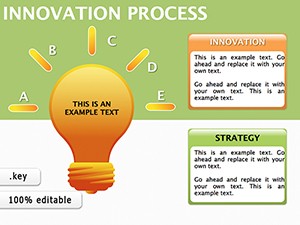 (7)
Innovation Process Keynote Diagrams - Editable .key | ImagineLayoutID: #KD00028$18.00
(7)
Innovation Process Keynote Diagrams - Editable .key | ImagineLayoutID: #KD00028$18.00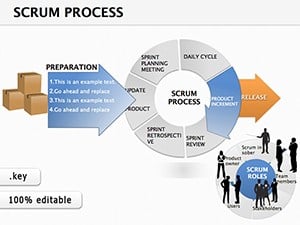 (1014)
Scrum Process Keynote Diagrams: Agile Visions That DeliverID: #KD00025$18.00
(1014)
Scrum Process Keynote Diagrams: Agile Visions That DeliverID: #KD00025$18.00 (319)
Manager Keynote Diagrams: Chart Leadership Paths with EaseID: #KD00023$24.00
(319)
Manager Keynote Diagrams: Chart Leadership Paths with EaseID: #KD00023$24.00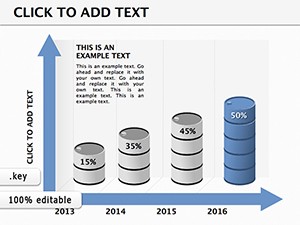 (1199)
Business Keynote Diagrams Template: Chart Your Path to IndependenceID: #KD00022$20.00
(1199)
Business Keynote Diagrams Template: Chart Your Path to IndependenceID: #KD00022$20.00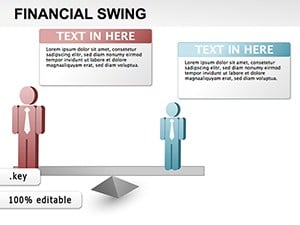 (1092)
Financial Swing Keynote Diagrams: Swing into Strategic ClarityID: #KD00020$18.00
(1092)
Financial Swing Keynote Diagrams: Swing into Strategic ClarityID: #KD00020$18.00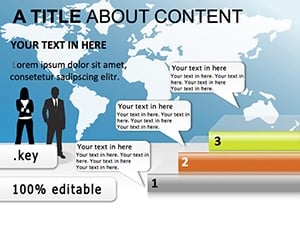 (388)
Stages of Development Keynote TemplateID: #KD00009$18.00
(388)
Stages of Development Keynote TemplateID: #KD00009$18.00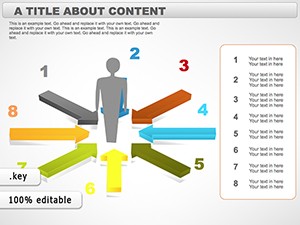 (429)
People Communication Keynote Diagrams TemplateID: #KD00001$20.00
(429)
People Communication Keynote Diagrams TemplateID: #KD00001$20.00
Why Business Model Diagrams Belong in Their Own Category
Most presentation libraries lump every diagram type together - flowcharts, org charts, Venn diagrams, and business model frameworks all share the same shelf. That approach forces you to scroll through dozens of irrelevant options before finding something that actually fits a strategic context. This category is different. Every template here is designed around how businesses work - their structure, their revenue logic, their competitive position, and their customer relationships. If you are preparing content for a strategy session, an investor update, or a consulting deliverable, these diagrams are calibrated to that exact communication challenge. They are not decorative shapes repurposed as strategy tools; they are strategy tools built in diagram form and formatted for Keynote from the ground up.
Who Uses These Keynote Diagram Templates and When
The scenarios below represent the most common use cases in this category. Each one reflects a real business situation where a structured diagram communicates more clearly than a text-heavy slide or a hand-drawn whiteboard sketch.
Startup Founders Presenting to Investors
When a founder needs to show how the business generates revenue, who the key customer segments are, and what the cost structure looks like, a business model canvas diagram communicates all of that on a single slide. Investors review dozens of decks per week and a clean, readable business model diagram - not a wall of bullet points - immediately signals that the founder thinks in structured, strategic terms. These templates give founders a canvas that is already logically structured; they only need to populate it with their specific content.
Management Consultants in Client Deliverables
Consulting teams frequently need to map a client's current business model before recommending changes. A value chain diagram, a Porter's Five Forces visual, or a revenue stream breakdown presented in Keynote needs to match the visual standards of a top-tier deliverable. Generic Keynote shapes rarely meet that bar. These templates are structured with the kind of visual logic that fits a McKinsey-style slide: clear hierarchy, readable labels, and logical flow between components - ready for the consultant to adapt to the client's specific situation.
Corporate Strategy Teams at Quarterly Reviews
Internal strategy teams presenting at quarterly business reviews often need to illustrate how different business units relate to one another, how the company's revenue model has evolved, or how a new initiative fits within the existing model. A structured Keynote diagram template lets the strategy lead drop in relevant data and labels without rebuilding the layout from scratch for each review cycle. That saves meaningful preparation time in the days before a board presentation.
MBA Students and Business School Professors
Business education relies heavily on visual frameworks - the business model canvas, the value proposition canvas, the product life cycle curve, and the innovation funnel are all concepts that land better when shown visually. Professors who present case studies in Keynote and MBA students building capstone project decks both benefit from templates that already reflect the correct structure of these frameworks, reducing the time spent on layout and increasing focus on analytical content.
Keynote Diagrams vs. Building from Scratch with Default Shapes
Keynote includes a respectable library of basic shapes, lines, and connectors. However, assembling a business model canvas or a value chain diagram from those primitives is a time-consuming and error-prone process. Aligning boxes manually, matching stroke weights, ensuring that text fits consistently across cells, and maintaining proportional spacing between elements - each of these micro-decisions adds up to hours of work that has nothing to do with your actual strategic content.
Pre-designed business model diagram templates solve this by delivering layouts where all of those structural decisions have already been made. The visual logic of the diagram - which element leads to which, how components group together, where the labels sit relative to the shapes - is already correct. You inherit a coherent diagram and replace placeholder content with your own. The result is a slide that looks considered and deliberate rather than assembled under deadline pressure.
There is also a consistency advantage. When you use a matched set of diagram templates across a presentation, every slide shares the same visual language: the same corner radii on boxes, the same connector style, the same font treatment. That coherence is very difficult to replicate when building each diagram individually from Keynote's default shape library, particularly across a team where multiple people may be contributing slides.
Finally, default Keynote shapes offer no animation logic specific to business model diagrams. Many templates in this category include built-in animations that reveal components in a logical sequence - which is particularly useful when walking a live audience through a business model element by element rather than presenting everything at once.
Best Practices for Using Business Model Diagram Templates in Keynote
Downloading a well-designed template is only the first step. The way you adapt and present it determines whether the diagram communicates clearly or adds visual noise. The following guidance applies specifically to the types of diagrams in this collection.
Keep Label Density Under Control
Business model frameworks can carry a lot of conceptual weight - value propositions, channels, cost structures, revenue streams. The temptation is to write full sentences in each diagram cell. Resist it. Use short labels (three to seven words maximum) inside diagram elements, and reserve the detailed explanation for spoken commentary or a separate text slide. The diagram's job is to show structure and relationships, not to carry the full argument on its own.
Use Color to Signal Priority, Not Just Aesthetics
When presenting a business model to an executive audience, use color intentionally. Highlight the one or two components that are central to your argument - the primary revenue stream, the key differentiator, the bottleneck in the value chain - by giving them a distinct color. Leave supporting elements in neutral tones. This visual hierarchy tells the audience where to focus before you say a word.
Technical Tip: Grouping and Locking in Keynote
After customizing a multi-element business model diagram in Keynote, use the Arrange > Group function to lock all diagram elements into a single object. This prevents accidental displacement of individual components when you move the diagram on the slide or copy it into another presentation. If you need to edit a specific element later, simply double-click the group to enter it without ungrouping the entire diagram. This is a critical workflow step when working with complex layouts like a business model canvas that contains twelve or more individual shape elements.
How ImagineLayout's Business Model Diagrams Differ from Generic Template Libraries
Platforms like Canva and Slidesgo offer diagram templates, but they are generally built around visual appeal rather than strategic function. A canvas template on those platforms may look attractive in a thumbnail but reveal structural problems when you try to adapt it to a real business model - text boxes that do not scale, fixed proportions that cannot accommodate longer labels, or animations that play out of logical sequence.
The templates in this collection are built specifically for Keynote's native environment, which means they take advantage of Keynote's master slide system, linked object behavior, and animation timeline in ways that a design tool like Canva cannot replicate. Every diagram is constructed so that its editable regions - the cells, labels, and connectors - behave predictably when you modify them. You will not encounter the situation where changing one label causes adjacent boxes to shift unpredictably.
This category is also intentionally scoped. You will find diagrams that are appropriate for business strategy contexts - not clip art, not generic infographics, not decorative timeline ribbons. That focus means the collection stays relevant to the specific communication task you are trying to accomplish, rather than requiring you to filter out dozens of irrelevant styles.
Explore the full collection of business model diagram templates above and download the one that matches your next strategic presentation.
Frequently Asked Questions
What file format do I receive when I download a business model diagram template?
Every template in this category is delivered as a native Keynote file (.key). Once downloaded, you open it directly in Apple Keynote on macOS or iOS. No conversion step is required. All shapes, fonts, animations, and slide masters are embedded in the file and ready to edit as soon as you open it. You do not need any additional plugins or third-party software to use the templates.
Can I edit the colors, fonts, and layout of these diagram templates?
Yes. Every element in these templates is fully editable within Keynote. You can change fill colors on any shape, replace fonts with your organization's typeface, resize and reposition diagram components, and modify or delete label text. The templates are constructed with standard Keynote objects - no locked or embedded graphics that would prevent customization. If your organization uses a brand style guide, you can apply those colors and fonts directly in Keynote's Format panel without needing to contact ImagineLayout or request a custom file.
Are these templates compatible with the current version of Keynote?
The templates in this collection are designed and tested for compatibility with recent versions of Apple Keynote on macOS. Because Keynote updates its format periodically, ImagineLayout updates its templates to ensure that animations, master slides, and object behaviors function correctly in current releases. If you encounter any compatibility issue after downloading, ImagineLayout's support team can assist with a resolution or replacement file.
What license applies to these templates - can I use them in client presentations?
ImagineLayout's standard license permits you to use the templates in your own presentations, including presentations prepared for clients, employers, or stakeholders. You may not resell the template files themselves, redistribute them as part of a template pack, or claim authorship of the design. For enterprise teams or agencies that need a multi-seat or extended commercial license, ImagineLayout offers custom licensing arrangements - contact the support team for details.
Can I export the finished Keynote slides to PowerPoint or PDF for sharing?
Yes. Keynote allows you to export any presentation to PowerPoint (.pptx) or PDF format via File > Export To. Most visual elements - shapes, colors, and text - transfer reliably to both formats. Complex animations may simplify or not translate to PowerPoint's animation system, so if cross-format fidelity is important for your workflow, review the exported file in PowerPoint before distributing it. PDF export preserves the visual appearance of every slide without any animation dependencies.


