Ansoff Matrix Chart Keynote - Editable PPTX | ImagineLayout
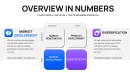
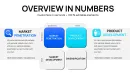
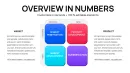
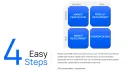
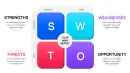
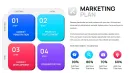
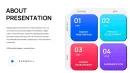
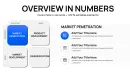
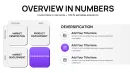
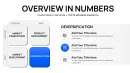
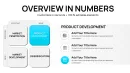
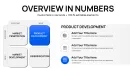










Type: Keynote Charts template
Category: Matrix, Business Models, Tables
Sources Available: .key
Product ID: KC01082
Template incl.: 51 editable slides
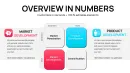
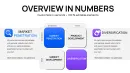
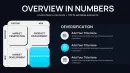
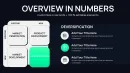
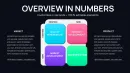
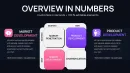
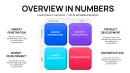
What is an Ansoff Matrix Keynote template? A Keynote chart template pre-built around the four-quadrant Ansoff growth framework - Market Penetration, Product Development, Market Development, and Diversification - with all quadrant fills, labels, and supporting data charts fully editable in Apple Keynote.
51 Charts Across 4 Strategies: What's Inside
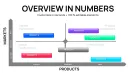
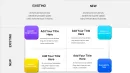
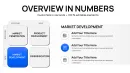
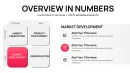
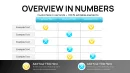
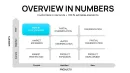
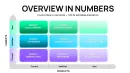
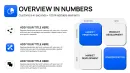
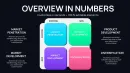
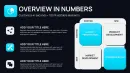
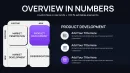
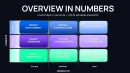
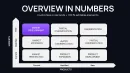
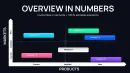
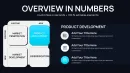
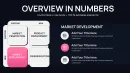
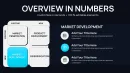
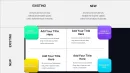
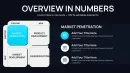
51 editable slides organized around the Ansoff framework. The core quadrant views come in multiple layout variants: a standard 2x2 grid, an exploded single-quadrant focus view, a risk-gradient overlay version, and a comparison layout that places two strategies side by side. Each variant carries a distinct visual weight - the diversification quadrant uses a visually heavier fill than market penetration, encoding the higher risk level before the audience reads the label.
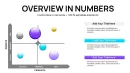
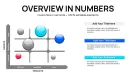
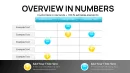
Beyond the matrix itself, the set includes supporting chart types that strategy presenters regularly need in the same deck: bubble charts for plotting product-market fit, simple bar comparisons for revenue-by-strategy breakdowns, and timeline slides for sequencing strategy shifts over quarters. The combination means a consultant can build an entire growth strategy narrative without switching files mid-deck.
Unlike collections focused exclusively on single-framework matrices, this set covers the full arc from framing to data support. No need to source a separate revenue chart or a risk-comparison table from a different template - 51 slides is enough to run a complete strategy session. The Ansoff grid itself appears in both flat-fill and outlined variants so the presenter can choose density based on how much annotation the slide will carry.
Editing Capabilities at a Glance
| Feature | Details |
|---|---|
| Slides included | 51 fully editable slides across matrix, supporting bar, bubble, and timeline layouts |
| Quadrant fill layers | Each quadrant zone is an independent shape - recolor one without affecting the others |
| Text placeholders | Strategy labels, risk annotations, and data callouts update without ungrouping |
| Color theme via slide master | Global palette change applies across all 51 slides simultaneously via Keynote slide master |
| Diagram connectors | Axis arrows and quadrant borders are separate line objects - adjustable in weight and direction |
| File format | .key - opens in Apple Keynote 12 or later on Mac or iPad |
| Aspect ratio | 16:9 widescreen, suitable for projection and screen sharing |
| Animation support | No animations pre-applied - transitions can be added manually per slide |
Real Scenarios: How Consultants Use It
Before: A strategy analyst at a mid-size retail group spent 3.5 hours per quarterly review building the Ansoff grid from scratch in Keynote - drawing quadrant lines, aligning text boxes, sourcing a separate bubble chart, and correcting font inconsistencies each time the partner requested a last-minute color change. The deck looked different every quarter.
After: Opening the .key file, the same analyst replaced all placeholder text in 20 minutes, swapped the master palette to the retailer's brand hex values in 4 minutes, and exported a PDF in 2 minutes. Total: 26 minutes. The bubble chart and risk annotations were already positioned on the right slide. No font issues - all text was inside labeled placeholders. The same file was reused across three consecutive quarterly reviews by changing only the data values and one strategic label per session.
Marketing directors use the single-quadrant focus slides when briefing a board on a specific product launch - the isolated view removes noise from the other three quadrants and lets the annotation carry the full slide. Operations leads at consulting firms apply the timeline version to map a multi-year strategy shift, plotting moves from one quadrant to another across fiscal periods.
Download and start editing immediately
From Download to Final Deck
Editing difficulty: Beginner. No design background required - every action listed below is a standard Keynote function.
Step 1 - Open the .key file in Keynote 12 or later (1 minute). Step 2 - Open Format - Slide Layout to access the master palette. Replace the preset colors with your brand hex values; all 51 slides update at once (4 minutes). Step 3 - Click each strategy quadrant, select the text placeholder, and type your label. The placeholder text disappears automatically - no manual deletion (8 minutes for the full matrix). Step 4 - Navigate to the supporting chart slides. Click any bar or bubble, select Edit Chart Data, and paste or type your figures (5 minutes per chart). Step 5 - Delete slides not relevant to the specific presentation. With 51 to start from, most presenters keep 12-18 for a full strategy session. Step 6 - Export via File - Export To - PDF or PowerPoint for delivery (1 minute).
The most common editing mistake is attempting to change individual quadrant colors directly on the slide rather than through the master. Going through Format - Slide Layout once affects every matrix slide - doing it slide by slide takes 15 extra minutes and produces inconsistencies when a quadrant shape appears on multiple layouts.
Why This Template, Not a Blank Slide
Building a precise 2x2 Ansoff quadrant from a blank Keynote slide takes about 40 minutes for a designer and 90+ minutes for someone without layout experience. The challenge is not drawing four rectangles - it is maintaining proportional axis weights, aligning the strategy labels to the visual center of each zone, and then rebuilding the same grid at a slightly different configuration when the presenting partner requests an isolated view of one quadrant.
The color coding in a well-designed Ansoff matrix serves a structural function, not a decorative one. Market Penetration - the lowest-risk strategy - should read visually lighter than Diversification, which carries the highest risk. A matrix that applies the same color weight to all four quadrants forces the audience to read the risk label before understanding the hierarchy. Pre-coded fill weights in this template encode that hierarchy pre-attentively: the audience understands relative risk before the presenter says a word.
Manual builds also tend to break during collaborative editing - a colleague opens the file, adjusts one shape, and the axis alignment shifts. Because all quadrant elements here are inside grouped, labeled placeholder structures, accidental movement of one element does not cascade to others.
Explore the full range of strategy chart layouts in the Matrix Keynote Charts category. For SWOT analysis support that complements an Ansoff session, the set at SWOT Keynote Charts uses a matching flat-fill visual language. For competitive positioning work that often follows an Ansoff growth review, see the Porter's Diamond Charts Keynote Template.
Download and start editing immediately
Which version of Apple Keynote does this template require?
The .key file is compatible with Apple Keynote 12 and later versions on macOS and iPadOS. Keynote 12 introduced updated chart data handling and shape grouping behavior that the template relies on for placeholder text and master slide color changes. Older versions such as Keynote 10 or 11 may open the file but could display font substitutions or misaligned group elements. On Mac, Keynote is a free download from the App Store. On iPad, the same version number applies - confirm your current version via the App Store update tab before downloading the template.
How do I change the color scheme across all 51 slides at once?
Open the file in Keynote and navigate to Format - Slide Layout to access the master slide view. Each color zone corresponds to a named master element - select the quadrant fill shape on the master and change its fill color. Keynote propagates the change to every slide that uses that master element. For brand-specific hex values, click on any shape, open the Fill color picker, select Custom, and enter the hex code directly. This approach takes 4-6 minutes to update all quadrant colors and avoids the inconsistencies that result from editing individual slides manually.
What does the paid version include that the free version does not?
The product page does not list a free tier for this template - the $20.00 purchase provides the complete download of all 51 slides in .key format. This is not a freemium product with a limited preview version. The full set, including all matrix variants, supporting bar charts, bubble charts, and timeline slides, is available immediately after purchase. ImagineLayout does offer a free template in other categories - if budget is a consideration, the free data-driven chart set available in the Keynote Charts section is worth reviewing while you evaluate this purchase.
Can I use this template in paid client work?
The template is licensed for use in commercial and client-facing presentations. A consultant or agency can apply the slides to a paid deliverable - a strategy deck, investor brief, or board presentation - without additional licensing. The license covers one user. If multiple team members at the same firm need to edit the file simultaneously or independently, each person requires a separate purchase. The license does not permit redistribution of the template file itself, resale of the .key file, or uploading it to a competing template marketplace. For full license terms, refer to the Terms of Use on the ImagineLayout website.
What is ImagineLayout's refund policy for this template?
ImagineLayout provides a refund policy for digital template purchases. Because the file is available for immediate download after purchase, refund eligibility depends on specific conditions - primarily whether the file was downloaded or accessed. Before purchasing, review the Refund Policy page on the ImagineLayout website for the exact conditions and request procedure. If you have a technical issue with the file - a rendering problem in a supported Keynote version or a corrupted download - contacting ImagineLayout support via the Contact page is the fastest path to resolution and may qualify for a replacement file or refund.
Can I apply this template to an existing presentation I've already built?
Copying individual slides from the .key file into an existing Keynote presentation is straightforward: open both files, select the slides you need in the template's slide navigator, copy, and paste into the target file. Keynote will ask whether to use the source slide's master or the destination master - choose source master to preserve the layout. For applying the template's master slide theme to an entire existing deck, use Keynote's Change Theme option under Document settings, then select the imported master. This method is useful when you want the Ansoff matrix visual language to carry across a full investor deck that was started before the template was purchased.