Business Process Flowchart Keynote Chart - Editable | ImagineLayout
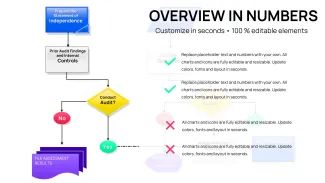
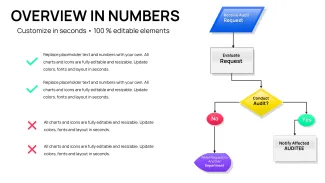
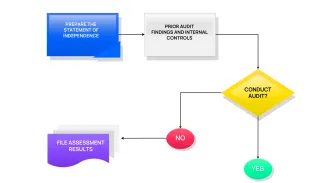
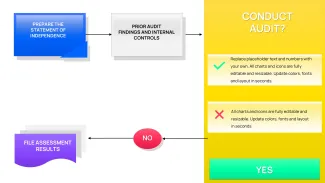
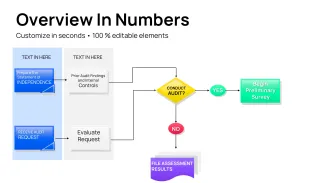
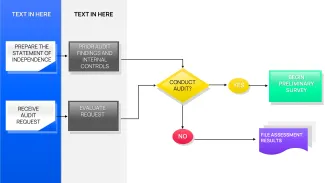
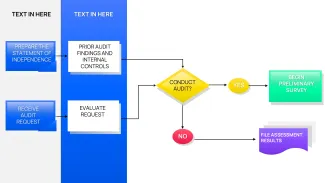
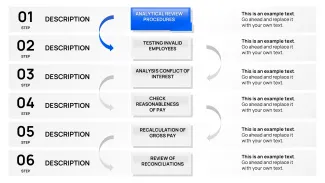
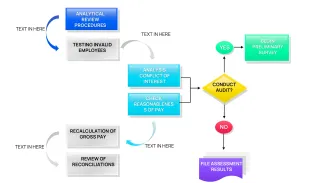
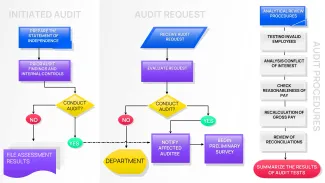

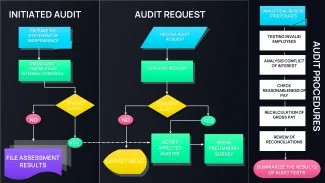
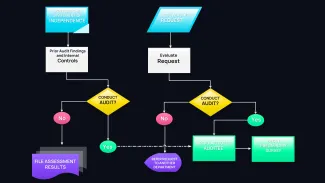
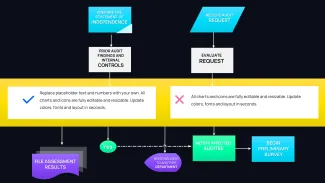
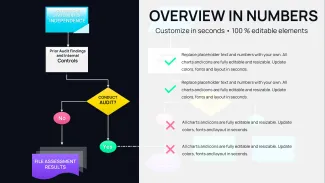
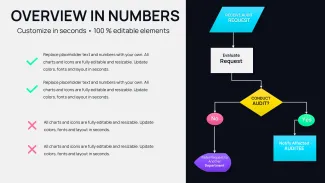
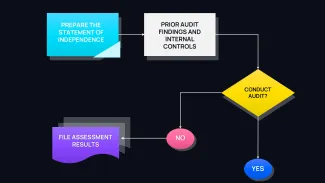
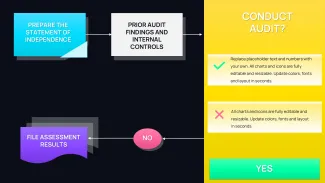
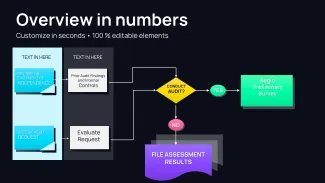
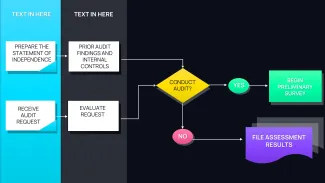
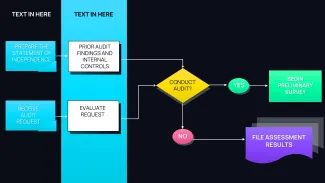
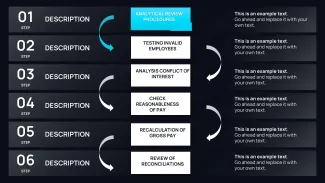
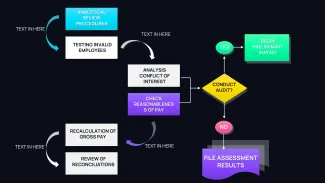
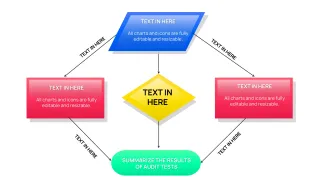
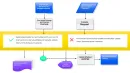
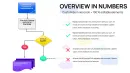
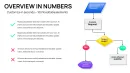
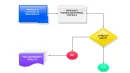
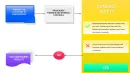
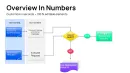

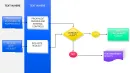
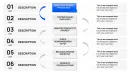
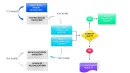
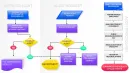

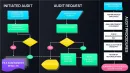
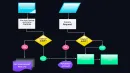
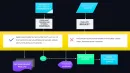







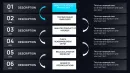

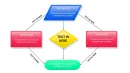
What is a business process flowchart Keynote template? A set of Apple Keynote slides pre-built with flowchart and process diagram layouts - including swim lane diagrams, decision trees, sequential step flows, and analysis tables - with all connector arrows, shape labels, and color fills fully editable without design tools.
Package Contents: 26 Flowchart Slides
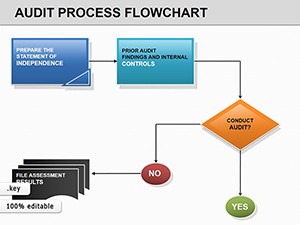
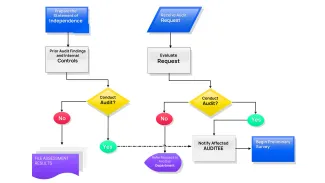
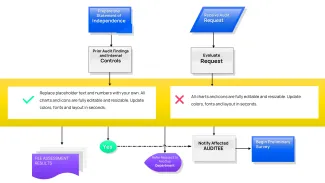
26 editable slides in .key format, organized across four functional categories: process flow diagrams, flow-with-decision layouts, structured analysis tables, and summary overview slides. The process flow group covers linear sequences of 4 to 8 steps with connector arrows, step labels, and role annotations. Decision tree variants show branching logic with diamond-shaped decision nodes and labeled outcome paths.
The swim lane section is the most operationally specific part of the set. Each swim lane slide divides the horizontal layout into 2 to 4 horizontal lanes - one per department or role - with process steps positioned within the lane corresponding to the responsible function. For cross-departmental workflow presentations, this structure makes handoff points visible without requiring an additional annotation layer.
Compared to general-purpose diagram sets that spread thin across 10 diagram types, this collection concentrates entirely on process and flow mapping. Operations managers, project leads, and process consultants who need to map approval sequences, implementation steps, or audit trails consistently find that 26 purpose-built flowchart slides cover more presentation scenarios than a multi-type set with only 3-4 flowchart slides buried in a larger pack.
Key Specifications At a Glance
| Feature | Details |
|---|---|
| Slides included | 26 editable slides: linear process flows, swim lanes, decision trees, analysis tables, overview slides |
| Connector arrows | All directional arrows are separate line objects - adjustable in direction, weight, and arrowhead style |
| Step shape fills | Process step rectangles and decision diamonds are independent shapes - recolor one step without affecting others |
| Swim lane dividers | Lane boundary lines are editable - add, remove, or relabel horizontal lanes to match your department structure |
| Text placeholders | Step labels update without ungrouping - click the text area inside any shape to type directly |
| File format | .key - Apple Keynote 12 or later on macOS or iPadOS |
| Aspect ratio | 16:9 widescreen |
| Use categories | Process, Flow, Tables, Analysis - tags: audit, financial analysis, implementation, integration, training |
Edit, Brand, Present: The Workflow
What if I only need 4 steps in a flow but the template shows 8? Click on any step shape after the fourth and delete it. The connector arrow attached to that shape is a separate object - select it individually and delete as well. Keynote does not auto-remove connectors when a shape is deleted, so a quick visual scan after deletion confirms no orphaned arrows remain. Removing 4 steps takes about 90 seconds.
What if my brand color is not one of the preset fills? Click any process step shape, open Format - Shape Style in the right panel, select Fill, choose Custom Color, and enter your hex value. This changes only that shape. To apply the same brand color to all step shapes of the same type across the deck: change one shape, then use Edit - Find/Replace Style (in newer Keynote versions) or manually copy and apply the fill using the Format Painter function.
What if I need to add a swim lane that is not in the template? Select an existing lane divider line, duplicate it (Command + D), and drag it to the desired position. Update the lane label text box. The lane content - step shapes and connectors - can then be moved vertically into the new lane. For a 5-lane layout starting from a 3-lane template, this process takes about 8 minutes including repositioning all existing elements.
What if the flowchart does not fit on one slide after I've added my content? Use Keynote's Scale to Fit option: select all objects on the slide, group them temporarily, and scale the group to 90% via Format - Arrange - Size. This reduces the entire diagram proportionally without distorting individual shapes. Alternatively, split the flow across two slides using the continuation arrow convention - an arrow pointing off the right edge of slide 1 with a matching entry arrow on the left edge of slide 2.
Editing difficulty: Beginner to Moderate. Linear flows and decision trees require no design background. Multi-lane swim lane adjustments benefit from familiarity with Keynote's object alignment and distribution tools.
Real Scenarios: Process Teams in Action
A business analyst at a regional insurance company needed to present a new claims processing workflow to the operations director and three department heads. The workflow involved four departments: intake, underwriting, legal review, and payment authorization. Building the swim lane diagram from scratch would have required drawing individual lanes, placing 14 step shapes, connecting them with directional arrows, and labeling every handoff point - estimated at 2.5 hours given the analyst's intermediate Keynote experience.
Opening the 4-lane swim lane slide from this template, she replaced all 14 placeholder labels with her actual step names in 18 minutes. The connector arrows were already correctly oriented between lanes. Color-coding by department - a different fill per horizontal lane - took 9 minutes using the shape fill panel. The completed diagram was exported as a PDF and shared with the operations director 40 minutes after she started. The director approved the workflow with one change - a label correction on step 7 - which took 45 seconds to update.
Project managers at consulting firms use the decision tree slides for project go/no-go briefings - the diamond decision node at the center of the slide, with three labeled outcome paths branching from it, communicates approval logic faster in a live meeting than a written decision matrix. HR specialists apply the linear process flows to onboarding presentations, mapping the sequence of steps a new employee moves through during their first two weeks.
Download and start editing immediately
What You'd Need to Replicate This Yourself
A swim lane diagram with 4 lanes and 14 steps, built from a blank Keynote slide, requires: drawing 3 horizontal divider lines at equal vertical spacing, placing 14 step shapes at consistent sizes, adding 13 connector arrows with matching weights and arrowhead styles, labeling each shape, labeling each lane, and verifying that all elements are aligned within their respective lanes using the alignment guides. Experienced Keynote users report this taking 90-120 minutes for a single slide. Without design experience, the time estimate is 3+ hours.
The decision diamond shape - the branching node that represents a yes/no or multi-path choice - is not available as a named preset in standard Keynote. Building it requires inserting a square, rotating it 45 degrees, and resizing it to the correct proportional width for the decision label to fit. The text inside a rotated square does not rotate with the shape by default - that is a separate Keynote behavior that catches new users. In this template, diamond shapes are pre-built and pre-labeled with placeholders that accept text without rotation issues.
Connector arrows in Keynote do not auto-snap to shape edges the way they do in dedicated diagramming tools. A manually built flowchart frequently shows arrows that appear aligned but are off by 2-3 pixels, visible only when projected at full screen. All connectors in this set are positioned to pixel alignment at the source resolution - a detail that matters in a high-stakes board presentation or client briefing.
Browse more flowchart and process layout options in the Process Keynote Charts category. For audit-specific workflows, the Audit Process Flowchart Keynote Template covers compliance and control process mapping. For presentations that combine process flows with data cycle visuals, see the Process Cycle Charts Keynote Template.
Download and start editing immediately
Which version of Apple Keynote is compatible with this flowchart template?
The template is designed for Apple Keynote 12 and later on macOS and iPadOS. Keynote 12 supports the shape grouping and connector line behavior that the flowchart layouts depend on. In earlier versions, grouped step shapes may lose their placeholder text formatting, and connector arrows may shift position after the file is opened. Keynote is available as a free download from the App Store on both Mac and iPad - check your installed version under Keynote - About Keynote before downloading. The template has not been tested in Keynote for iCloud (the browser-based version), and complex multi-shape slides may render differently there.
How do I change the color scheme and apply my brand colors?
Click any process step or swim lane shape, open Format - Shape Style in the right panel, and change the Fill color to your brand hex value. Process shapes are individual objects - color one step without affecting others. For swim lane backgrounds, the lane fill color is a separate full-width rectangle behind the step shapes: click the lane background, then change its fill independently. To apply a consistent color to all shapes of the same type across the deck efficiently, change one shape first, copy it (Command + C), select the equivalent shapes on other slides using the slide navigator, and use Paste Style (Command + Option + V) to transfer only the fill and stroke - not the shape content. This approach updates all step shapes to brand color in 5-8 minutes across the full 26-slide deck.
How do I export the flowchart for a PDF deliverable or a PowerPoint handoff?
For PDF export: File - Export To - PDF in Keynote. Choose Image Quality: Best to preserve sharp connector lines and text at any print size. For PowerPoint export: File - Export To - PowerPoint. Keynote converts the .key file to .pptx - connector lines convert as individual shapes rather than native PowerPoint connectors, which means they will not auto-snap to new shape positions if the recipient edits the file in PowerPoint. For deliverables that will only be viewed (not edited) by the recipient, PDF is the more reliable format. For clients or colleagues who need to edit in PowerPoint, note in the handoff that connector arrows are static shapes and should be repositioned manually if step boxes are moved.
Can I use this template for audit and compliance process presentations?
The template is tagged for audit and financial analysis use cases and includes layouts appropriate for compliance process mapping - linear control flows, decision trees for approval logic, and table-based analysis slides for summarizing process findings. The swim lane layouts are particularly useful for audit presentations that need to distinguish responsibilities between an internal audit team, a business unit, and a management review function. The template does not include pre-labeled audit-specific content - all step labels are placeholders that you replace with your own process steps. For a set specifically designed around audit workflows with pre-labeled compliance stages, the Audit Process Flowchart Keynote Template in the Related section covers that use case more directly.
Is the template licensed for client-facing and commercial presentations?
The $14.00 purchase covers personal and commercial use - consulting deliverables, client presentations, internal operations briefings, and training sessions are all permitted uses. The license applies to one user. If your team has multiple people who will independently edit and present from this file, each person needs a separate license. The template file itself cannot be redistributed, sold, or uploaded to other marketplaces. For the complete license conditions - including any restrictions on derivative works - refer to the Terms of Use on the ImagineLayout website. Refund terms for digital downloads are covered separately under the Refund Policy page.
What is the refund policy for this template?
ImagineLayout's standard refund policy applies to this digital download. Eligibility for a refund depends on the conditions at the time of the request - in particular whether the file has been downloaded or accessed after purchase. Review the Refund Policy page on the ImagineLayout website for the specific terms before completing your purchase. For technical issues - a .key file that does not open in a supported Keynote version, or an incomplete download - contact ImagineLayout support through the Contact page. Technical issues are typically resolved with a replacement file, and the support team can clarify whether a refund applies to your specific situation.