
Construction Keynote Themes
This collection contains construction Keynote templates built for project managers, site supervisors, contractors, and operations directors who present project status, bid proposals, and phased milestone reviews to stakeholders who are not always on-site and not always technical. These are not generic slides with a hard-hat image dropped onto a dark background. The layouts are structured around how construction data is actually communicated: phased timelines, cost-versus-budget comparisons, contractor scope breakdowns, and progress visuals that stakeholders can read before the room settles.
A project manager preparing a Monday morning stakeholder update after a supplier delay, a construction firm assembling an RFP response under a 48-hour deadline, or an operations director presenting quarterly performance to investors - each of those moments needs a different slide set, but all of them need the same thing: a structure already in place so the limited time goes toward what changed, not toward formatting. Open the file in Apple Keynote, update the slide master once, and start editing content.
Browse the collection and start with a layout that already reflects how construction data is presented.
 (133)
(133) Real Estate and Finance Keynote Template - Download PresentationID: #KT03879$10.00
 (825)
(825) Architectural Future Keynote: Design VisionsID: #KT03796$12.00
 (393)
Powerful House Rent and Sale Keynote TemplateID: #KT03787$12.00
(393)
Powerful House Rent and Sale Keynote TemplateID: #KT03787$12.00 (443)
Innovative Drone Construction Keynote SlidesID: #KT03728$12.00
(443)
Innovative Drone Construction Keynote SlidesID: #KT03728$12.00 (851)
Drone Warfare Keynote Template: Command the Skies in Your Next BriefingID: #KT03727$12.00
(851)
Drone Warfare Keynote Template: Command the Skies in Your Next BriefingID: #KT03727$12.00 (164)
Repair Service Keynote TemplateID: #KT03716$12.00
(164)
Repair Service Keynote TemplateID: #KT03716$12.00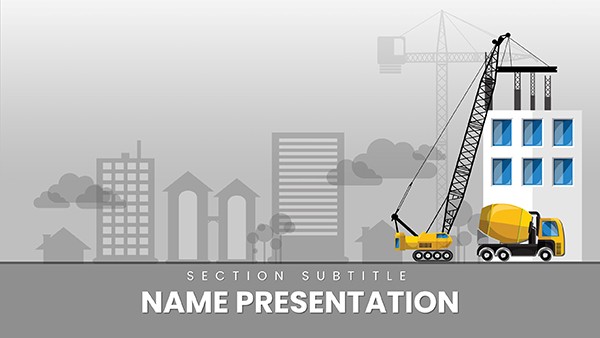 (466)
Construction Pitch Keynote Template: Blueprint Your Success StoryID: #KT03714$12.00
(466)
Construction Pitch Keynote Template: Blueprint Your Success StoryID: #KT03714$12.00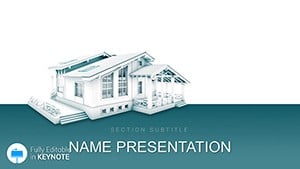 (239)
Planning Architecture Keynote TemplateID: #KT03561$12.00
(239)
Planning Architecture Keynote TemplateID: #KT03561$12.00 (875)
(875) Urban Construction Buildings Keynote TemplateID: #KT03560$12.00
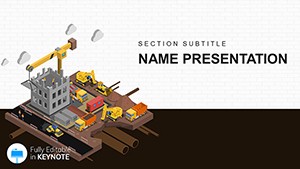 (371)
Infrastructure Works in Construction Keynote TemplateID: #KT03419$12.00
(371)
Infrastructure Works in Construction Keynote TemplateID: #KT03419$12.00 (1007)
Warehouse Loader Keynote Template: Streamlining Storage into StrategyID: #KT03373$12.00
(1007)
Warehouse Loader Keynote Template: Streamlining Storage into StrategyID: #KT03373$12.00 (678)
Architect must evaluate energy efficiency Keynote templateID: #KT03230$12.00
(678)
Architect must evaluate energy efficiency Keynote templateID: #KT03230$12.00 (150)
Construction Jobs Keynote Template - Design PresentationID: #KT03225$12.00
(150)
Construction Jobs Keynote Template - Design PresentationID: #KT03225$12.00 (138)
Download Construction Companies Keynote Template, PresentationID: #KT02912$10.00
(138)
Download Construction Companies Keynote Template, PresentationID: #KT02912$10.00 (731)
Movement Mechanism Keynote templates - ThemesID: #KT02596$12.00
(731)
Movement Mechanism Keynote templates - ThemesID: #KT02596$12.00 (450)
Circuit Board Repair Keynote templatesID: #KT02593$12.00
(450)
Circuit Board Repair Keynote templatesID: #KT02593$12.00 (597)
Road Repairs - Maintenance and Traffic Management Keynote PresentationID: #KT01919$12.00
(597)
Road Repairs - Maintenance and Traffic Management Keynote PresentationID: #KT01919$12.00 (582)
Private Access Keynote templatesID: #KT01574$12.00
(582)
Private Access Keynote templatesID: #KT01574$12.00 (131)
Construction Engineering Keynote Template: Foundation for Formidable DecksID: #KT01262$12.00
(131)
Construction Engineering Keynote Template: Foundation for Formidable DecksID: #KT01262$12.00 (503)
Engineering Communications Keynote Template ProID: #KT01218$10.00
(503)
Engineering Communications Keynote Template ProID: #KT01218$10.00 (139)
Bathroom Plumbing Repairs Keynote TemplateID: #KT01197$11.00
(139)
Bathroom Plumbing Repairs Keynote TemplateID: #KT01197$11.00 (1153)
 Essential Plumbing Tools Keynote Template: Master Your Trade VisualsID: #KT01130$11.99
 (970)
Precision Engine Design Keynote ToolID: #KT01039$11.99
(970)
Precision Engine Design Keynote ToolID: #KT01039$11.99 (575)
Real Estate Keynote Template - Fully Editable | Instant Download | ImagineLayoutID: #KT00836$10.00
(575)
Real Estate Keynote Template - Fully Editable | Instant Download | ImagineLayoutID: #KT00836$10.00 (230)
Book and the City Keynote Theme TemplateID: #KT00830$10.00
(230)
Book and the City Keynote Theme TemplateID: #KT00830$10.00 (1096)
Free Open Window Keynote TemplateID: #KT00795free
(1096)
Free Open Window Keynote TemplateID: #KT00795free (925)
Rubik`s Cube Keynote Template: Strategy in MotionID: #KT00676$10.00
(925)
Rubik`s Cube Keynote Template: Strategy in MotionID: #KT00676$10.00 (251)
Builder Helmet Keynote TemplateID: #KT00672$10.00
(251)
Builder Helmet Keynote TemplateID: #KT00672$10.00 (1122)
Carpenter Measures Keynote Template: Blueprint Your Project WinsID: #KT00656$10.00
(1122)
Carpenter Measures Keynote Template: Blueprint Your Project WinsID: #KT00656$10.00 (513)
Color Repair Keynote TemplateID: #KT00655$10.00
(513)
Color Repair Keynote TemplateID: #KT00655$10.00 (95)
Choose Your Color Keynote TemplateID: #KT00653$10.00
(95)
Choose Your Color Keynote TemplateID: #KT00653$10.00 (665)
Choose a Color Scheme Keynote TemplateID: #KT00652$10.00
(665)
Choose a Color Scheme Keynote TemplateID: #KT00652$10.00 (904)
Tool Repair Keynote TemplateID: #KT00650$10.00
(904)
Tool Repair Keynote TemplateID: #KT00650$10.00
What a Construction Presentation Has to Carry That a Generic Deck Cannot
Construction presentations carry operational specificity that generic business slide layouts were not designed to handle. A weekly site update needs a timeline slide where each phase maps to a real date range, a cost slide where budget and actual sit side by side without reformatting, and a visual that communicates progress status in the first five seconds for stakeholders who walk in late. A bid proposal needs scope, schedule, and commercial terms structured so a procurement team can compare it against competitors without asking follow-up questions.
The templates in this collection are organized around those requirements. Timeline slides are formatted with phase-based sequencing rather than milestone-only markers - which matters when your project is tracking duration-based deliverables alongside discrete completion events. Cost comparison layouts keep budget and actual columns aligned at a fixed width so the gap between them is visually immediate rather than requiring a viewer to calculate across a cluttered table. Progress update slides lead with a status indicator before introducing detail, which reflects how site information is actually reported up the chain.
Four Project Scenarios Where the Template Did the Structural Work
A project manager was preparing a Monday morning stakeholder update after a supplier delay shifted the schedule by two weeks. The week before, she had used the Infrastructure Works in Construction Keynote template to present the original timeline. This week, she opened the same file, adjusted the phase durations, updated the cost impact row, and added a mitigation slide from the existing layout library in the file. The structural decisions from the previous week carried forward - she did not rebuild the timeline slide, she updated it. The stakeholder review ran thirty minutes, approvals were given, and procurement received the revised schedule by noon.
A mid-size construction firm responding to an RFP for a commercial development needed a proposal deck in 48 hours. Using the Construction Pitch Keynote template, the team had a scope section, a phased schedule, a budget overview, and a company credentials slide ready before the first internal review. The remaining time went into refining the commercial terms and checking numbers - not aligning text boxes. The proposal was submitted on time and progressed to the shortlist round.
An operations director presenting quarterly performance to a private equity board used the Urban Construction Buildings Keynote template to present cost variance across five active projects and completion-rate comparisons against plan. The chart formatting was consistent across all five projects - same color coding for on-track and delayed, same axis labeling convention. The board noted the clarity of the variance data and did not request a revised version before making resourcing decisions.
An engineering team documenting a completed infrastructure project used the Planning Architecture Keynote template to archive final metrics, phased delivery timeline, lessons learned, and contractor performance data in a format that could be reviewed by a new project team starting a comparable build. Instead of compiling slides from scratch, the team completed the documentation in an afternoon. The archived file has been referenced three times in the twelve months since.
Phase-Based vs. Milestone-Based Timeline Layouts: Why the Difference Matters
Most general-purpose presentation timelines are designed for milestone-based content - discrete events with single dates: launch, approval, completion. Construction projects are duration-based: foundation works run from week three to week eight, structural steel runs from week six to week fourteen, and both overlap. A milestone-only timeline slide cannot show that overlap without reformatting the layout from scratch.
The timeline slides in this collection are formatted for duration-based phases. Each phase block spans the correct proportional width across the timeline axis, and overlapping phases stack vertically rather than collapsing into a single line. When a phase shifts - because a supplier is delayed or a weather event adds time - you widen the block rather than rebuilding the slide. This is the non-obvious editing advantage of a construction-specific template over an adapted general-purpose one: the slide structure anticipates the kind of changes that actually happen on projects.
How Consistent Slide Structure Reduces the Cost of Recurring Project Reporting
Construction projects generate a predictable sequence of presentations: bid proposal, kick-off briefing, weekly site updates, monthly stakeholder reviews, milestone sign-offs, and project close-out. When each of those presentations is assembled from scratch, the formatting work accumulates across the project's duration. When they share a common slide master, the formatting investment happens once and the saved time compounds across every reporting cycle.
In Apple Keynote, the slide master controls the grid, typography, background, and placeholder positions that every slide in the deck inherits. Update it once via View - Show Master Slides, set your company colors in the master background layer, place the logo in the header placeholder, and every slide built from that master will match - including slides added by other contributors to the file. For multi-contractor projects where more than one firm contributes to the same presentation, a shared master prevents the assembled deck from looking like four separate firms' slide preferences stacked together.
A Technical Detail That Affects Timeline and Grouped Shape Editing
Timeline slides and phased schedule layouts in Keynote are built from grouped shapes rather than native chart objects. This distinction matters when editing. If you double-click into a grouped timeline bar to edit its label text, Keynote enters the group and exposes individual elements - but if you then move any element without exiting the group correctly, the internal alignment of the group breaks. The safer editing path: single-click to select the group, hold Option and drag to duplicate it for a new phase, then double-click only to edit the label text. Resize phase width by selecting the group and dragging its right edge, not by entering the group and resizing individual elements.
For PDF export to clients who may not have Keynote installed: export via File - Export To - PDF at Best quality. Keynote embeds fonts automatically in the PDF, which ensures that the typographic choices you made in the slide master render correctly on the recipient's device regardless of whether they have those fonts installed.
Browse the collection and download the template that fits your next project phase.
Choosing Between Related Template Categories
If your project team works primarily in Windows environments or shares files with contractors who use Microsoft Office, the construction PowerPoint templates provide the same project presentation structures in PPTX format with full compatibility across PowerPoint 2016 and Microsoft 365. For presentations that extend beyond site reporting into business development, investor relations, or strategic planning, the business Keynote templates offer more flexibility in how project and commercial content are combined in a single deck. If your firm also produces client-facing brochures for new developments or open-house events, the brochure templates follow the same editing logic and are designed to maintain visual consistency with your presentation materials across printed formats.
Are these templates compatible with the current version of Apple Keynote?
Yes, these templates are designed for Keynote version 10 and later, which covers macOS versions released over the past several years. Open the file on a machine running the current macOS and review the slide master before editing content. If you are using an older version of Keynote, most layout elements and text placeholders will open correctly, but some grouped shape behaviors in timeline slides and certain transition types may not render exactly as intended. Updating Keynote through the Mac App Store resolves this in most cases. If an update is not available, export to PPTX from within Keynote and work in Microsoft PowerPoint, which handles the file with better backward compatibility.
Can I edit all elements in these construction templates, including timeline slides?
All slides are fully editable, including text blocks, shapes, charts, and timeline phase bars. Timeline layouts are built from grouped shapes rather than chart objects, which means you resize phases by dragging group edges and edit labels by double-clicking into the group. The key technique to preserve alignment: select the group and use Option-drag to duplicate a phase bar rather than entering the group and copying individual elements. This keeps the internal spacing and height consistent across all phases. If you need to add a new phase that overlaps an existing one, duplicate the relevant group, position it below the existing phase row, and adjust the width to reflect the correct duration.
Do these templates support collaboration across multiple contributors?
Yes. Keynote supports real-time collaboration via iCloud sharing, and these templates are designed to work well in that environment. The most reliable approach for multi-contributor decks is to have one designated person configure the slide master before the file is shared - updating company colors, logo, and base typography. Once the master is set, every contributor adding slides from the available layouts will produce slides that inherit those settings automatically. The most common source of visual inconsistency in collaborative construction decks is contributors importing slides from previous presentations that use different master settings. Establish a clear rule early: all new slides come from the shared master, not from outside files.
Can I convert these Keynote templates to PowerPoint for sharing with contractors who use Windows?
Yes. Keynote exports to PPTX format natively via File - Export To - PowerPoint. The resulting file opens in Microsoft PowerPoint 2016 and Microsoft 365 on both Windows and Mac. Most layout elements - text placeholders, shapes, background fills - transfer cleanly. The elements most likely to require review after conversion are grouped timeline shapes and any slide with layered or rotated shapes, where Keynote-to-PPTX conversion can shift positions by a few pixels. Do a quick visual review of timeline slides and any diagram-heavy slide after export. For presentations being sent to clients or external contractors, the safest distribution format remains PDF, which renders identically regardless of what software the recipient uses.
What is the most effective way to present schedule delays and cost variances in these templates?
For schedule delays, use the phase-based timeline slide to extend the affected phase bar to its new end date rather than adding a separate annotation slide. This makes the impact visible at a glance - the extended bar communicates duration change faster than any text description. For cost variances, the budget comparison chart layout separates original budget and actual cost as adjacent bars in the same color family with a third bar showing the delta. Keep the delta bar in a distinct color (typically amber or red) so it reads immediately without requiring the audience to calculate the gap. In both cases, place the status indicator - on track, delayed, over budget - in the slide headline before the chart. Stakeholders read the headline first; the chart provides the evidence.


