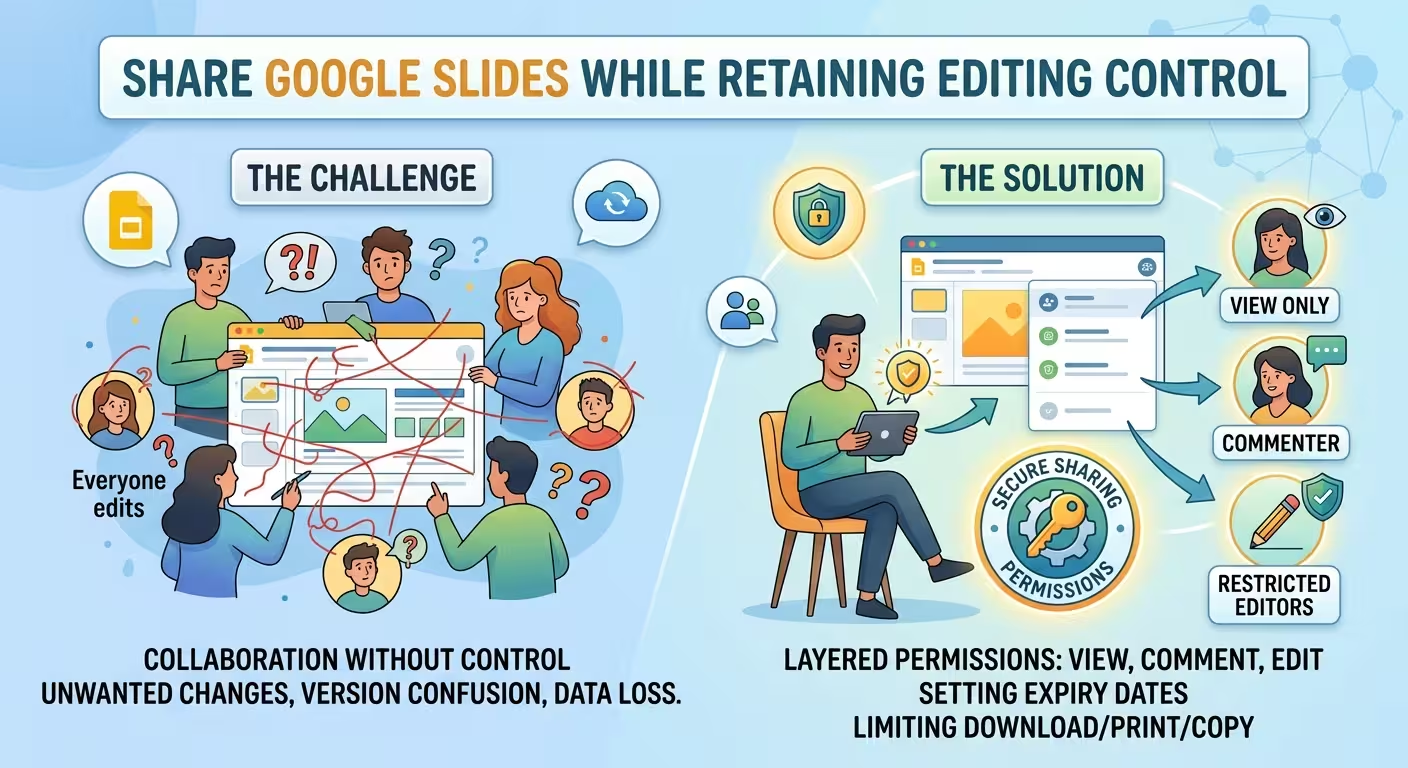
Sharing a Google Slides presentation is easy. Keeping control of what happens after you share it is the part that requires a little more thought.
The common mistake is to treat sharing as a simple choice between “send the link” and “add people.” In practice, you are deciding who can open the presentation, who can comment, who can edit, who can share it onward, and sometimes how long that access should remain.
If the deck is still being designed, the safest workflow is not necessarily to stop collaboration. It is to separate collaboration from unrestricted editing and give each person only the access their role actually requires.
Start by deciding what the recipient needs to do
Before changing any Google Slides permission, define the recipient's job.
Someone who needs to read a finished presentation has a completely different requirement from someone checking the wording or someone responsible for rebuilding three slides. Giving all three people Editor access because it is convenient during production creates unnecessary risk.
A simple way to think about the roles is:
- Viewer: needs to see the presentation but does not need to change it.
- Commenter: needs to review the presentation and leave feedback without changing the slide content.
- Editor: is genuinely responsible for changing the presentation.
Google's current sharing model supports these three access levels. The important point is that they are not just collaboration preferences. They define different boundaries around what the recipient can do with the file.
That distinction becomes particularly important when a presentation moves between a designer, subject-matter expert, manager, and client. Not everyone involved in the process needs to become an editor.
Use Restricted access when the audience is known
If you know exactly who should receive the presentation, there is usually little reason to make the file broadly accessible just because sharing a link is convenient.
Google Slides allows the owner to choose between restricted access and broader link-based access. With Restricted access, people need to have permission to open the file. With link-based sharing, possession of the link becomes part of the access mechanism.
That difference matters more than it first appears.
Imagine a hypothetical presentation containing an unreleased product roadmap. You send the link to five people for review. If the file is restricted to those specific accounts, forwarding the URL does not automatically give a sixth person access. If the presentation is open to anyone with the link, the link itself becomes a much larger part of the security boundary.
For a practical workflow:
- Use Restricted for internal, confidential, or client-specific presentations.
- Add specific people when you know who needs access.
- Use broader link access only when broad distribution is actually part of the purpose of the presentation.
This is not about making every presentation difficult to share. It is about matching the access model to the actual audience.
For a deeper look at the settings that matter when a presentation contains sensitive material, see Google Slides sharing settings that prevent presentation leaks.
Do not give Editor access just because someone needs to review the deck
This is probably the most useful distinction to make before sending a presentation.
Reviewing and editing are different activities.
A manager might need to identify an incorrect number. A client might want to suggest a change to the headline. A subject-matter expert might need to point out that a diagram is technically inaccurate. None of those tasks necessarily requires direct control over the slide objects.
Commenter access is often a better fit for that stage. It allows the reviewer to leave feedback without turning every suggestion into an immediate change to the presentation.
That creates a cleaner workflow:
- The designer or presentation owner edits.
- The reviewer identifies problems.
- The owner decides which feedback becomes an actual change.
- The approved version moves forward.
There is an important trade-off here. Direct editing is faster when the reviewer is trusted and the requested change is obvious. Comments are slower in that narrow moment, but they preserve the distinction between someone requesting a change and someone authorized to make the change.
For a presentation that is still changing structurally, that distinction can prevent a surprising amount of confusion.
If someone must edit, you can still limit their control
Sometimes Viewer or Commenter simply is not enough. A designer, co-author, analyst, or project lead genuinely needs to modify the presentation.
That does not automatically mean you should give up control over sharing.
Google provides an option that lets the owner prevent editors from changing permissions and sharing the file. This is particularly useful when several people need to work inside the same presentation but redistribution should remain controlled by the owner.
The distinction is subtle but useful:
Editing the presentation answers the question “Can this person change the content?”
Changing access answers a different question: “Can this person decide who else gets access?”
Those two responsibilities do not always belong to the same person.
For example, a hypothetical design team might have three editors working on a client deck. All three need to modify slides. Only the project owner, however, should decide when the client gets access. Preventing editors from changing permissions keeps those responsibilities separate.
Do not confuse View Only with complete control
A Viewer cannot edit the presentation, but “cannot edit” is not the same thing as “cannot do anything with the content.”
Depending on the sharing configuration, the owner can control whether Viewers and Commenters can download, print, or copy the file. Google provides these controls specifically for situations where someone needs access to the information but does not need an additional local copy.
This can be useful for sensitive presentations.
Imagine a hypothetical client review deck containing pricing information that the client needs to inspect before a meeting. If the client only needs to review the slides online, allowing unrestricted downloading may provide a capability that was never actually required.
In that situation, a more controlled setup could be:
- Restricted access.
- Specific recipients.
- Viewer or Commenter rather than Editor.
- Download, print, and copy disabled when those actions are unnecessary.
There is a boundary worth keeping in mind: these settings reduce ordinary file actions; they do not make information impossible to capture. Someone can still photograph a screen, manually reproduce information, or communicate what they saw.
So the objective is not perfect secrecy. It is removing unnecessary access paths.
Check the folder, not just the presentation
One of the easiest ways to lose control of a carefully configured presentation is to forget where the file lives.
A Google Slides file can inherit access through a shared folder. Google specifically notes that permissions on shared folders can affect files inside them, which means changing the direct permissions on a presentation may not tell the whole story.
Consider a hypothetical project folder shared with an entire department. You create a confidential presentation inside that folder and remove one employee from the presentation's direct access list. If that person still has access through the parent folder, the direct permission change has not solved the underlying access problem.
Before sending a sensitive presentation, check:
- Who has direct access to the presentation?
- What is selected under General access?
- Who has access to the parent folder?
- Is the presentation inside a shared drive?
- Are there organizational restrictions affecting sharing?
This is why a permission review should not stop at the Share dialog for the individual file.
Keep one working deck and separate the review stage
Permission settings solve only part of the problem. The other part is workflow.
When a team is working on a presentation, people often create multiple files because they are afraid of losing a previous state: “Client Deck,” “Client Deck Final,” “Client Deck Final 2,” and eventually “Client Deck Final Approved.”
The result is not more control. It is uncertainty about which file actually matters.
A cleaner Google Slides workflow is usually:
- One working presentation for active editing.
- Comments for review questions and requested changes.
- Named versions for meaningful milestones.
- One clearly defined approval state.
- A separate final sharing configuration for the delivery audience.
Google Slides provides version history for recovering previous states, but version history should not become a substitute for deciding how the team works. It tells you what happened; it does not tell everyone what should happen next.
That distinction becomes especially important when several people are working simultaneously. A clearer collaboration process can prevent the permission problem from turning into a version-control problem.
For a more detailed workflow, see Google Slides collaboration without version chaos.
Separate the editable working file from the presentation you actually send
There is another control that is often overlooked: the content itself.
If the working presentation contains internal comments, unfinished slides, negotiation notes, hidden backup slides, draft pricing, and client-facing material all in one file, sharing that file safely becomes harder.
The better solution is sometimes structural rather than technical.
Keep the working presentation as the place where the team can build and revise. Then prepare the version that the external audience actually needs to see.
This becomes particularly useful when a presentation passes through several stages:
- Production: editors can change the deck.
- Review: stakeholders comment and identify issues.
- Approval: the owner confirms the final state.
- Delivery: the audience receives the minimum access required.
That workflow also makes the visual side of the presentation easier to manage. When the deck is ready for delivery, the file should contain the visual argument intended for the audience rather than every artifact from the production process.
If you are still building the deck itself, this guide to building a professional presentation in Google Slides covers the broader design workflow, including how to separate content decisions, visual systems, and review stages.
Use a permission check before you send the link
You do not need a complicated security checklist every time you share a presentation. A short review catches most of the practical mistakes.
- Audience: Who actually needs to open the deck?
- Role: Does each person need Viewer, Commenter, or Editor access?
- Editing: If someone is an Editor, do they really need that level of access?
- Sharing: Should editors be allowed to change permissions and invite others?
- Extraction: Does anyone need to download, print, or copy the presentation?
- Inherited access: Does a parent folder or shared drive provide additional access?
- Duration: Does anyone need access permanently, or is the review temporary?
For eligible work or school accounts, Google also supports expiration dates for a person's access, which can be useful when a presentation is shared for a temporary review rather than an ongoing collaboration.
The best sharing setup is therefore not the one with the fewest permissions. It is the one where every permission has a reason.
A client does not need to become an Editor simply because they need to review the deck. A reviewer does not necessarily need a downloadable copy. And a designer can need edit access without necessarily needing authority to redistribute the file.
Once those distinctions become part of the presentation workflow, sharing Google Slides becomes much easier to control: define the audience, assign the smallest useful role, separate review from editing, check inherited access, and treat the final delivery file differently from the working deck.
Comments (0)