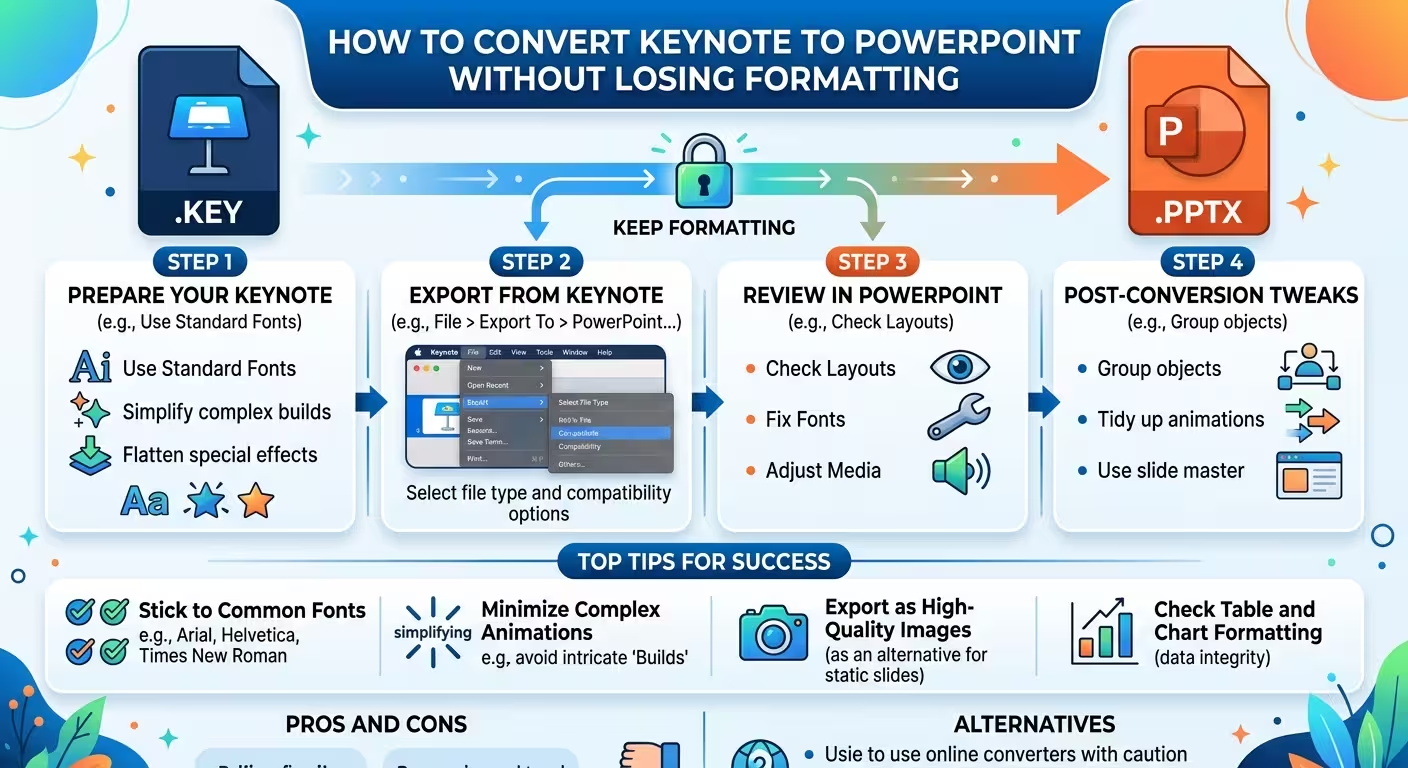
Converting a Keynote presentation to PowerPoint takes only a few clicks. Getting the resulting .pptx file to look exactly like the original is a different problem.
A font substitution can change line breaks. A changed line break can alter the height of a text box. That can push an icon, image, or diagram out of position. By the time you notice the problem, the original cause may be several formatting decisions away.
If you need to convert Keynote to PowerPoint without losing formatting, treat the export as a compatibility workflow rather than simply saving the file in another format.
Keep the original Keynote file as your source
The safest first step is surprisingly simple: do not convert your only copy.
When Keynote exports a presentation to PowerPoint, it creates a copy in the new format. Apple documents PowerPoint as a supported export format and notes that changes made to the exported presentation do not affect the original.
That gives you two useful versions:
- The .key file: your original presentation and design source.
- The .pptx file: the version intended for PowerPoint users.
This distinction becomes important if you discover a conversion problem. Instead of trying to reverse a series of changes inside PowerPoint, you can return to the Keynote source, adjust the problematic element, and export a fresh copy.
Export directly from Keynote to PowerPoint
Do not use PDF as an intermediate step if the recipient needs an editable PowerPoint presentation.
On a Mac, open the presentation in Keynote and choose the PowerPoint export option from the File or Share workflow. Keynote creates a PowerPoint-compatible .pptx copy.
Apple also supports exporting Keynote presentations to PowerPoint from iPhone and iPad. The exact interface depends on the device and current version of Keynote, but the important choice is the same: select PowerPoint as the export format rather than PDF or an image format.
Apple's current documentation confirms that Keynote presentations can be converted to Microsoft PowerPoint's Office Open XML format, or PPTX, while the original file remains intact.
If the goal is editing, exporting individual slides as images is not an equivalent solution. An image can preserve the appearance of a slide, but it does not preserve the underlying editable text, shapes, charts, and other presentation objects.
Check fonts before you check anything else
When a converted presentation looks “almost right,” fonts are one of the first places to investigate.
This is not simply a typography problem. A different font can have different character widths and line metrics. That can change where a heading wraps, how tall a paragraph becomes, and where surrounding objects appear relative to the text.
For example, imagine a Keynote title that occupies one line and sits precisely above an image. If PowerPoint substitutes the font and the title wraps to two lines, the image may suddenly appear too close to the title even though its own position has not changed.
Check the following before spending time manually moving objects:
- headline fonts
- body fonts
- bold and italic variants
- font sizes
- unexpected line breaks
- text that now overflows its box
- text boxes whose height has changed
If the presentation uses a non-standard font, install the required font on the target computer where appropriate. PowerPoint also supports embedding certain fonts into presentations, although font licensing and technical restrictions can affect whether a particular font can be embedded.
Microsoft recommends font embedding when a presentation needs to retain custom fonts across computers, particularly when the file may be edited or viewed offline.
Inspect the slides most likely to break
You do not have to inspect every slide with the same level of attention.
Start with the slides where small conversion differences are most visible. These usually include slides with dense text, overlapping objects, diagrams, tables, charts, or carefully positioned visual elements.
Pay particular attention to:
- Text-heavy slides: look for changed wrapping and text overflow.
- Diagrams: check connectors, arrows, labels, and relative positions.
- Charts and tables: compare labels, spacing, and proportions.
- Layered compositions: check whether objects remain in the intended order.
- Images: verify cropping, proportions, and placement.
- Edge-to-edge elements: check anything positioned very close to the slide boundary.
A useful strategy is to compare the exported PowerPoint against the original Keynote one slide at a time. You are not looking for microscopic differences everywhere. You are looking for changes that affect meaning, hierarchy, readability, or the intended composition.
Be careful with animations and transitions
A static slide can survive a conversion surprisingly well while the presentation behavior changes underneath it.
Animations, builds, and transitions are particularly worth testing if the presentation depends on revealing information in a specific order.
Do not assume that an animation that looks correct in Keynote will behave identically in PowerPoint. The two applications have different presentation engines and different ways of representing effects.
After conversion, run the presentation in PowerPoint rather than judging it only from the slide editing view. Watch for:
- objects appearing in the wrong sequence
- missing or changed effects
- unexpected transition behavior
- media that does not play correctly
- timing differences
If an animation is essential to the message, test that slide independently before sending the complete deck.
Check images, charts, and media separately
Not every visual element has the same conversion risk.
A simple static image is usually easier to verify than a complex editable chart or an object built from multiple layers. The more dependent the slide is on application-specific behavior, the more carefully it should be tested.
For images, compare the original and converted versions for:
- cropping
- aspect ratio
- position
- transparency
- visual quality
For charts and diagrams, check whether the object is still editable in the way the recipient expects. A presentation can look visually correct while becoming inconvenient to edit.
This distinction matters when the PowerPoint recipient is expected to change numbers, labels, diagrams, or other content rather than simply present the file.
Use a PowerPoint-friendly design when conversion is part of the workflow
If you regularly create presentations in Keynote and deliver them as PowerPoint files, compatibility should influence your design decisions before you start building the deck.
For example, a presentation built around straightforward editable shapes, text, images, and diagrams is generally easier to review after conversion than one that depends heavily on application-specific effects.
Using a structured presentation template can also reduce the amount of manual reconstruction required after moving between presentation applications. ImagineLayout offers Keynote templates that are also available in PowerPoint format, which can be useful when the same presentation needs to exist in both environments.
There are also templates explicitly provided in both formats, such as these Keynote and PowerPoint presentation templates. Starting from a layout designed for both applications can be more predictable than converting a highly customized deck after it has already been completed.
Do a final PowerPoint-only review
The final check should happen in the environment where the presentation will actually be used.
Open the exported PPTX in PowerPoint and move through the entire deck. Do not stop after confirming that the first few slides look correct.
Check the presentation in this order:
- Confirm that every slide is present.
- Check fonts and text wrapping.
- Check titles and body text for overflow.
- Inspect diagrams and precisely positioned objects.
- Check images, charts, and tables.
- Play animations and transitions that matter to the presentation.
- Test audio or video if the deck contains media.
- Review duplicated or highly structured slides for consistency.
- Save the PowerPoint version separately from the original Keynote file.
If the converted deck contains only a few small differences, fix those in PowerPoint and continue. If a critical slide has become structurally different, rebuilding that particular slide may be faster and more reliable than repeatedly trying to force the converted objects back into their original positions.
That is the important mindset when moving from Keynote to PowerPoint: do not measure success by whether the file exported successfully; measure it by whether the exported presentation still works as an editable PowerPoint deck.
For teams that move presentations between Keynote and PowerPoint frequently, the best conversion workflow starts before the export button is pressed. Keep the source file, use compatible design elements, control fonts, identify high-risk slides, and always perform the final review in PowerPoint.
Comments (0)