Google Slides Can Work Offline, But You Have to Prepare First
Google Slides is built around cloud storage, so it is easy to assume that losing your internet connection means losing access to your presentation. It does not. Google Slides can create, open, and edit presentations offline, but offline access needs to be configured before you actually need it.
The important distinction is between turning on offline access and making a particular presentation available offline. If you are about to board a flight, travel somewhere with unreliable mobile coverage, or present from a location where the Wi-Fi may fail, preparing the file beforehand is the safer approach.
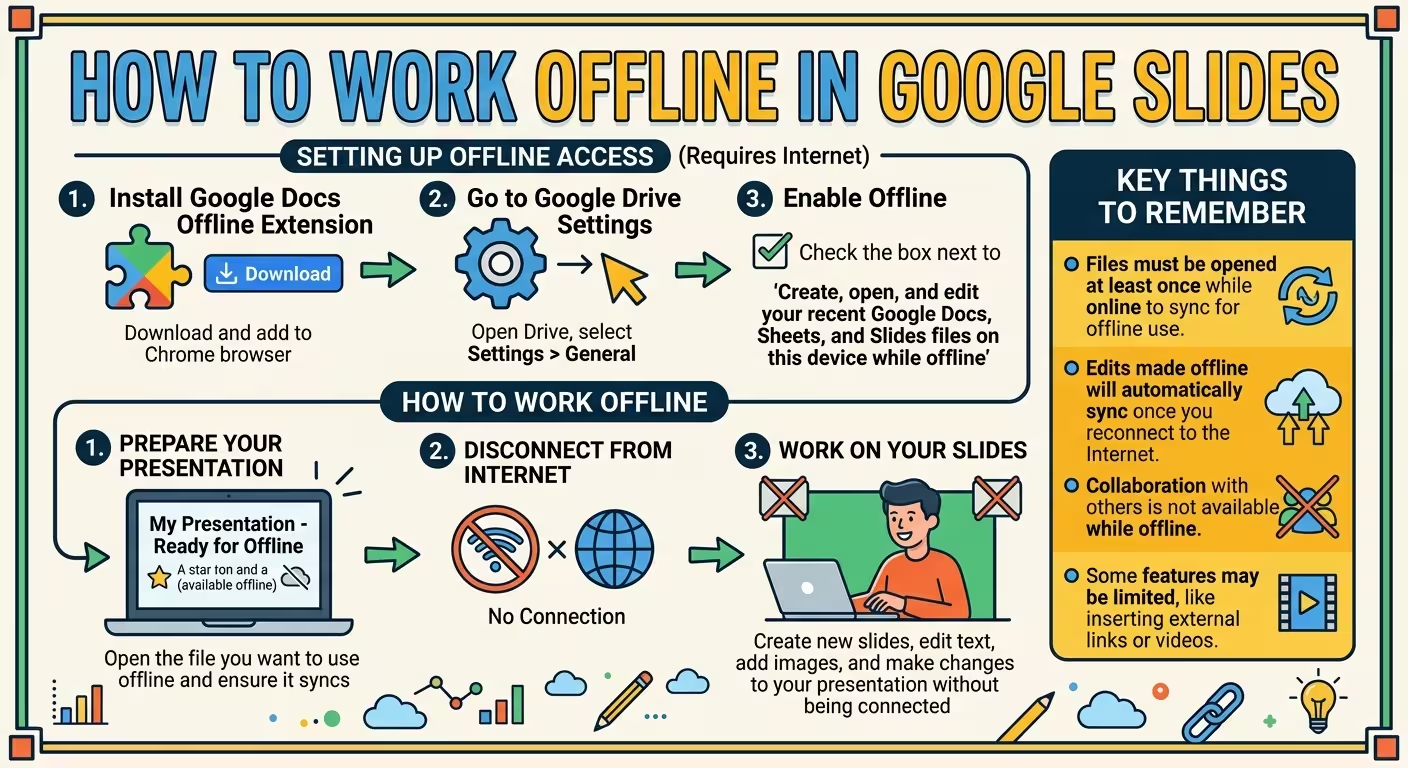
Google's current documentation says browser-based offline access works with Google Chrome or Microsoft Edge and requires the Google Docs Offline extension. You also need to have enough local storage for the offline files.
Turn On Offline Access in Google Drive
You need an internet connection for the initial setup. Once offline access is enabled, Google can keep supported Docs, Sheets, and Slides files available on your device.
On a computer, the basic setup is:
- Open Google Drive.
- Click the Settings icon in the upper-right corner.
- Open the Settings section.
- Find the Offline option.
- Turn on the option that allows you to create, open, and edit recent Google Docs, Sheets, and Slides files on the device.
If you use Chrome, make sure the Google Docs Offline extension is installed and enabled. Microsoft Edge can also be used for offline access, but Google directs Edge users to install the extension through the Chrome Web Store.
Do not wait until you are already offline to configure this. The setup itself requires an internet connection.
Make a Specific Google Slides Presentation Available Offline
Turning on offline access does not mean that every presentation in your Drive is automatically stored locally. If one particular presentation is important, explicitly mark it for offline use.
Open Google Drive while you are still connected to the internet. Find the presentation you need, open its context menu, and choose Available offline.
You can also open the presentation and use File → Make available offline. Google indicates that a check mark appears when the file is ready for offline use.
This distinction is easy to overlook. Imagine you have 50 presentations in Drive but only one contains the slides you need for tomorrow's meeting. Enabling offline mode is only the first step. The presentation itself still needs to be available on the device.
For a professional presentation workflow, it is also useful to keep your working structure consistent before going offline. This Google Slides presentation workflow explains how layouts and reusable structures can make the editing process more predictable.
How to Edit Google Slides Without an Internet Connection
Once offline access is configured and the presentation is stored for offline use, you can open Google Slides and continue working without an active internet connection.
You can edit the presentation much as you normally would. Text can be changed, slides can be rearranged, and other supported editing tasks can continue while the device is offline.
The important difference is what happens to your changes. Instead of immediately synchronizing them with Google's servers, the changes are kept locally until the connection is restored.
When you reconnect to the internet, Google synchronizes the changes back to Drive. Google notes that offline edits are reflected when you are back online and can be found in the file's version history.
That makes offline mode particularly useful for situations where the connection is temporary rather than permanently unavailable: flights, trains, hotels, classrooms, conference rooms, or locations with unreliable Wi-Fi.
Test Offline Access Before You Actually Need It
This is the step I would not skip before an important presentation.
Do not assume that a presentation is ready for offline use simply because you enabled the setting. Test the actual file.
A simple check is:
- Connect to the internet.
- Open the presentation you plan to use.
- Confirm that it is marked as available offline.
- Close or leave the presentation.
- Temporarily disconnect from the internet.
- Open Google Slides again.
- Open the presentation and check that the important slides are accessible.
- Make a small harmless edit and verify that the file remains usable.
- Reconnect to the internet and confirm that the change synchronizes.
This test catches a much more important problem than simply checking whether the offline setting is enabled: whether your actual presentation is ready.
It is especially useful to test the slides that contain charts, diagrams, images, unusual fonts, or other elements that are important to the presentation. If the deck was imported from PowerPoint, it is also worth checking the converted version carefully rather than assuming that the two environments will behave identically. This guide to moving PowerPoint presentations into Google Slides covers the visual checks that matter after conversion.
What Happens When You Go Back Online?
Offline work is not meant to create a permanent second version of your presentation. Once the device reconnects, Google Slides can synchronize the changes made while offline.
This is why you should avoid treating the offline copy as a completely separate file. The normal workflow is to prepare the presentation while connected, work on it locally when necessary, and allow the changes to synchronize when the connection returns.
There is one practical reason to be careful: if the same presentation is being edited in multiple places while the connection is unavailable, the eventual synchronization can become more complicated. For an important presentation, it is better to know exactly which device and copy you are using before going offline.
Offline Google Slides on a Phone or Tablet
The mobile workflow is slightly different from the desktop browser setup, but the basic principle is the same: the presentation needs to be made available offline before the connection disappears.
In the Google Drive, Docs, or Slides app, locate the presentation and use the file's menu to select Make available offline. Google says that offline files can then be found through the Offline section of the relevant mobile app.
This is particularly useful if your phone or tablet is your backup presentation device. You can keep the critical deck available locally even when the venue's Wi-Fi is unreliable.
Do not confuse offline access with having every online feature available. Features that depend on Google's servers, live collaboration, or external web content may behave differently when the device is disconnected.
Prepare Your Presentation Before Going Offline
If you know you will be working without an internet connection, prepare the deck as if the connection will not return until the job is finished.
- Save the presentation for offline use. Do this while you still have a reliable connection.
- Open the file before leaving. This gives the device an opportunity to cache what it needs.
- Check the important slides. Do not test only the title slide.
- Keep a backup copy. For a critical presentation, another local or exported copy can be useful.
- Test the presentation mode. Editing the file successfully does not automatically mean every presentation feature behaves exactly as expected offline.
- Reconnect before the final presentation when possible. This gives pending changes a chance to synchronize.
If you regularly build presentations on the move, shortcuts can also reduce the amount of navigation required when working on a laptop without a stable connection. These Google Slides keyboard shortcuts cover the commands that are useful during real presentation work rather than an oversized list of shortcuts you are unlikely to remember.
Offline Google Slides is most useful when you treat it as a prepared workflow rather than an emergency feature. Turn offline access on while connected, mark important presentations as available offline, test the actual files, and reconnect when you can so changes synchronize. That small amount of preparation turns a lost internet connection from a presentation risk into a manageable interruption.
Comments (0)