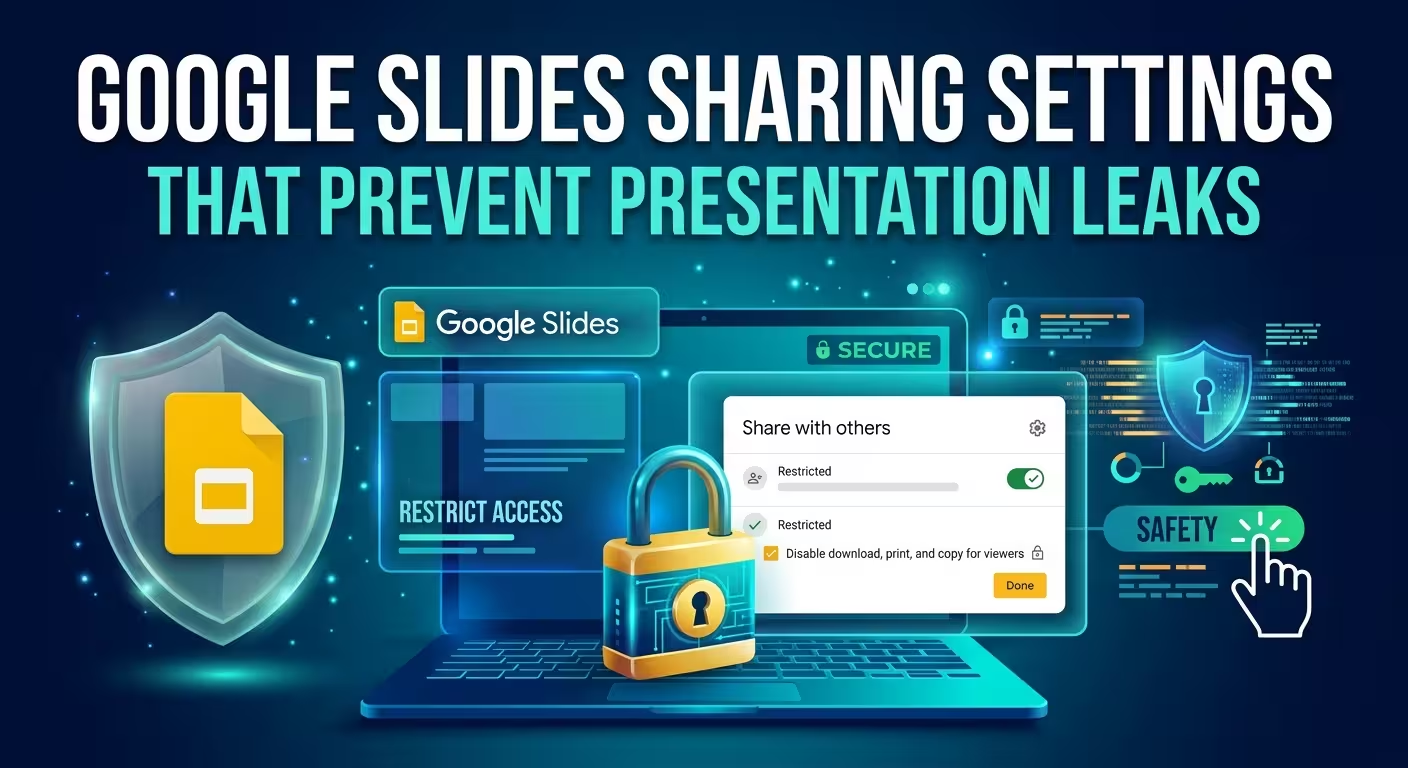
A presentation does not have to be publicly visible to leak. Sometimes the risky setting is much smaller: an editor who can invite someone else, a viewer who can download the deck, or a shared folder that quietly grants access to people you never intended to include.
If you regularly send Google Slides presentations containing pricing, strategy, client information, internal plans, or unreleased material, the important question is not simply "Who can open this file?" It is "What can each person do after they open it?" This guide walks through the Google Slides sharing settings that matter most when the goal is to reduce accidental or unnecessary exposure.
Start with Restricted access, not the link
The most important decision is made before you choose between Viewer, Commenter, and Editor.
Open the presentation's Share dialog and look at General access. If the presentation contains information that should stay within a defined group, use Restricted access. Google explains that with Restricted access, only people who already have permission can open the file.
This is a much safer starting point than Anyone with the link when the presentation is confidential.
"Anyone with the link" sounds harmless because the URL itself may not be indexed or publicly posted. But the security boundary has effectively changed: possession of the link becomes part of the access mechanism. A recipient can forward that link, place it in another document, or send it through a channel you do not control.
For a sensitive presentation, I would therefore use this simple rule:
- Internal or confidential deck: Restricted.
- Known external recipients: Restricted + specific people.
- Public presentation intended for broad distribution: link-based or public access may be appropriate.
The point is not to make every presentation difficult to share. It is to make the permission model match the actual audience.
Give people the lowest role they need
Google Slides offers three basic roles when sharing a presentation: Viewer, Commenter, and Editor. The mistake is treating these as simple collaboration preferences rather than access boundaries.
If someone only needs to read the finished deck, giving them Editor access creates unnecessary exposure. An editor can change the presentation and, depending on the sharing configuration, can also participate in changing who has access to it. Google specifically provides an option for owners to prevent editors from changing permissions or sharing the file.
A practical permission model looks like this:
- Viewer: final recipients who only need to see the presentation.
- Commenter: reviewers who need to leave feedback but should not alter the deck.
- Editor: people actively responsible for building or revising the presentation.
There is an important nuance here. Sometimes someone technically needs edit access during production but should not have the ability to redistribute the file. In that situation, the useful control is not changing them to Viewer; it is disabling Editors can change permissions and share.
That setting is particularly valuable for presentations moving through several people before delivery. One careless "Share" action should not automatically become a new access path.
Turn off download, copy, and print when the recipient only needs to view
Here is where Google Slides sharing settings become more interesting than the three role names suggest.
Google allows the owner to prevent Viewers and Commenters from downloading, printing, or copying the file. The control is available through the Share dialog's settings.
For a sensitive presentation, this can make sense when the recipient needs to inspect the material but does not need a local PowerPoint or PDF copy.
For example, imagine a hypothetical consulting deck containing an unreleased pricing model. The client may need to review the slides and leave comments, but there may be no legitimate reason for every reviewer to receive an editable or downloadable copy.
In that case, a more controlled configuration is:
- Specific people rather than an unrestricted link.
- Commenter or Viewer rather than Editor.
- Download, print, and copy disabled for those roles.
- Editors prevented from changing permissions if the production team is larger than the owner.
But this is a control against ordinary file actions, not a magic anti-leak mechanism. Google explicitly notes that these restrictions cannot prevent people from sharing the content through other means. Someone can still photograph a screen, reproduce information manually, or communicate what they saw.
That distinction matters. Permission settings reduce unnecessary exposure; they do not make visual information impossible to capture.
The folder can defeat a carefully configured presentation
This is one of the easiest details to miss.
You can configure a Google Slides file correctly and still have broader access inherited from its parent folder. Google notes that files and folders inside shared folders inherit permissions, and that the parent folder can remain the primary source of access.
Consider a hypothetical project folder shared with an entire department. You create a confidential presentation inside it and remove one employee from the presentation's direct access list. If that employee still has access through the parent folder, removing the direct permission does not necessarily solve the underlying problem.
This is why I would not perform a security check only inside Google Slides.
Before sending a sensitive deck, inspect:
- the presentation's direct access list;
- the General access setting;
- the parent folder's permissions;
- any shared-drive membership that may provide access indirectly.
For organizations using shared drives, administrators and managers can also apply broader restrictions around external sharing and downloading, copying, or printing. Those organizational restrictions can override or constrain individual file-sharing choices.
Use expiration when access should not last forever
A presentation sent for a two-day review does not necessarily need to remain accessible for the next two years.
For eligible work or school accounts, Google supports setting an expiration date for a person's access. The owner can add an expiration from the person's permission entry in the Share dialog. Google states that the expiration date can be set within one year.
This is useful for temporary situations such as:
- external review of a proposal;
- short-term access for a freelancer;
- pre-meeting review of a board presentation;
- temporary access during a presentation handoff;
- review of material that will become obsolete after an announcement.
The important design decision is to treat access duration as part of the presentation workflow. If someone only needs the deck until Friday, permanent access is difficult to justify simply because it is convenient.
Do not confuse "view only" with "safe to share"
A Viewer cannot edit your slides, but that does not automatically mean the information is protected.
The security question is broader: can the person open it, download it, copy from it, print it, redistribute access, or obtain the same information through another route?
Google's current security documentation reflects this broader model by exposing security limitations for Google Slides and other Drive-based files, including restrictions on downloading, copying, printing, email, and certain sharing scenarios.
This is also why a permission audit should happen before the presentation leaves your control, rather than after someone reports that the file was forwarded.
A useful final check is:
- Who needs to see it?
- Who actually needs to comment?
- Who genuinely needs to edit?
- Does anyone need a downloadable copy?
- Can editors change access?
- Does the parent folder or shared drive grant additional access?
- Should any person's access expire?
Build the presentation for controlled sharing from the beginning
Permissions cannot fix every information problem. The deck itself still determines how much sensitive material exists in one place.
For example, a presentation that combines the final client story, internal negotiation notes, confidential pricing, and unfinished slides is harder to share safely than a presentation containing only the material the recipient actually needs.
This is where presentation structure and access control meet. Separate internal working material from the version intended for external review. Keep sensitive notes out of the client-facing file. And when you need to build a polished deck quickly, start from a structured visual system rather than adding security controls to a chaotic working file at the last minute.
For example, choosing presentation templates for Google Slides can be part of that workflow when the priority is getting the visual structure in place before the deck moves into controlled review. ImagineLayout's catalogue also includes editable presentation structures and diagram-based layouts that can be adapted after importing a PowerPoint file into Google Slides.
The important distinction is simple: design the working file for collaboration, but design the final file for its actual audience.
A practical Google Slides permission setup
If you are about to send a confidential presentation, you do not need a twenty-step security ritual. A short sequence catches most of the important mistakes.
- Set General access to Restricted unless broad link access is genuinely required.
- Add only the people who need access.
- Use Viewer when someone only needs to read the deck.
- Use Commenter when feedback is required but editing is not.
- Reserve Editor for people who actually need to change the presentation.
- Disable editors' ability to change permissions and share when redistribution should remain under the owner's control.
- For viewers and commenters, disable download, print, and copy when those actions are unnecessary.
- Check the parent folder and shared-drive permissions.
- Use an access expiration date when temporary access is enough.
- Before sending the link, review the final access list one more time.
The safest Google Slides setup is rarely the one with the most restrictions. It is the one where every permission has a reason. A client should not become an editor because it was convenient during production, and a reviewer should not receive a downloadable copy simply because the default setting allowed it.
Once you start treating sharing permissions as part of presentation design rather than as an afterthought, the workflow becomes much clearer: control the audience, limit the role, restrict extraction, check inherited access, and remove temporary access when the job is finished.
Comments (0)