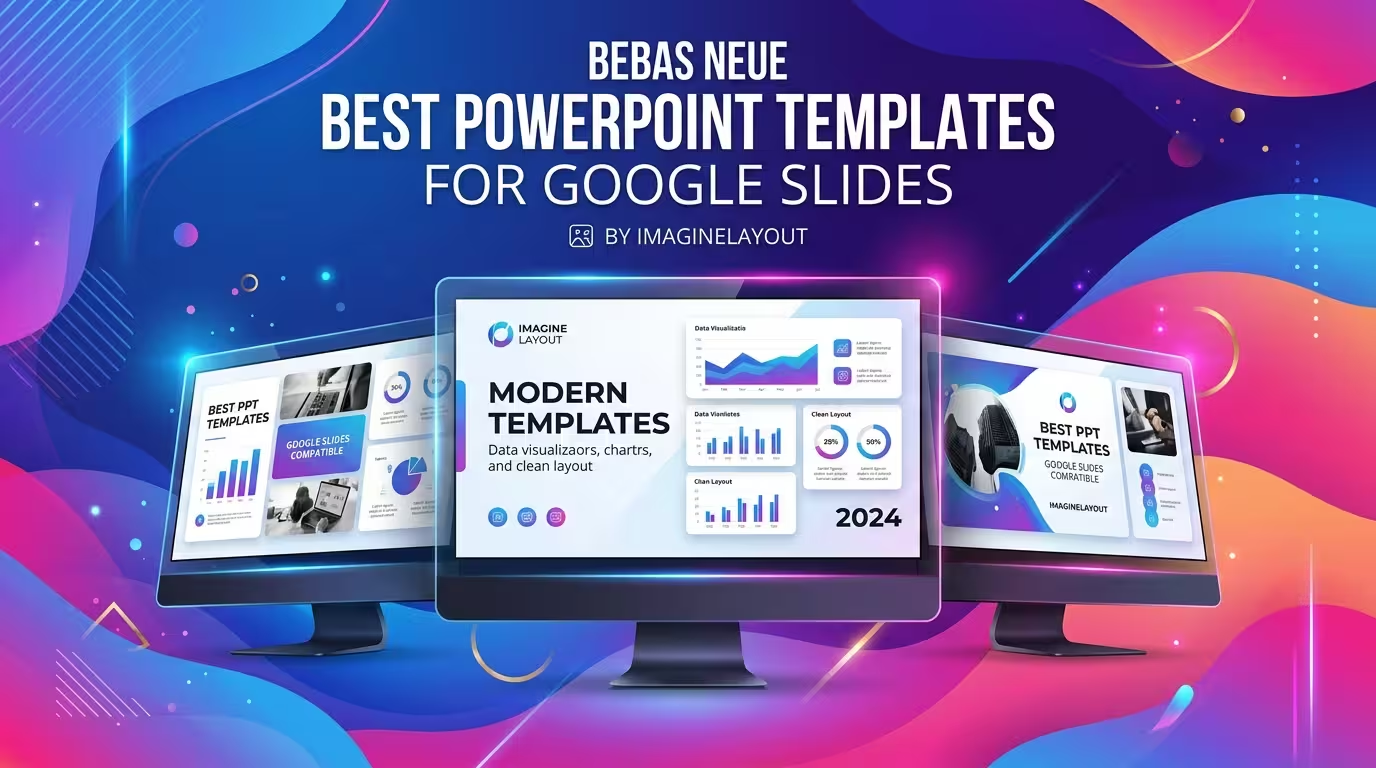
Search "Google Slides templates ImagineLayout" and you'll land on a site with 14,000+ templates, none of them labelled "Google Slides." Every file in the catalogue is a .pptx or a Keynote theme. That's not a bait-and-switch — it's just a distinction most buyers skip past, and it's the one that decides whether your deck opens looking right or opens looking like it survived a fall down some stairs.
Here's the part worth sitting with before you add anything to cart: PowerPoint and Google Slides are not the same file format pretending to be different apps. Slides reads .pptx through a conversion layer, not a native parser. Most of the time that layer does its job invisibly. Occasionally it doesn't, and you only find out mid-rehearsal.
Why "PowerPoint template" and "Google Slides template" aren't interchangeable claims
PowerPoint is still the default in most offices, but it's not the only one left standing — Google Slides comes in a clear second, with roughly 13% of surveyed UK adults reporting they'd used it, according to a 2023 Censuswide-run survey commissioned by Acuity Training. Wait — that link isn't right, let me be precise below.
That adoption number matters here for one reason: a meaningful share of the people buying "PowerPoint templates" online are never going to open PowerPoint. They're going to upload the file straight into Drive. A marketplace built for the format doesn't automatically mean it's built for that workflow — which is exactly the gap that trips people up.
What actually survives the import, based on how the catalogue is structured
I've moved enough vendor .pptx files into Slides to know the failure points are predictable, and ImagineLayout's own category split happens to map onto them fairly well.
The site's PowerPoint template collection is built on editable native vector shapes rather than flattened raster images — that's the detail to check on any marketplace, because rasterised "editable" templates are the ones that look fine in the preview and then pixelate the moment you resize a shape in Slides. Native vectors resize cleanly in both apps. One reviewer on the site specifically called out that the import into Google Slides held together without the usual scaling issues — for a freelance designer, that's not a small thing to say casually.
Diagrams tend to be the safest category of all, and it's worth going there first rather than browsing general decks. Timelines, matrices, and process flows built from basic shapes rarely rely on effects Slides can't render, so the diagram templates are a reasonable starting point if you specifically need something Slides-safe rather than merely PowerPoint-native.
Where it gets complicated: charts
This is the part most "best templates" roundups skip, and it's the part that actually costs people time. A PowerPoint chart template usually carries an embedded Excel data sheet behind it — that's what makes right-click "Edit Data" work. Google Slides doesn't have an equivalent embedded-Excel model; it links out to Google Sheets instead, and the translation between the two isn't always lossless for anything beyond a standard bar or pie chart.
So a template from the site's chart collection that looks sophisticated in the PowerPoint preview — funnel, pyramid, layered comparison — may land in Slides as a static image you can recolour but not actually re-plot. That's not a defect in the template; it's a ceiling in what Slides' chart engine accepts. Worth knowing before you build a data-heavy deck around one.
A shorter checklist than the one you were expecting
Skip the 20-point compatibility checklists. Three things decide most of the outcome:
- Does the listing mention vector shapes, or does it just say "editable"? Vague wording usually means raster underneath.
- Is the value coming from layout and diagrams, or from a specific chart type? Layout survives import; exotic chart types often don't.
- Does the deck lean on a specific brand font? Slides will substitute silently if the font isn't in its library — check the template's font names against Google's font list before you buy, not after.
One thing worth deciding before you open the checkout page
If your deck is going to live and get edited entirely inside Google Slides, buy for structure — diagrams, layout, shape work — and expect to rebuild any complex chart natively once the data's in Sheets. If you're actually presenting from PowerPoint or exporting to PDF at the end, the compatibility question mostly disappears, and the calculus changes back to normal template shopping.
Worth asking yourself before you buy: is the constraint really "I need a Google Slides template," or is it "I need this deck to survive whichever app the room happens to open it in"? Those aren't the same problem, and they don't have the same shopping list.
Comments (0)