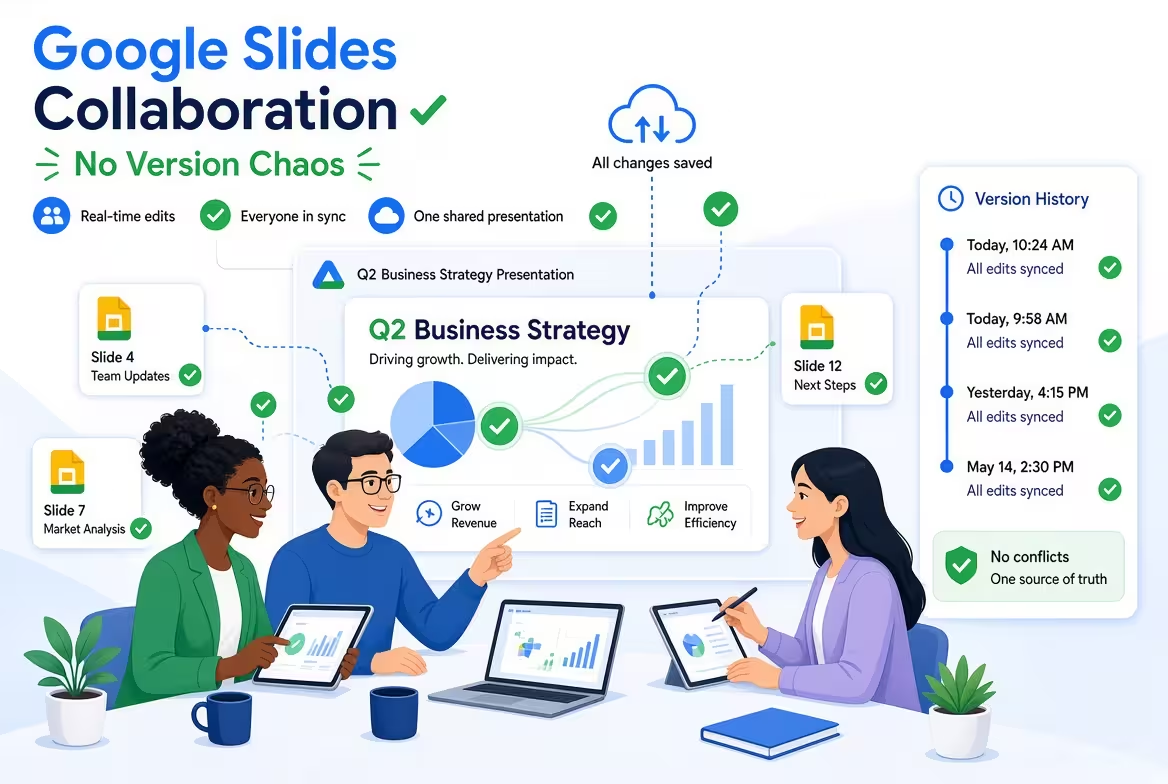
A shared Google Slides deck can look perfectly organized while the team behind it is anything but. One person is rewriting headlines, another is changing layouts, a third is reviewing an exported PDF, and someone else has already made a “final” copy.
This is why Google Slides collaboration can become chaotic even when everyone is working in the same file. The problem usually isn't the collaboration feature itself. It is the lack of a clear workflow around the file.
Google Slides already gives teams real-time editing, comments, sharing permissions, and version history. The harder question is deciding who changes what, when a slide is ready for review, and which state of the deck is actually approved.
The real problem is not too many versions
Imagine a team building a 30-slide presentation.
The designer is working on the visual system. The marketing manager is correcting the messaging. A product lead is checking the technical details. The manager wants to review the complete story before it goes to the client.
At first, everyone edits the same Google Slides file. Then someone creates “Presentation FINAL.” Another person downloads a PowerPoint copy. A reviewer comments on a PDF. The designer receives a message saying, “Please use the latest version,” without knowing which file that actually means.
The natural reaction is to blame version history. But version history is not designed to replace a team workflow. It is a recovery and audit mechanism: Google lets editors inspect earlier states, see who changed the file, and restore an earlier version when necessary. :contentReference[oaicite:1]{index=1}
The distinction matters. Version history tells you what happened. A workflow tells the team what should happen next.
Keep one working deck instead of creating “final” copies
The simplest way to create version chaos is to treat every major edit as a reason to create another file.
“Client Deck v4,” “Client Deck v5,” “Client Deck FINAL,” and “Client Deck FINAL 2” may feel safer because each person has a snapshot. In practice, they make the team responsible for remembering which snapshot is authoritative.
For collaborative Google Slides work, the better default is usually:
- One working presentation for active editing.
- Comments for questions and requested changes.
- Named versions for meaningful milestones.
- One explicit approval state before delivery.
Google's version history allows teams with edit access to inspect previous states and restore them if necessary. It also supports named versions, which are useful when you need to mark important milestones rather than relying on a long list of anonymous autosaved changes.
The important design decision is what deserves a name. Don't create a named version every time you finish moving three objects. Name states that have meaning outside the editor: Structure Approved, Design Approved, Client Review, or Final Delivery.
Separate editing from reviewing
One of the most common collaboration mistakes is allowing everyone to behave like an editor all the time.
A presentation usually passes through different kinds of work. Writing requires different decisions from visual design. Fact-checking requires a different kind of attention from proofreading. Final approval is different again.
If everyone makes every type of change whenever they notice something, the deck becomes a moving target.
A more controlled workflow is to give each stage a dominant purpose:
- Build: the core team creates and restructures slides.
- Review: stakeholders identify problems and leave comments rather than silently rewriting the deck.
- Resolve: the responsible editor decides which feedback becomes an actual change.
- Approve: the designated owner confirms that the current state can move forward.
This does not mean restricting collaboration unnecessarily. It means preventing five people from solving the same problem independently.
Google Slides supports different sharing roles, including Editor, Commenter, and Viewer, so the permission model can reflect the stage of the project rather than giving every participant identical access.
Comments should describe decisions, not just problems
A comment such as “This doesn't look right” creates another task for the designer: figure out what the reviewer actually wants.
That is especially dangerous in presentations because visual changes are rarely isolated. Moving one element can affect alignment, hierarchy, spacing, or the relationship between several slides.
A useful collaboration comment answers at least one of these questions:
- What is wrong?
- Why does it matter?
- What decision is needed?
For example, instead of “Change this chart,” a more useful comment would be: “The audience needs to compare 2025 and 2026 first. Can we make those two values the primary comparison and move the regional breakdown into the supporting visual?”
That gives the designer a decision to solve rather than a pixel-level instruction to obey.
It also prevents a subtle form of version chaos: the deck starts accumulating changes whose rationale nobody remembers.
Use version history as a safety net, not a communication system
Google Slides can show previous versions, the people who edited them, and the changes associated with those versions. Earlier states can also be restored.
That makes version history extremely useful—but it does not answer every project question.
If someone asks, “Which slides still need approval?” version history is the wrong tool.
If someone asks, “Why did we remove this slide?” version history may show when it disappeared, but the explanation is better captured in the team's comments or project documentation.
If someone asks, “Can I safely edit this deck now?” version history does not tell them whether another person is currently responsible for a particular section.
This is the boundary that teams often miss: historical information and workflow information are not the same thing.
Use version history when you need to investigate or recover a state. Use comments and an agreed workflow when you need people to make decisions.
Give the deck a simple internal status system
You don't need a complicated project-management framework to make a collaborative presentation predictable.
For many teams, a small status vocabulary is enough:
- Draft — active editing is expected.
- Review — the structure or design is being checked; avoid unrelated edits.
- Changes requested — feedback has been collected and needs to be resolved.
- Approved — changes should only happen with explicit agreement.
- Delivered — the presentation has left the editing workflow.
The exact words don't matter much. Consistency does.
One practical trick is to put the current status somewhere the team will actually see it: in the project channel, task description, or handoff note. Don't make people inspect version history just to discover whether the deck is ready for their work.
Templates help when the team agrees on what is reusable
Collaboration becomes harder when every contributor starts from a different visual logic.
If one person builds a title slide with one spacing system, another creates charts using different proportions, and a third introduces a new visual style halfway through the deck, the team has a design-system problem disguised as a collaboration problem.
This is where a reusable presentation template can genuinely help. The value isn't simply that someone gets a pre-designed slide. The useful part is that the team starts with a shared set of visual decisions: layouts, chart structures, typography, and recurring slide patterns.
For example, an existing business meeting presentation template can provide a starting structure for recurring team meetings, while an organization of work diagram template can help standardize workflow and responsibility visuals.
For teams specifically moving PowerPoint assets into Google Slides, the guide to PowerPoint templates for Google Slides is also useful because the imported file is still subject to the differences between the two environments.
The important point is not to turn templates into another rigid rule. A template should reduce repeated decisions. It should not prevent the designer from changing a layout when the content genuinely requires it.
A cleaner Google Slides workflow takes fewer rules than you expect
Before a team starts editing a presentation together, agree on five things:
- Which file is the single working deck?
- Who owns the final decision when reviewers disagree?
- When should people comment instead of directly editing?
- Which milestones deserve named versions?
- What exactly does “approved” mean?
Those five decisions solve a surprising amount of version confusion before it starts.
The goal isn't to make collaboration slower or more formal. It is to remove the moments when someone has to ask, “Wait—are we working from the latest file?”
Google Slides already handles much of the technical collaboration layer. The team has to provide the missing layer: a shared agreement about how a presentation moves from draft to decision to delivery. Once that is clear, version history can return to its proper role—an insurance policy for the deck, rather than the place where the team tries to reconstruct what happened.
Comments (0)