PowerPoint Pie Chart Cost Structure - Editable PPTX
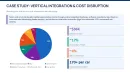
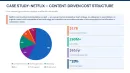
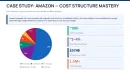
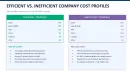
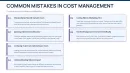
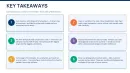
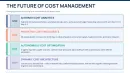
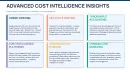
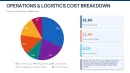
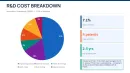
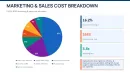
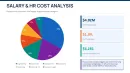

Cost Structure Pie Chart Slides - What You Actually Get
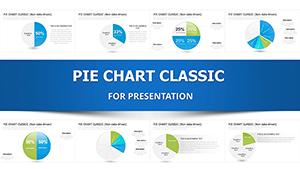
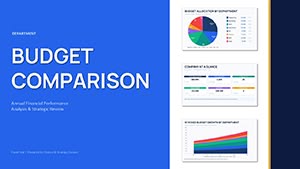
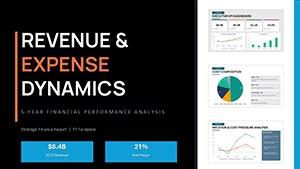
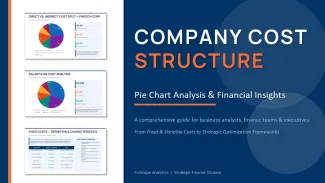
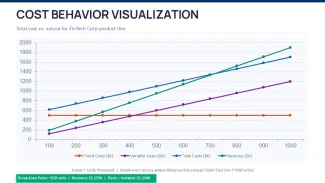
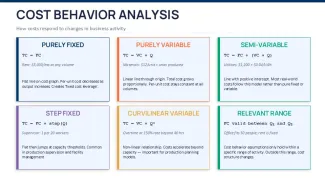
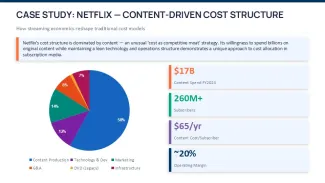
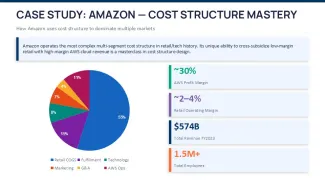
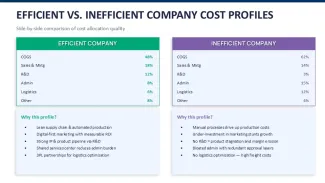
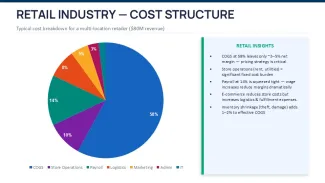
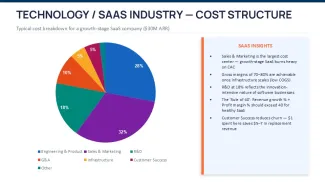
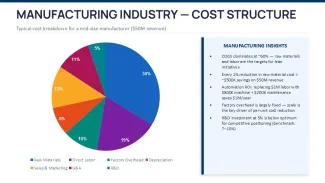
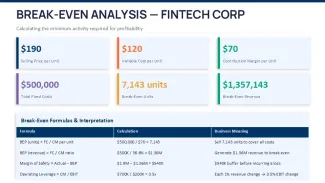
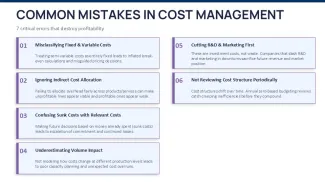
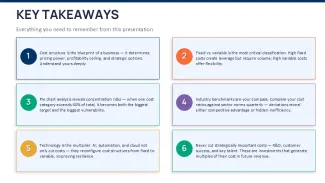
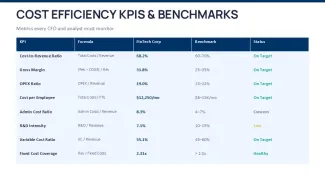
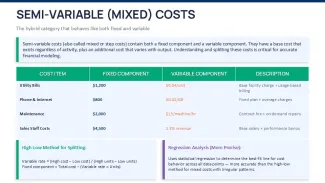
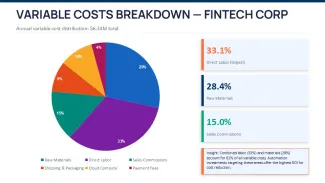
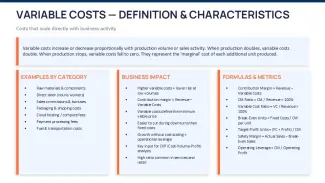
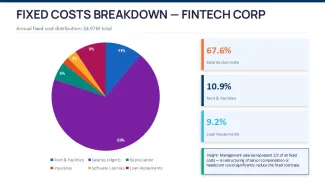
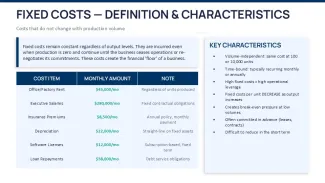
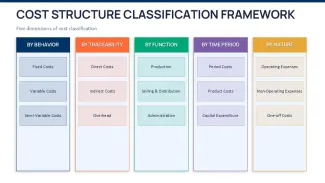
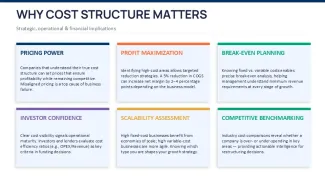
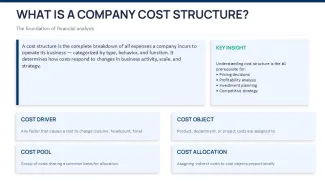
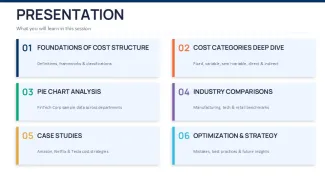
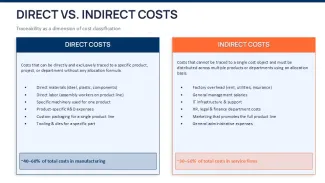
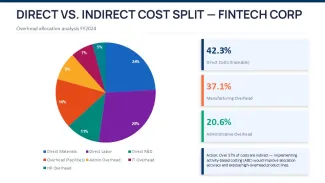
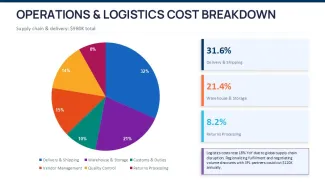
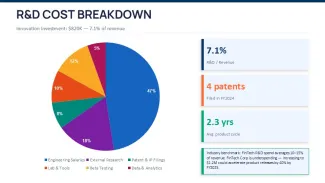
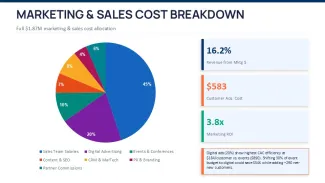
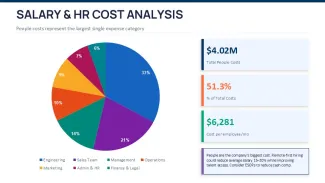
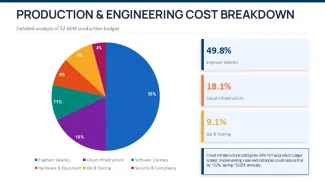
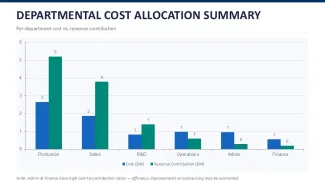
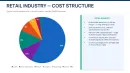
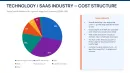
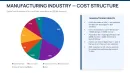
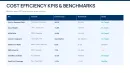
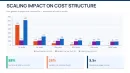
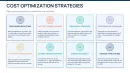
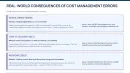
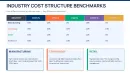
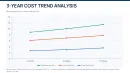
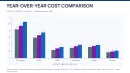
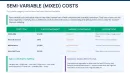
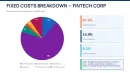
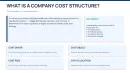
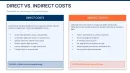
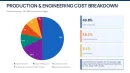
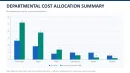
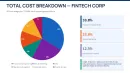
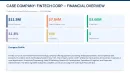
This file is built around cost structure breakdowns, mostly using pie charts and supporting layouts. You`re looking at roughly 40+ slides - not just repeated charts, but variations: department splits, fixed vs variable breakdowns, and layered cost comparisons. It`s not a generic chart pack. It leans heavily into financial storytelling - salaries, overhead, production costs, all that.
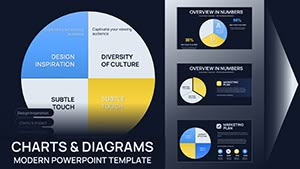
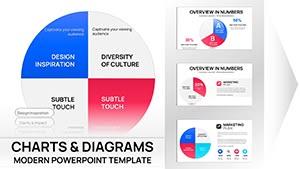
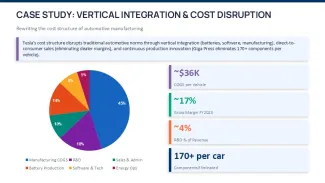
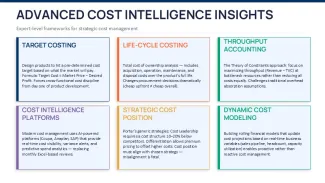
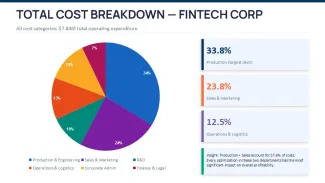
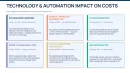
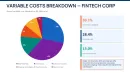
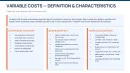
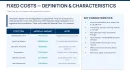
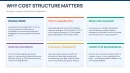
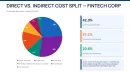
The diagrams are mostly radial. Center-focused pies, with labels either outside with connector lines or stacked to the side in blocks. Spacing is quite deliberate - charts don`t feel squeezed even when there are 5-6 segments. Icons are minimal, mostly flat or simple shapes. Some slides mix pie charts with text blocks, which is useful when you need explanation next to numbers.
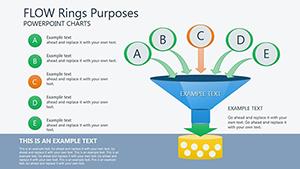
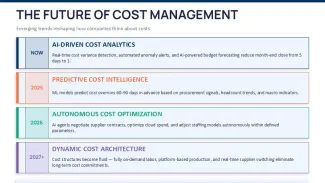
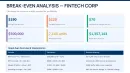
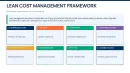
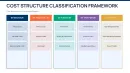
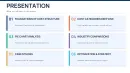
The horizontal flow layouts are genuinely well-structured - each step connects without crowding the slide. You can move from "total cost" - "department split" - "detailed breakdown" without redesigning anything. That`s the kind of structure that actually saves time in real work.
Formats are standard: PowerPoint (.pptx). Works fine on PowerPoint 2016 and newer. No weird dependencies. You open it and it just works. That`s it. You drop in your data.
Honestly, I just opened it, changed the colors, and it looked fine. Took maybe five minutes. The color switching is slightly confusing the first time, but once you find the slide master it takes under a minute. I always change the colors in the master first before filling in any data - otherwise you redo things twice.
There`s a free version and a paid one (around $24). The free one gives you a small subset - enough to see the style. The paid version unlocks the full set of slides, which is where it actually becomes useful. If you`re doing this more than once, you`ll probably just take the paid one. Works as-is.
One limitation - this isn`t for raw data-heavy charts. No Excel-level charts here. It`s more about presenting structure and proportions. But for cost allocation or explaining where money goes, it works really well. That`s basically the point.
The color system is one of the better-built parts - one change in the master and the whole deck updates. That alone saves real time. And honestly, the vertical alignment here is what makes it actually usable. Also works for internal team updates, not just client decks.
You know that situation when the deck is due tomorrow - this is exactly when you grab something like this. You`re not inventing layouts, just plugging in numbers and moving on. In practice, that`s what most people need.
Specs
| Feature | Details |
|---|---|
| Slides/diagrams | 40+ slides, mostly pie charts, cost splits, department breakdowns |
| File format | .pptx (PowerPoint) |
| Software version | PowerPoint 2016+ compatible |
| Color schemes | Multiple themes via Slide Master, global switch supported |
| Editable elements | All chart segments, text blocks, and icons resize and recolor independently |
| Aspect ratio | 16:9 widescreen |
| Free vs Paid | Free = limited slides, Paid = full set and full diagram range |
| Masters/Backgrounds | Predefined masters with consistent chart styling and spacing |
FAQ
How do I change colors across all slides?
So basically, you go into View - Slide Master. From there, you`ll see the main theme colors applied across all layouts. Change them once, and every slide updates automatically. It`s faster than editing each chart manually, especially with 40+ slides.
Can I use this template for client work?
It`s the same license most marketplaces use - one buyer, one project, commercial use is fine. You can present to clients, include it in reports, no problem. Just don`t resell the template itself. That part is obvious.
What`s the difference between free and paid versions?
The short answer is - volume. Free gives you a handful of slides to test the style. Paid unlocks the full library, including all variations of pie charts and breakdown layouts. If you only need one chart, free might be enough. Usually though, people end up needing more.
Are refunds available if it doesn`t fit my needs?
Refunds depend a bit on the platform policy. In most cases, digital downloads are non-refundable once accessed. That said, if there`s a technical issue, support usually helps. So yeah, check before buying.
Can I export this presentation to PDF or video?
Honestly, yes - just use PowerPoint export options. File - Export - choose PDF or video. Works fine. Oh, and you can also export to PDF from there.