Changing the slide size in PowerPoint looks like a small formatting task. In an unfinished presentation, it usually is. In a deck that already contains carefully positioned images, diagrams, charts, and text, however, changing the canvas can affect much more than the outer dimensions.
The useful way to approach it is to choose the new slide size based on where the presentation will be used, then check the layouts that depend most heavily on the original proportions.
Where to Change the Slide Size in PowerPoint
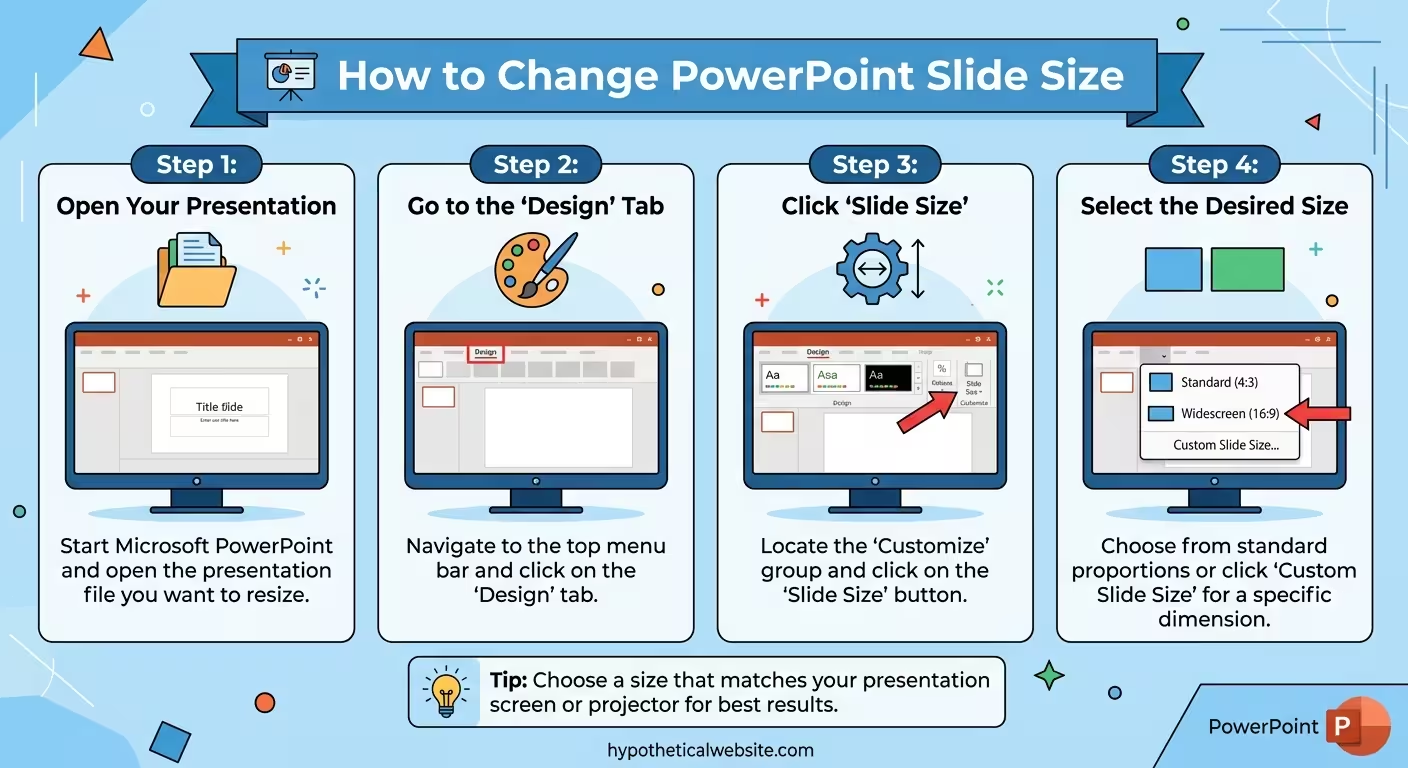
PowerPoint keeps the slide-size controls under the Design tab. From there, open Slide Size and choose the format that matches your presentation.
The available choices can include common presets such as widescreen and standard formats, along with options for creating a custom slide size.
The important detail is that the setting applies to the presentation rather than acting like a different canvas for one individual slide. That means the decision should be made with the whole deck in mind.
How to Change PowerPoint Slide Size to 16:9
For a presentation intended primarily for modern screens, widescreen 16:9 is a common starting point.
To change an existing presentation:
- Open the presentation in PowerPoint.
- Go to Design.
- Select Slide Size.
- Choose Widescreen (16:9).
- Review the content after PowerPoint applies the new dimensions.
Do not stop at the first slide after making the change. A layout can look fine on a title slide while a chart, timeline, or image-heavy slide later in the deck becomes cramped.
If you are starting a new presentation, choosing the intended aspect ratio before building the layouts is much easier than converting the entire deck later. For additional context on why slide dimensions affect the visual system, see why slide size can affect the entire presentation design.
How to Change PowerPoint Slide Size to 4:3
The 4:3 format gives the presentation a squarer canvas. It can still make sense when an existing presentation system requires it or when the structure of the information benefits from a different proportion.
To switch an existing deck:
- Open the presentation.
- Go to Design.
- Click Slide Size.
- Select the standard 4:3 option.
- Review the presentation for layout changes.
The key issue is not whether 4:3 or 16:9 is universally better. The useful question is what the presentation needs to do.
A wide slide gives more horizontal room for side-by-side content, large images, timelines, and horizontal diagrams. A squarer canvas can change the balance between width and height and may suit layouts built around vertically stacked information.
For a more detailed comparison of the two formats, see PowerPoint slide size: 16:9 vs. 4:3.
How to Use a Custom PowerPoint Slide Size
Sometimes neither standard format matches the final destination. PowerPoint also allows you to work with custom dimensions.
This can be useful when the presentation is being created for a controlled output such as digital signage, a particular display, a custom visual format, or another defined delivery requirement.
Open Design → Slide Size → Custom Slide Size and specify the dimensions required for the project.
Before entering arbitrary dimensions, determine where the final presentation will appear. A slide designed for a screen, a printed document, and a social-media graphic may require very different proportions even if the same content is being reused.
What Happens to Existing Content When You Change Slide Size?
This is the part that deserves the most attention.
When you change the dimensions of an existing presentation, PowerPoint may ask how you want to handle the content. Depending on the change, you may be offered options such as maximizing the existing content or ensuring that it fits within the new slide dimensions.
Neither option should be treated as an automatic redesign.
Maximizing can preserve the visual scale of the existing objects, but some elements may extend beyond the available canvas. Ensuring that content fits keeps objects within the slide but may reduce their size and change the visual hierarchy.
The difference becomes obvious on layouts that were designed around precise proportions. A wide photograph may need a new crop. A three-column diagram may become compressed. A headline may wrap onto another line. A chart may lose the horizontal space that its labels depended on.
That is why changing the slide size is better understood as a layout adaptation rather than a simple resize operation.
Which Slides Should You Check First?
You do not necessarily need to rebuild every slide immediately. Start with the layouts most sensitive to changes in proportions.
- Title slides: check the relationship between the headline, image, and empty space.
- Image-heavy slides: look for unwanted cropping or changes to the focal point.
- Charts: check whether labels, legends, and data points still have enough room.
- Timelines: check whether horizontal steps have become compressed.
- Comparison slides: inspect columns, cards, and tables for reduced width.
- Complex diagrams: make sure connectors, labels, and grouped elements still have clear spacing.
- Text-heavy slides: check for new line breaks and unexpectedly small text.
One useful test is to look at several consecutive slides rather than judging only one. A resized slide can appear acceptable by itself while the entire deck develops inconsistent margins, title positions, or visual density.
How to Change Slide Size Without Ruining the Design
If the presentation is already finished, resist the temptation to change the size and immediately export the result.
Instead, use a short review process.
- Identify the final destination of the presentation.
- Choose the required aspect ratio.
- Change the slide size.
- Review PowerPoint's content-scaling result.
- Inspect the most complex layouts first.
- Reposition or recrop elements that no longer work.
- Check repeated margins, titles, and visual proportions across the deck.
- Run through the presentation in Slide Show view before delivering it.
If you frequently build presentations from reusable layouts, the template itself should match the required slide size. ImagineLayout's PowerPoint template library includes presentation assets with specified formats and aspect ratios, which makes the ratio worth checking before importing content.
Should You Change the Slide Size Before or After Designing?
Before designing is almost always the simpler point at which to make the decision.
Once a presentation has a defined grid, recurring title positions, image areas, margins, and diagram layouts, those relationships are tied to the dimensions of the canvas.
Changing the canvas afterward does not necessarily destroy the presentation, but it can turn a formatting adjustment into a layout project.
If the format requirement changes late in the project, start by adapting a few representative slides. Choose a title slide, an image-heavy layout, a chart, a complex diagram, and a dense content slide. If those layouts can be adapted cleanly, use them as references for the remaining slides.
This approach is usually more controlled than resizing every object and hoping the original design survives.
The Right Slide Size Depends on the Final Use
There is no single slide dimension that works for every presentation.
For many screen-based presentations, 16:9 is a practical starting point. But a presentation that must work with an existing 4:3 environment, a particular display, or a different content structure may require another format.
The important decision comes before the formatting menu: where will this presentation actually be used?
Once that answer is clear, choose the slide size and build the visual system around it. If you are adapting an existing deck, treat the change as a design adjustment rather than expecting automatic scaling to preserve every relationship.
The canvas is not just the background behind the presentation. It is part of the presentation's design system.
Comments (0)