Keynote Innovative Solutions Charts - Editable Keynote | ImagineLayout
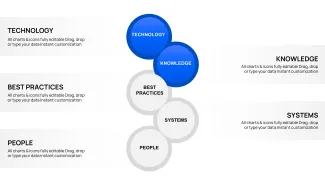
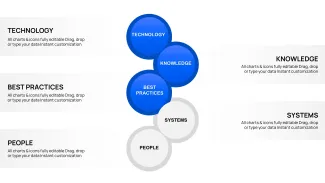
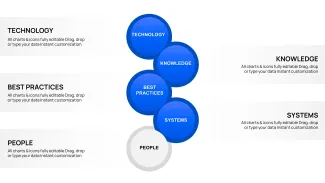
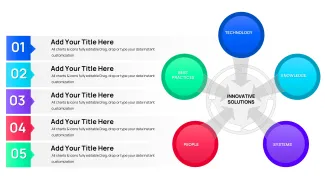
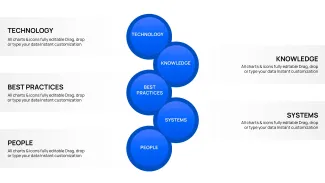

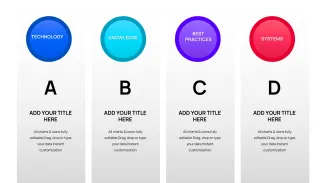
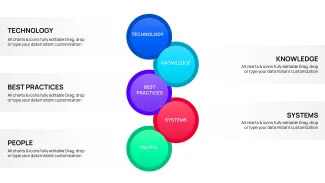
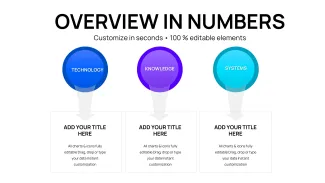

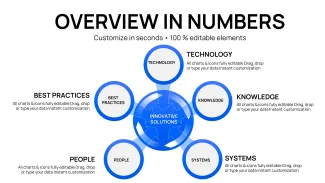










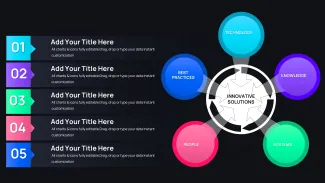
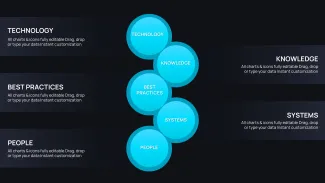

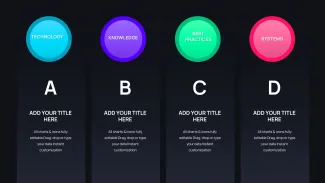
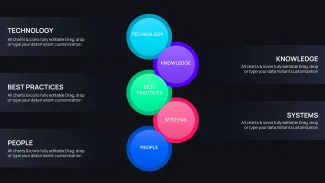








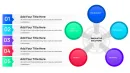
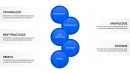

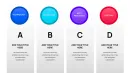
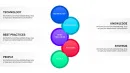














Type: Keynote Charts template
Category: Cycle, Business Models, Pie
Sources Available: .key
Product ID: KC01114
Template incl.: 42 editable slides
42 Cycle, Pie, and Business Model Chart Slides - .KEY Format
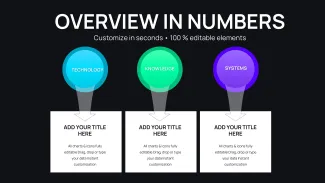
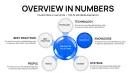
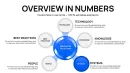
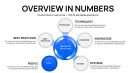
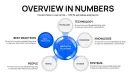
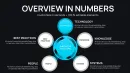
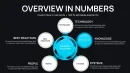
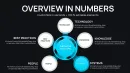
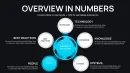
Forty-two editable slides in .key format, grouped across three diagram categories - cycle charts, pie-style structures, and business model visuals - making this Keynote diagram template practical for presentations that need to show iterative processes, proportional data, or strategic business frameworks in a single deck. You drop in your data and labels; the structures are already drawn.
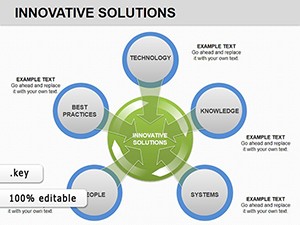
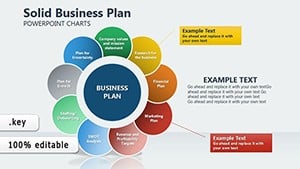
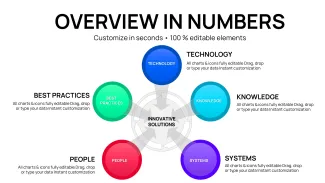
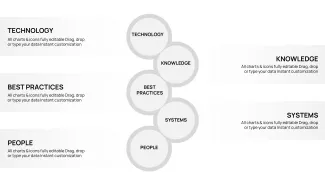
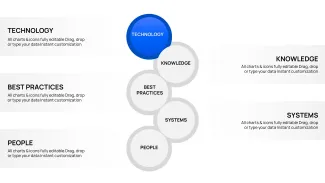
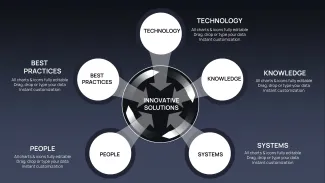
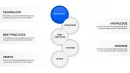
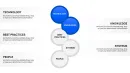
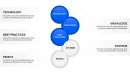
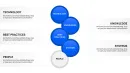
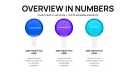
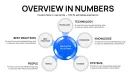
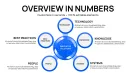
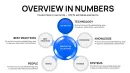
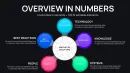
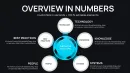
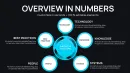
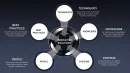
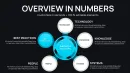
Visually, the slides use circular and radial layout directions - segments arranged around a central point, concentric ring structures, and divided-circle area charts. Icon style is flat, with filled color segments rather than outlined shapes. The layout density varies: some slides place 3-4 large segments with generous spacing for headline-level data; others arrange 6-8 numeric labels around a circle for more granular breakdowns. No photo placeholders, no decorative gradients - just structured circular data blocks.
The diagram types here support proportional and cyclical analysis - comparing relative sizes of business components, showing recurring process stages, or visualizing risk distribution across categories. A strategy consultant presenting a market share breakdown or a product team running a risk analysis review can use the same file: pie segments for proportion, cycle rings for iterative stages. After presenting, the viewer can immediately see which segment dominates or where the cycle breaks - conclusions that are much harder to communicate in a text table.
Use this when you need to present business model components or process cycles to stakeholders without spending time building circular diagrams manually in Keynote. The predefined segment layouts handle the geometry - you replace text and adjust fill colors. Typically, teams reuse the same circular structure across quarterly reviews by duplicating a slide and updating the numeric values, which saves meaningful setup time across recurring reports.
Color editing works per segment: select a filled shape and update the fill color via Keynote's Format panel. For global palette changes, check whether the file includes a master slide via View > Edit Master Slides - if present, editing it changes the base colors across all linked slides at once. All shapes are vector-based, so resizing a segment or ring does not degrade quality. The file follows standard .key format compatible with current Keynote installations; the page does not specify a minimum version, though Keynote 12 and later handle these structures without issue.
This set works best for structured diagram presentations - strategy overviews, risk summaries, or business model reviews. It is not designed for linear step-by-step process flows or data-heavy dashboard-style slides; if your content requires bar charts or KPI grids, a different template category would be a better fit. In most cases, editors only replace text labels and segment colors before the file is presentation-ready.
You open the file and start editing. Download and start editing immediately
Specifications
| Feature | Details |
|---|---|
| Slides | 42 editable slides (cycle, pie, business model diagrams) |
| File format | .key (Keynote) |
| Software version | Compatible with Keynote 12+ on macOS; exact minimum not specified on page |
| Color schemes | Not specified on page; each segment editable independently via Format panel |
| Editable elements | All circular segments, ring layers, numeric labels, and text blocks resize and recolor independently |
| Aspect ratio | Not specified on page |
| Free vs Paid | Single paid version at $18.00; no free tier listed |
| Categories | Cycle, Business Models, Pie - Keynote Charts |
Frequently Asked Questions
Which Keynote version does this file require?
The file is in standard .key format. The product page does not specify a minimum Keynote version, but files using circular vector shapes of this type are compatible with Keynote 12 and later on macOS. If your Mac runs a current macOS release, the file will open normally. Older installations - particularly Keynote versions prior to 10 - may not render all elements correctly, so updating via the Mac App Store before downloading is advisable.
How do I change the color scheme across all slides?
Open the .key file and go to View > Edit Master Slides to check whether a master slide is included. If present, changing fill colors there updates all slides linked to that master in one step. For individual segments, select the shape and use the Fill color option in the Format panel on the right. Changing segment colors one by one takes longer but gives you more control over each diagram. In practice, most editors update the master first and then fine-tune individual slides as needed.
Can I use this for client-facing or commercial presentations?
A single purchase license covers use in client presentations, internal business reports, and commercial decks. You can add client branding, edit the diagram content, and include slides in a deliverable. The license does not permit redistribution or resale of the original template files. For team-wide deployment across multiple users, check the Terms of Use at imaginelayout.com/terms/ to confirm whether separate licenses are required per user.
Is there a free version or preview download available?
The product page does not list a free version or partial download for this file. The complete 42-slide set is available as a one-time purchase at $18.00 with no free tier. Slide thumbnail previews on the product page show the diagram structures across several slides, which is the best way to evaluate whether the circular and cycle layouts match your presentation needs before purchasing.
What is the refund policy for this digital product?
ImagineLayout's refund conditions are detailed at imaginelayout.com/refund-policy/. As a digital download, the file is generally not eligible for a refund once it has been accessed. If the file fails to open or is technically defective, contact support through the Contact page before re-downloading. Examining the preview thumbnails thoroughly before purchase reduces the likelihood of a mismatch between expectations and the actual product.
Can I export the finished slides as PDF or video?
Yes. Keynote supports export to PDF via File > Export To > PDF, which preserves all vector shapes at full resolution - useful for sending a static version to stakeholders. For video export, use File > Export To > Movie, where Keynote renders each slide as a frame. Both export options work on any .key file; no additional plugins are required. Note that animations, if any are present in the file, are captured in video export but flattened in PDF.
Browse additional layouts in the Cycle Keynote Charts category, or view related files like the Innovative Solutions Keynote Charts: Visualizing Tech Reliability and Business Plan Pie Charts for Architects.