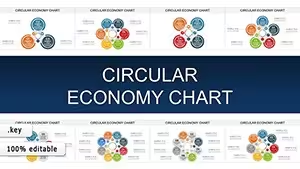
This page collects free PowerPoint templates built for people who need slides that communicate clearly without spending half the afternoon adjusting margins and fonts. The files here are meant for real work: internal reviews, first-draft client decks, training sessions, and quick project updates.
Imagine a finance manager preparing a Monday budget review for the CFO. The story is clear, the numbers are ready, but the slides still look like a spreadsheet pasted onto blank pages. A template with structured slide layouts solves that immediately - titles align, charts already fit the grid, and the narrative reads logically across slides. Instead of formatting, the time goes into the argument.
Every file in this collection can be edited directly in PowerPoint and reused across multiple presentations. If you need slides that look organized from the first page onward, browse the collection and download the layout that fits your next meeting.
People often assume templates exist to make slides look nicer. In practice, their real value is structural. When you start a presentation from a blank file, dozens of small layout decisions appear immediately: how wide the title should be, where charts align, which font sizes work across headings and body text, and how many columns a slide should hold before it feels crowded.
A well-built template answers those decisions before you open the file. Slide masters already contain consistent title spacing, placeholder areas for charts, and text blocks sized to stay readable when projected in a meeting room. Instead of experimenting with layout on every slide, you drop your content into an existing structure.
For teams that build presentations regularly, that difference compounds quickly. A weekly reporting deck might contain 20-30 slides. Without a template, each of those slides becomes a small design task. With one, the thinking stays focused on the message.
Browse the collection above and pick a layout that matches the type of presentation you`re preparing.
A product manager preparing a quarterly roadmap review often has the hardest work already done: priorities are set, timelines are mapped, and dependencies are clear. What slows the process is turning that material into slides that executives can scan quickly. A template with timeline slides, milestone sections, and summary pages helps translate that information into a format leadership understands immediately.
Consultants preparing a proposal for a potential client face a different problem. The narrative must move quickly: problem, analysis, recommendation. If every slide layout changes slightly - headings shifting, bullet levels inconsistent - the argument feels less structured than it actually is. A consistent template keeps that narrative rhythm stable across the entire deck.
HR teams rolling out a new internal policy to hundreds of employees usually need slides that explain rules clearly without overwhelming the audience. Templates with comparison tables, section divider slides, and structured bullet layouts make it easier to present policy changes in digestible steps.
Marketing teams often need quick presentation drafts for campaign reviews. These early decks rarely require heavy design work, but they must still look organized when shared with directors or partners. Using a simple template means the first draft already has visual order before design resources enter the process.
Most people underestimate how many design decisions exist inside a typical presentation. Starting with a blank file means deciding on font combinations, building slide masters manually, aligning text boxes across dozens of slides, selecting chart colors that remain readable on projectors, and ensuring headings remain consistent across sections.
Each of those decisions might take only a minute. But across a full deck they accumulate into an hour or more of formatting work. Worse, they interrupt the thinking process. Instead of focusing on the logic of the presentation - the claim on each slide and the evidence supporting it - attention shifts to layout maintenance.
Templates remove that friction. The structure already exists, so the work becomes editorial rather than mechanical.
One useful habit when working with templates is to start in Slide Master view before editing the slides themselves. Many templates include predefined placeholder sizes for charts, titles, and body text. If you adjust those directly on slides, the alignment can slowly drift across the presentation.
Instead, modify the master layout first. Changing spacing or font size there automatically updates every slide that uses that layout. This keeps the presentation consistent even after multiple rounds of editing.
Another small tip: if your presentation contains many charts, define the color palette once in the master theme before pasting in data. PowerPoint applies that palette automatically across charts, which avoids mismatched colors later when new slides are added.
PowerPoint templates often include embedded fonts or theme fonts. If a template uses a font not installed on another computer, PowerPoint may substitute a different typeface when the file is opened. That can shift text spacing and occasionally push bullet points onto extra lines.
Before sending a presentation externally, open the file on another machine or export it as a PDF to verify that layout spacing remains stable. Many teams finalize decks this way before sharing them with clients or external stakeholders.
The free templates here are not simplified placeholders. They are selected layouts from the broader ImagineLayout catalog that work well for everyday presentations - quick updates, internal reports, and early project discussions where clarity matters more than extensive customization.
If you later need a larger set of slides for the same visual style, the full template collections on the site usually include additional layouts, chart variations, and extended diagram sets. Starting with the free version lets you test the design approach before committing to a larger library.
Think of this page as the starting point if you simply need a reliable presentation layout without committing to a full template package. If you already know your presentation topic - finance, marketing strategy, timelines, or dashboards - exploring those specific template categories on the site may provide layouts tailored to that type of content. Many visitors begin with a free general template here, then move to a more specialized design once their slide structure becomes clearer.
Each template on the page includes a download option on its preview page. After opening the template page, you`ll find a button that provides the PowerPoint file. The downloaded file typically comes as a standard .PPTX or .POTX format. Once downloaded, you can open it directly in Microsoft PowerPoint and begin editing immediately. In practice, most users first save a working copy of the template before making changes so the original version remains available for future presentations.
Most templates are created using modern PowerPoint formats such as .PPTX, which are supported by Microsoft PowerPoint 2013 and newer versions, including Microsoft 365. Older versions of PowerPoint may still open the files but occasionally handle fonts or animations differently. If your organization uses mixed versions across computers, it`s a good idea to review the slides once on another machine before presenting to confirm that charts, text spacing, and slide masters behave as expected.
Yes. The templates are fully editable inside PowerPoint. Colors can be adjusted through the theme color palette, charts can be replaced with your own data, and slide layouts can be rearranged or duplicated depending on your presentation structure. Many users work directly in Slide Master view when making larger adjustments, because that approach updates every slide that uses the layout automatically and keeps alignment consistent throughout the deck.
In most cases teams download the template once and store it in a shared project folder so colleagues can reuse it for multiple presentations. This approach keeps formatting consistent across team decks. When several people edit slides in parallel, using the same template file also prevents layout drift because everyone starts from the same slide master structure rather than building new slides independently.
No design background is required. Templates already include predefined layouts for titles, charts, and text blocks, which means the main task is simply inserting your own information into the placeholders. That said, understanding a few PowerPoint basics - such as how slide masters work or how theme colors control chart palettes - can make editing faster and keep the presentation consistent across many slides.