00% off everything!
SALE ENDS TODAY, Saturday November 0
Promo code "00LAYOUTS"
Time Left to Save
00:00:00

Analysis PowerPoint Charts: Transform Raw Data into Decisions

5
1056 ratings
Analysis PowerPoint Charts: Transform Raw Data into Decisions - Slide #0
Analysis PowerPoint Charts: Transform Raw Data into Decisions - Slide #1
Analysis PowerPoint Charts: Transform Raw Data into Decisions - Slide #2
Analysis PowerPoint Charts: Transform Raw Data into Decisions - Slide #3
Analysis PowerPoint Charts: Transform Raw Data into Decisions - Slide #4
Analysis PowerPoint Charts: Transform Raw Data into Decisions - Slide #5
Analysis PowerPoint Charts: Transform Raw Data into Decisions - Slide #6
Analysis PowerPoint Charts: Transform Raw Data into Decisions - Slide #7
Analysis PowerPoint Charts: Transform Raw Data into Decisions - Slide #8
Analysis PowerPoint Charts: Transform Raw Data into Decisions - Slide #9
Analysis PowerPoint Charts: Transform Raw Data into Decisions - Slide #10
Analysis PowerPoint Charts: Transform Raw Data into Decisions - Slide #11
Analysis PowerPoint Charts: Transform Raw Data into Decisions - Slide #12
Analysis PowerPoint Charts: Transform Raw Data into Decisions - Slide #13
Analysis PowerPoint Charts: Transform Raw Data into Decisions - Slide #14
Analysis PowerPoint Charts: Transform Raw Data into Decisions - Slide #15
Analysis PowerPoint Charts: Transform Raw Data into Decisions - Slide #16
Analysis PowerPoint Charts: Transform Raw Data into Decisions - Slide #17
Analysis PowerPoint Charts: Transform Raw Data into Decisions - Slide #18
Analysis PowerPoint Charts: Transform Raw Data into Decisions - Slide #19
Analysis PowerPoint Charts: Transform Raw Data into Decisions - Slide #20
Analysis PowerPoint Charts: Transform Raw Data into Decisions - Slide #21
Analysis PowerPoint Charts: Transform Raw Data into Decisions - Slide #22
Analysis PowerPoint Charts: Transform Raw Data into Decisions - Slide #23
thumbnail slide #0
thumbnail slide #1
thumbnail slide #2
thumbnail slide #3
thumbnail slide #4
thumbnail slide #5
thumbnail slide #6
thumbnail slide #7
thumbnail slide #8
thumbnail slide #9
thumbnail slide #10
thumbnail slide #11
thumbnail slide #12
thumbnail slide #13
thumbnail slide #14
thumbnail slide #15
thumbnail slide #16
thumbnail slide #17
thumbnail slide #18
thumbnail slide #19
thumbnail slide #20
thumbnail slide #21
thumbnail slide #22
thumbnail slide #23

Type: PowerPoint Charts template

Category: Analysis

Sources Available: .pptx

Product ID: PC00662

Template incl.: 24 editable slides

Purchase this template
$ 18.00

Raw datasets sit inert until transformed into narrative. Our Analysis PowerPoint Charts template - featuring 24 meticulously engineered slides - converts spreadsheet numbers into visualizations that provoke insight, spark questions, and drive informed decisions. Whether you're a business analyst presenting quarterly trends to stakeholders, a researcher unveiling study conclusions at academic conferences, or a consultant simplifying complex metrics for clients, this template supplies the charting infrastructure that turns data scrutiny into audience persuasion. Every slide balances analytical rigor with visual impact, ensuring your insights land as powerfully as your data deserves.

The Strategic Power of Analysis Visualization

Analysis charts serve a singular purpose: reveal truth hidden in rows and columns. A line chart showing sales over time immediately surfaces seasonality, growth momentum, or decline trajectories that a table of 52 weekly numbers obscures. A multi-series bar chart comparing regional performance against company averages creates instant context - outliers pop. Pie charts segment whole systems into proportional parts, aiding budget allocation or market share discussions. This template's chart diversity equips you to select the optimal format for each analytical question you pose.

Consider a healthcare organization analyzing patient outcomes across departments. A scatter plot reveals correlation between staff-to-bed ratios and infection rates, pointing toward resource allocation decisions. Without visualization, that relationship buried in a 500-row spreadsheet remains invisible. With this template's scatter slide, it becomes undeniable within seconds. That's the efficiency data analysis requires.

Chart Types Included in This Analysis Template

Line Charts for Temporal TrendsTrack metrics over weeks, months, or years. Multiple lines enable comparison - revenue vs. expenses, actual vs. forecasted performance, or historical vs. projected growth. The template includes layered legends, grid backgrounds for value reading, and customizable data point markers. Ideal for financial reporting, website traffic analysis, and performance trending.

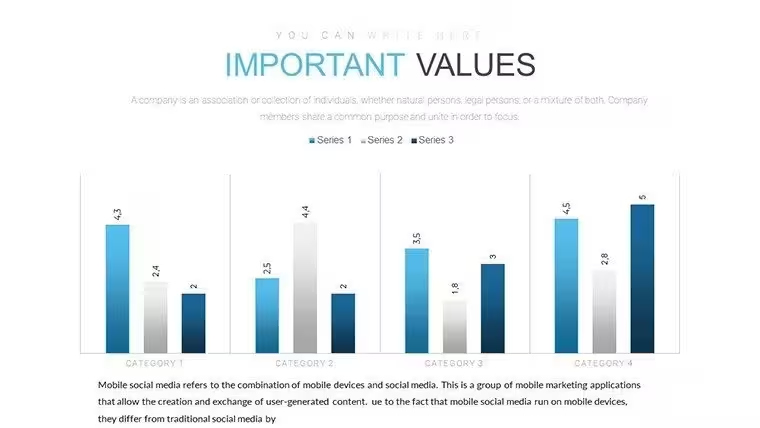
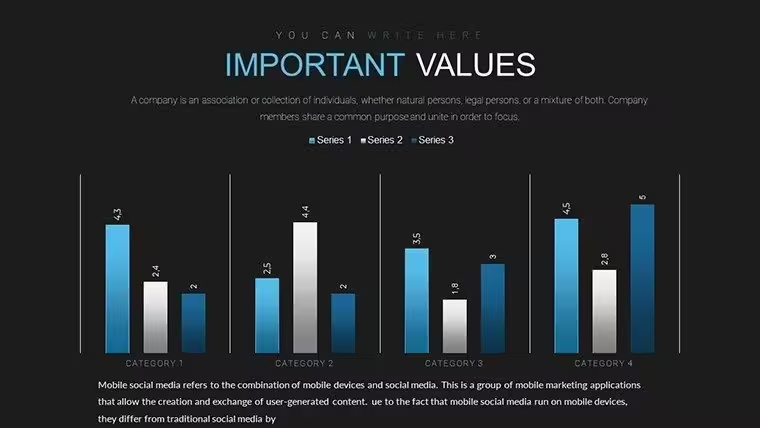
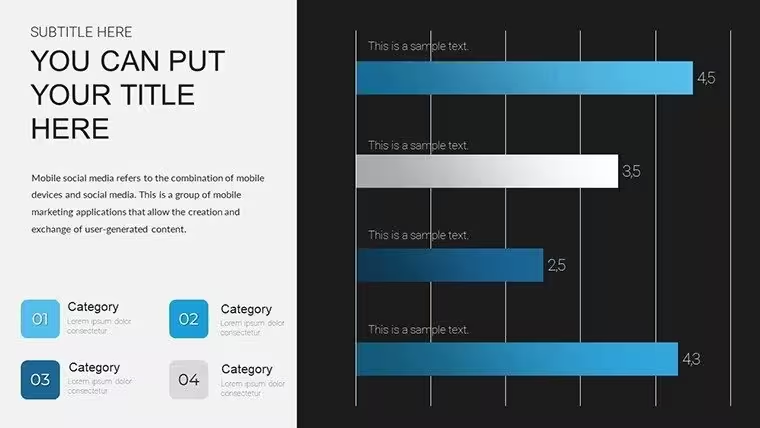
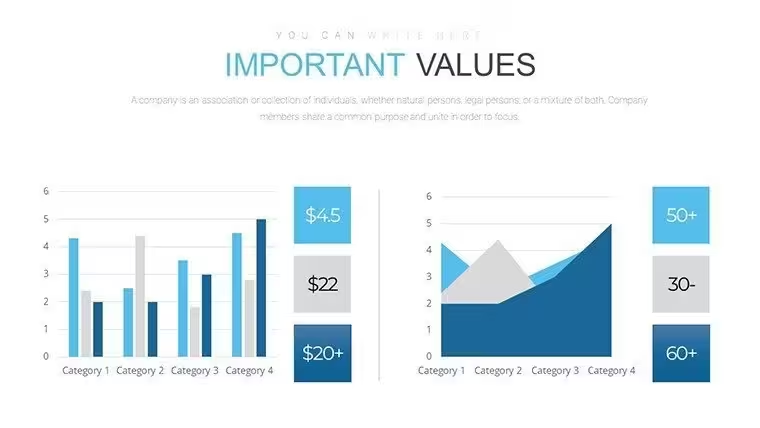
Bar Charts for Categorical ComparisonStack bars vertically or arrange horizontally for department-by-department, region-by-region, or product-by-product analysis. The template offers single-series (simple ranking), grouped (side-by-side comparisons), and stacked (part-to-whole relationships) variations. A sales manager comparing individual rep performance instantly spots top performers and underachievers.

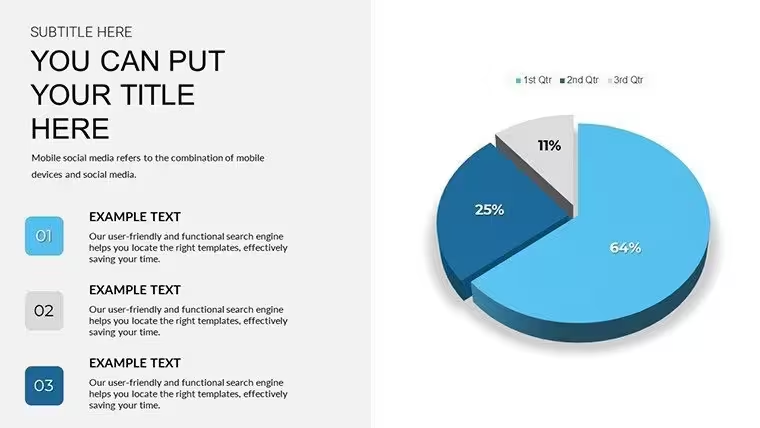
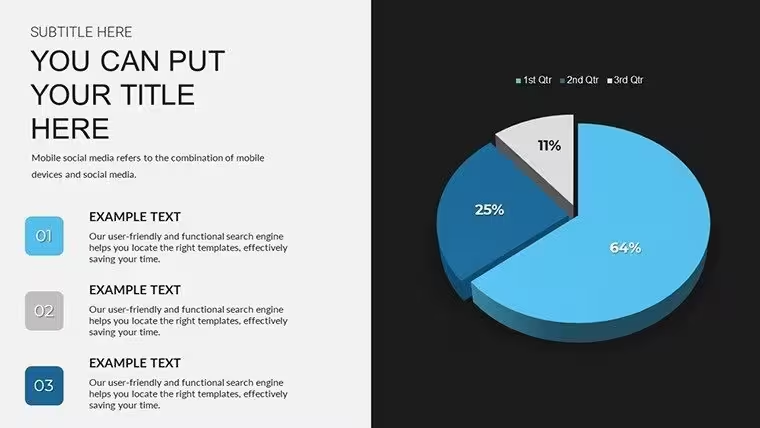
Pie and Donut Charts for Compositional BreakdownsSegment a total into slices. Budget allocation ($2M marketing, $3M R&D, $1.5M operations) becomes intuitively understood through proportional slices. The template includes exploded variations (pulling key slices forward for emphasis) and donut versions with center labels for cleaner aesthetics. Avoid more than 5 - 6 slices; beyond that, smaller segments blur together.

Scatter Plots for Correlation DiscoveryPosition data points on X and Y axes to expose relationships. Does marketing spend correlate with customer acquisition? Does employee experience predict retention rates? Scatter plots answer these questions visually. Trendlines optionally pass through point clusters, suggesting strength of correlation. This template's scatter layouts support size-scaled bubbles (three-variable analysis) and color-coded point categories.

Combination Charts for Multi-Metric StoriesMarry bars and lines on a single slide. Example: Units sold (bars) overlaid with price per unit (line). This format excels when two metrics share an axis (like both expressing percentages) or require dual axes (left axis for volume, right for currency). The template's combination slides auto-scale secondary axes to prevent distortion.

When to Apply Analysis Charts in Professional Contexts

Financial Reviews and ForecastingCFOs and financial analysts present quarterly earnings using bar and line charts to show revenue sources, expense categories, and profit trends. Year-over-year comparisons become instantly credible with side-by-side bar formats. Forecast uncertainty appears as shaded bands around projected trend lines, signaling confidence intervals without heavy statistical jargon.

Marketing and Campaign AnalyticsDigital marketers analyze channel performance: email vs. social vs. paid search. This template's grouped bar charts show simultaneous metrics - click volume, conversion rate, cost-per-acquisition - across channels. A pie chart segments total marketing spend; line charts show spend efficiency trends. Stakeholders grasp ROI comparisons without Excel fluency.

Research Presentations and Academic ConferencesResearchers unveiling study findings rely on scatter plots to show data distribution and trend analysis results. Comparing multiple treatment groups? Use grouped bars. Tracking participant metrics over a study period? Line charts handle temporal data cleanly. This template adheres to academic visualization standards, avoiding decorative excess that journals' strictest reviewers reject.

Operational and Process ImprovementManufacturing, logistics, and operations teams track KPIs: defect rates, throughput, cost per unit. This template's combination charts show simultaneous trends - quality improving (downward line) while volume increases (upward bars) signals operational excellence. Comparative analysis across facilities or shifts becomes transparent.

Constructing Analysis Narratives with This Template

Build Your Story SequenceStart with context: "Here's the total market size" (pie chart). Progress to performance: "Here's our share by product line" (bars). Then reveal trends: "Here's how our market share evolved quarterly" (line chart). Close with actionable insights: "Here's the correlation between marketing investment and share gains" (scatter plot). This arc - context, performance, trends, causation - mirrors how analytical arguments persuade stakeholders most effectively.

Customize Chart Data and LabelsEvery chart in this template features editable data series, axis labels, legends, and titles. Click into any bar, line, or pie segment and adjust values. Axis ranges auto-scale or lock to fixed bounds. Add footnotes citing data sources (critical for credibility). Annotations point to outliers: "Q4 spike driven by holiday inventory builds" clarifies context that raw numbers alone omit.

Color-Code for Clarity and Brand AlignmentAssign consistent colors to categories: "All US regions in blue, Europe in orange, APAC in green." Repeat this color scheme across multiple slides; audiences unconsciously absorb the pattern, accelerating comprehension. Match corporate brand colors to reinforce organizational identity without sacrificing chart readability.

Real-World Analysis Scenarios Powered by This Template

Scenario 1: Quarterly Business ReviewA business services director opens her QBR with a pie chart dividing total revenue by service line. Two grouped bar charts follow: service line margins (exposing which offerings drive profitability) and customer acquisition cost by service (flagging expensive channels). A line chart shows gross margin trending over six quarters (positive upward trajectory reassures stakeholders). A scatter plot correlates customer tenure with lifetime value, justifying retention investments. In 15 minutes, she's painted a complete analytical picture - profit drivers identified, growth opportunities signaled, efficiency gains documented.

Scenario 2: Academic Research PresentationA university researcher presents a study comparing two teaching methodologies on student outcomes. A grouped bar chart shows test scores for control vs. treatment groups across three performance tiers. A scatter plot maps study hours against improvement scores, revealing engagement correlation. Line charts track cohort performance over the semester, showing momentum differences. Conference attendees grasp the research impact instantly; detailed methodology supports visual claims.

Scenario 3: Consulting Engagement Final PresentationA management consultant presents process improvement findings to a manufacturing client. Baseline metrics (defect rate, cycle time, cost per unit) appear as a combination chart, revealing current state across three KPIs. Benchmark comparison shows client performance vs. industry best-in-class (bar chart). Improvement roadmap projects future state via extended trend lines. Resource requirements segment into labor, capital, and software (pie chart). This visual analysis transforms a 40-page report into 10 persuasive slides; executives approve the engagement.

Design and Technical Features Supporting Analysis Excellence

FeatureBenefit to Analysis WorkApplication
24 Slide VarietyMatches chart type to analytical question without blank template frustrationSelect appropriate slide; customize data in minutes, not hours
Axis CustomizationSet min/max values, scale, and tick intervals for precise controlLock Y-axis at 0 - 100% for percentage comparisons; auto-scale for open-ended metrics
Color-Blind PalettesEnsures accessibility; prevents misinterpretation by colorblind viewersSelect palette from template options; all include sufficient contrast
Legend ControlPosition legend strategically; size flexibly without cramping chartsMove legend to bottom for wide charts, right side for tall ones; hide for single-series simplicity
Data Label OptionsDisplay values directly on bars/points or rely on axes aloneAdd labels for precision-critical audiences; remove for uncluttered dashboards
Print-Optimized DesignExport to PDF or print without color/contrast lossDistribute reports; ensure charts remain legible in grayscale printing

Frequently Asked Questions

How do I input my own data into these analysis charts?

In PowerPoint, right-click any chart and select "Edit Data." This opens a spreadsheet interface where you modify values, series names, and categories. Changes auto-update the chart visualization. For large datasets, consider using Excel as source, then linking the PowerPoint chart to refresh when Excel updates.

Can I create combination charts (bars and lines on the same slide)?

Yes, this template includes combination chart slides pre-configured with bars and lines. Right-click and edit to assign your metrics. Ensure bars and lines represent comparable scales; use secondary axes if units differ (e.g., left axis in dollars, right in units).

Are these charts compatible with live data feeds or Excel links?

Yes. Link PowerPoint charts to Excel ranges: Right-click the chart, select "Edit Data," then "External Data Range." When Excel updates, PowerPoint refreshes (Office 2016+). This supports dynamic dashboards where data changes between presentations.

What's included in the 24 slides?

The template features line charts (single and multi-series), bar charts (vertical and horizontal, grouped and stacked), pie charts, donut charts, scatter plots, combination charts, and several bubble chart variations. Browse the template preview to see all 24 layout options.

Can I export analysis charts as images for reports or social media?

Absolutely. Select a slide, copy the chart, then paste into image-editing software or Office apps. Alternatively, right-click a chart and "Save as Picture," choosing PNG, JPG, or TIFF format and resolution (300 DPI for print quality, 72 DPI for web).

Is this template suitable for academic research presentations?

Yes. The template's clean, professional design adheres to conference and journal standards. Chart types support experimental comparisons, correlational analyses, and temporal trends commonly in research. Add citations to data sources for academic credibility.

See more in Analysis PowerPoint Chart →