 Click to zoom
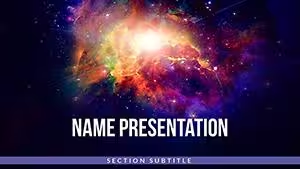
Solar System PowerPoint Template - Editable PPTX | ImagineLayout
| Format | .pptx |
| Slides | 3 unique layouts |
| Aspect ratio | 16:9 |
| Compatibility | PowerPoint |
| Animated | No |
| Language | English |
| License | Commercial |
| File size | — |
| Version | v1.0 |
| Last updated | August 2026 |
What's inside
What's Inside the Download
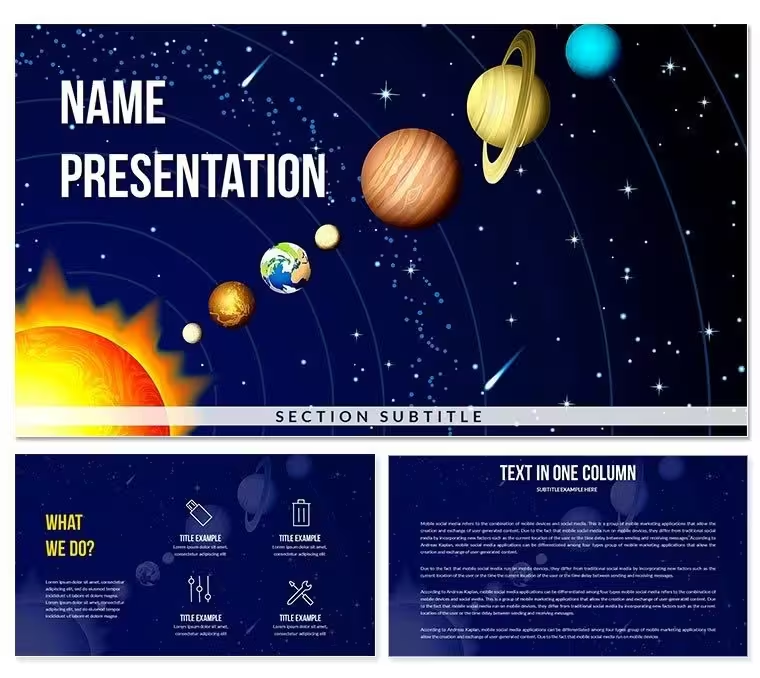
28 diagrams across 7 color schemes make up the paid package for this astronomy-themed PowerPoint presentation template. The color presets include deep navy, dark space-blue, and five additional variants that shift the background tone while keeping planetary illustration elements legible across all options. Three slide masters and three background layouts are included in both tiers; the paid version at $20.00 adds the full diagram set and color scheme library.
The 28 diagrams span the slide types an educator or science communicator needs across a full lecture or unit: title frames, planet overview layouts, comparison slides for orbital data, timeline sequences for space exploration history, and content slides with image placeholder regions for inserting photographs or NASA imagery. The structure moves from broad context-setting slides to detail-level diagram layouts, so the deck functions as a complete presentation without requiring additional slides from other files.
Compared to space-themed sets built around a single hero image repeated across slides, this package separates background atmosphere from diagram structure. Each of the 28 diagrams is a standalone layout that works against any of the 7 color presets - the visual theme is consistent, but the information structure changes per slide to suit the specific content type being communicated.
What is a Solar System PowerPoint template? A Solar System PowerPoint template is a pre-built presentation file with astronomy-themed slide layouts, editable diagrams, and space-visual color schemes designed for educational lectures, science presentations, and astronomy-related business content - compatible with Microsoft PowerPoint 2016 and later.
Editing Capabilities at a Glance
FeatureDetailsDiagrams included28 layouts covering title, overview, comparison, timeline, and detail slidesColor schemes7 presets; deep navy, space-blue, and 5 alternatesEditable shapesPlanet illustration frames and orbital ring elements resize without breaking layout proportionsText placeholdersPlanet name labels and data callouts update independently from background graphic layersImage placeholdersDesignated regions accept inserted photos or NASA imagery without repositioning surrounding elementsSlide masterGlobal color changes apply via PowerPoint slide master; per-slide overrides availableFile formats.pptx and .potx for editing; .jpg previews includedCompatibilityMicrosoft PowerPoint 2016, 2019, Microsoft 365 (Windows and Mac)Free vs. paidEntry tier ($10): 3 masters + 3 backgrounds; Full package ($20): adds 28 diagrams + 7 color schemesCustomization in 5 Steps
How do you adapt a space-themed template to a specific astronomy lesson? Open the .pptx file in PowerPoint 2016 or later and navigate to the slide panel on the left. Identify which of the 28 diagram layouts match your content structure - planet overview, orbital comparison, or space timeline.
- Step 1 - Open the .pptx file (1 minute): Launch PowerPoint, open the file, and scan the 28 slide thumbnails to identify the layouts that match your lesson plan.
- Step 2 - Select your color preset (2 minutes): Go to View - Slide Master - Colors. Select one of the 7 built-in presets. Dark space-blue works for projected classroom settings; lighter variants work for printed handouts.
- Step 3 - Replace text labels (5-10 minutes): Click each text placeholder directly on the slide. Planet names, orbital data, and caption text update without unlocking grouped graphic elements.
- Step 4 - Insert images into placeholders (3-5 minutes): Click any image placeholder region, select Insert - Picture, and choose your file. The placeholder constrains the image to the layout boundary automatically.
- Step 5 - Export (1 minute): File - Save As for .pptx distribution, or File - Export - Create PDF/XPS for a printable handout version.
Editing difficulty: Beginner to Moderate. Text and color changes require no design skill. Image insertion and slide master navigation require basic PowerPoint familiarity - approximately the level reached after one or two prior presentations.
Download and start editing immediately
Building From Scratch vs. Starting Here
An astronomy teacher at a regional high school was preparing a 45-minute lecture on the inner solar system for a Year 10 physics class. Building from a blank slide - sourcing planet illustrations, constructing comparison tables, and aligning text over dark backgrounds - had taken 5 hours for a previous unit. Using this template's planet overview and comparison diagram slides, the full lecture deck was assembled in 55 minutes, with 20 minutes spent inserting custom NASA photographs into the image placeholder regions.
Constructing planetary comparison layouts manually in PowerPoint means deciding on shape sizing, orbital ring proportions, and label placement for each element individually. A single planet diagram with four labeled data points - diameter, distance from sun, orbital period, surface temperature - involves 12-16 individual shape and text elements. At 4 such slides per lecture, that is 48-64 objects to size and align from scratch. The diagram set in this template resolves all of those decisions before the file is opened.
In space and astronomy presentation design, background luminance affects label contrast in ways that differ from standard slide templates. Dark-background slides require white or light-colored text at a minimum 14pt size to remain legible on projector displays - smaller text at lower contrast drops below readable threshold under classroom projection conditions. The planet label positioning in this template places text in negative-space zones adjacent to the illustration, not overlaid on the graphic itself. That separation means the label is readable at any color preset without requiring manual repositioning.
Download and start editing immediately
Frequently Asked Questions
Which versions of PowerPoint are compatible with this template?The .pptx and .potx files open correctly in Microsoft PowerPoint 2016, 2019, and Microsoft 365 on both Windows and Mac. PowerPoint 2013 can import the file but may not render all background gradient layers identically. Google Slides can open .pptx files via import, though dark-background color fidelity and some shape effects may shift. For accurate visual results matching the preview images, use PowerPoint 2016 or a later version.
How do I change the color scheme across all 28 slides at once?Go to View - Slide Master in PowerPoint and select the top-level master slide thumbnail. From the Slide Master tab, click Colors and choose one of the 7 built-in theme color presets. Closing Slide Master view applies the change across all slides simultaneously. To override the master color on a specific slide only, select the shape, go to Format - Shape Style, and enter the hex value for your brand color - this changes that element without affecting the rest of the deck.
What does the entry tier include compared to the full package?The $10.00 entry tier includes 3 slide masters and 3 background layouts - the structural and visual foundation of the template. The $20.00 full package adds 28 diagrams and 7 color schemes for those diagrams. The diagram set contains the planet overview, comparison, timeline, and detail slides; without it, the download provides the background design but not the content slide structures. Educators building a full astronomy deck need the $20.00 package.
Is this template licensed for use in educational or commercial contexts?The standard license covers use in educational presentations, lectures, academic conferences, and institutional training sessions. It also permits use in commercial business presentations where the template is embedded in a delivered deck. Redistributing the template file as a standalone download, including it in course material packages sold to students, or sublicensing it to other institutions is not permitted under the standard terms. Review the Terms of Use on ImagineLayout's website for the complete license conditions before institutional use.
How do I insert custom photos or NASA images into the slide layouts?Click on any image placeholder region on the slide - these are designated frame areas, not background layers. Select Insert - Picture - This Device (or online source) and choose your image file. PowerPoint constrains the inserted image to the placeholder boundary automatically, maintaining the layout proportions. To reposition the image within the frame, double-click the placeholder to activate crop mode, then drag the image to the desired position within the frame before clicking outside to confirm.
What is the refund policy for this product?Refunds are available when the downloaded file does not match the product description or cannot be opened in the specified software version. Requests must be submitted via ImagineLayout's support contact before significant edits are applied to the file. Digital downloads are generally non-refundable once accessed, but documented technical failures with the file qualify for review. The full conditions are outlined on ImagineLayout's Refund Policy page.
How do I export the finished presentation for an LMS or online classroom?For LMS platforms such as Moodle, Canvas, or Google Classroom, export the completed deck as a PDF via File - Export - Create PDF/XPS. This produces a fixed-layout file that displays consistently across devices without requiring PowerPoint. For platforms that accept video, PowerPoint's File - Export - Create a Video option converts the deck to .mp4 at your chosen resolution. For direct upload as a slide file, the .pptx format is accepted by most LMS platforms natively.
Good for
- Project roadmaps and sprint plans
- Product launch timelines
- Quarterly or annual review decks
- Company history and milestone summaries
Licence
reviews
Pulled this for a quarterly review, the timeline layouts were exactly what I needed.
Honestly, the fonts felt a little dated to me but the overall structure is solid.
A coworker asked where I got these pie chart graphics, so that's a win.
My only complaint is that some of the slides are over-designed for a simple status update.
Downloaded it, swapped in my data, and presented it within an hour. Works for me.
FAQ
Will it work in Google Slides?
Are fonts embedded?
Can I use this for client work?
What's the refund policy?
Do you update the template after purchase?
Similar templates
See all PowerPoint Templates →
All 1 slides