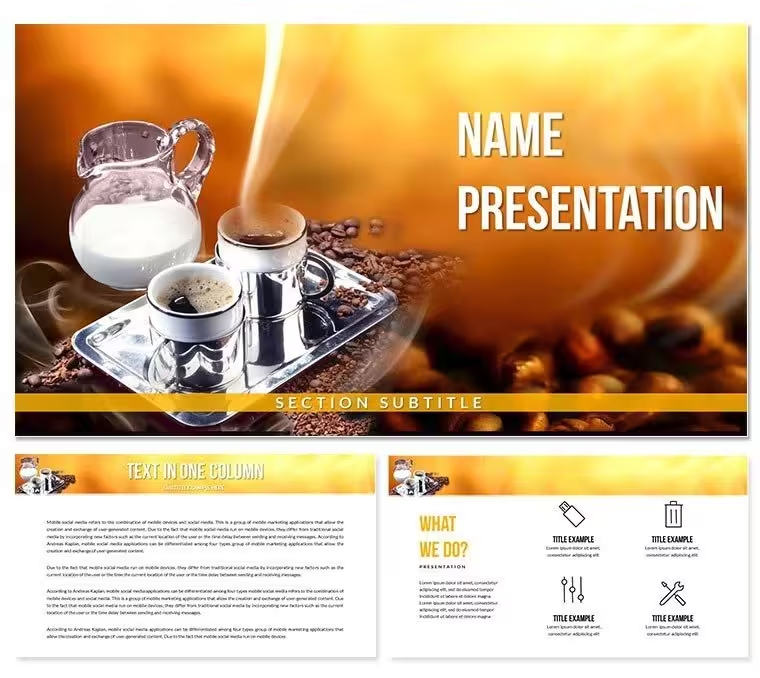
 Click to zoom
Coffee Milk Keynote Template - Instant Download KEY
| Format | .pptx |
| Slides | 3 unique layouts |
| Aspect ratio | 16:9 |
| Compatibility | PowerPoint |
| Animated | No |
| Language | English |
| License | Commercial |
| File size | — |
| Version | v1.0 |
| Last updated | September 2026 |
What's inside
Files and Formats Included
What is a Keynote template for the food and beverage industry? A Keynote template for the food and beverage industry is a pre-designed .key file built around a specific thematic visual language - in this case, the warm cream, deep espresso, and milky-white tones associated with cafe culture - so a presenter can load branded slides without building backgrounds or color palettes from scratch.
28 diagrams across 7 color schemes come in the paid download. The file ships in two formats: .key for editing directly in Keynote and .kth as a reusable Keynote Theme file. Three master slide layouts establish the overall page geometry - cover, content, and section divider - while three bespoke backgrounds carry the coffee-and-milk visual identity across every slide without requiring manual theming per page.
The diagram set spans the full range of business presentation needs: timeline rows, comparison grids, process flows, icon-backed lists, and data-placeholder slides. Unlike sets built around abstract geometric shapes with no thematic direction, every layout here anchors warm neutral tones - cream whites, caramel mid-tones, and deep espresso darks - so a cafe owner, food brand manager, or menu designer can open the file and immediately recognize the visual connection to their product. The free tier covers the three masters and three backgrounds only; the paid version adds the 28 diagrams and all 7 color variants.
Editing Capabilities at a Glance
FeatureDetailsEditable text placeholdersAll heading and body text fields update independently without ungrouping slide elementsColor scheme switching7 pre-built diagram color variants; switch between schemes via Keynote slide master paletteBackground layers3 backgrounds apply globally through master slides - no per-slide manual reassignment neededDiagram shapesVector-based; resize without pixelation, recolor via Format > FillIcon placeholdersIcon slots within diagrams replaceable using Keynote's built-in shape library or imported SVGsFile formats.key for live editing in Keynote 12+; .kth for saving as a reusable theme across multiple decksExport optionsExport as .key, PDF, or PowerPoint .pptx from File > ExportHow Baristas and Brand Managers Use This
A marketing manager at a regional coffee chain needed to present a seasonal menu refresh to three regional directors in a single afternoon. With the existing brand colors already close to the espresso-and-cream palette in the template, adapting the slides took under 30 minutes - swapping placeholder text for menu items and dropping product photos into image frames. The director meeting ran on time and required no design support from an external agency.
A food-industry consultant preparing a competitor analysis for a specialty beverage client used the comparison grid slides to map five competitors side-by-side across four criteria. The consistent layout meant each column read at the same visual weight - a practical advantage on a projected screen where improvised tables lose legibility beyond the third row. The same file was reused across two subsequent client reports by switching color schemes, cutting preparation time for repeat engagements by roughly 40 minutes per deck.
A cafe owner building a franchise pitch for a second location used the process-flow slides to diagram the customer journey from entry to order to loyalty signup. The warm background tones reinforced the brand story without requiring any graphic design work beyond text replacement.
Download the .key file and start editing immediately - no design tools beyond Keynote required.
Customization in 5 Steps
How do I customize the Coffee Milk Keynote template to match my brand colors? Open the .key file, access the master slides, replace the default palette with your brand hex values, and all 28 diagrams update automatically.
- Step 1 - Open the .key file in Keynote 12 or later (1 minute): Double-click the downloaded file. If Keynote prompts for a font substitution, accept or install the listed font before editing.
- Step 2 - Set brand colors in the master slide palette (2 minutes): Navigate to View > Master Slides. Select a master, open Format > Fill, and input your brand hex or RGB values. Changes propagate to all slides using that master.
- Step 3 - Replace placeholder text (3-5 minutes): Click any text block and type. Heading and body fields are independent - editing one does not shift layout spacing.
- Step 4 - Swap diagrams for your data (5-8 minutes): Select a diagram shape, use the Format panel to adjust fill colors or resize proportionally. Text labels inside diagrams update in the same click-and-type workflow.
- Step 5 - Export (1 minute): File > Export To > PDF for distribution, or keep as .key for live presenting. Use File > Export To > PowerPoint if recipients require .pptx.
Editing difficulty: Beginner. No design experience required beyond basic Keynote navigation.
Building From Scratch vs. Starting Here
Building a thematic beverage presentation from a blank Keynote canvas means sourcing a coherent color palette, creating or licensing background textures, designing each diagram type individually, and testing every slide at projected resolution before the meeting. A realistic estimate for a non-designer assembling 10 usable slides from scratch runs 4-6 hours - assuming no revision cycles.
Starting from this file cuts that process to the text-and-data-replacement phase. The layout composition, color contrast ratios, and information spacing decisions are already made. A presenter with no graphic design background reaches a deck that holds up on a projection screen in under 45 minutes.
One design decision worth noting: the background tones in this set are deliberately desaturated. Fully saturated coffee browns can turn muddy on projectors with older lamps. The cream-to-espresso gradient range here was chosen to maintain contrast at lower projector brightness - a practical consideration that only becomes visible during live presentations, not on a laptop screen.
Diagram labels sit outside shape boundaries rather than inside, connected by thin lines. On a laptop, inside-shape labels look cleaner. On a 16:9 projection screen at 3 metres, outside labels remain legible when shapes are scaled to fit a wide layout - a spacing choice that matters in boardrooms and cafe back-office briefings alike.
Download now and have a presentation-ready deck before your next meeting.
Frequently Asked Questions
Which version of Keynote does this file require?The .key file opens in Keynote 12 and later on macOS. This corresponds to macOS Monterey (12.0) and above. Keynote for iPad also supports the format, though master slide editing is more limited on iOS. If you are on an older macOS version and cannot update Keynote, the .kth file can be imported as a theme, though some advanced object properties may differ. Keynote 13 (macOS Ventura onwards) is the recommended version for the fullest editing experience with all master slide features intact.
What is the difference between the free and paid versions?The free tier includes 3 master slide layouts and 3 thematic backgrounds - enough to build a basic branded deck with your own content. The paid version ($20) adds 28 pre-built diagrams covering timelines, comparison grids, process flows, and icon lists, plus 7 complete color scheme variants for those diagrams. If your presentation requires structured data slides - rather than text-only layouts - the paid version is the functional option. The masters and backgrounds are identical between tiers.
Can I change the color scheme without redesigning each slide?Yes. Color adjustments made in the master slide palette apply globally to all slides using that master. Open View > Master Slides in Keynote, select the relevant master, update the fill values in the Format panel, and every slide tied to that master reflects the change immediately. The 7 pre-built diagram color variants also let you switch between complete palette options without any manual recoloring - select a diagram variant from the provided set and paste it over the existing slide.
Is this template licensed for client work and commercial presentations?The standard license covers internal business presentations, client-facing decks, and commercial pitches where the template forms part of a larger deliverable. Reselling the template itself as a standalone product, sublicensing it to third parties, or distributing the source .key or .kth files to people who have not purchased the product is not permitted. For agency use across multiple client accounts, review the ImagineLayout terms of use page or contact support to confirm the appropriate license tier for your volume of use.
Does the template include animations or transitions?The .key file does not include pre-applied slide transitions or object animations by default - this is a deliberate choice. Pre-set animations in downloaded templates frequently conflict with a presenter's timing preferences and require removal before use, which adds editing work. The clean baseline means you apply only the transitions that suit your pace. Keynote's Magic Move, Appear, and Move In effects are all compatible and can be added to any object or slide from the Animate panel in under two minutes.
What is ImagineLayout's refund policy?Refund requests are handled according to the ImagineLayout refund policy page. Because the product is a digital download, refunds are typically assessed on a case-by-case basis - for example, if the file fails to open or the delivered content does not match the product description. Contact ImagineLayout support with your order number and a description of the issue. Reviewing the file format requirements and Keynote version compatibility before purchase helps avoid the most common technical mismatches.
Good for
- Project roadmaps and sprint plans
- Product launch timelines
- Quarterly or annual review decks
- Company history and milestone summaries
Licence
reviews
I downloaded this late before a presentation deadline.
The layouts were clean and easy to follow.
Some icons didn’t really match my topic.
The charts were fine though.
FAQ
Will it work in Google Slides?
Are fonts embedded?
Can I use this for client work?
What's the refund policy?
Do you update the template after purchase?
Similar templates
See all Keynote templates →


All 1 slides