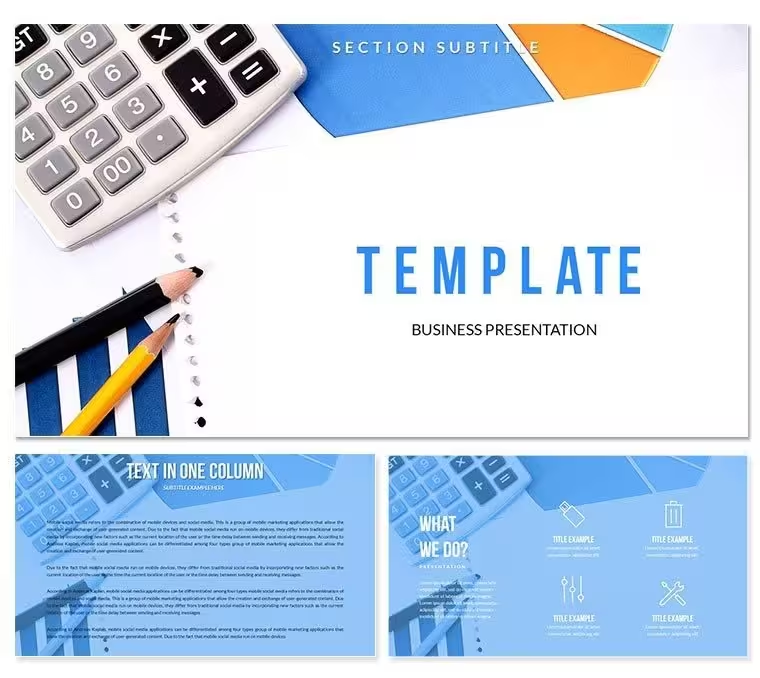
 Click to zoom
Financial Trading Keynote Template - Instant Download | ImagineLayout
| Format | .pptx |
| Slides | 3 unique layouts |
| Aspect ratio | 16:9 |
| Compatibility | PowerPoint |
| Animated | No |
| Language | English |
| License | Commercial |
| File size | — |
| Version | v1.0 |
| Last updated | September 2026 |
What's inside
What is a Keynote diagram template for financial trading? A Keynote diagram template for financial trading is a pre-built .key file containing purpose-designed slide layouts, editable diagrams, and color-coded schemes sized for finance and accounting presentations - ready to open in Apple Keynote 12 or later.
What's Inside the Download
28 diagrams across 7 color schemes - that is the core of what this Keynote diagram template delivers. Each diagram is built specifically for financial and trading content: calculation breakdowns, performance comparison layouts, data summary frames, and multi-variable analysis structures. Every diagram exists in all 7 color schemes, so swapping the visual tone of an entire deck takes under two minutes via the master slide palette.
The paid tier at $22.00 includes the full diagram library, all 7 color schemes, 3 Keynote masters, and 3 backgrounds. The base tier at $10.00 covers the 3 masters and 3 backgrounds only - no diagrams, no color scheme variants. For any deck that needs structured data visualization, the paid version is the operative choice.
Unlike single-chart layouts built around one visual type, the 28-diagram set covers a range of financial structures - from single-metric callouts to multi-row comparison tables. That breadth means one file can carry a quarterly briefing, an investor deck, and an internal reporting session without requiring a second purchase.
Key Specifications At a Glance
FeatureDetailsDiagrams included28 diagrams, each available in 7 color schemesEditable shapesDiagram segments resize and recolor independently without ungroupingText placeholdersLabels update directly - no need to unlock grouped elements firstColor theme adjustmentsApplied via the Keynote master slide palette; changes propagate across all diagramsFile formats.key for editing in Apple Keynote, .kth theme file for template library importKeynote compatibilityKeynote 12 or later on macOS; iOS Keynote supported for viewingMasters and backgrounds3 slide masters, 3 background variants (included in both free and paid tiers)Free vs. paid differenceFree tier: 3 masters + 3 backgrounds only. Paid tier adds 28 diagrams + 7 color schemesWho Reaches for This Template
A financial analyst at a mid-size asset management firm needs to present a trading performance review to the investment committee by Friday. Building 28 custom diagram frames from a blank Keynote file would take most of a day. Using this set, she drops her performance data into pre-structured layouts, adjusts the color scheme to match the firm's brand in under five minutes, and cuts deck preparation from roughly four hours to under one.
A financial educator running a university-level trading course uses the same file across consecutive semesters. The 7 color schemes allow each academic cohort to receive a visually distinct version of the same deck without rebuilding the layout - one file reused across three consecutive course cycles by swapping schemes and updating figures.
Regional sales directors in banking use the calculation-focused layouts during client acquisition presentations. The structured frames hold product comparison data cleanly, replacing ad-hoc table builds that routinely misalign on projection screens.
Download and start editing immediately
Customization in 5 Steps
How do I customize this Keynote template for my brand? Open the .key file, navigate to the master slide view, update the color palette to match your brand, then edit individual diagram labels and replace placeholder text. The full process takes under 15 minutes for a first-time user.
- Step 1 - Open the .key file in Keynote 12 or later (1 minute) - Double-click the file; Keynote opens it directly with all masters and backgrounds loaded.
- Step 2 - Replace placeholder text (3 minutes) - Click any text field and type; labels in diagram shapes update independently without ungrouping.
- Step 3 - Apply brand colors via the master slide palette (2 minutes) - Open View → Master Slides, select a master, adjust the color theme; the change applies across all linked diagrams.
- Step 4 - Edit diagram data labels and layout sizing (5 minutes) - Drag segment handles to resize; connector lines adjust automatically.
- Step 5 - Export as .key or PDF (1 minute) - File → Export → PDF for distribution, or keep as .key for live editing during the meeting.
Editing difficulty: Beginner. No design background required. Every editable element behaves predictably within Keynote's standard interface.
Building From Scratch vs. Starting Here
Replicating 28 finance-oriented diagram layouts from a blank Keynote file requires drawing each shape group, aligning connectors, setting up consistent font hierarchies, and creating seven parallel color variants manually. A designer with Keynote experience needs roughly 6-8 hours. Someone without design experience is looking at two full workdays - with a high probability of inconsistent spacing and misaligned text on projection screens.
One design decision embedded in this set deserves attention: numeric labels in the financial diagrams sit outside the diagram shapes, connected by thin reference lines. Many presentation builders place figures directly inside shapes. That approach works at 100% zoom on a laptop screen but collapses in readability when projected at 16:9 on a conference room display. The external-label layout maintains legibility at any screen size without requiring the presenter to increase font size manually.
The 7 color schemes also reflect a deliberate choice. Color in a financial context should segment data categories - not decorate slides. Each scheme uses a controlled, low-saturation palette where hue differences mark distinct data zones. High-saturation decorative color choices cause viewers to read color as emphasis rather than as categorical information, which distorts the takeaway of comparison charts.
Download and start editing immediately
Frequently Asked Questions
Which versions of Keynote open this file?The .key file opens in Keynote 12 or later on macOS. Earlier versions of Keynote (pre-12) may not render all master slide features correctly and could cause layout shifts in diagram frames. Keynote on iOS and iPadOS supports viewing and basic text editing, though master slide editing is limited on mobile. If you are on macOS Ventura or later, Keynote 13 is the recommended version for full editing access. The .kth file can be imported into your Keynote theme library for repeated use across future presentations.
What is the difference between the $10 and $20 versions?The $10.00 tier includes 3 slide masters and 3 background designs. The $20.00 paid version adds the full set of 28 diagrams and all 7 color scheme variants for each diagram. If your primary need is a styled Keynote theme with custom backgrounds for a text-heavy presentation, the base tier covers that. For any deck that requires structured financial diagrams - calculation layouts, comparison frames, data summary structures - the paid tier is the relevant purchase. The diagrams and color schemes are not available separately; they are included only in the $20.00 package.
Can I use this template for paid client work?The standard license covers personal use and internal business presentations. Use in paid client deliverables - such as investor decks, consulting reports, or financial presentations produced for a fee - requires confirming the license scope with ImagineLayout before distribution. Reselling the template files themselves or sublicensing the design assets to third parties is not permitted under any license tier. For recurring client use, check the ImagineLayout terms page or contact support to clarify the applicable license for your workflow.
How do I change the color scheme across all diagrams at once?Open the .key file and navigate to View → Master Slides in the Keynote menu. Select the active master slide and open the slide background or color style panel. Adjust the primary and secondary color values there; because the 28 diagrams are linked to the master palette, the color change propagates automatically across all diagram frames. Alternatively, each of the 7 pre-built color schemes is already set up - you can switch between them by selecting a different master from the master slide list without manually adjusting any color values.
Does the template include animations?The page does not specify pre-built animations. Keynote supports build-in and build-out animations on any shape or text element, and you can apply these manually after opening the file. To add an animation, select a diagram element, open the Animate panel on the right sidebar, and choose a build type. To keep the presentation clean for boardroom or investor use, most financial presenters apply a simple Appear or Fade build rather than motion-heavy transitions. Existing placeholder content does not include animated builds, so nothing needs to be removed if you prefer a static presentation.
What is the refund policy?ImagineLayout's refund policy covers situations where the downloaded file does not open or is technically defective. Because digital files are delivered immediately upon purchase, refunds are not available simply because the design style does not match expectations after download. Before purchasing, review all 28 slide preview images on the product page to confirm the diagram layouts meet your needs. For technical issues - file corruption, missing masters, or incompatibility with the stated Keynote version - contact ImagineLayout support with the order details to request a resolution.
Good for
- Project roadmaps and sprint plans
- Product launch timelines
- Quarterly or annual review decks
- Company history and milestone summaries
Licence
reviews
I finished my quarterly report faster with this template.
The graph placeholders saved me from making charts manually.
A few slides felt cluttered.
Colors were okay once projected in the conference room.
Good template for regular office use.
FAQ
Will it work in Google Slides?
Are fonts embedded?
Can I use this for client work?
What's the refund policy?
Do you update the template after purchase?
Similar templates
See all Keynote templates →



All 1 slides