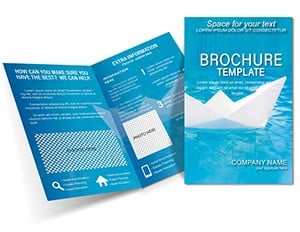
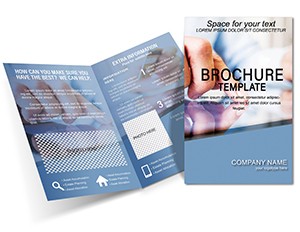
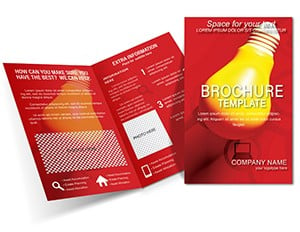
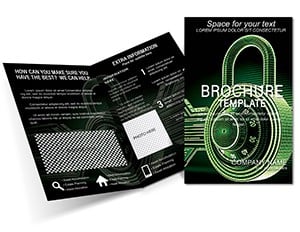
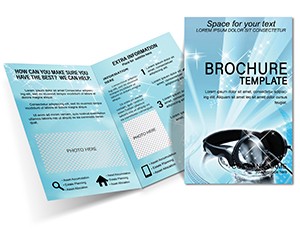
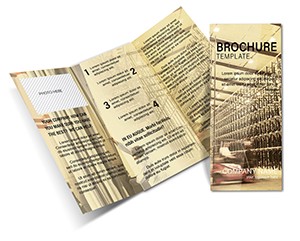
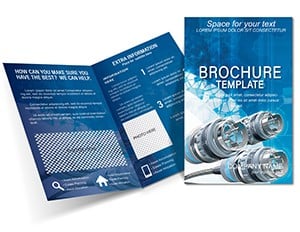
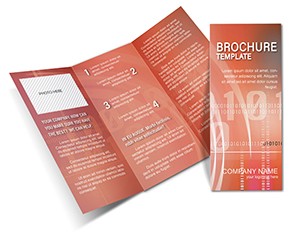
Z-Fold Creative Brochure - 5 Panels, .ait .dotx .indt | ImagineLayout
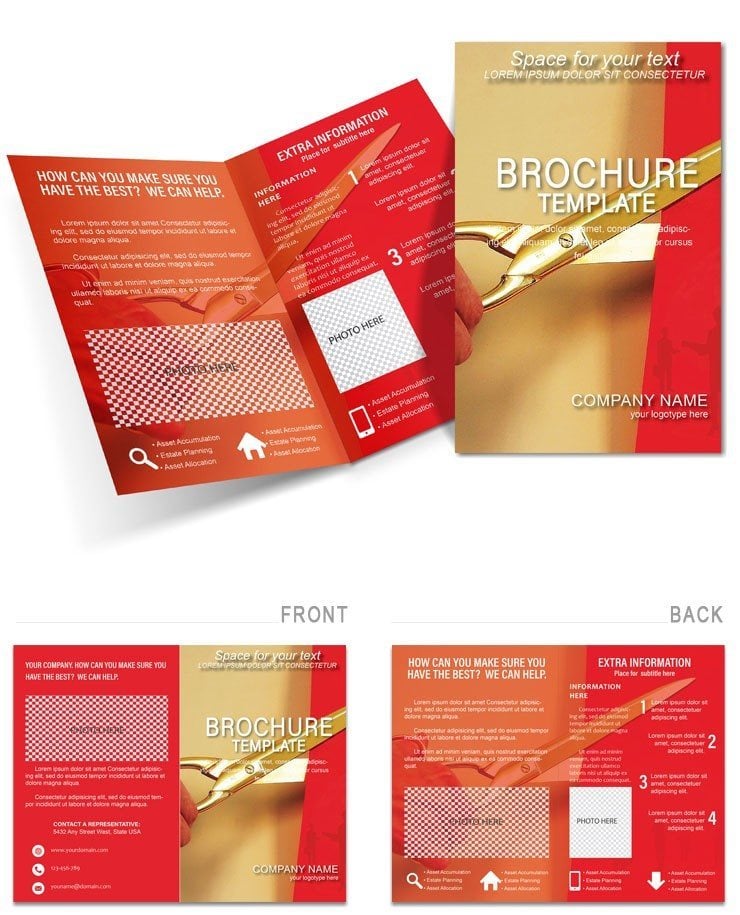
Type: Brochures template
Category: Business
Sources Available: .ait, .dotx, .indt
Product ID: BT01570
Files and Print Specs Included: 5 Panels, 3 Formats
Five panels in a z-fold configuration arrive across three source files: .ait for Adobe Illustrator CC 2018+, .indt for Adobe InDesign CS6+, and .dotx for Microsoft Word 2016+. That combination covers the three most common editorial and design production environments without requiring any additional purchase. The z-fold structure is the defining layout decision here - unlike a standard half-fold or trifold, a z-fold alternates fold direction, meaning panels reveal themselves in a staggered sequence rather than all at once. That physical behavior supports narrative pacing in a way flat formats cannot.
The five-panel z-fold layout separates content into a logical arc: the outer cover draws initial attention, the first interior reveal builds context, the central panel carries the primary message, the fourth panel extends detail or supporting evidence, and the final panel closes with a call to action or contact information. Each section has a defined visual role, which prevents the most common DIY brochure mistake - treating every panel as equally important and crowding each one with dense copy. White space is built into the grid structure across panels, creating typography balance that guides the reader without instruction.
The download contains the three editable source files. Color mode, resolution, DPI, bleed specification, and page dimensions are not individually stated on the product page. Buyers should confirm print specifications with their service provider and run a preflight check in Illustrator or InDesign before submitting for professional printing. The template is listed under the Business category at $12.00 (product ID: BT01570).
Production Details at a Glance
| Specification | Details |
|---|---|
| Product ID | BT01570 - reference this when contacting support. |
| Fold Type | Z-Fold - alternating fold direction produces a staggered reveal across 5 panels. |
| Panel Count | 5 panels - sufficient for a full narrative arc from intro through CTA. |
| File Formats | .ait, .dotx, .indt - one format per primary editing application. |
| Color Mode | Not specified on the product page - run a preflight check before sending to press. |
| Bleed / Trim | Not specified on the product page - confirm with your print provider before export. |
| Price | $12.00 - single purchase, no recurring fee. |
| Category | Business - suits agencies, studios, event teams, and creative service providers. |
Who Reaches for This Design
A brand studio creative director preparing a capabilities deck for a prospective retail client needs a leave-behind that shows range without turning into a portfolio book. The five panels provide enough space to highlight three service areas - brand identity, packaging, and digital production - with one panel each for evidence and one for contact details. The z-fold format means the piece unfolds incrementally during a meeting, controlling the pace of the conversation rather than dumping everything at once.
An event production coordinator at a mid-size venue management company needs printed programs for a multi-day corporate conference. The z-fold structure maps naturally to a day-by-day schedule: panel one covers Day 1 sessions, panel two Day 2, panel three speakers, panel four logistics, and panel five sponsors. Because the template's layout structure supports visual hierarchy across all five panels, the coordinator does not need to manually rebuild panel proportions - they edit content directly into the existing grid.
A freelance graphic designer with intermediate Illustrator skills picks up this file for a cosmetics brand launch campaign. The client wants a mailer that feels high-end without offset printing costs. The z-fold format works on digital press at standard paper weights, and the template's grid alignment prevents the most common digital-press rejection issue: content that bleeds too close to the fold line and gets clipped during cutting.
Download the file and start editing immediately - your first panel can be populated within the hour.
Edit, Brand, Print: The Workflow
The .ait and .indt files suit production-level editing in Illustrator CC 2018+ and InDesign CS6+ respectively. Editing difficulty: intermediate. The .dotx file covers Word 2016+ users at a beginner-to-intermediate level.
Illustrator Workflow (.ait - Illustrator CC 2018+)
- Open the .ait file and immediately inspect the Layers panel. Separate layers for text and graphics prevent accidental edits to structural elements.
- Update the Swatches panel with your brand's CMYK values. Double-click each global swatch and enter precise C, M, Y, K percentages to replace the default palette across all five panels simultaneously.
- Replace placeholder text by clicking into each text frame. Use character styles if available to maintain typography balance across panels without manually reformatting each heading.
- Place new images by dragging files into the existing image frames. The frames crop to fit; adjust the image position within the frame using the Direct Selection tool.
- Perform a test fold using a printed preview before final export. Z-fold alignment errors only become visible when the physical fold is tested - this step catches panel-edge collisions that look fine on screen.
Word Workflow (.dotx - Word 2016+)
- Open the .dotx file in Word 2016+. Click into text placeholders and type your content. Avoid changing font families, as substitutions affect spacing across all five panels.
- Insert images via Insert > Pictures. Use corner handles to resize; never stretch from side handles, as this distorts image proportions within the panel layout.
- Adjust colors using the Font Color tool for text and Shape Fill for graphic elements. Enter hex or RGB values in the custom color picker for brand accuracy.
- Print a single test sheet at actual size, fold by hand in z-fold configuration, and check that no text runs too close to a fold edge before printing your full run.
What You'd Need to Set This Up Yourself
A z-fold layout built from scratch requires more setup than a standard bi-fold or trifold. The alternating fold direction means panel widths must account for paper thickness at each fold - a detail most designers miss on a first build, resulting in misaligned panel edges when the piece is physically folded. Beyond that, a five-panel document requires five separate content zones with consistent margins, a grid that works across all panels simultaneously, and a visual hierarchy system that differentiates the cover, interior, and closing panels without using different type sizes that break the overall layout structure.
Building that from a blank document in Illustrator takes three to five hours for an experienced designer - longer for anyone without prior z-fold print production experience. The template removes all of that structural work. The panel grid is already set. The fold allowances are built in. Content entry is the only remaining task.
Pro Insight: Z-fold brochures are particularly sensitive to ink coverage at fold lines. Heavy ink coverage - dense blacks or saturated colors directly on a fold - cracks on coated stock when folded, leaving a white line along the crease. The layout structure in this template places lighter design elements near the panel edges where folds occur, reducing the risk of ink cracking. On uncoated stock the risk is lower, but ink absorption increases, so colors appear less saturated - compensate by increasing saturation values by roughly 10-15% in your CMYK build before final export. The template's default palette is designed for coated stock; adjust if your printer uses uncoated paper.
The Business brochures category contains additional layouts across fold types and panel counts for different project scopes. For a print-ready business brochure focused on professional service positioning with a similar editorial tone, the Professional Business Brochure covers that use case with a comparable file set. When a project requires complementary branded stationery alongside the brochure, the Yellow Light Strategy Brochure Template provides a coordinating layout with a distinct color-coded visual system.
Add to cart now and have a print-ready z-fold file ready before your next client deadline.
Which software versions are needed to edit this template?
The .ait file requires Adobe Illustrator CC 2018 or later to open without element rendering issues. The .indt file opens correctly in Adobe InDesign CS6 or later; InDesign CC provides the most stable experience for paragraph styles and linked graphics. The .dotx file requires Microsoft Word 2016 or later on Windows or macOS - earlier versions may reflow text frames unpredictably because of differences in template handling. Free alternatives like LibreOffice may open the .dotx file but are not officially supported, and layout shifts should be expected.
What is ImagineLayout's refund policy for this purchase?
Because this is a digital download, the file becomes accessible immediately after purchase. ImagineLayout's refund policy generally limits eligibility to cases where a file is technically defective and cannot be opened in the stated software version. Refunds for change-of-mind reasons after download are not typically available for digital products. The full terms are published at imaginelayout.com/refund-policy - review them before purchasing if you have questions about fit or compatibility.
Is this template ready for professional printing?
The template is described as a print-ready layout. Color mode and bleed specifications are not individually stated on the product page, so running a preflight check in Illustrator or InDesign before sending to press is the recommended step. Most commercial printers require CMYK color mode and a minimum 0.125 in. bleed on all sides - verify that both are present using the document setup dialog after opening the file. Exporting as a Press Quality PDF with bleed marks and crop marks included in the export settings is the standard method for submitting to offset or digital print providers.
What does the license allow and prohibit?
ImagineLayout licenses this template for use in creating finished printed or digital deliverables for the purchaser or their clients. The license does not permit redistribution of the source files, resale of the template on other marketplaces, or sharing the download with individuals outside the purchasing account. Use in agency workflows is generally permitted as long as the template is not delivered as a raw, unmodified file to an end client. Confirm specific terms at imaginelayout.com/terms before use in multi-client or white-label production environments.
How do you change colors across all five panels at once?
In Illustrator CC 2018+, open the Swatches panel via Window > Swatches. Double-click a global swatch, check the Global checkbox if not already selected, and update the CMYK values - the change propagates to every object in the document using that swatch. In InDesign CS6+, the process is identical via the Swatches panel. In Word 2016+, use the Font Color tool for text elements and Shape Fill for colored shapes, entering custom color values through the More Colors dialog. Word's color changes are applied element by element rather than globally, which takes more time on a five-panel document - this is one reason the Illustrator or InDesign file is preferred for color-heavy brand work.
What is each included file format used for?
The .ait file is an Adobe Illustrator template - suited for vector-intensive design work, precise typography control, and high-resolution export. The .indt file is an Adobe InDesign template - suited for editorial layout, paragraph style management, and multi-panel document production with linked images. The .dotx file is a Microsoft Word template - suited for teams without Adobe software access who need to make text and image edits quickly without advanced design tools. Font embedding is not specified on the product page; open the file in your chosen application and check for missing font warnings before editing.