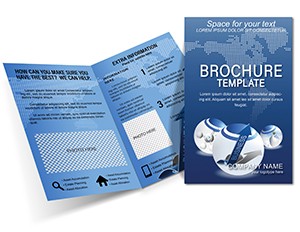
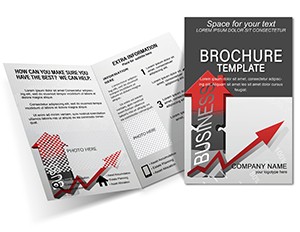
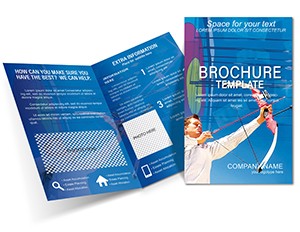
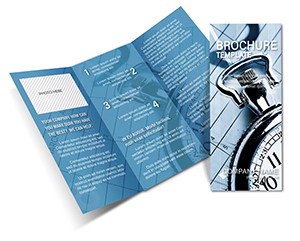
Half-Fold Finance Brochure Template - .ait .dotx .indt | ImagineLayout

Type: Brochures template
Category: Finance - Accounting, Business
Fold type: Half Fold
Sources Available: .ait, .dotx, .indt
Product ID: BT01536
Package Contents: 4 Panels, 3 Formats, One Print-Ready File
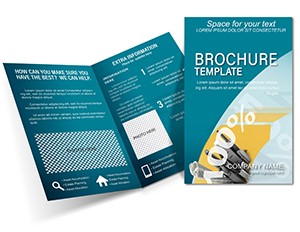
Three source files - .ait, .dotx, and .indt - arrive in a single download, covering Illustrator CC 2018+, Word 2016+, and InDesign CS6+ workflows without any additional purchase. The half-fold structure produces four panels: a front cover, a back cover, and two interior spreads. That panel count is deliberate. It forces content discipline, so every section carries weight rather than padding.
The interior panel layout places a data-heavy spread on the left and a narrative or CTA section on the right. That split serves financial communicators specifically - numbers land first, context follows, and the reader's eye moves in a logical sequence from evidence to action. The warm gold and deep green defaults signal fiscal stability without resorting to generic blue-gray corporate palettes. Both colors print predictably on coated stock in CMYK, which matters when you need consistent output across large distribution runs.
The download includes bleed marks and trim guides already embedded in each file. No manual bleed setup is required before sending to a commercial printer. File formats are .ait (Adobe Illustrator template), .indt (Adobe InDesign template), and .dotx (Microsoft Word template). Color mode is CMYK throughout. Resolution and DPI are not separately specified on the product page; confirm output resolution with your print provider before final export.
Technical Specifications
| Specification | Details |
|---|---|
| Product ID | BT01536 - use this reference when contacting support about the file. |
| Fold Type | Half Fold - creates 4 panels; ideal for condensed financial overviews that open dramatically. |
| File Formats | .ait, .dotx, .indt - one format per application: Illustrator, Word, InDesign. |
| Color Mode | CMYK - mandatory for offset and digital professional printing; avoids hue shift on press. |
| Bleed / Trim Guides | Included - removes the manual bleed-setup step before submitting to a print shop. |
| Price | $14.00 - one-time purchase; no subscription required. |
| Categories | Finance - Accounting; Business - suits advisory firms, investment offices, and nonprofit fundraisers. |
| Resolution / DPI | Not specified on product page - verify export DPI with your printer (typically 300 DPI for offset). |
Three Projects Where This Template Fits
A financial advisor at an independent wealth management firm needs printed collateral for a quarterly client appreciation event. Building a layout from scratch in InDesign means hours on grid setup, bleed configuration, and color profiling. The half-fold format here cuts that process to content entry: replace the placeholder metrics with actual portfolio return figures, swap the logo, and export. The advisor distributes a print-ready file by end of day rather than end of week.
A nonprofit fundraising coordinator managing an annual giving campaign needs a two-sided leave-behind that maps donor contributions to program outcomes. The interior panels support a data table on one side and an impact narrative on the other - exactly the structure required for donor stewardship materials. The gold color palette reads as aspirational rather than corporate, which aligns with the emotional tone of fundraising copy.
An investment firm marketing associate with intermediate design skills wants to produce seminar handouts without involving an external agency. The .dotx format means edits happen in Word 2016+, a tool already on every office machine. They populate bullet points with fee tiers, insert a headshot of the lead advisor into the placeholder frame, and print directly from Word to a local laser printer for test copies before sending the final .indt file to a commercial printer for the full run.
Download the file and start editing immediately - no design agency required.
Customization in 6 Steps: Illustrator and InDesign Workflow
Both .ait and .indt files support the same general editing path in Illustrator CC 2018+ and InDesign CS6+ respectively. Editing difficulty: intermediate. Familiarity with layers and linked images is expected.
- Open the .ait file in Illustrator CC 2018+ or the .indt file in InDesign CS6+. Check the Layers panel - text and graphic elements are on separate layers for clean isolation.
- Replace the placeholder logo by placing your file into the designated logo frame. Constrain proportions when scaling to avoid distortion.
- Edit color swatches via the Swatches panel. The warm gold defaults to a CMYK build; adjust the C, M, Y, K sliders to match your brand color profile. Deep green works similarly.
- Populate text frames with your content. Keep the front cover headline short - the half-fold cover panel is narrow, and long headlines wrap awkwardly at small font sizes.
- Replace any placeholder photography or icons by dragging new assets into the existing frames. The frame boundaries constrain image placement automatically.
- Export via File > Export > Export As (Illustrator) or File > Export > PDF (InDesign). Select Press Quality PDF with bleed marks included for commercial printing.
Word Workflow (.dotx)
Open the .dotx file in Word 2016+. Editing difficulty: beginner to intermediate. Most formatting is locked to preserve layout integrity.
- Click into each text placeholder and type your content directly. Do not change font families without checking how the new font affects line spacing across all four panels.
- Insert your logo via Insert > Pictures. Resize using corner handles only to maintain aspect ratio.
- Adjust font colors using the Font Color tool in the Home ribbon. Match to your brand's hex values by entering custom RGB equivalents (note: Word does not natively export CMYK; send the .indt or .ait file to your commercial printer for CMYK output).
- Print a test copy on letter-size paper, fold by hand, and verify that panel content aligns correctly at the fold line before committing to a full print run.
Building From Scratch vs. Starting Here
Setting up a half-fold brochure from a blank document requires manual bleed configuration (typically 0.125 in. on all sides), CMYK color mode selection before any design work begins, grid and margin definition for four distinct panels, and a working knowledge of how content shifts when the document folds physically. Most designers with fewer than two years of print production experience miss at least one of these steps, which produces files that either get rejected by print shops or return with visible color drift.
This file eliminates all four setup tasks. The bleed is already in place. The CMYK color mode is pre-configured. The panel grid reflects the physical fold. That represents a meaningful time saving - conservatively two to three hours of setup on a first-attempt build from scratch, and a lower risk of print rejection. Purchasing the template at $14 costs less than thirty minutes of a mid-level designer's billable time.
Pro Insight: The gold in this template's default palette carries a significant yellow ink load in CMYK - approximately C5 M30 Y90 K0. On uncoated stock, that ink combination tends to look dull and muddy compared to coated paper, where the yellow holds its vibrancy. Always request a physical proof on your actual paper stock before approving a full run. The deep green default similarly behaves differently on coated versus uncoated surfaces; on uncoated, reduce the black channel by 10-15% to prevent the shadow areas from plugging up. The pre-built CMYK values in this file reflect coated stock assumptions - a detail that signals real offset printing experience in the file's construction.
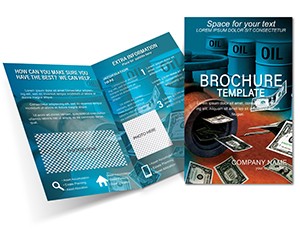
Browse the full Finance - Accounting brochures category for additional industry-specific layouts. For a half-fold design that covers commodity and energy sectors alongside financial data, the Money and Oil Brochure covers adjacent subject matter with a similar panel structure. When your distribution plan includes physical security or access-credentials communication alongside financial content, the Secure Password Access Brochure Template provides a complementary layout built for that use case.
Download the template now and have a print-ready file ready before your next client meeting.
Which software versions open the .ait, .dotx, and .indt files correctly?
The .ait file requires Adobe Illustrator CC 2018 or later; earlier versions may not render all vector elements correctly. The .indt file opens in Adobe InDesign CS6 or later, and InDesign CC versions provide the most stable experience with linked images and paragraph styles. The .dotx file opens in Microsoft Word 2016 or later on both Windows and macOS; older Word versions may reflow text frames unpredictably due to differences in how they handle template formatting. If you work in LibreOffice, the .dotx file may open with layout shifts that require manual correction - it is not an officially supported application for this file type.
What are the refund conditions for this template?
ImagineLayout's refund policy applies to digital template purchases and is governed by the terms published on their refund policy page. Because the files are delivered digitally and are immediately accessible after purchase, refund eligibility is typically limited to cases where the file is technically defective - for example, a file that will not open in the specified software version. Refunds are generally not issued for change-of-mind purchases once the file has been downloaded. Review the full conditions at imaginelayout.com/refund-policy before completing your order if you have any uncertainty about suitability.
Is the file print-ready, and does it include CMYK color, bleed, and trim guides?
The template is built in CMYK color mode, which is the standard required by offset and most digital professional printers. Bleed marks and trim guides are embedded in the file, so you do not need to add them manually before exporting a print-ready PDF. The resolution specification is not stated on the product page; confirm your export DPI with your print provider - 300 DPI is the standard minimum for crisp text and photographic elements on brochure-weight paper. The .ait and .indt files export most reliably as Press Quality PDFs with crop marks and bleed included in the export dialog.
What does the license permit and prohibit?
ImagineLayout licenses templates for use in producing finished printed or digital materials for a single buyer or their clients. The license covers customization and distribution of the completed brochure. It does not permit resale of the template file itself, redistribution of the source files to third parties, or use in template marketplaces or stock repositories. For specific permitted and prohibited uses, the full license terms are published at imaginelayout.com/terms - review that page before use in client deliverables or agency workflows where sub-licensing may be a concern.
How do you change the colors in this template?
In Illustrator, open the Swatches panel (Window > Swatches) and double-click any color swatch to open the Swatch Options dialog. Enter your CMYK values directly and check "Global" to propagate the change across all objects using that swatch simultaneously. In InDesign, the same process works via the Swatches panel with global color definitions. In Word, use the Font Color tool in the Home ribbon for text, and the Shape Fill option for colored graphic elements - enter custom hex or RGB values in the color picker. Note that Word exports in RGB by default; for CMYK-accurate color output, use the .ait or .indt file for your final print submission.
What is each file format used for, and are fonts embedded or outlined?
The .ait file is an Illustrator template - best for vector-heavy customization and precise control over graphics and typography. The .indt file is an InDesign template - best for multi-panel layout management, paragraph styles, and generating press-quality PDFs. The .dotx file is a Word template - best for teams without access to Adobe software who need quick text edits without advanced design tools. Font handling is not specified on the product page; if fonts are not outlined or embedded in the source file, you may need to install matching typefaces before editing. Check the Illustrator Type menu or InDesign's Preflight panel for missing font warnings immediately after opening the file.