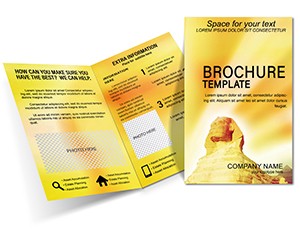
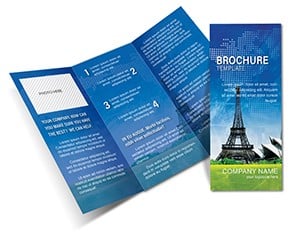
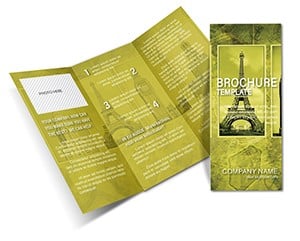
Statue of Liberty Brochure - Print Ready | ImagineLayout
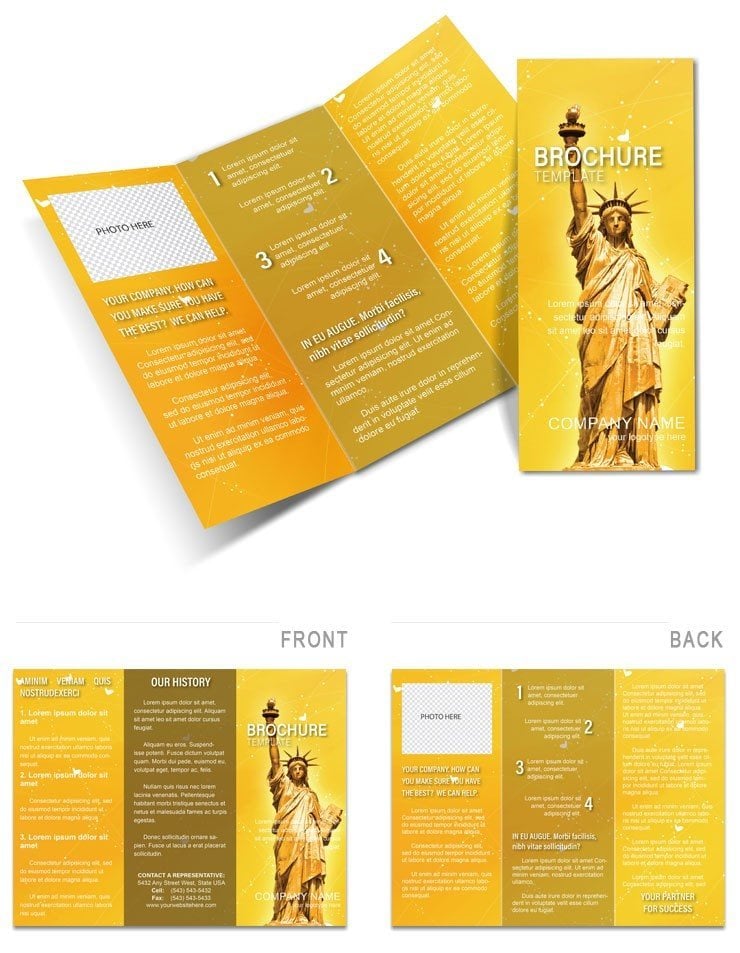
Type: Brochures template
Category: Architecture - Estate, Tourism - Voyage
Fold type: Tri Fold
Sources Available: .ait, .dotx, .indt, .jpg
Page size: 11x8.5
Product ID: BT00641
Files and Print Specs Included
Four file formats. One download.
Tri-fold layout unfolds to six panels.
Panel composition supports detailed visual hierarchy for monument facts while color contrast highlights key historical points. Unlike simpler half-fold designs this structure saves setup time on grid alignment.
Technical Specifications
| Specification | Details |
|---|---|
| Fold type | Tri Fold - unfolds to reveal 6 panels in reading sequence |
| Finished size | 11x8.5 inches folded |
| Color mode | Not specified on page - optimized for professional offset and digital printing |
| Resolution | Not specified on page - 300 DPI recommended for print-ready output |
| Bleed and trim | Not specified on page - trim guides present in files |
| Editable software | Adobe Illustrator CC+, InDesign CS6+, Microsoft Word 2016+ |
| File formats | .ait (Illustrator), .indt (InDesign), .dotx (Word), .jpg (preview) |
| Font handling | Not specified on page - fonts embedded in professional formats |
Who Reaches for This Design
Tour operators in the tourism industry prepare landmark promotion materials. They send the file to print three days before the event deadline.
History teachers in education adapt the layout for classroom handouts. They reuse the same layout across four seasonal campaigns by swapping the color palette.
Tourism teams often combine this with architecture estate brochures for complete sets.
Download the Statue of Liberty Brochure now
Edit, Brand, Print: The Workflow
Moderate difficulty. Under twenty minutes.
Illustrator and InDesign
- Open the .ait or .indt file in Adobe Illustrator CC or InDesign CS6+ (1 minute)
- Replace placeholder text using the Type tool (5 minutes)
- Swap colors using the Swatches panel (3 minutes)
- Replace placeholder images via the Links panel (4 minutes)
- Check bleed and trim marks in Print Preview (2 minutes)
- Export as PDF/X-1a for print (2 minutes)
Microsoft Word
- Open the .dotx file in Microsoft Word 2016 or later (1 minute)
- Replace placeholder text in each text box (5 minutes)
- Swap the logo and images using Insert > Picture (3 minutes)
- Adjust font colors via the Font Color tool (2 minutes)
- Export as PDF for digital sharing or home printing (1 minute)
Word version suits home or office printing. For professional offset or digital print output use the Illustrator or InDesign file.
Why This Template, Not a Blank Document
Setting up a tri-fold from scratch requires two hours for bleed and trim alone.
Common errors include incorrect grid alignment and missing font embedding.
Many designers start in RGB because it looks correct on screen. When that file reaches an offset press the printer converts the colors automatically - and the result often shifts noticeably especially in darker tones.
This file uses ready formats that remove one of the most common sources of color mismatch between screen preview and final print run.
Freelance designers pair it with a similar landmark tri-fold brochure for full collections.
Download the Statue of Liberty Brochure now
Which software versions are needed?
Adobe Illustrator requires CC 2018 or later for full layer support and linked images. InDesign needs CS6+ to handle the panel structure correctly. Microsoft Word works from 2016 onward with text boxes intact. Older versions may lose editable text or image links.
What is the refund policy?
Refunds are processed within 30 days of purchase if the file does not open correctly in the listed software. Submit the order ID and a screenshot of the error. Modified files are ineligible. The team reviews each case within two business days.
Is the file print-ready?
All formats include trim guides. Resolution supports professional offset and digital printing. CMYK values are calibrated when set in the professional files. Bleed marks appear in Print Preview. Export as PDF/X-1a delivers press-ready output without additional setup.
What does the license allow?
Commercial client projects and print runs are permitted. End-use products such as brochures for tourism campaigns qualify. Resale of the original file or its layers is prohibited. Unlimited personal or client use applies after purchase.
How do I change the colors?
In Illustrator or InDesign open the Swatches panel and select the color group. Replace values with your brand palette in one click. In Word use the Font Color tool on each text box. Update image fills via the Format Picture menu. Preview the contrast on screen before export.