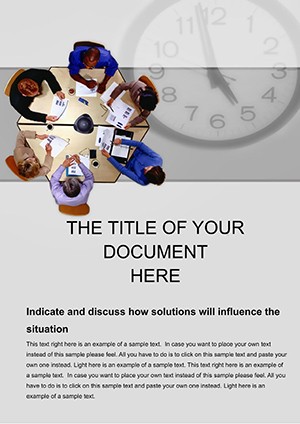
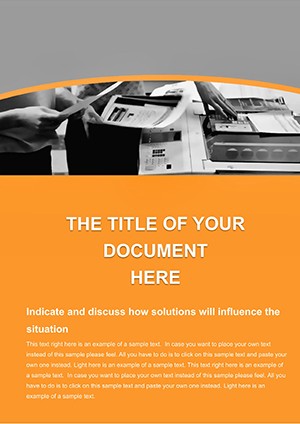
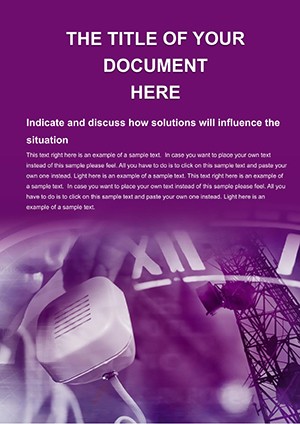
GMT Word Template for Time Zone Reports | ImagineLayout
Type: Word templates template
Category: Neutral - Abstract, Business
Sources Available: .dot, .dotx, .jpg
Product ID: WT00339
Package Contents: Formats, Sections, and Print Specs
3 file formats - .dot, .dotx, and .jpg - ship in the download, giving you both an editable Word framework and a visual preview before you commit a single edit. The .dotx format is the production-ready file; Word 2016+ opens it without compatibility warnings on Windows or Mac. The .jpg preview lets you verify the neutral, abstract aesthetic matches your project before opening Word at all.
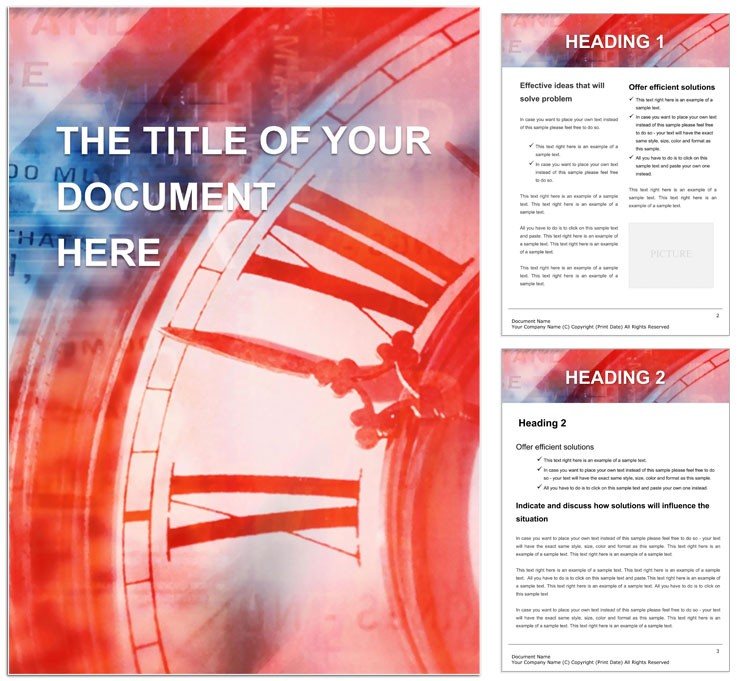
The panel structure centers on a two-part logic: a framing header for topic context, followed by modular body sections sized for timeline blocks, comparison tables, and map or diagram placeholders. That specific layout decision - separating the framing header from the data body - prevents the visual hierarchy from collapsing when a table grows across a second page. Writers covering the 1884 International Meridian Conference, UTC offset conversion, or modern GPS timekeeping all benefit from sections that hold their proportions regardless of content length.
The buyer receives three source files from a single download. The .dot file supports legacy Word environments. The .dotx is structured for current professional printing workflows, with margin settings suitable for both office laser printers and digital printing services. No bleed or trim guides are specified on the product page, and no DPI value is listed - print professionals should verify output settings against their specific print-ready file requirements before sending to an offset printing vendor.
Production Details at a Glance
| Specification | Details |
|---|---|
| Product ID | WT00339 - use this reference when contacting support about a specific file issue |
| File Formats | .dot, .dotx, .jpg - .dotx for active editing; .dot for legacy Word; .jpg for preview only |
| Software Required | Microsoft Word 2016+ (Windows or Mac); .dot also opens in older Word versions |
| Category | Neutral - Abstract and Business - suited for corporate reports and academic papers |
| Price | $8.00 - single-purchase, instant download after checkout |
| Color Mode | Not specified on the product page - verify CMYK conversion before offset printing |
| Resolution / DPI | Not specified - confirm with your print vendor for professional printing requirements |
| Bleed / Trim Guides | Not specified - add bleed manually if ordering from a commercial offset printer |
Who Reaches for This Design
An international operations coordinator at a logistics company needs to brief a cross-continental team on scheduling windows across seven time zones. Rather than rebuilding a UTC comparison table from scratch - a manual step that typically costs 40–60 minutes of alignment work - they open the .dotx file, populate the pre-built offset table with their specific city list, and export a print-ready file for the weekly operations binder.
A curriculum developer at a secondary school produces a four-week geography module on the history of standardized time. The template's pre-formatted timeline section maps the progression from solar mean time to atomic clocks without requiring the developer to configure column widths, heading levels, or paragraph spacing from a blank document.
A freelance writer compiling a long-form feature on the Prime Meridian's role in navigation history uses the template's modular body sections to separate a factual overview from a comparative analysis of pre-1884 timekeeping disputes - keeping the visual hierarchy clear for editorial review without reformatting between drafts.
Download and start editing immediately
Edit, Brand, Print: The Workflow
The .dotx file uses the Microsoft Word workflow. Editing difficulty is low for users familiar with Word 2016+; no scripting, no plugin, no design software required.
- Open the .dotx file in Microsoft Word 2016 or later. Word creates a new document based on the template - the original file stays intact for future use.
- Replace the header placeholder text with your report title, date, and organization name. Apply your brand font via the Home > Font panel; the heading hierarchy updates across all heading levels simultaneously when you modify the built-in styles.
- Populate the UTC offset comparison table: type city names in the left column, offset values in the center, and daylight saving notes in the right. Word's table auto-expands when you press Tab at the last cell.
- Insert timeline content into the chronology section. Use Format Painter to carry any manual bold or color changes across similar blocks without re-applying individually.
- Swap colors using the Design > Colors panel or manually via Font Color and Table Shading tools to match your organization's palette.
- Export via File > Save As > PDF for digital sharing, or confirm margin and page size settings before sending to a digital printing or office printer.
Building From Scratch vs. Starting Here
Producing a comparable document from a blank Word file requires manual work: setting heading styles that survive track-changes, configuring table column widths that don't collapse when data varies in length, and sourcing or creating time-zone icons that match the document's neutral, abstract tone. A designer working from scratch typically spends 2–4 hours on layout mechanics before writing a single word of content.
Required skills for a from-scratch build include intermediate Word style management, basic table formatting, and an understanding of how page margins interact with print-ready file requirements. Missing any one of these causes common mistakes: heading drift across sections, tables that break mid-row on page turns, or margins too narrow for professional printing.
Pro Insight: Color mode is not specified on the product page. That matters for print production. Before sending to an offset printing vendor, open the file and verify whether graphics use RGB values - Word's default - and convert to CMYK if the printer requires it. Neutral tones like the grays and blues typical of abstract business layouts often shift slightly between RGB screen display and CMYK print output, particularly on coated stock. Registration risk is low for single-ink text elements but higher for any tinted background shapes. Run a proof print on your target paper stock before a full print run. For more templates in the same neutral and business category, browse the full Neutral - Abstract Word templates collection. If your project also involves scheduling or coordination documents, the Universal Time Word Template covers related thematic territory. For data-heavy financial or analytical reporting to accompany time-zone briefings, the Stock Market Reports Word Template provides a complementary layout structure.
Download and start editing immediately
Which software versions open the .dot and .dotx files in this template?
The .dotx format opens in Microsoft Word 2016 and all later versions, including Microsoft 365 on both Windows and Mac. Word 2016+ is the recommended environment for full style fidelity. The .dot format is compatible with older Word versions as well, making it useful if your organization hasn't updated beyond Word 2013. Neither file requires any plugin or add-in beyond a standard Word installation. If you use a non-Microsoft editor such as LibreOffice or Google Docs, most paragraph styles will import, but table formatting and any Word-native drawing elements may need manual adjustment after upload.
What are the exact conditions for requesting a refund on this template?
ImagineLayout's refund policy covers three specific situations. First, if you cannot download the product, you may request a refund within 14 days of purchase - after that window, the item is assumed to have been received. Second, if the template has a serious defect that prevents normal use, notify the support team within 72 hours of purchase with your order number and a clear description of the issue. Third, if the product does not match its listed description, the case is reviewed individually. Refunds are not guaranteed if the file was downloaded and used for an extended period, if no reason is provided, or if Terms of Service are violated. Processing takes 7–10 business days after approval, and the refund returns to your original payment method.
Is the file print-ready, and does it include CMYK color, correct DPI, and bleed settings?
The product page does not specify color mode, DPI, or bleed and trim guides for this template. Word documents default to RGB color, which displays accurately on screen but may shift when converted for offset printing. If your project goes to a professional printer, ask your vendor for their specific CMYK, DPI, and bleed requirements and apply those settings before exporting to PDF. For standard office or digital printing, the default Word export produces acceptable results without additional configuration. The .jpg preview file is for reference only and is not intended as a print-ready asset.
What does the license permit and prohibit for this template?
The license covers personal and commercial use of documents you create from the template - reports, briefs, educational materials, and client deliverables are all permitted. You may use the template across multiple projects and share the finished documents freely. What is prohibited is reselling, redistributing, or sharing the original template file itself with third parties outside your organization. You cannot upload the .dot or .dotx file to a template marketplace or include it in a product bundle for sale. For any edge case not covered here, the full terms are available on ImagineLayout's Terms of Use page.
How do you change colors in the GMT Word template?
Open the .dotx file in Word 2016+. To change text colors, select the relevant text and use the Font Color dropdown in the Home ribbon. For table backgrounds and shading, select the table cell or row, go to Table Design, and use the Shading tool to apply a new fill color. To change the entire document's palette at once, go to Design > Colors and either select a preset theme or choose Customize Colors to define exact RGB or hex values. Saving a custom color set as a named theme lets you apply the same palette to future documents without repeating the process. No Swatches panel exists in Word - all color management runs through the Design ribbon and the Font Color / Shading tools described above.
What is each file format used for, and are fonts embedded or outlined?
The .dotx file is the primary editable template - open it in Word 2016+ to create a new document with all styles and layout pre-configured. The .dot file serves the same purpose in older Word installations. The .jpg is a static preview image intended for visual reference before purchase and editing; it is not editable. Fonts in Word .dotx and .dot templates are not embedded in the same way as in PDF or Illustrator files. Word links to fonts installed on the user's system. If a collaborator opens the file on a machine without the template's original fonts, Word substitutes the closest available alternative. To avoid substitution issues on shared files, either confirm all team members have the same fonts installed, or embed fonts via File > Options > Save > Embed fonts in the file before sharing.