Promo code "00LAYOUTS"
Packaging Process PowerPoint Charts Template: Workflow Visualization for Operations
Type: PowerPoint Charts template
Category: Process
Sources Available: .pptx
Product ID: PC00197
Template incl.: 23 editable slides
The Packaging Process PowerPoint Charts Template addresses a persistent challenge in operations presentations: how do you communicate complex packaging workflows - from raw material intake through final shipment - in a way that reveals bottlenecks, resource allocation inefficiencies, and timeline dependencies to stakeholders who need actionable insights, not just data dumps? Whether you're presenting manufacturing optimization strategies to plant managers, justifying capital equipment investments to CFOs, or documenting standard operating procedures for ISO audits, generic process slides fail to capture the multi-dimensional reality of packaging operations where material flows, quality checkpoints, and throughput targets intersect.
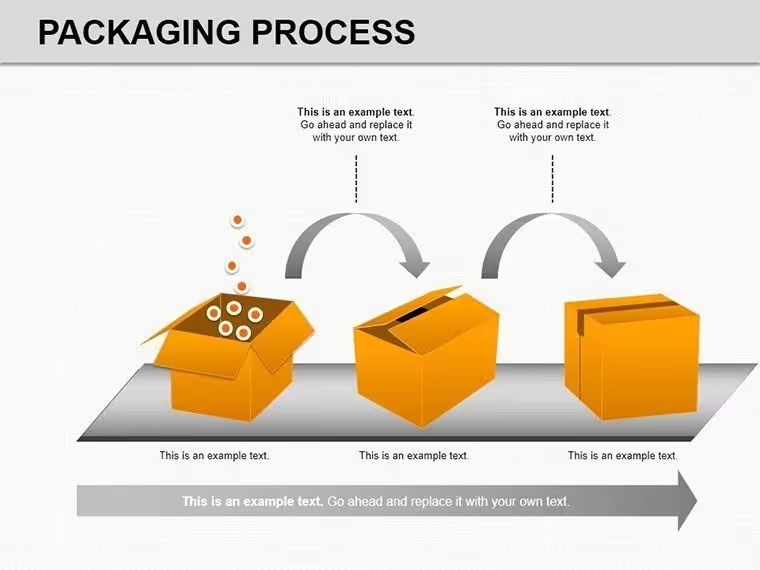
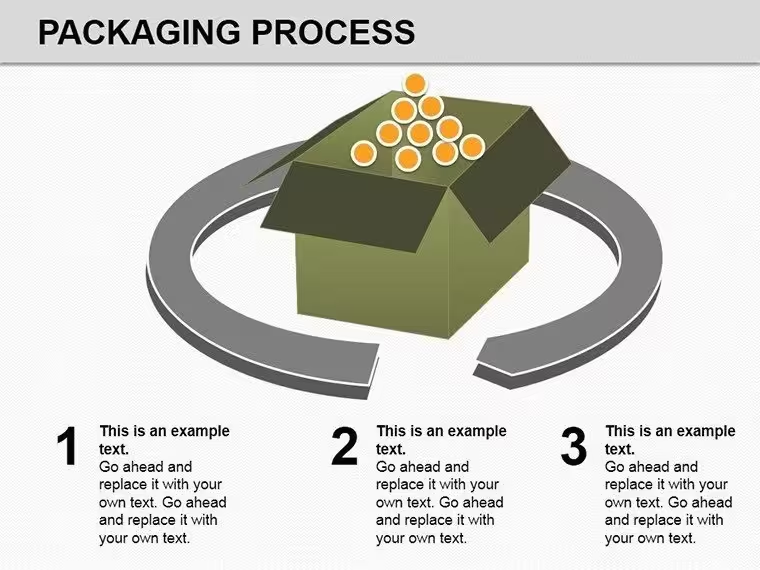
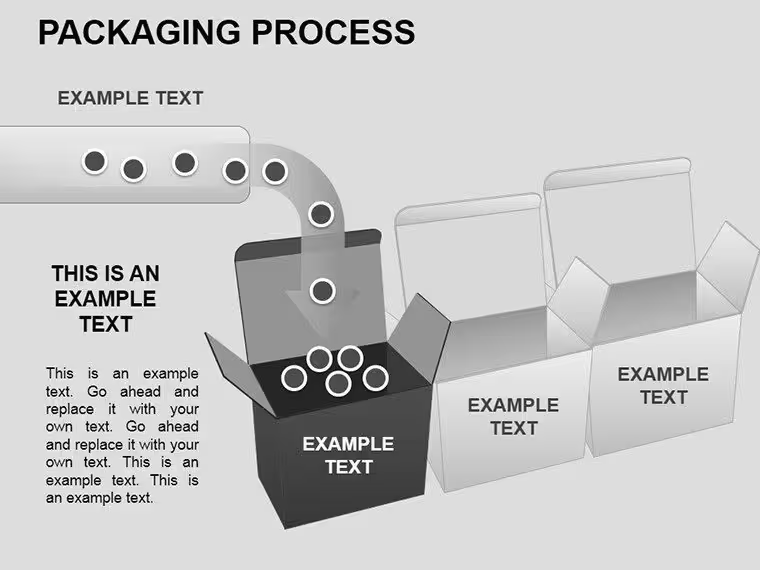
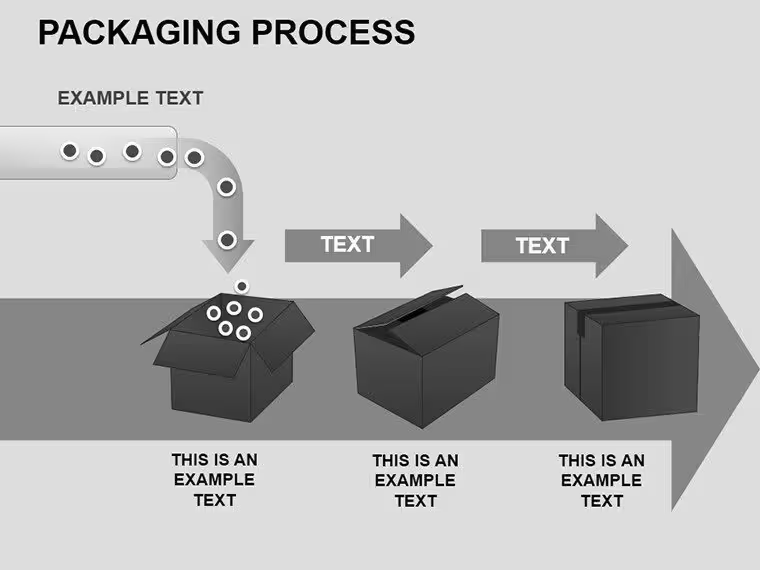
This 23-slide template provides purpose-built visualizations for packaging and fulfillment workflows. Designed for operations managers, supply chain directors, manufacturing engineers, and logistics coordinators, it includes flowcharts that map sequential packaging stages, Gantt-style timelines for production scheduling, resource allocation pie charts, and performance bar graphs - all the chart types you actually need when presenting packaging process improvements or operational audits. The template's practical focus on packaging-specific workflows (receiving, sorting, quality inspection, packing, labeling, staging, dispatch) means you spend minutes customizing, not hours building from scratch.
Packaging-Specific Chart Layouts: Slide Architecture & Editing Capabilities
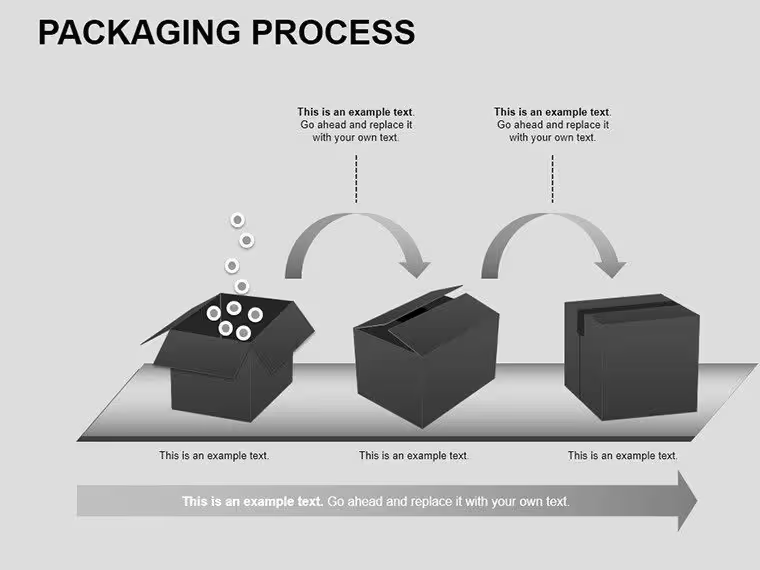
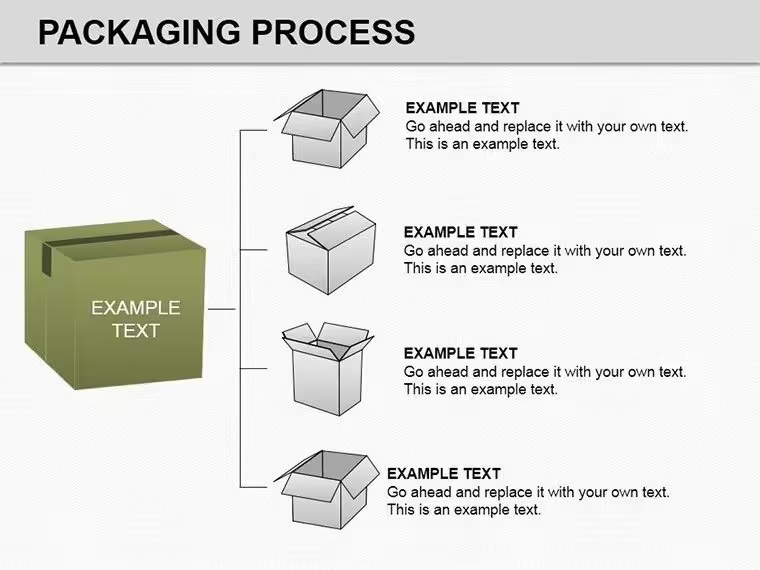
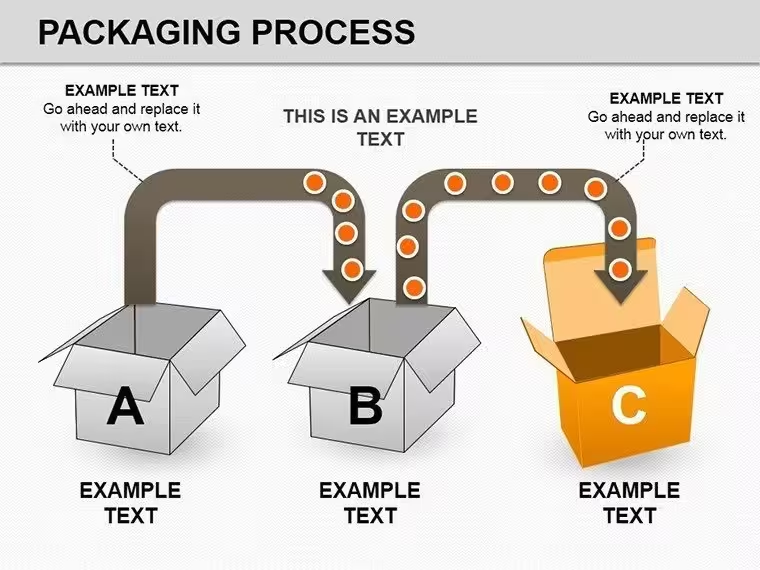
Slide 2 delivers a comprehensive packaging process flowchart spanning intake through shipment, with decision diamond symbols at quality control gates and resource allocation callouts at labor-intensive stations. I used this exact layout when presenting a packaging line optimization proposal to a consumer goods manufacturer - the visual flow immediately highlighted where inspection failures created rework loops, consuming 18% more labor hours than planned. The flowchart uses standardized ISO process symbols (rectangles for tasks, diamonds for decisions, parallelograms for inputs/outputs), ensuring clarity for audiences familiar with process documentation standards.
Slides 10-13 feature Gantt-style timeline charts critical for capacity planning presentations. These timelines display concurrent packaging tasks with duration bars, dependency arrows, and milestone markers - essential when coordinating seasonal packaging surges with available equipment and staffing. During a recent e-commerce fulfillment center review, we used Slide 11 to show how staggering shift start times by 30 minutes eliminated packaging station congestion during peak order windows, improving throughput 12% without additional headcount.
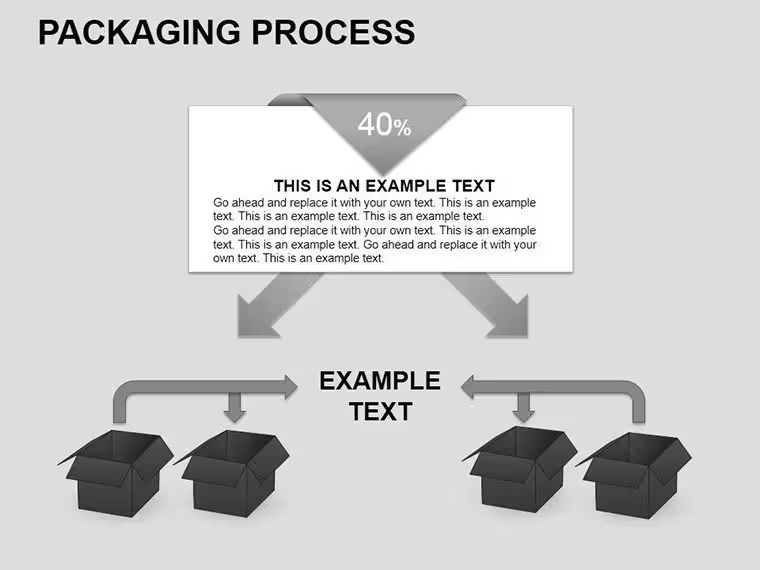
Resource distribution pie charts (Slides 5-7) break down packaging costs by category: materials, labor, equipment depreciation, quality assurance, waste management. Finance teams rely on these when evaluating packaging automation ROI - you can quickly demonstrate that labor represents 40% of total packaging cost, making the business case for automated case erectors or palletizers more compelling than abstract efficiency arguments.
Editing workflow in PowerPoint: All charts use native PowerPoint shapes and SmartArt, not embedded images, ensuring full customization. Click any flowchart box to edit text labels (change "Manual inspection" to "Automated vision system"), drag shapes to reposition process steps, or add new stages by duplicating existing elements. The timeline charts link to Excel-style table data - update stage durations in the data table and bars automatically adjust. Color-coding is consistent but customizable: quality steps use orange accents, packaging operations use blue, shipping uses green. Adjust the color scheme once in the master slide to update all 23 slides instantly.
Operations Presentations: When Packaging Process Charts Outperform Generic Templates
Deploy packaging process charts when visual workflow representation impacts decision-making more than raw metrics alone. In quarterly plant performance reviews, operations directors walk leadership through process flowcharts annotated with actual vs. target cycle times - the visual gaps between current state and optimized state drive equipment upgrade approvals faster than spreadsheet variance reports. The packaging context is critical: generic process templates don't include packaging-specific stages like "case erecting," "product orientation," or "pallet stretch wrapping" that manufacturing audiences expect to see.
For continuous improvement initiatives, these charts document current-state workflows during kaizen events, then show proposed future-state flows side-by-side. A food manufacturer used Slide 15's before/after comparison layout to present packaging line consolidation results - reducing from 4 semi-automated lines to 3 fully automated lines. The visual reduction in process complexity (fewer boxes, shorter flowchart) reinforced the operational efficiency narrative before displaying the actual 22% throughput increase.
Avoid packaging process charts when: You're presenting only financial results without operational context (use standard financial dashboards), discussing marketing/commercial packaging design rather than operational workflows (product mockup templates work better), or focusing on single-metric tracking over time (line charts suffice). Use this template when process flow, resource allocation, or operational sequencing drives the presentation narrative.
Cross-Platform Editing: PowerPoint, Google Slides & Keynote Workflows
In PowerPoint 2016 or newer, flowchart connectors auto-route when you move process boxes - drag a step, and connecting arrows adjust automatically. For presentations requiring frequent updates (monthly production reviews), save your customized template as a .potx file with your facility's specific packaging stages already mapped. This preserves labeling conventions, color codes, and layout preferences across recurring presentations. When linking timeline charts to live production data, use Paste Special - Link to connect Excel schedule exports; update source data in Excel, then right-click the PowerPoint chart and select Refresh Data to pull current information.
Google Slides compatibility is strong - upload the .pptx and formatting translates cleanly, though you'll lose some advanced connector auto-routing. Workaround: Group related flowchart elements (a process box plus its input/output arrows) before moving them to maintain spatial relationships. Google Slides' collaboration features shine during process mapping workshops where multiple department leads simultaneously edit different workflow sections, consolidating plant-floor expertise into one authoritative process map.
Keynote users can import via File - Open, accepting the format conversion prompt. Most chart types transfer well, but manually verify timeline bar alignments and flowchart connector endpoints. The effort is worthwhile - building equivalent packaging-specific charts natively in Keynote would require 4-6 hours of shape creation and alignment. For Mac-centric operations teams, maintaining the .pptx master file in PowerPoint Online provides cross-platform editing without Keynote conversion hassles.
For live presentations in manufacturing environments, use PowerPoint's Presenter View to display flowcharts on the main screen while viewing detailed process notes on your laptop - crucial when walking plant managers through workflow changes where verbal explanations supplement the visual flow. Enable Slide Zoom to create interactive navigation between detailed process sections; stakeholders can request deep dives into specific packaging stages without linear slide progression.
Real-World Packaging Scenarios: Charts in Manufacturing & Logistics Reviews
Capital equipment justification: Manufacturing engineers presenting automation proposals to finance committees use the template's cost distribution pies to show current labor allocation, then overlay timeline charts demonstrating how automated packaging equipment reduces cycle times. In a recent packaging automation bid, the engineering team used Slide 8's resource pie to prove manual case erecting consumed 23% of packaging labor hours - positioning a $180K case erector as a 14-month payback investment rather than an abstract efficiency play.
ISO audit documentation: Quality managers preparing for ISO 9001 audits use the flowcharts to document packaging processes with mandatory quality gates, inspection criteria, and rework procedures clearly identified. The standardized process symbols satisfy audit requirements for documented procedures, while the visual format makes processes accessible to auditors who may not be packaging specialists. We've seen this template used in FDA-regulated facilities where packaging process validation requires visual workflow documentation.
Seasonal capacity planning: Logistics directors presenting peak season fulfillment readiness use timeline charts to show how packaging capacity scales during Q4 e-commerce surges. Slide 12's multi-line Gantt layout displays normal capacity (blue bars), planned overtime capacity (orange), and peak requirement projections (red dotted line) - instantly communicating whether current resources meet demand or if temporary staffing/equipment rentals are needed.
Lean manufacturing workshops: Continuous improvement teams use these charts during value stream mapping sessions to identify non-value-added steps in packaging workflows. By color-coding value-adding activities (green), necessary non-value-adding activities (yellow), and pure waste (red) on the process flow, teams visually quantify improvement opportunities. A distribution center reduced packaging labor 16% after a workshop identified redundant quality checks - the color-coded flowchart made waste visible to frontline supervisors who implemented the elimination.
Supplier performance reviews: When packaging material shortages disrupt production, operations teams use these charts in supplier escalation meetings to show exactly where material delays impact the packaging sequence. Slide 14's dependency flowchart illustrates how a 2-day delay in corrugate delivery cascades into a 5-day finished goods backlog - visual proof that drives supplier corrective actions more effectively than email complaints.
Template Slide Organization: Chart Types by Presentation Need
| Slides | Chart Type | Primary Use Case | Target Audience |
|---|---|---|---|
| 1-4 | End-to-end packaging flowcharts | Process overview, SOP documentation, training materials | Plant managers, new hires, auditors |
| 5-9 | Resource allocation pies & cost breakdowns | Budget reviews, cost reduction initiatives, ROI analysis | Finance teams, executives, procurement |
| 10-15 | Timeline Gantt charts & scheduling diagrams | Capacity planning, project schedules, shift coordination | Operations planners, logistics coordinators |
| 16-19 | Performance bar charts & KPI dashboards | Throughput analysis, quality metrics, efficiency tracking | Plant leadership, continuous improvement teams |
| 20-23 | Comparative before/after layouts | Improvement project results, change management, business case presentations | Executives, steering committees, investors |
This structure mirrors actual operational review agendas: start with process overview (flowcharts), analyze resource consumption (pies), validate timing/capacity (Gantt), measure results (bar charts), and demonstrate improvement (comparisons). I've used this exact sequence in quarterly manufacturing reviews - the logical flow keeps audiences engaged as the presentation builds from operational context to strategic outcomes.
Industry Applications: Packaging Process Charts Across Sectors
Consumer Packaged Goods (CPG): Map packaging lines handling multiple SKUs with changeover sequences, quality checks, and labeling variations. Use flowcharts to document allergen control procedures where packaging line sanitation between product runs is critical. Color-code steps by product family to show material flow segregation.
E-Commerce & Fulfillment: Visualize pick-pack-ship workflows showing order batching, item consolidation, void fill application, and carrier sorting. Timeline charts display hourly order wave processing to optimize labor scheduling. Resource pies break down packaging material costs (boxes, dunnage, tape) driving supplier consolidation decisions.
Pharmaceutical & Medical Device: Document serialization and track-and-trace packaging requirements with flowcharts showing data capture points, aggregation steps, and verification gates. The visual process map helps regulatory affairs teams demonstrate compliance with FDA's Drug Supply Chain Security Act. Quality checkpoints are prominently marked to satisfy audit requirements.
Food & Beverage: Map sanitary packaging processes with CIP (clean-in-place) cycles, metal detection checkpoints, and weight verification. Timeline charts coordinate packaging schedules with production batches to minimize WIP inventory. Flowcharts identify critical control points (CCPs) for HACCP plan documentation.
Industrial & B2B Manufacturing: Visualize custom packaging workflows for odd-sized or fragile products requiring engineered packaging solutions. Flowcharts show engineering review gates where packaging methods are validated against shipping test standards. Resource charts justify investment in custom packaging equipment versus outsourced packaging services.
Contract Packaging & Co-Packing: Present multi-client packaging capabilities with flowcharts showing flexible line configurations, changeover procedures, and quality protocols. Timeline Gantt charts communicate production scheduling to clients, showing slot availability and lead times. Performance bars track line efficiency across different packaging formats (bottles, pouches, cartons) to identify specialization opportunities.
Download the Packaging Process PowerPoint Charts Template to transform how you present operational workflows. Pair with organizational charts for staffing discussions or financial dashboards for comprehensive operations reviews. Ready for board meetings - start editing instantly.
How do I adapt these packaging charts for service/fulfillment operations without physical manufacturing?
Relabel process stages to match fulfillment workflows: "Receiving" becomes "Order intake," "Quality inspection" becomes "Order validation," "Packaging" becomes "Order preparation," "Shipping" becomes "Dispatch." The underlying chart structures - flowcharts showing sequence, timelines showing duration, resource pies showing cost allocation - apply equally to service operations. E-commerce fulfillment centers use these exact charts by swapping terminology. The flowchart logic (inputs - process - quality gate - outputs) is universal. I've customized this template for digital order fulfillment, warranty processing workflows, and returns management - the chart types remain relevant when you reframe "packaging" as "order preparation" or "fulfillment."
Can I use this template to present packaging design changes to marketing teams?
This template focuses on operational workflow visualization, not packaging creative design presentation. If your "packaging changes" are about graphic design, structural packaging engineering, or brand presentation, you need product mockup templates or marketing presentation templates instead. However, if you're presenting how new packaging designs impact operational workflows - for example, a new bottle shape requiring different conveyor configurations or label changes affecting line speed - these charts work well. Use the flowcharts to show where design changes create operational impacts, timeline charts to show extended changeover durations, and cost pies to quantify tooling or material cost implications. The template bridges operations and marketing when packaging design decisions have workflow consequences.
What's the best approach for presenting packaging process improvements to executives unfamiliar with manufacturing?
Start with the simplest high-level flowchart (Slide 1 or 2) showing only major stages: Receive - Package - Ship. Avoid operational jargon - use "prepare orders" instead of "pick-and-pack," "check quality" instead of "in-line inspection." Then show one key performance metric (cost per unit, orders per hour, error rate) using bar charts from Slides 16-19 that compare current vs. improved state. Only dive into detailed process flows if executives ask questions - have the detailed flowcharts ready in backup slides. For board presentations, I recommend 3-slide maximum: simple process overview, key performance impact (cost or speed), ROI timeline. Executives care about outcomes, not operational minutiae. Use the template's before/after comparison slides (20-23) to visually show process simplification - fewer boxes in the flowchart immediately communicates improvement even without detailed explanations.
How do I link these charts to real-time production data from our ERP or MES system?
PowerPoint doesn't natively support live database connections, but you can create near-real-time updates using Excel as an intermediary. Export production metrics from your ERP/MES to Excel using scheduled queries or Power Query connections. In PowerPoint, use Paste Special - Paste Link when inserting charts, linking to the Excel file (not embedding). When Excel updates with new data, open your PowerPoint presentation and right-click the chart - Update Link to refresh. For automated workflows, use Power Automate to refresh Excel data on a schedule, then configure PowerPoint to auto-update linked objects on file open (File - Options - Advanced - Update links automatically). This approach works well for weekly production reviews where you want last week's actual data without manual updates. For truly real-time dashboards displayed on plant monitors, consider Power BI instead - PowerPoint is better for static presentations with periodic updates.
Should I include actual cycle times and performance numbers on the flowcharts, or keep them clean?
It depends on audience and purpose. For executive presentations or high-level overviews, keep flowcharts clean with only process step labels - detailed numbers clutter the visual and distract from the process flow narrative. Include performance data in separate performance bar charts or data tables. For operational reviews with plant managers or engineers who need actionable detail, absolutely include key metrics: cycle times in each process box, defect rates at quality gates, utilization percentages at equipment stations. Use small font (8-10pt) annotations below process boxes rather than inside them to maintain visual hierarchy. For training materials, I recommend clean flowcharts in the main presentation, with detailed performance data in handout notes or appendix slides. When presenting process improvements, show metrics only on the "before" and "after" charts, not the current-state flow - this focuses attention on the delta rather than absolute values.
Can I animate the flowcharts to show process flow step-by-step during presentations?
Yes, and it significantly improves audience comprehension for complex packaging workflows. Select individual process boxes and apply entrance animations (Appear, Fade In, or Fly In) in sequence from left to right (or top to bottom). Animate connecting arrows separately using Wipe or Line animation effects to create a flowing visual. Set animations to "On Click" for interactive presentations where you explain each step before revealing the next, or "After Previous" with 0.5-1 second delays for self-running demonstrations. For maximum impact, use different animation sequences for different process paths - normal flow animates in blue, exception/rework loops animate in orange. This technique works exceptionally well in training presentations where new employees need to understand packaging sequence. During live operations reviews, animated reveals let you pause at each stage to discuss performance data or improvement opportunities before advancing to the next step.