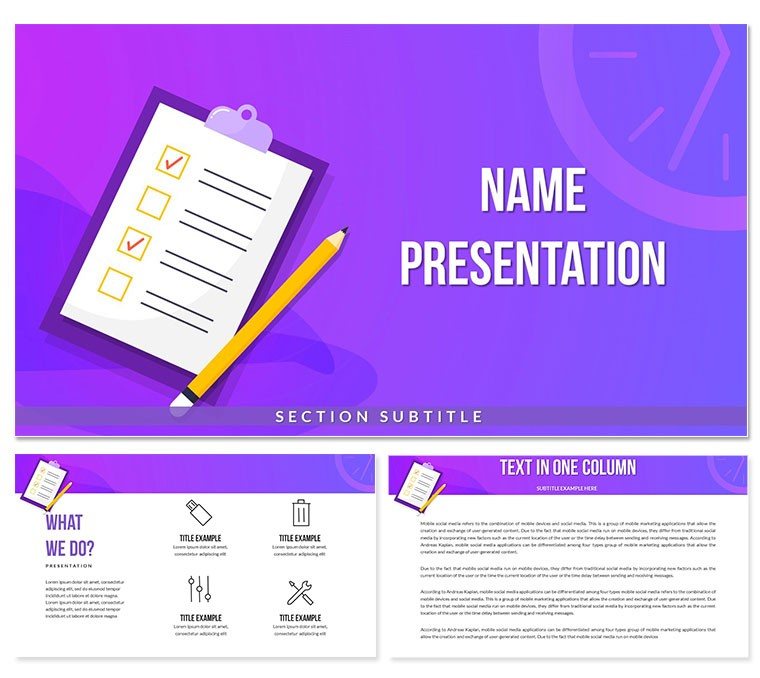
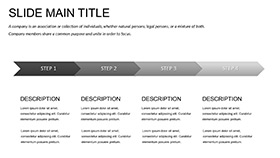
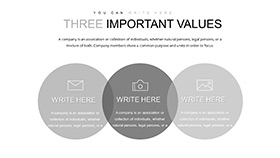
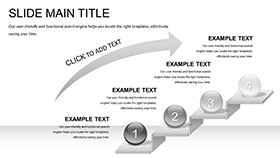
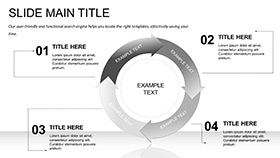
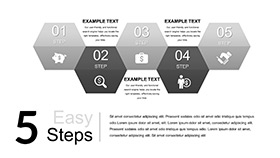
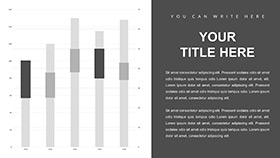
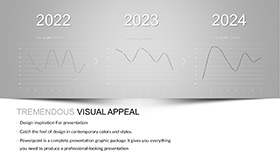
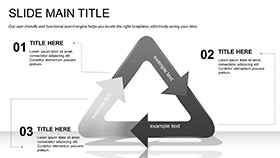
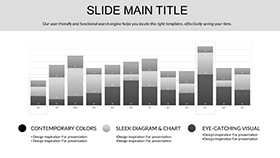
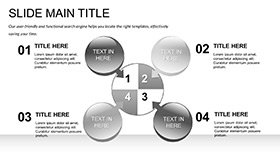
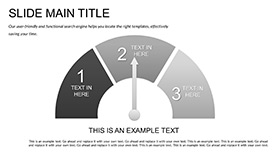
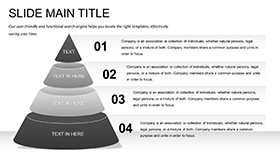
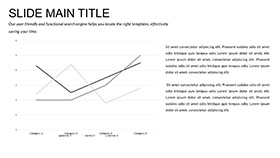
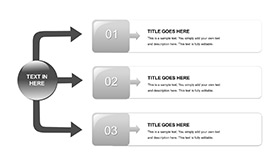
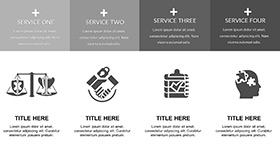
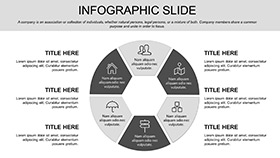
What is PowerPoint diagram template? A PowerPoint diagram template is a ready-made set of editable vector diagrams that professionals drop into slides to visualize complex ideas without starting from scratch.
Package Contents
28 diagrams across 7 color schemes give you the full planning calendar package in one file.
Monthly weekly and quarterly views combine into a cohesive deck for any board briefing.
Unlike single-chart layouts this one uses consistent flow direction and layout composition so every page maintains visual hierarchy without manual realignment.
- 28 editable diagrams
- 7 color schemes
- PPTX POTX and JPG files
Format and Compatibility Details
| Feature | Details |
|---|
| Editable shapes | diagram segments resize and recolor independently |
| Text placeholders | labels update without unlocking grouped elements |
| Color theme adjustments | compatible with PowerPoint slide master palette |
| Diagram connectors | arrows and lines adjustable in direction and weight |
| Icon layers | icons replaceable without affecting layout |
| Export options | PPTX for editing PDF for distribution |
| PowerPoint compatibility | 2016 2019 365 and Mac versions |
Real Scenarios
Three hours before a board meeting the slide deck still had no planning calendar diagram. The project manager opened the template swapped dates and colors then delivered a consistent view across all six client decks.
The outcome reduced per-session prep from 2 hours to 20 minutes.
Download and start editing immediately
From Download to Final Deck
Open the file and spend the first two minutes orienting to the master slide structure - this is where all color changes happen globally. The most common mistake is editing individual slide colors directly going through the master saves 15 minutes of repeated work. Once content is in place the export step depends on the destination audience. Date cells in calendar diagrams use grid alignment to show time progression horizontally making week-over-week comparisons instant without scrolling.
Building From Scratch vs. Starting Here
Building equivalent slides from scratch takes 4 hours and requires advanced design skill level.
Typical mistakes include inconsistent alignment and poor information spacing.
Date cells in calendar diagrams use grid alignment to show time progression horizontally making week-over-week comparisons instant without scrolling.
See more finance accounting templates or explore a comparable project timeline layout.
Download and start editing immediately
How do I change the color scheme via slide master?
Open the file and go to View → Slide Master. Select the top master slide and update the color palette there. All 28 diagrams update globally in seconds. Individual overrides remain possible on any slide. This approach saves 15 minutes compared with editing each diagram manually.
What does the license allow for client work?
The paid license permits unlimited internal use and client deliverables. You may not resell the template file itself or redistribute the source .pptx. One license covers one user or one team account. Contact support for enterprise licensing.
What are the differences between free and paid versions?
The paid download includes the complete 28-diagram set with all 7 color schemes and editable masters. No free tier appears on the page. Purchase gives instant access to the full POTX and PPTX files ready for editing.
What is the refund policy?
Refunds are available within 14 days if the file does not open in your version of PowerPoint. You must provide proof of purchase and a description of the issue. Refunds do not apply after the file has been downloaded and edited.
Which PowerPoint versions work?
The template opens in PowerPoint 2016 2019 365 and Mac versions. All features remain fully editable. Older versions may show limited compatibility for some advanced connectors.
How do I update chart data or edit data labels?
Right-click any calendar cell then choose Edit Data. Labels update automatically once values change. The grid alignment stays intact across all 28 diagrams.
How do I export for specific destinations?
Use File → Export → Create PDF for distribution or Save As for continued editing. All color schemes and connectors remain preserved.