28 Diagrams Across 7 Layouts: Full Contents
.pptx, .potx, and .jpg preview files are included in the download. The free tier - available at no cost - provides 3 slide masters and 3 background layouts: the full wallpaper visual without the diagram set. The $15.00 paid version adds 28 diagrams across 7 color scheme variants, making it the option for anyone who needs a complete, multi-layout deck rather than just a background file.
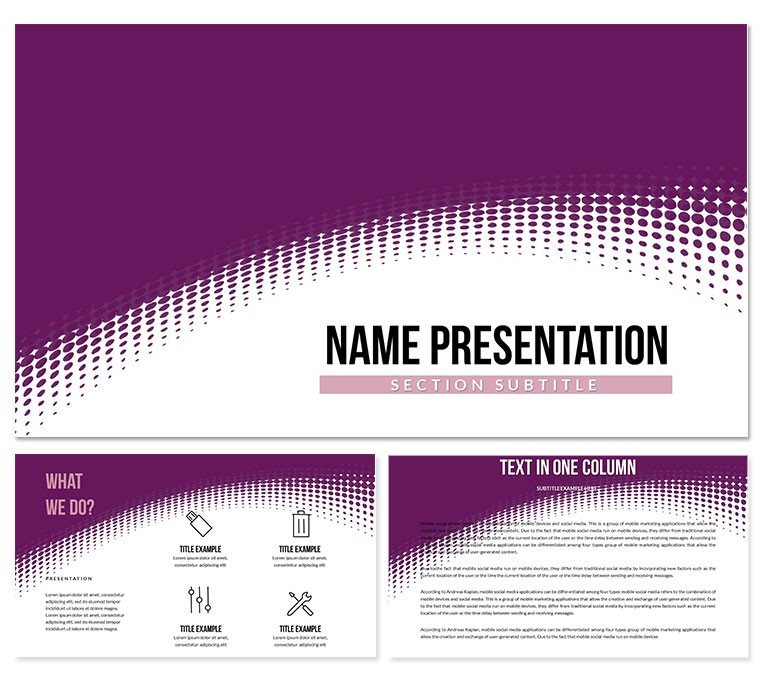
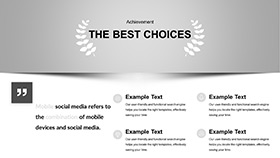
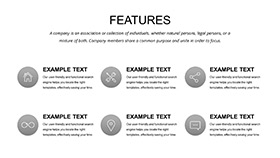
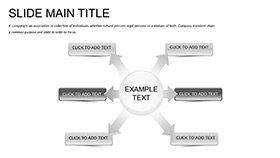
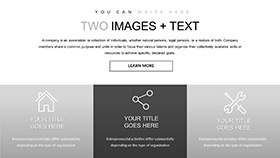
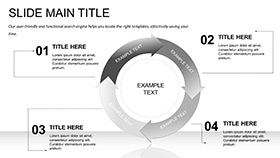
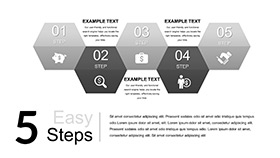
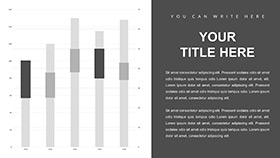
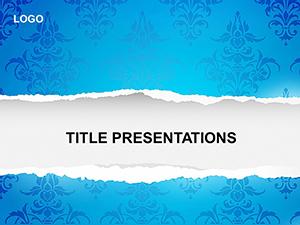
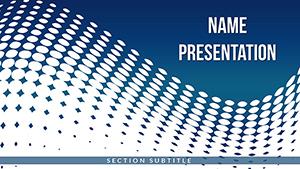
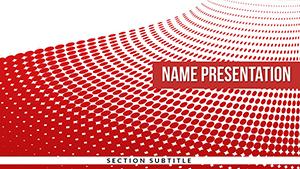
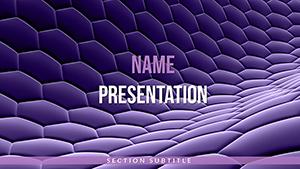
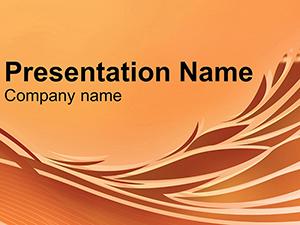
The 28 diagrams cover the slide structures a professional needs across a general-purpose business presentation: title frames, section dividers, two- and three-column content layouts, image-with-caption slides, agenda sequences, and closing slides. The wallpaper background motif - an ornament-based repeating pattern with a structured, paper-like texture - applies consistently across all 28 layouts, providing visual coherence without requiring the same graphic treatment on every slide.
Unlike single-color abstract sets where the background is a flat gradient or texture applied uniformly, this template uses a patterned wallpaper element that carries inherent visual rhythm - repeated ornamental shapes that create a surface texture without introducing a focal point that competes with slide content. That distinction matters on content-heavy slides: a gradient background recedes; a patterned background at low opacity adds depth without distraction. The 7 color presets shift the palette while preserving the ornament structure, so the template reads differently across color schemes without losing its design logic.
What is a Stylish Wallpaper PowerPoint template? A Stylish Wallpaper PowerPoint template is a pre-built presentation file using a decorative wallpaper or repeating ornamental pattern as the primary background visual, available in multiple color presets and editable in Microsoft PowerPoint 2016 or later.
Technical Specs
| Feature | Details |
|---|
| Diagrams included | 28 across title, content, section, and closing layout categories |
| Color schemes | 7 presets covering warm neutral, cool neutral, and accent tone variants |
| Editable shapes | Content zone shapes, text frames, and icon placeholder boxes resize independently from background pattern |
| Text placeholders | Headline and body labels update without unlocking or ungrouping background wallpaper elements |
| Slide master | Global palette changes via View - Slide Master - Colors; wallpaper opacity adjustable per-slide via Format Background |
| File formats | .pptx and .potx for editing; .jpg previews for reference |
| Compatibility | Microsoft PowerPoint 2016, 2019, Microsoft 365 (Windows and Mac) |
| Free vs. paid | Free: 3 masters + 3 backgrounds; $15.00: adds 28 diagrams + 7 color schemes |
| Aspect ratio | Standard widescreen 16:9 |
Adapting the Template to Your Brand
A freelance presentation designer reused the same Stylish Wallpaper template file across 8 client projects over 6 months. Each project required different brand colors, and each time the process was the same: open file, navigate to Slide Master, apply the client's hex value to the theme primary color, close master view, replace all text placeholders, export. Average adaptation time per project: 25 minutes for the first pass. By the fourth engagement, the process was down to 18 minutes.
For a portfolio presentation at a design agency pitch, the wallpaper pattern provided a structured elegance that a flat-color background could not. The ornamental texture communicated craft without requiring custom illustration. The same deck, resaved with a different color preset from the 7 included, served as the agency's internal capabilities presentation the following week.
Download and start editing immediately
The Cost of Not Using a Template
Sourcing or creating a high-quality ornamental wallpaper background for a PowerPoint presentation from scratch involves either purchasing a vector pattern asset, adapting it for use as a slide background at correct dimensions and resolution, and adjusting opacity so it reads as a backdrop rather than foreground - or building the repeating ornament pattern directly in PowerPoint using shape duplication and grid alignment. The first approach takes 20-30 minutes; the second takes 60-90 minutes for a pattern with the density shown in this template's preview.
In wallpaper-background presentation design, opacity is the variable that separates a background that supports content from one that obscures it. A repeating ornamental pattern at 100% opacity competes directly with body text for attention - the eye tracks pattern repetition involuntarily. Reducing the pattern layer to 10-20% opacity preserves the visual texture while pushing the graphic behind the content hierarchy. The background layers in this template are pre-set at opacity levels calibrated for on-screen legibility, which is the adjustment that builders most commonly get wrong when creating patterned backgrounds from scratch - typically discovering the issue only after projecting the slide in a meeting room.
Editing skill required: Beginner for text, color scheme selection, and basic content replacement. Adjusting wallpaper opacity per-slide or modifying the ornamental pattern layers requires Moderate PowerPoint familiarity. No external software is needed at any stage.
Download and start editing immediately
Frequently Asked Questions
Which versions of PowerPoint work with this template?
The .pptx and .potx files are compatible with Microsoft PowerPoint 2016, 2019, and Microsoft 365 on both Windows and Mac. Patterned background layers may render with minor differences in PowerPoint 2013 due to older transparency handling. Google Slides imports .pptx files but may not preserve wallpaper pattern opacity and fill type precisely. For accurate rendering of the ornamental background, use PowerPoint 2016 or a later version as specified.
How do I change the color across all slides using the slide master?
Open the file in PowerPoint, go to View - Slide Master, and select the top-level master thumbnail in the left panel. From the Slide Master ribbon, click Colors - Customize Colors. Enter your brand hex values in the appropriate theme color fields and save. Close Slide Master view to apply globally. If the wallpaper pattern uses a theme-linked color fill, it updates automatically. Elements with directly applied hex fills require manual adjustment via Format - Shape Style - Shape Fill.
What exactly does the free version include versus the $15.00 paid package?
The free download includes 3 slide masters and 3 background layouts - the wallpaper visual foundation of the template. The $15.00 paid package adds 28 diagrams and 7 color schemes for those diagrams. The free tier is useful for applying the wallpaper background to a pre-existing presentation via the .potx theme file; the paid tier provides the full set of content slide layouts needed to build a complete deck from the template. Both tiers include the .pptx, .potx, and .jpg files.
Is this template licensed for commercial use and client projects?
The standard license covers internal business use and client-facing presentations where the template is embedded in a delivered deck. It does not permit redistributing the template file itself, including it in design asset collections sold to others, or sharing the editable .pptx or .potx file outside the purchasing organization. Agencies producing presentations for multiple clients should verify that each project's use falls within the single-license scope before distributing editable files to clients or contractors.
What is the refund policy for the paid version?
Refunds are available when the downloaded file does not open correctly in the specified software version or does not match the product description. Requests must be submitted before substantial edits are applied to the file. Digital downloads are generally non-refundable once accessed, but technical failures with the file qualify for review. Submit requests through ImagineLayout's support contact and review the full conditions on the Refund Policy page before purchasing.
Can I adjust the opacity of the wallpaper background on individual slides?
Yes - on any slide, right-click the slide thumbnail in the left panel and select Format Background. In the Format Background panel, locate the Transparency slider for the fill type being used (solid, gradient, or picture fill). Adjusting transparency increases or decreases background visibility per slide without affecting other slides. For a global opacity change, the background must be updated at the master slide level via View - Slide Master - right-click the background element - Format Shape - Transparency.
Browse the full Neutral - Abstract PowerPoint templates collection for related background-driven presentation files. For a pixel-pattern alternative in the same visual register, the Pixel Wave PowerPoint Templates offer a geometric wave motif across a similar slide structure. The Pattern PowerPoint Templates provide a repeating graphic pattern approach with a different structural rhythm.