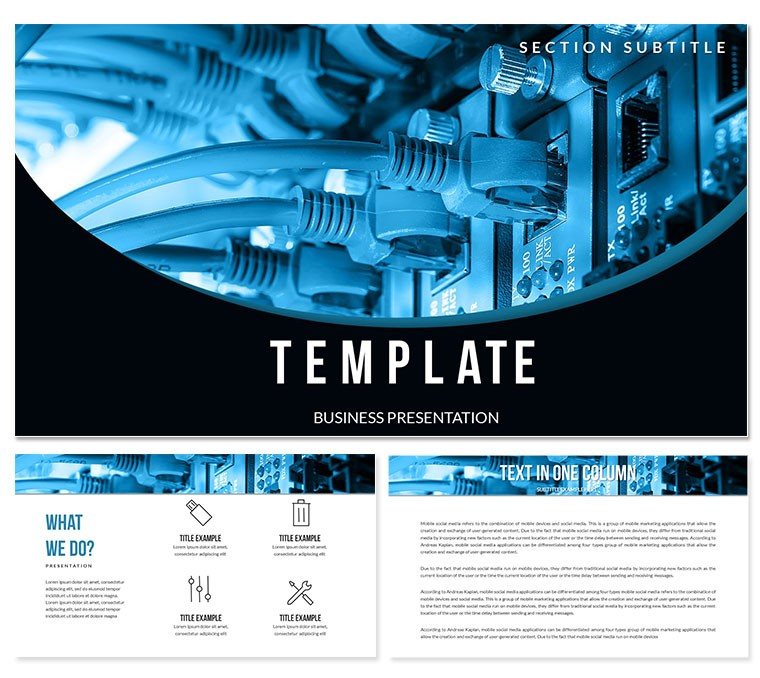
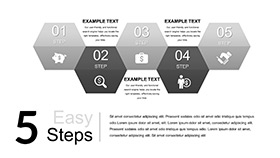
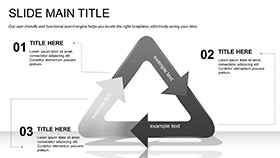
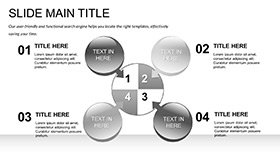
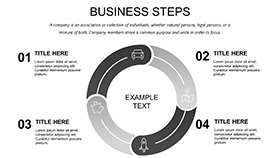
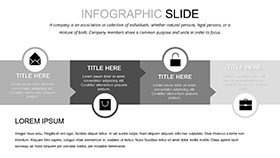
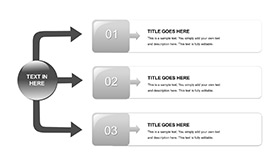
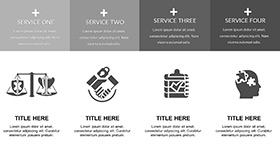
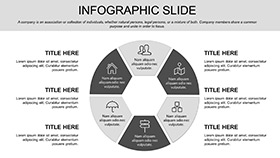
What is a network configuration PowerPoint template? A network configuration PowerPoint template is a pre-built slide set with editable diagrams and color-coded layouts designed for presenting router setup procedures, IT infrastructure architecture, and telecommunications network structures to technical or mixed audiences.
28 Diagrams Across 7 Layouts: Full Contents
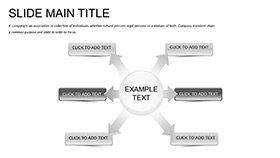
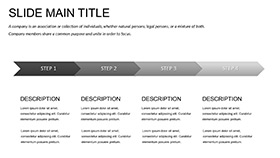
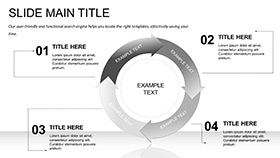
A network engineer preparing a router configuration training for a mid-sized IT department needs more than a single topology diagram. 28 diagrams across 7 color schemes provide the layout range to cover the full scope: network architecture overviews, device hierarchy structures, configuration step sequences, and comparison layouts for protocol options. The paid version includes all 28 diagrams plus the 7 color schemes; the free version provides 3 masters and 3 backgrounds for basic slide structure.
The .pptx file handles direct editing; the .potx functions as a reusable branded template. Both are included in the paid download. The 7 color schemes apply globally through the slide master - switching from a dark blue technical palette suited for NOC briefings to a lighter scheme for executive IT reports takes a single master selection. Vector-based icons representing routers, servers, and network nodes are replaceable without disrupting the surrounding layout structure.
Unlike sets built around generic business process flows, this package is designed around the visual vocabulary of IT infrastructure: hierarchical device diagrams, layered network topology illustrations, and configuration step flows that follow the sequence logic a network engineer or IT trainer already thinks in. That specificity reduces the gap between the template structure and the actual content being presented.
Technical Specs
| Feature | Details |
|---|
| Diagrams included | 28 (paid); 3 masters + 3 backgrounds (free) |
| Color schemes | 7 - applied globally via slide master |
| File formats | .pptx for editing, .potx for reusable team template |
| PowerPoint compatibility | PowerPoint 2016, 2019, 365 (Windows and Mac) |
| Editable shapes | Router icons, topology nodes, hierarchy boxes - all resize and recolor independently |
| Text placeholders | Device labels, IP address fields, step descriptions update without ungrouping |
| Icon layers | Network device icons replaceable without affecting surrounding layout |
| Diagram connectors | Network lines and routing arrows adjustable in direction and weight |
| Free vs paid difference | Free: 3 masters + 3 backgrounds; Paid ($27.00): adds 28 diagrams and 7 color schemes |
| Animation support | No preset animations; static by default, animations addable manually per element |
How to Make It Yours in Under 20 Minutes
Editing difficulty: Moderate - suited to IT professionals comfortable with file navigation, even without PowerPoint design experience.
Open the .pptx file in PowerPoint 2016 or later. Start with View - Slide Master - this is where all 7 color schemes live. Select the scheme that matches your organization's branding or the presentation context (dark blue for a data center briefing, lighter neutral for an executive summary). This single action updates every diagram on every slide simultaneously.
Return to Normal view. Delete any slides not relevant to your presentation by right-clicking the thumbnail and choosing Delete Slide - it is more efficient to work with 12 relevant slides than to navigate 28. Replace placeholder text in each diagram: device names, IP addresses, configuration step labels, protocol descriptions. None of the grouped network diagram elements need to be ungrouped for text edits.
- Step 1 - Open .pptx in PowerPoint 2016 or later (1 min)
- Step 2 - Select color scheme via View - Slide Master (2 min)
- Step 3 - Delete unused diagram slides in Normal view (2-3 min)
- Step 4 - Replace all text placeholders: device names, IPs, step labels (8-12 min)
- Step 5 - Swap router/server icons if needed via Format - Change Shape (3 min)
- Step 6 - Export as .pptx for live delivery or PDF for distribution (1 min)
Who Uses This and How
A senior network engineer at a managed services provider had been reusing the same manually built topology slides across client engagements for 11 months. Each reuse required exporting the previous client's deck, hunting for slides to repurpose, removing client-specific labels, and then realigning elements that had drifted across PowerPoint versions. The process took 45-60 minutes per engagement. After switching to a single template file, the per-engagement prep dropped to 15 minutes: open the file, update device names and IP ranges, select the client's color scheme from the master, export. The same 28-slide structure served routing training sessions, infrastructure audit presentations, and new client onboarding decks - only the text content changed.
The template also suited a telecommunications lecturer at a technical college who ran the same router configuration curriculum across three consecutive semesters. Each semester: duplicate the file, update the device examples to reflect current lab equipment, adjust one color scheme for visual differentiation from the previous semester's materials. Students could immediately identify which semester's slides they were reviewing from the color alone - an organizational benefit that required zero additional design effort.
Download and start editing immediately
The Cost of Not Using a Template
Replicating a 28-slide network infrastructure presentation from scratch in PowerPoint means drawing topology diagrams manually - placing router icons, connecting them with directional lines, grouping elements, and then verifying that every device-to-device connection follows correct visual convention (lines terminate at device edges, not floating in space). A network engineer with intermediate PowerPoint skills needs 6-8 hours for that scope. Someone without a strong spatial design instinct typically spends longer and ends up with diagrams where connector lines cross awkwardly or device icons are inconsistently sized across slides.
In router configuration diagrams, the directionality of connector arrows is not cosmetic - it communicates traffic flow direction. An arrow pointing from a core router to an access switch means something different from one pointing the reverse direction. A manually built diagram where arrow directions are inconsistent across slides introduces technical ambiguity into the presentation. The diagram layouts in this template preserve correct directional convention by default, which means the communication intent is structurally sound before any content is entered.
The .potx format extends the value across the team. Set up the branded version once - organization name in the master, correct color scheme selected, standard device icon set in place - save as .potx, and distribute. Every team member opens from the same verified starting point.
Download and start editing immediately
Frequently Asked Questions
Which versions of PowerPoint are compatible with this template?
The .pptx and .potx files are compatible with PowerPoint 2016, 2019, and Microsoft 365 on Windows and Mac. PowerPoint 2013 will open the files but may not render the slide master color scheme selection correctly - some master layout variants may not apply as expected. Microsoft 365 on Mac supports all 7 color schemes and vector icon layers without issue. PowerPoint 2010 and earlier are not supported; the .potx format generates a compatibility mode warning on older versions, and grouped network diagram elements may shift from their designed positions on older rendering engines.
How do I switch between the 7 color schemes?
Open the file and go to View - Slide Master. The 7 color scheme variants appear as separate master layouts in the left thumbnail panel. Click any master layout to preview how it applies across the diagrams - the editing area updates in real time. Click the layout you want to use and close Slide Master view. All slides linked to that master update simultaneously. If you need different color schemes for different sections of the same deck - for example, a darker palette for the technical architecture section and a lighter one for the executive summary - assign slides to different master layouts via right-click - Layout in Normal view.
What does the free version include, and what is in the paid version?
The free version provides 3 slide masters and 3 backgrounds - the structural frame without any diagram content. The paid version at $27.00 adds all 28 diagram slides and all 7 color schemes. For IT and network presentations, the diagrams are the primary deliverable: topology overviews, configuration step sequences, device hierarchy structures, and protocol comparison layouts. If you need only branded slide shells and plan to build all diagram content yourself, the free version provides the starting structure. If you need ready-to-populate network diagrams, the paid version is the relevant tier.
Can I use this template for client-facing IT consulting deliverables?
The standard license covers internal organizational use - IT department briefings, training sessions, infrastructure reviews within your own organization. Using the template as part of a paid consulting deliverable prepared for an external client is a commercial use case; review ImagineLayout's Terms of Use for the conditions applicable to that scenario. The file may not be redistributed, included in third-party template collections, or resold. For managed services providers, system integrators, or IT consultancies preparing decks for their own internal operations, the standard license applies without restriction.
Can multiple engineers or trainers on the same team use the same license?
A single license is issued to one user. If multiple team members - for example, an IT training team with three trainers each delivering the same curriculum - each need to independently edit and present from the template, each user requires their own license. Sharing the download file for one person to edit is acceptable; distributing the original file to three separate users for independent use is not covered by a single license. For team-wide licensing needs, contact ImagineLayout through their support page to discuss options.
What is the refund policy if the file doesn't display correctly?
Refunds apply when the file is defective - the .pptx fails to open in a supported PowerPoint version, diagram slides are missing from the paid download, or vector elements are corrupted. If a display issue occurs because the file is opened in an unsupported version of PowerPoint (2010 or earlier), that is a compatibility issue rather than a product defect, and the standard refund conditions may not apply. To request a refund for a confirmed defect, contact ImagineLayout support with your order number and a description of the specific issue. Full refund conditions are at imaginelayout.com/refund-policy/.
Browse the full Computer - IT PowerPoint template collection for additional options. For a closely related topic, the Cloud Computing PowerPoint templates cover infrastructure at the platform layer. IT teams presenting on software environments may also find the Software Code PowerPoint templates a useful complement.