 Click to zoom
Hexagon Keynote Shapes Template - 18 Slides | ImagineLayout
| Format | .pptx |
| Slides | 18 unique layouts |
| Aspect ratio | 16:9 |
| Compatibility | PowerPoint |
| Animated | No |
| Language | English |
| License | Commercial |
| File size | — |
| Version | v1.0 |
| Last updated | August 2026 |
What's inside
What is a Keynote shapes template? A Keynote shapes template is a pre-built .key file containing vector graphic elements - in this case hexagonal shapes in multiple configurations - that presenters edit, recolor, and arrange inside Apple Keynote without designing geometry from scratch.
18 Slides, 18 Layouts: What You Get
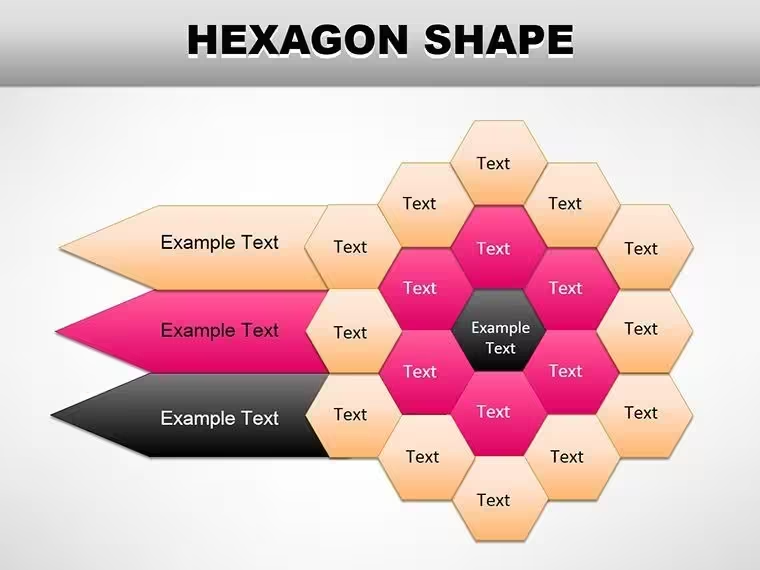
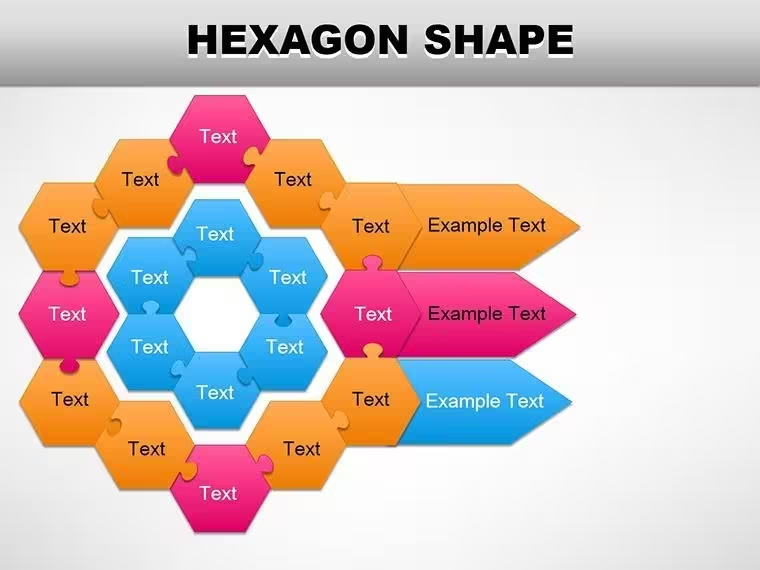
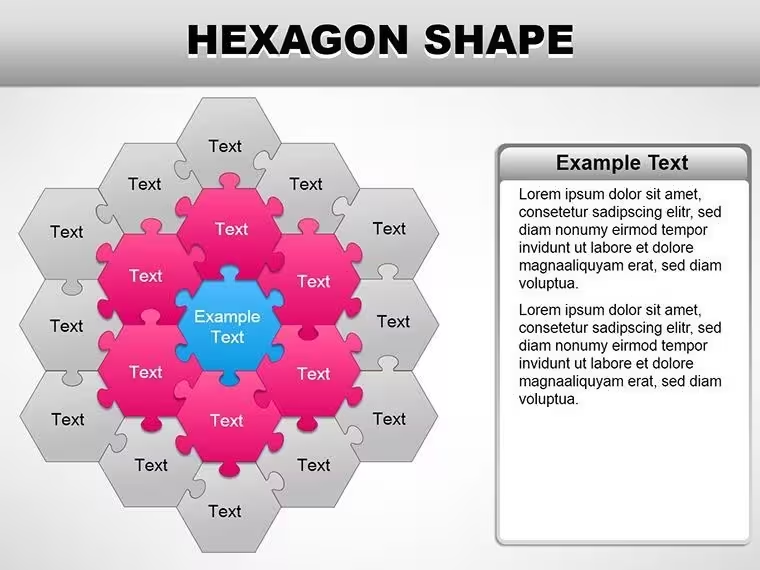
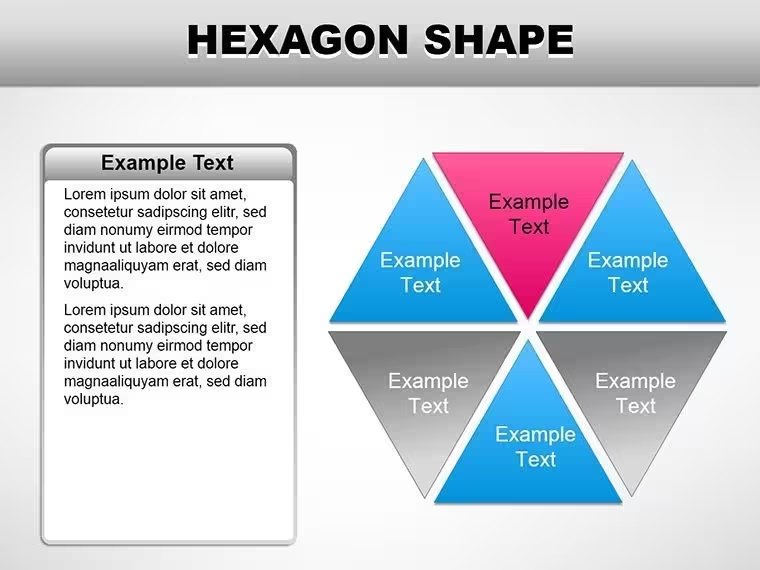
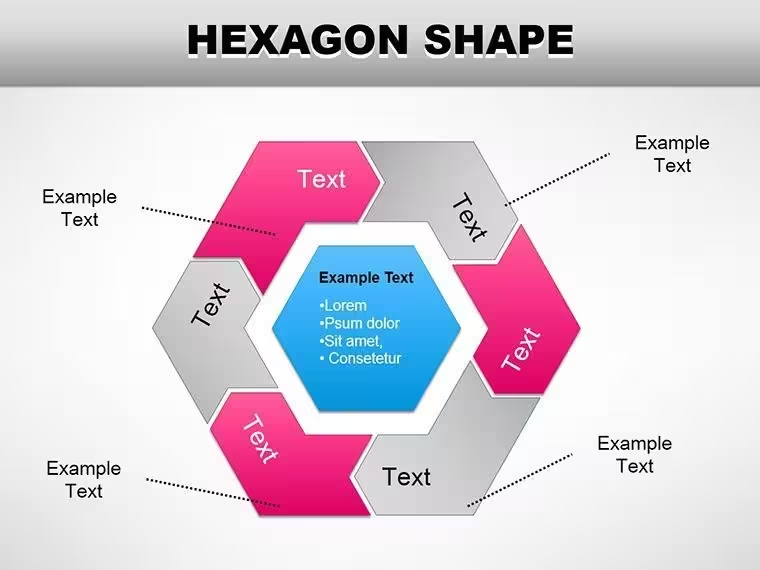
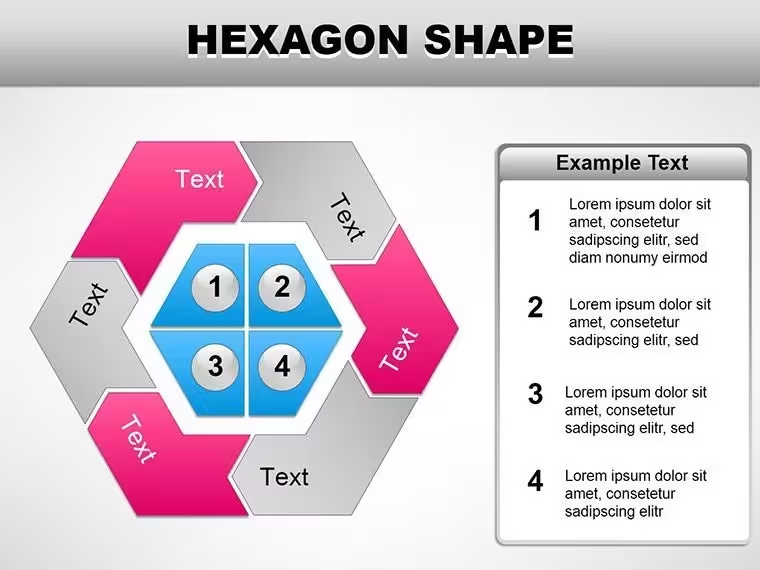
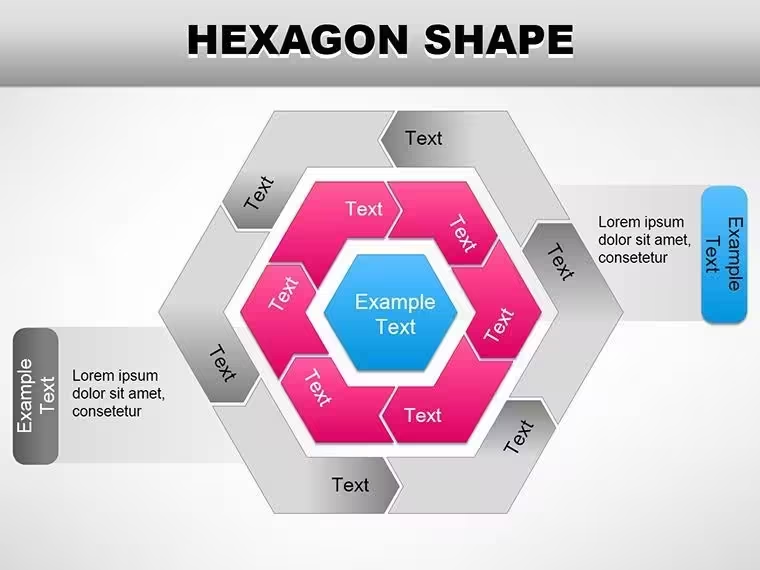
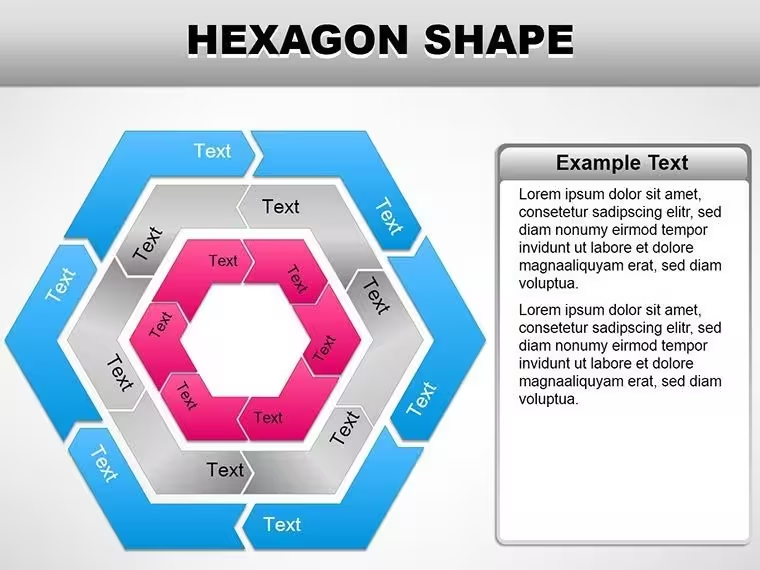
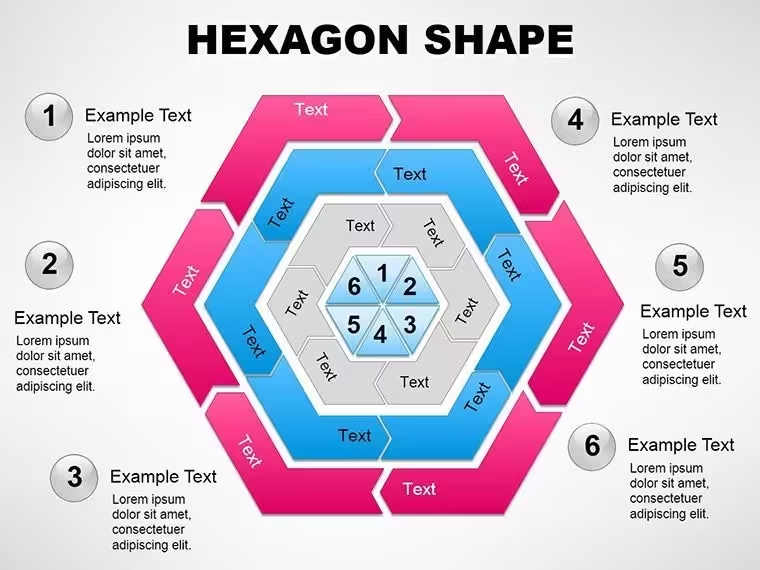
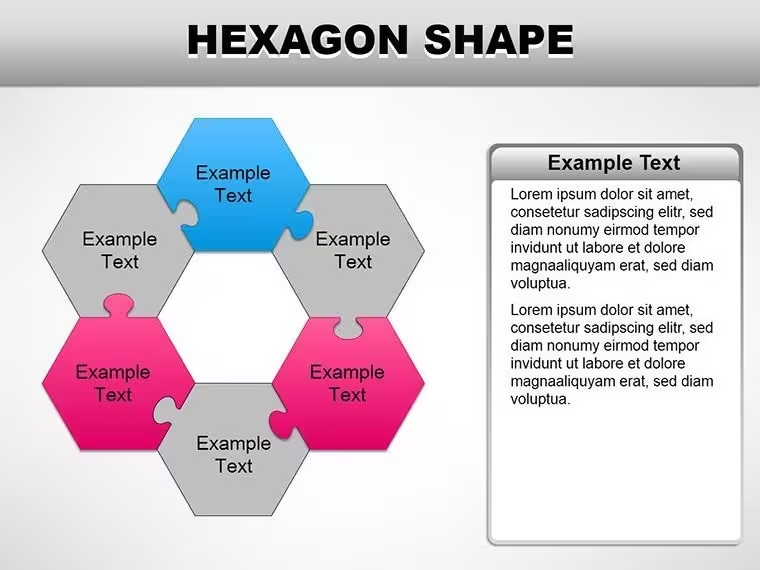
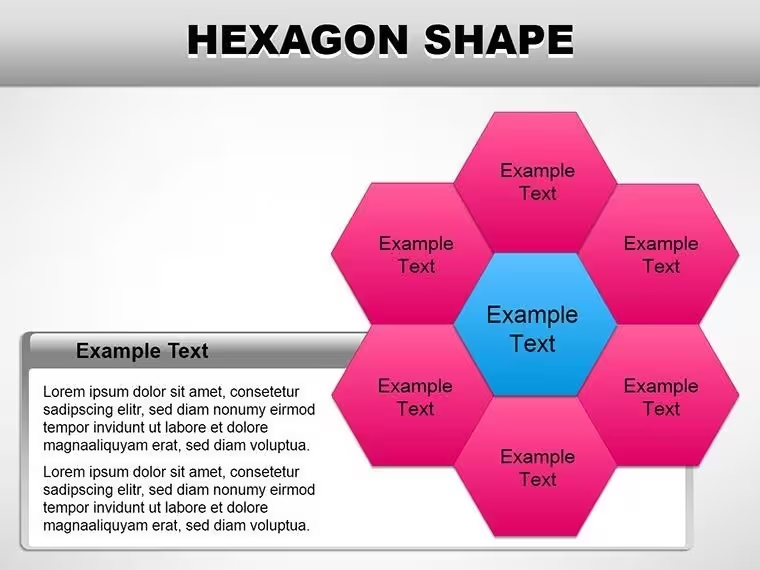
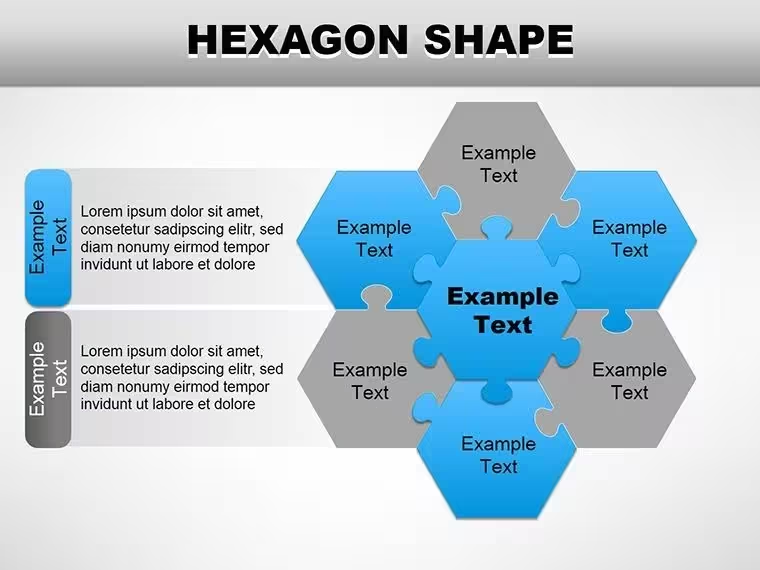
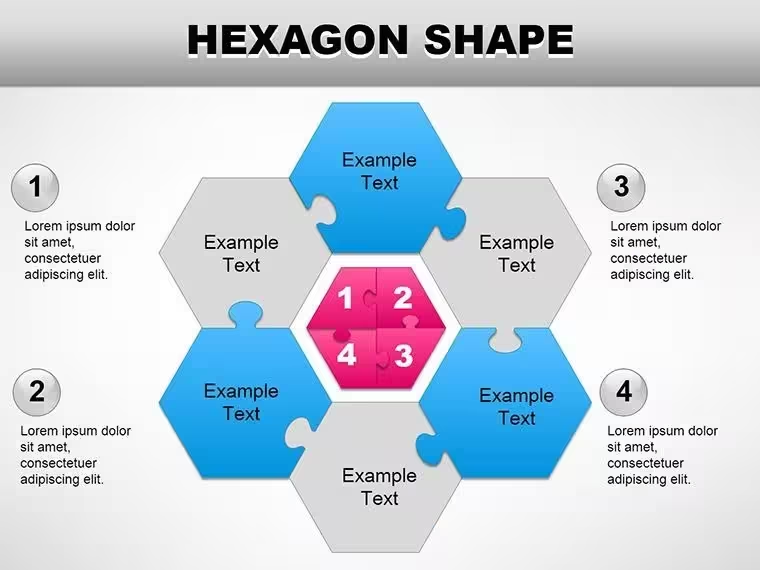
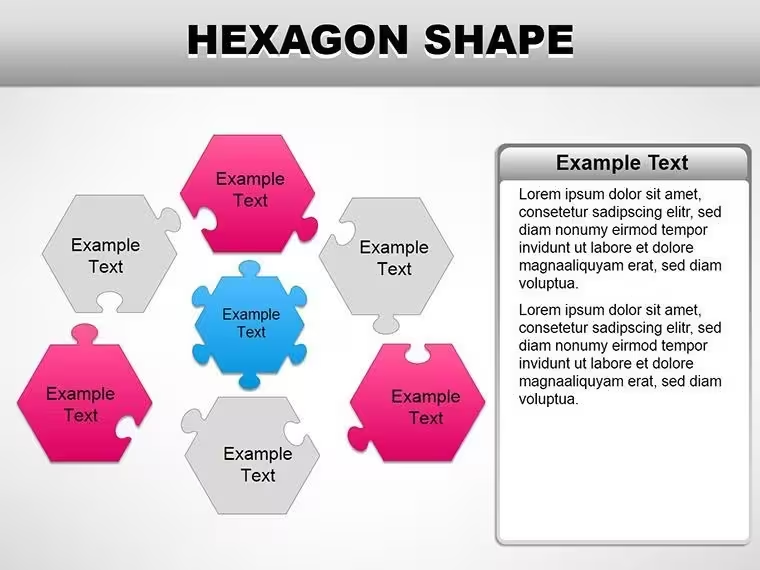
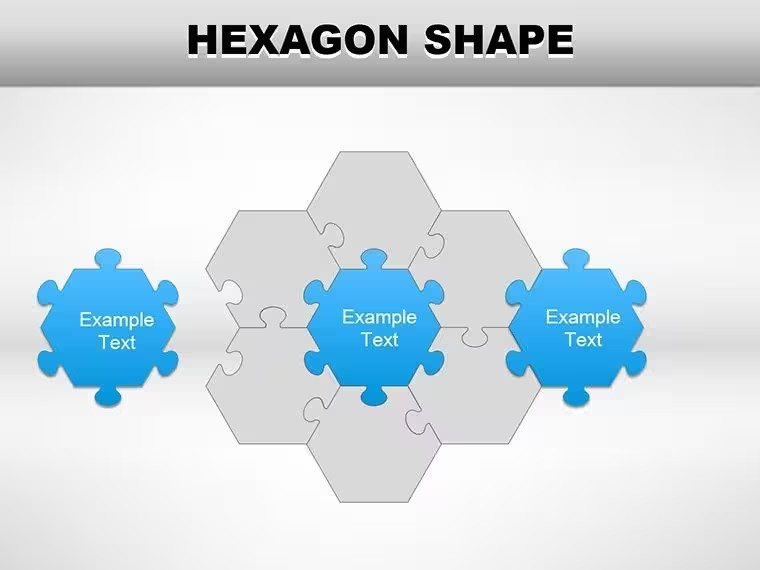
18 fully editable slides ship in a single .key file. The set covers a range of hexagonal configurations: single large central shapes with satellite clusters, compact grid arrangements for matrix-style content, pyramid builds using stacked rows, radial wheel layouts with a hub hexagon branching to six surrounding cells, and standalone shapes sized for icon-level use within larger compositions. Each layout represents a distinct structural pattern rather than a cosmetic variation of the same grid - a buyer working through all 18 will find genuinely different spatial compositions suited to different content types.
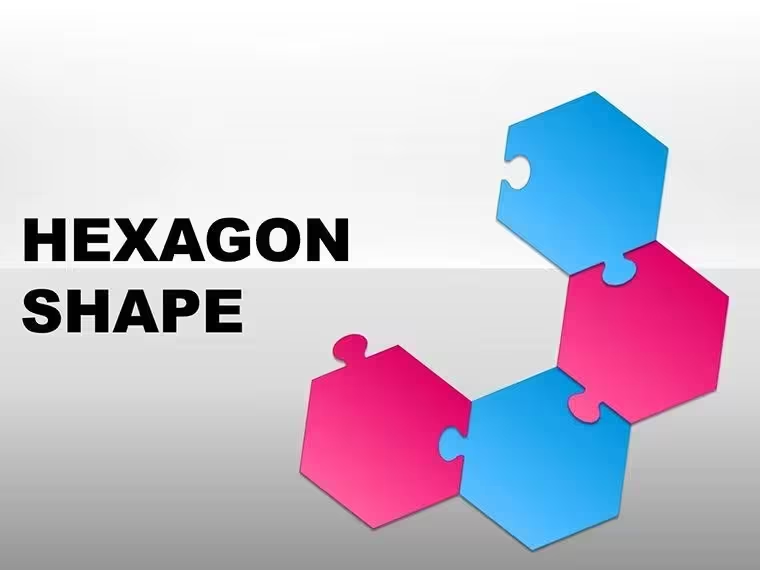
The visual construction uses flat-edge geometry with optional subtle gradients available via Keynote's fill controls. Edges meet cleanly with no visible gaps in grid arrangements, which matters when hexagons are used as adjacent data containers in a metrics dashboard. Color defaults to a palette of muted neutrals with selective accent fills on focal cells, making it straightforward to direct audience attention to a priority hexagon without redesigning the surrounding grid.
Where single-shape icon packs provide standalone decorative elements, these slides supply complete layouts - the spatial relationship between shapes is pre-configured. A corporate strategist mapping six market segments does not need to manually align six hexagons to form a grid; the grid slide arrives pre-aligned with consistent spacing, ready for text insertion. That layout completeness, rather than isolated icon delivery, separates this from sets built around individual shape downloads.
Three Situations Where This Pays Off
A finance director at a logistics company needed to present a six-region market performance summary to a quarterly board meeting. Rather than a standard six-row table that her audience had seen in three consecutive prior meetings, she placed each region's key metric into a hexagonal grid cell, color-coded by performance tier. The board moved from scanning rows to reading a spatial map - which territories were adjacent, which shared supply chain dependencies, and which underperformed relative to their neighbors. Preparation time dropped from approximately 3 hours with the previous table layout to 50 minutes using the pre-aligned grid slide.
A learning and development manager at a technology company used the radial wheel layout to map a six-competency skill framework for a leadership development workshop. Each outer hexagon held a competency label; the central hub held the program title. He duplicated the slide twice, relabeling the outer cells for two additional role profiles, and used all three versions in a single 45-minute session. Attendees reported finding the visual framework easier to reference during discussion than the text-only framework document they had previously used.
An architecture firm's project director used the pyramid layout to present a phased project delivery structure to a client briefing - three hexagons at the base representing parallel early-phase workstreams, two in the middle representing integration, one at the top representing delivery. The spatial hierarchy made the dependency structure clear without a flowchart. The same file was adapted for two subsequent project pitches by swapping only the phase labels and adjusting two accent colors via the master slide.
Download and start editing immediately - 18 pre-aligned layouts in one .key file.
Adapting the Template to Your Brand
Editing difficulty: Beginner. No design background required for standard color and text changes; moderate for custom grid restructuring.
- Step 1 - Open the .key file in Keynote 2016 or later (1 minute)
- Step 2 - Select the layout slide that matches your content structure - grid for parallel items, pyramid for hierarchy, radial wheel for hub-and-spoke (1 minute)
- Step 3 - Update global brand colors via View > Edit Master Slides; change the two or three accent colors and close - the fill propagates to all referencing slides (3 minutes)
- Step 4 - Click inside each hexagon text placeholder and type your content - category labels, metrics, or role names (4 minutes)
- Step 5 - Export as PDF for distribution or keep as .key for live presentation with optional build animations (1 minute)
For grid slides, ungrouping the shape cluster (Format > Group > Ungroup) allows repositioning individual cells - useful if your content requires five cells rather than six. Re-aligning after ungrouping is easiest using Keynote's Arrange panel alignment controls rather than manual drag positioning.
The Cost of Not Using a Template
Building a clean 6-cell hexagonal grid in Keynote from scratch takes longer than most presenters expect. The geometry itself is not complex, but getting six hexagons to meet edge-to-edge with zero gap - and keeping them aligned when one cell is resized - requires either mathematical precision or repeated manual adjustment. Most people spend 30-60 minutes on a single clean grid before any content is added.
A structural observation about hexagonal presentation design: placing text inside hexagon cells that are sized for visual balance typically leaves insufficient line length for more than 3-5 words. When the intended label is longer, many manual builds compromise either the shape proportions or the text size. The slides here use label text boxes that sit inside the cell at a size calibrated to the shape's interior - the text fits without overflow on the default slide dimensions, and the size relationship between shape and text was determined at the layout stage, not improvised during editing.
The flat construction also avoids a common issue with manually-built hexagonal slides: using Keynote's default 3D shape effects on hexagons creates inconsistent perspective angles when multiple shapes are arranged in a grid, particularly visible when projected. Flat shapes in a grid read as a unified surface at any projection scale.
Download and start editing immediately - 18 layout-ready hexagon slides in one .key file.
Which Keynote versions open this file without compatibility issues?The .key file is compatible with Keynote 2016 and all later macOS releases, including the current version available via the Mac App Store. Keynote for iOS and iPadOS also opens the file, allowing edits on an iPad or iPhone. Keynote 12 or later is recommended to ensure all layout proportions render as intended and any animation builds work correctly. If you open the file in Keynote 2016 or 2019, all shapes and text placeholders remain fully editable; visual rendering differences, if any, are cosmetic rather than structural.
How do I change the color scheme to match my brand palette?The fastest method is to update colors in the master slide. In Keynote, go to View > Edit Master Slides, select the master, and change the accent fill colors to your brand values using the Format panel color picker. Close the master editor and the new colors propagate to all slides that reference those color tokens. For shapes that use a custom fill not tied to the master, click the shape directly, open Format > Fill, and update the color individually. Two to three color changes in the master typically covers the full palette shift for this template.
What license terms apply - can I use this in client work?The standard single-purchase license covers use in business presentations, internal reporting, client proposals, strategy sessions, and educational contexts within your organization or practice. You may build client-facing decks using these shapes and present or distribute the resulting files. The license does not permit resale of the original .key file, distribution of the raw template to others, or inclusion in commercially sold template bundles. For agency or team use where multiple people need access to the original file, contact ImagineLayout to discuss a multi-seat arrangement.
Are animations pre-built into the slides, or do I add them manually?Animation builds are not locked into the file - you add, modify, or skip them based on your presentation context. To animate a hexagonal assembly so cells appear one at a time, select each shape, open the Animate panel, and assign a build-in effect such as Appear or Dissolve triggered by click. For presentations where all cells should be visible immediately - a reference slide or a printed handout - no animation is needed and the shapes render fully visible by default. Keynote's animation tools are non-destructive; adding or removing builds does not change the underlying shape or text content.
What is the refund policy for this purchase?ImagineLayout's refund policy applies when the purchased file is technically defective - for example, a .key file that fails to open in a supported Keynote version. Refund requests based on post-download preference or design expectations are reviewed individually. The full and current refund conditions are published on the Refund Policy page at ImagineLayout.com. If you have questions about the file's contents or compatibility before purchase, the site's contact form connects you directly to the support team.
Good for
- Project roadmaps and sprint plans
- Product launch timelines
- Quarterly or annual review decks
- Company history and milestone summaries
Licence
reviews
The block arrows and connection dots made my flowchart look clean.
Just needed some shapes to organize a messy slide - these helped.
The shadow options are weird but I just used flat style.
Used the rounded rectangles for a network diagram and it was fine.
FAQ
Will it work in Google Slides?
Are fonts embedded?
Can I use this for client work?
What's the refund policy?
Do you update the template after purchase?
Similar templates
See all Keynote Shapes →
All 18 slides