 Click to zoom
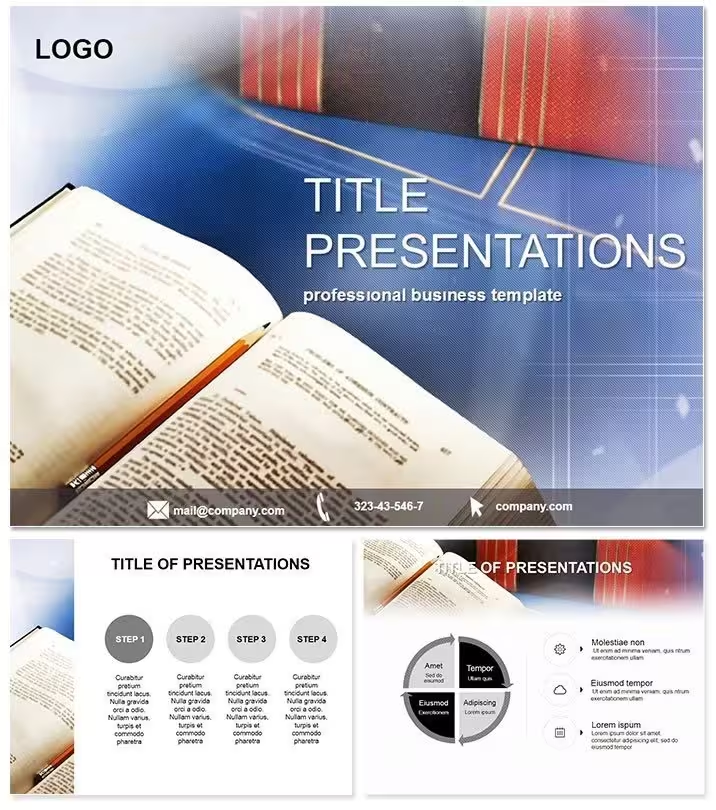
Education Books Keynote Template - Ready to Present
| Format | .pptx |
| Slides | 3 unique layouts |
| Aspect ratio | 16:9 |
| Compatibility | PowerPoint |
| Animated | No |
| Language | English |
| License | Commercial |
| File size | — |
| Version | v1.0 |
| Last updated | September 2026 |
What's inside
What is a Keynote template for education and learning presentations? A Keynote education template is a pre-built .key file containing editable diagram slides themed around academic content delivery - including curriculum timelines, skill-progression ladders, concept web maps, and reflection tools designed for teachers, lecturers, and training facilitators.
What's Inside the Download
28 diagrams address the full scope of an academic or training presentation: an illustrated tome title header, curriculum arc Gantt charts for plotting unit sequences from foundational to advanced topics, quiz-funnel diagrams for retention checks, Venn overlaps for theme comparisons, stacked bar charts for grade or cohort distributions, a book-spine organizer for categorizing reading by genre or subject, skill-ladder progressions for tracking learner development, mind map layouts for essay or project brainstorming, pie allocation charts for time-management discussions, reflection journal slides, goal radar charts for multi-dimension competency reviews, and collaborative peer-review boards. Seven color schemes range from parchment tans and ink blues to forest greens, chalkboard grays, and academic reds - each switchable at master slide level. Three background designs reference library stacks, open book pages, and stationery textures.
The diagram sequence follows a pedagogical arc. Opening with the curriculum Gantt establishes the learning roadmap for the audience. Mid-deck diagrams - quiz funnels, Venns, skill ladders - support active learning moments where the presenter pauses for discussion or self-assessment. Closing slides - reflection journals and goal radars - are structured for end-of-session debrief or term review. That arc from orientation to engagement to reflection is already embedded in the slide order, reducing the time a teacher or trainer spends reorganizing slides before a session.
Unlike general-purpose business Keynote sets that include a few miscellaneous chart types adaptable to education, this file is built specifically around learning-context diagram types. The book-spine organizer - a layout unique to reading-program and library presentations - categorizes content in a way that a standard bar chart cannot replicate visually. The skill ladder uses a vertical stepped-block structure where each rung represents a measurable competency level, which communicates progression more directly to students than a line chart showing the same data numerically.
Technical Specs
FeatureDetailsDiagrams included28 across 12 layout types: Gantt timelines, quiz funnels, Venn overlaps, bar stacks, book-spine organizers, skill ladders, mind maps, pie allocations, reflection journals, goal radars, peer-review boards, title openersColor schemes7 schemes (parchment tan, ink blue, forest green, chalkboard gray, academic red, warm cream, slate) - applied via slide masterEditable shapesSkill-ladder rungs, Gantt task bars, and Venn circles resize and recolor independentlyText placeholdersSubject names, unit titles, competency labels, and student cohort names update without ungrouping diagram elementsIcon layersBook, pen, graduation cap, and lightbulb icons replaceable via Format - ImageAspect ratio16:9 widescreen, suitable for classroom smartboards and conference screensCompatibilityKeynote 2016 and later (macOS); .kth file for theme import into existing syllabi decksFree vs. paidFree tier: 3 masters + 3 backgrounds ($8). Paid tier: all 28 diagrams + 7 color schemes ($16)Real Scenarios
A curriculum coordinator at a mid-sized secondary school reused the same Keynote file across 14 subject department presentations over one academic year. Each quarter: open the file, update the Gantt chart with the current term's unit sequence, swap the color scheme to match the department's visual identity (ink blue for English, forest green for science, parchment tan for history), and export to PDF for department heads. The skill-ladder slide became the standard format for tracking student progression across all subjects - same diagram structure, different competency labels. Per-department prep time stabilized at 20 minutes after the first two uses.
A second use pattern emerged in adult professional development workshops. A corporate learning and development manager used the mind map and reflection journal slides as live facilitation tools - projecting the blank mind map during a brainstorming session and filling in branches in real time as participants contributed ideas. The reflection journal slide served as a closing activity template, with participants writing into printed .jpg exports. Two diagram types from a single file served both the facilitation and the documentation phase of the same workshop.
Download and start editing immediately
Edit, Brand, Present: The Workflow
Editing difficulty: Beginner for text and color. Moderate for customizing Gantt task bar lengths and skill-ladder rung counts.
Step 1 - Open the .key file in Keynote 2016 or later (1 minute).
Step 2 - Navigate to View - Edit Master Slides and apply your institution or department brand color to the primary accent swatch. For school presentations, matching the subject department color here ensures consistent visual identity across all 28 slides simultaneously (3 minutes).
Step 3 - Start with the curriculum Gantt slide (typically slide 3 or 4). Replace placeholder unit names with your actual subject topics, adjust the task bar lengths by dragging the right edge of each bar to represent the correct duration in weeks (10-15 minutes).
Step 4 - Move through the mid-deck diagrams: update Venn labels, replace grade-distribution bar chart data by double-clicking the chart and editing the data table, and update skill-ladder competency labels (10-15 minutes).
Step 5 - Update closing slides: fill in the goal radar dimensions with your learning outcomes, replace reflection journal prompts with session-specific questions (5 minutes).
Step 6 - Export via File - Export To - PDF for printing or PowerPoint for LMS upload (1 minute).
Why This Template, Not a Blank Slide
A skill-ladder diagram built from scratch in Keynote requires constructing a series of horizontal block shapes stacked vertically, ensuring each rung is exactly the same height, spacing the rungs with consistent gaps, placing step-number labels at a fixed offset from the left edge of each rung, and then adding a vertical axis label that spans the full height of the stack. That construction takes 30-40 minutes for a clean 5-rung ladder and requires frequent use of the alignment guides to prevent visible spacing irregularities.
The critical design constraint in a skill-ladder diagram is that the vertical spacing between rungs must be visually equal even when the competency labels at each level have different text lengths. If a label wraps to two lines, the rung height changes - breaking the visual rhythm of the entire ladder. Pre-built ladder slides solve this by using fixed-height shape containers with text overflow settings that truncate rather than expand, keeping the rungs consistent regardless of label length. Building that overflow behavior manually adds another 15-20 minutes to the construction time and is the single most common point of failure in manually built progression diagrams.
What typically goes wrong when building education diagrams manually: Gantt bars that don't align to a consistent horizontal grid, mind map branches that radiate at unequal angles creating a visually lopsided node structure, and reflection journal slides that use standard text boxes instead of bordered container shapes - causing the layout to collapse on a projected screen when the font renders slightly larger than expected.
Download and start editing immediately
Does this template work in Keynote 2020 and earlier versions back to 2016?The file is compatible with Keynote 2016 and all subsequent versions including Keynote 2020 (version 10.x) and the current release. The .key file format has been stable across these versions, meaning diagram shapes, text placeholders, and master slide structures render consistently regardless of whether you are running a 2016 or a 2024 version of Keynote. The .kth theme file is also importable in all versions from 2016 onward. If you are using Keynote on an older Mac running macOS Sierra or High Sierra, update Keynote through the Mac App Store before opening the file to ensure full compatibility. Keynote for iPadOS 2.6 and later also opens .key files, though smartboard export and PDF generation are more straightforward on macOS.
Can I export this for use in an LMS like Moodle, Canvas, or Google Classroom?The most compatible export format for LMS integration is PDF, which preserves all diagram layouts, color schemes, and typography without requiring the student or course participant to have Keynote installed. To export, use File - Export To - PDF in Keynote, set image quality to Best, and the resulting file is suitable for upload to Moodle, Canvas, Google Classroom, or any other LMS that accepts PDF course materials. For interactive use - where you want students to navigate slides in a browser - export to HTML using File - Export To - HTML; Keynote generates a folder of web-ready files. If your LMS requires PowerPoint format, use File - Export To - PowerPoint; the diagram structures and color schemes transfer cleanly, though Keynote-specific animations will need to be re-applied in PowerPoint.
How do I apply the template to an existing presentation I've already built?The .kth file included in the download is a Keynote theme file that applies the visual identity - backgrounds, master slide structures, typography, and color defaults - to an existing presentation. To apply it, open your existing Keynote deck, go to Document - Change Theme, click Import Theme at the bottom of the theme chooser, and select the .kth file from your Downloads folder. Keynote will apply the theme and ask whether to keep your existing formatting or adopt the new theme's defaults. Choose "Keep my style" for individual slides where you want to preserve existing layout, or "Use theme style" to apply the education visual identity globally. This is the recommended method for teachers who have existing syllabi decks they want to visually update without rebuilding from scratch.
How do I change the color scheme to match my school or department's visual identity?Open View - Edit Master Slides. The 7 color schemes are stored as separate master sets in the left panel. Select the scheme closest to your institution's palette - ink blue for academic departments, forest green for science or environmental topics, parchment tan for humanities. Click any accent-colored shape within that master, open Format - Shape Style, and replace the fill color with your institution's exact hex value. Apply to master to propagate across all 28 diagrams. For branded presentations where the school logo also needs to appear, insert the logo image into the master slide's logo placeholder position (top-right or bottom-left corner), and it will appear on all slides that inherit from that master without requiring individual placement on each slide.
What does the license allow - specifically for classroom and institutional use?The standard license permits use in personal academic presentations and in professional teaching and training contexts - including lesson slides, conference presentations, and institutional training materials. A teacher may use the template across multiple classes within their own teaching practice. The license does not permit sharing the .key or .kth files with colleagues as downloads; each teacher or trainer requires their own license. It does not permit uploading the template file itself to a school shared drive for department-wide use. Printed or PDF exports of completed presentations may be distributed to students and course participants without restriction. For institutional arrangements where a department or school wants shared access, contact ImagineLayout directly to discuss a volume licensing option.
What is the refund policy?ImagineLayout's refund policy covers purchases where the delivered product does not match the specifications described on the product page. If the file does not open in Keynote 2016 or later, or if the diagram count, file formats, or slide types differ from the product description, submit a refund request through the Contact page with your order number and a description of the issue. Digital files are delivered immediately upon purchase, so refund eligibility is assessed against the product description rather than processed automatically. Downloading the free tier ($8 for 3 masters and 3 backgrounds) before purchasing the full paid version ($16) is the most practical way to confirm that the file opens correctly on your system and that the visual style suits your teaching context before committing to the full purchase.
Good for
- Project roadmaps and sprint plans
- Product launch timelines
- Quarterly or annual review decks
- Company history and milestone summaries
Licence
reviews
That book-spine organizer slide is brilliant for my library's reading program – way better than a standard bar chart.
The curriculum arc Gantt charts are great for plotting units, but the parchment tan scheme looks a bit dated for a modern corporate training.
I used the skill-ladder progression slides for my student competency reviews and the stepped-block structure made the levels very clear.
It's okay for a teacher, but the quiz-funnel diagrams for retention checks felt more like marketing than education.
The mind map layouts for essay brainstorming are solid
but I wish there were more options for math-specific symbols.
FAQ
Will it work in Google Slides?
Are fonts embedded?
Can I use this for client work?
What's the refund policy?
Do you update the template after purchase?
Similar templates
See all Keynote templates →


All 1 slides