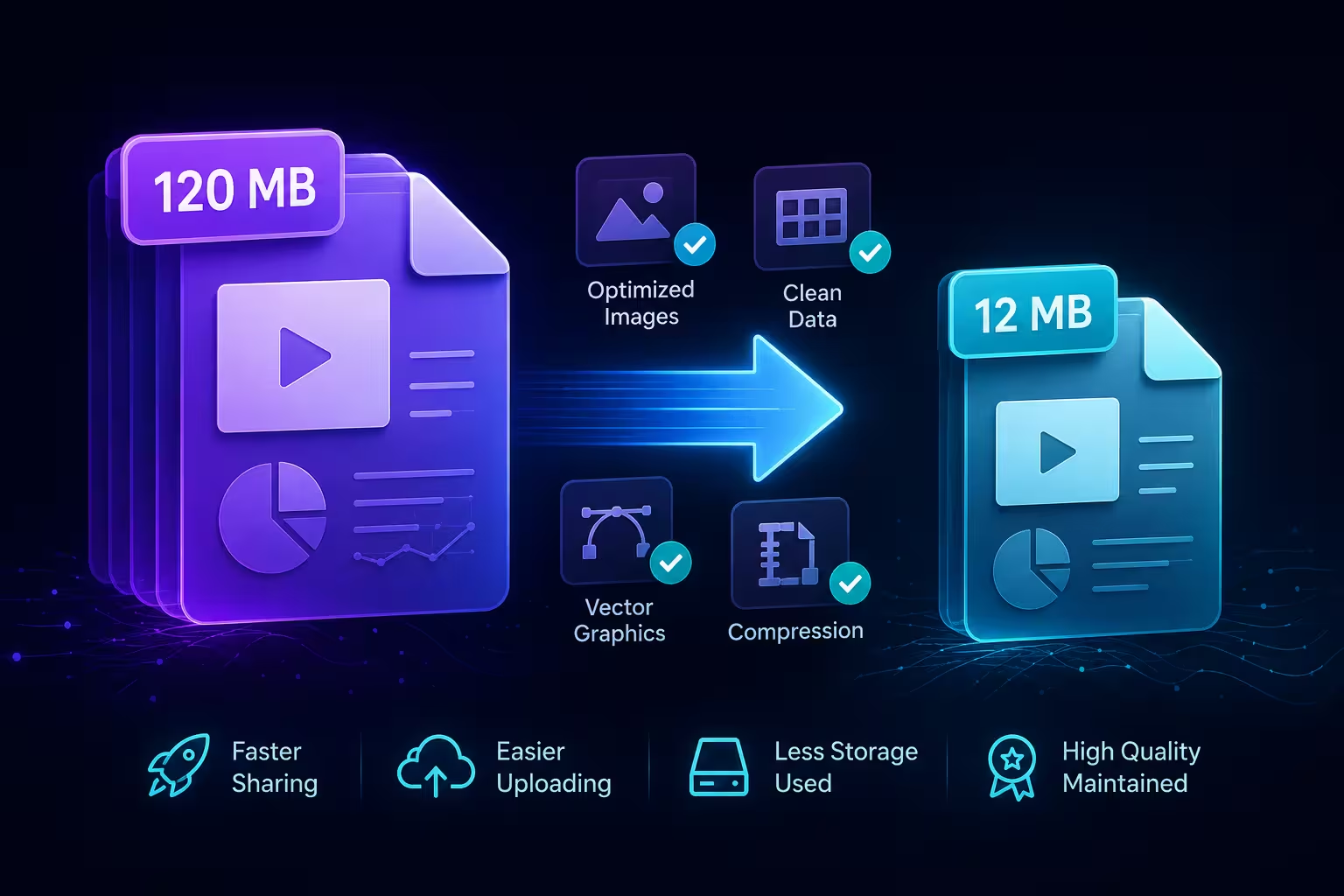
A 40-slide deck that won't attach to an email is rarely 40 slides' worth of content. I've opened plenty of "oversized" files where 36 slides together add up to 4 MB, and the remaining four — one with a pasted screenshot, one with an embedded Excel chart, one with a looping GIF someone forgot was there — account for the other 160 MB. The slide count was never the problem. Almost nobody checks which four slides are actually doing the damage before they start compressing everything.
Find out what's actually inside the file before you touch anything
Here's a trick most compression guides skip entirely: a .pptx file is a zip archive wearing a different extension. Rename a copy to .zip, extract it, and open the ppt/media folder. Sort by file size. In my experience this takes less than two minutes and tells you more than any "10 tips to shrink your PowerPoint" list, because it shows you exactly which asset is 40 MB and which is 40 KB — instead of you guessing and re-compressing images that were never the issue.
Keynote files behave the same way structurally — a .key file is also a package you can inspect — though Apple doesn't expose the same in-app compression controls PowerPoint does, which matters later.
Images are usually the cause — but "compress" doesn't mean what people assume
One thing people overlook: PowerPoint stores an image at whatever resolution it was when you inserted it, not the resolution it's displayed at on the slide. A 12-megapixel phone photo shrunk visually to a thumbnail still carries its full pixel data in the file until something explicitly tells the software to throw the rest away.
That's what the built-in Compress Pictures tool is for, and Microsoft's own guidance recommends dropping the default resolution setting to 150 ppi or lower for anything meant to be shared rather than printed, which is more than enough fidelity for a screen or projector. I wouldn't go below that for client-facing decks — text baked into a diagram can start looking soft once you drop further, and that's a worse trade than the file being a few megabytes larger.
Where this quietly fails: images pasted in via copy-paste from another application sometimes get embedded as a different object type than images inserted through Insert > Picture, and PowerPoint's compression pass doesn't always reach them the same way. If you've compressed a deck and the file size barely moved, check whether the biggest offenders were pasted rather than inserted — re-inserting them as proper picture objects usually fixes what compression alone won't.
The bloat you can't see: fonts, embedded objects, and old masters
Embedded fonts are a genuine trade-off, not a pure downside to eliminate. If you need someone without your font installed to see the deck exactly as designed, embedding solves that — but embedding every character in every weight when your slides use maybe 200 unique characters is wasted weight. PowerPoint lets you embed only the characters actually used in the file, under File > Options > Save, and that alone can matter on a font-heavy deck.
Embedded Excel charts and other OLE objects are a separate problem, because a "chart" pasted with live-data linking isn't a picture — it's a miniature spreadsheet riding along inside your slide file, data table and all. If nobody's actually going to double-click into that chart to edit the underlying numbers, converting it to a static image or a native, vector-built chart template instead of a linked object removes the embedded workbook entirely, and that's frequently a bigger single reduction than compressing every photo in the deck combined.
Then there's the layer nobody thinks to check: slide masters and layouts you no longer use, left over from a previous template or a copy-pasted section from another deck. They don't show up when you're scrolling through slides, but they're stored in full, and a deck assembled from three or four different source files can be dragging around masters nobody's used in months.
Video and audio will outweigh everything else combined
If a deck jumped from a reasonable size to genuinely enormous the moment someone added a clip, that's not a coincidence worth investigating further — it's just what video does. A single embedded 1080p clip can add tens of megabytes on its own, and 4K footage multiplies that fast. This is the one case where "compress the media" (PowerPoint has a built-in option for this too, alongside image compression) does more good per click than anything else in this list.
The alternative worth considering before you embed at all: linking to a hosted video rather than dropping the file into the deck. It costs you offline playback, and that's a real trade-off if you're presenting somewhere without reliable Wi-Fi — but for anything sent by email rather than presented live, a link keeps the .pptx itself small enough to actually send.
Flattened slides are their own quiet source of bloat
There's a version of this problem that has nothing to do with resolution settings: slides exported as a single flattened image and then dropped back into the deck as a picture, usually because someone built a diagram or infographic in a separate design tool and pasted the finished result in as one flat PNG rather than native shapes. Every label, every line, every bit of text on that slide is now raster data instead of editable vector content — heavier to store, and it can't be nudged, recolored, or corrected without rebuilding the whole graphic from scratch. It's the same underlying issue that shows up when a deck needs translation into another language and the text turns out to be baked into an image rather than sitting in an actual text box — the file got heavier and less flexible at the exact same moment, for the exact same reason.
Where a clean starting point saves you this entire conversation
Most of what's above is triage — fixing a file after it's already bloated. The quieter fix is starting from a base that was built with native vector shapes and proper text containers rather than screenshots and flattened graphics stitched together from three different sources. A deck built that way from the first slide rarely needs this kind of intervention later, because there's nothing raster hiding inside it to begin with.
Next time a file won't attach to an email, resist the urge to compress every image in the deck before you've looked. Open the archive, sort by size, and fix the two or three slides actually responsible — the other thirty-seven were never the problem.
Comments (0)