A PowerPoint presentation can look almost finished and still contain several different fonts hiding in the file. The frustrating part is that changing the font you can see on one slide does not necessarily fix the font everywhere else.
This guide explains how to find and replace fonts in PowerPoint without working through every text box manually. It covers the built-in Replace Fonts command, Slide Master and theme fonts, multiple masters, and the common situations where a font appears to survive the replacement.
The fastest way to replace a font throughout a PowerPoint presentation
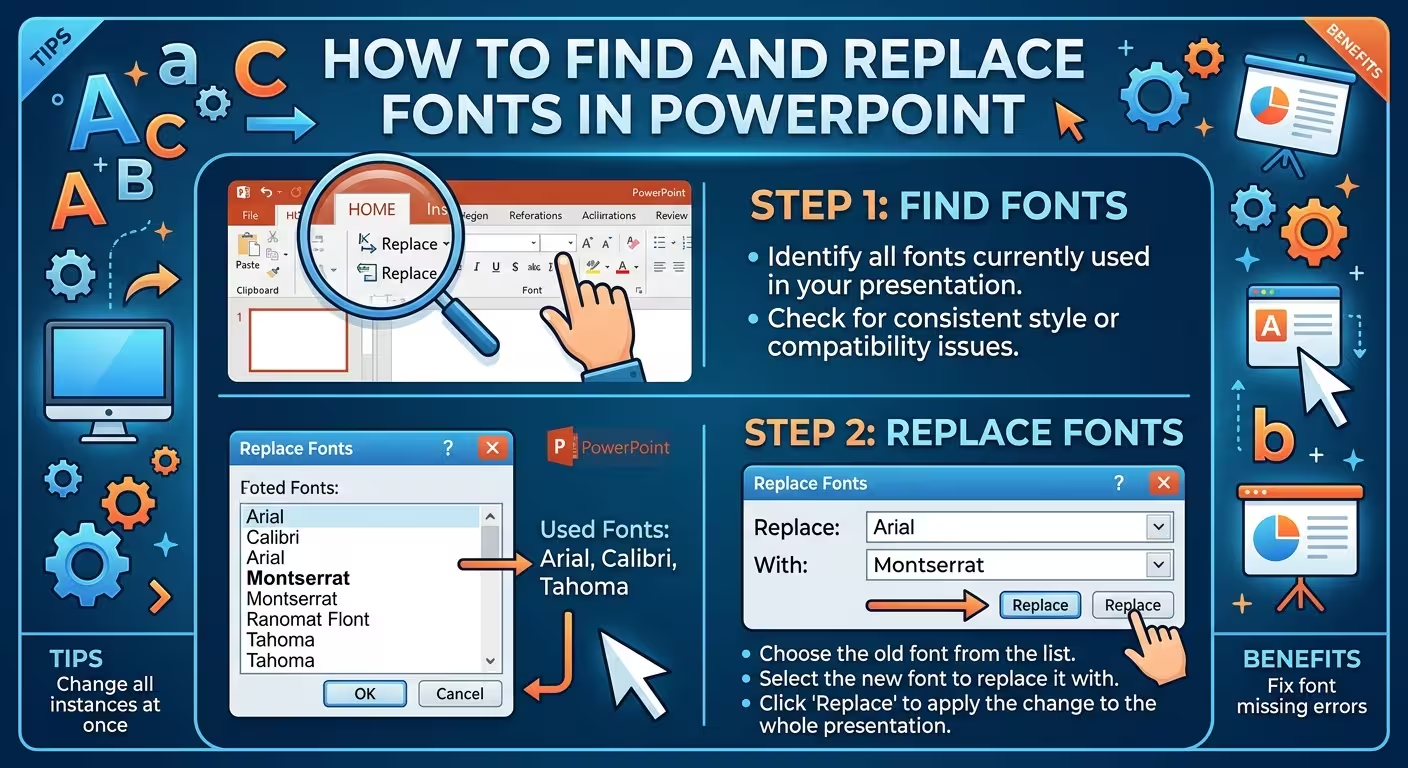
If you already know which font you want to replace, PowerPoint has a dedicated command for it. In the desktop application, go to Home → Replace → Replace Fonts.
In the Replace Font dialog:
- Choose the existing font in the Replace field.
- Choose the new typeface in the With field.
- Click Replace.
- Close the dialog when the replacement is complete.
Microsoft documents this as a way to make a systematic font change across a presentation rather than editing individual pieces of text.
This is usually the right first move when you inherit a presentation containing a font you no longer want to use. It is considerably faster than selecting every title, paragraph, label, and text box separately.
There is one important qualification: Replace Fonts is not the same thing as rebuilding the presentation's typography system. If the deck uses several Slide Masters, custom layouts, or manually formatted text, you may still need to inspect those areas after the replacement.
First decide what kind of font problem you have
Before changing anything, look at the presentation as a system rather than as a collection of slides.
There are three common situations.
- A specific font appears throughout the deck: Replace Fonts is often the quickest solution.
- The presentation uses theme fonts: changing the fonts in Slide Master can be more appropriate.
- Only certain text boxes use the wrong font: those objects may need direct formatting changes.
The distinction matters because a Slide Master controls layouts and theme behavior, while individual text boxes can contain their own formatting. Microsoft specifically notes that changing a Slide Master affects slides that use that master, but multiple Slide Masters require separate attention.
That is why a presentation can appear to ignore a perfectly valid font change: the text you are looking at may not actually be controlled by the font setting you just changed.
When Slide Master is better than Replace Fonts
Imagine you are preparing a 30-slide corporate deck and the intended typography is defined as one font for headings and another for body text. In that situation, simply replacing one font with another can solve the immediate problem, but it does not necessarily establish a clean font system for future slides.
For theme-based presentations, open View → Slide Master. On the Slide Master tab, use Fonts to select or customize the presentation's theme fonts. Microsoft recommends this approach when you want the font choice to operate at the presentation-theme level.
The important difference is practical:
- Replace Fonts: useful for correcting an existing font across a deck.
- Slide Master / Theme Fonts: useful when you want layouts and future slides to follow a defined typography system.
If you are working from a professional presentation template, this distinction becomes especially useful. A well-structured editable template normally relies on masters, layouts, theme elements, and editable text rather than treating every slide as an isolated composition.
For example, an editable business template such as Business Report PowerPoint Templates can be a useful starting point when the goal is to keep typography and layout structure editable rather than rebuilding a deck from screenshots.
Why PowerPoint sometimes refuses to change a font
This is where many font-replacement tutorials stop too early.
If you replace a font and then still find the old typeface somewhere in the presentation, do not immediately assume that Replace Fonts failed. Check how that text was created.
Multiple Slide Masters
A presentation can contain more than one Slide Master, particularly when slides have been assembled from different templates. Microsoft notes that if multiple masters are being used, font changes may need to be made on each master.
This is easy to miss because the slides may look like one coherent presentation in Normal view while actually drawing their formatting from different master structures.
Text boxes with direct formatting
A text box created directly on a slide can have its own font setting. Changing the theme or master does not necessarily rewrite every piece of direct formatting.
Microsoft's PowerPoint community documentation also highlights this distinction: theme-font changes affect text that actually uses theme fonts, while directly formatted text may require a separate change.
This gives you a useful diagnostic rule:
If the font changes in some places but not others, look for different formatting sources rather than repeatedly applying the same command.
How to check whether the old font is really gone
Do not judge the result from one representative slide.
After replacing a font, scan the presentation for places where typography tends to be overlooked:
- title and subtitle placeholders;
- body text and secondary labels;
- custom text boxes;
- slide layouts;
- tables;
- charts and diagram labels;
- section-divider slides;
- notes or other presentation elements if they are part of your delivery workflow.
The reason for this audit is simple: a deck can look consistent in Normal view while still containing an older font in a less frequently viewed element.
For a presentation that will be handed to another designer or reused as a template, this matters more than it does for a one-off internal deck. A hidden formatting inconsistency can become a new problem the next time someone creates a slide from the file.
What to do when the replacement font is not available
Another problem occurs when the presentation uses a font that is not installed on the computer opening the file. PowerPoint can substitute another available font, which can change line breaks, text width, and the overall appearance of slides. Microsoft recommends using fonts that are available on the computers where the presentation will be used, particularly when consistent rendering matters.
This is why font replacement should not be treated purely as a cosmetic decision.
Suppose a title occupies two lines in the original font but only one line after replacement. The font itself has changed, but so has the geometry of the slide. A new typeface can alter:
- title wrapping;
- paragraph height;
- table width;
- label alignment;
- chart annotations;
- the amount of text that fits inside a fixed placeholder.
After a major font swap, inspect the slides with the highest information density first. Financial tables, comparison slides, diagrams, and slides with long headings tend to reveal typography-related layout problems faster than simple title slides.
Replace Fonts vs. Slide Master: which workflow should you use?
The two methods are complementary rather than competing.
- Use Replace Fonts when you have identified a specific unwanted font and want to replace it efficiently.
- Use Slide Master when you are defining or correcting the presentation's underlying theme typography.
- Use direct formatting when an individual object intentionally needs a different typeface or is not responding to the master.
A practical workflow for an inherited deck is therefore:
- Identify the unwanted font.
- Use Home → Replace → Replace Fonts for the broad replacement.
- Inspect Slide Master and layouts if the presentation uses theme-based typography.
- Check slides where the old font remains.
- Correct directly formatted objects where necessary.
- Review dense slides for changed line breaks and spacing.
This sequence avoids the common mistake of trying to solve every font problem through the Slide Master, or assuming that Replace Fonts automatically cleans every formatting source in a complicated presentation.
How font replacement affects editable presentation templates
Font consistency becomes particularly important when you are modifying a presentation template rather than simply presenting an existing deck.
For example, ImagineLayout's Business Center PowerPoint templates are supplied as editable PowerPoint files, so typography can be adapted along with text, shapes, and other slide elements.
The useful question is not only “Did the font change?” but also “Will the presentation remain easy to edit after the change?”
If the answer is yes, the replacement should preserve the relationship between headings, body text, placeholders, layouts, and the master structure. That is what makes a font change sustainable instead of merely making the current slides look correct.
For decks built around data-heavy content, a structured template can also reduce the amount of manual formatting needed after typography changes. A template such as Business Intelligence PowerPoint templates illustrates the kind of editable presentation structure where typography, charts, and layouts need to work together rather than independently.
A final check before sending the PowerPoint
Font replacement is finished when the presentation works visually, not simply when the Replace Font dialog reports that the operation is complete.
Open the slides that contain the most text, the most complicated layouts, and the most tightly fitted objects. Look for unexpected line wrapping, labels touching shapes, altered table dimensions, or headings that no longer fit their intended space.
If the presentation is going to another computer, also verify that the required fonts are available there or use an appropriate font-handling strategy for your distribution workflow.
The most reliable habit is to treat fonts as part of the presentation's structure. Replace Fonts is the quick repair tool; Slide Master and theme fonts are the structural tools; visual inspection is the final verification. Once you separate those three jobs, fixing typography in a large PowerPoint deck becomes much more predictable.
Comments (0)