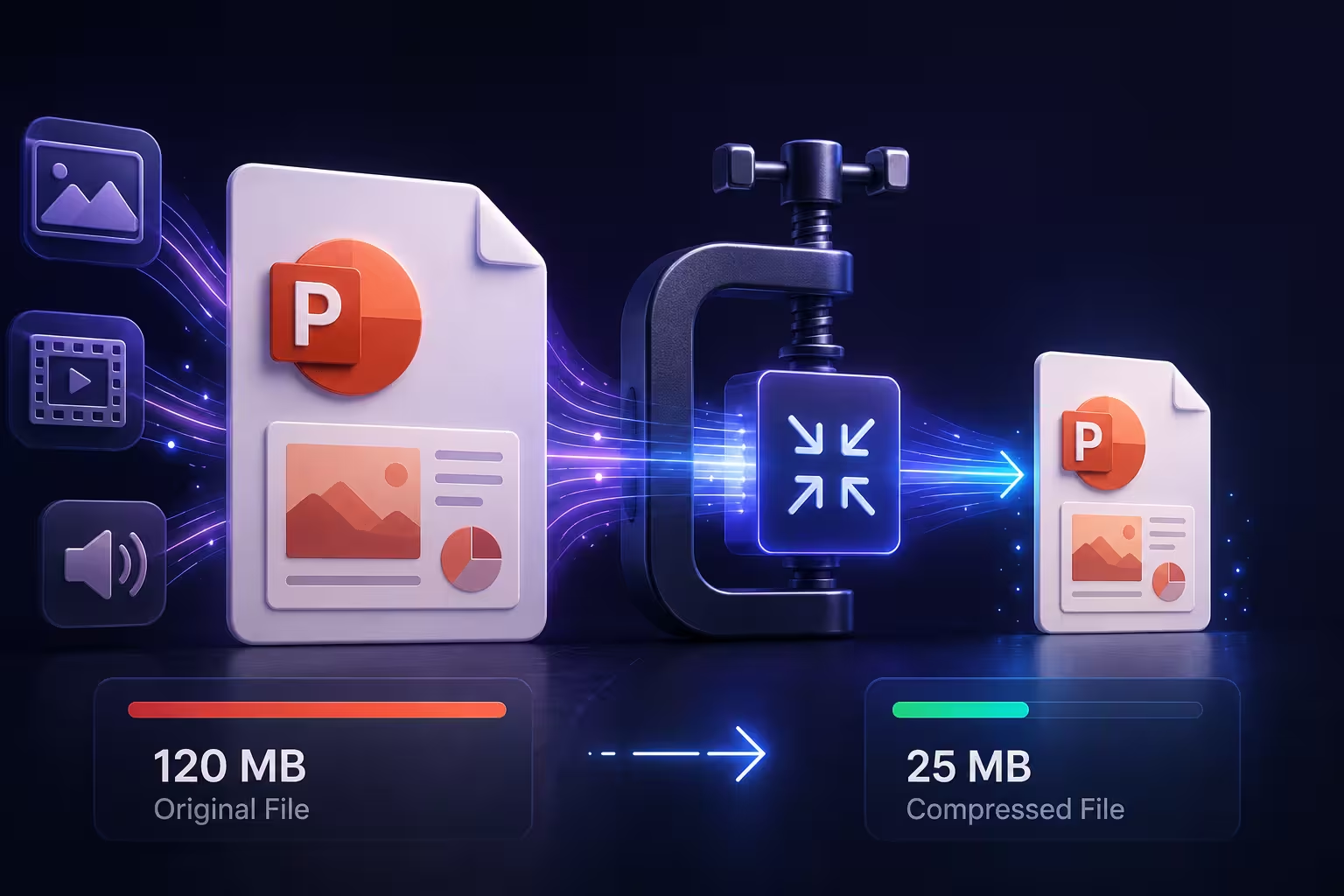
Open a 40-slide deck that's nothing but bullet points, a title slide, and maybe two logos, and you'd expect it to weigh a couple of megabytes. Then you check the file size and it says 68MB. Nobody added a video. Nobody embedded a font pack. So where did it go?
Almost every time, the answer is the same, and it's rarely the thing people suspect first.
The part of the file you never look at
A .pptx is a zip archive — you can rename the extension to .zip, open it, and see the folders inside. Do that with an oversized deck and the ppt/media folder is usually where 90% of the weight lives. Not text. Not layout data. Photos pasted in at their original camera resolution, sitting behind a slide that displays them at maybe 800 pixels wide.
A phone camera today shoots images in the 4000-to-6000-pixel range. Drop three or four of those straight into a slide, and you're carrying enough pixel data to print a billboard, to show a picture that will only ever appear on a projector or a laptop screen. PowerPoint doesn't downsample on import — it keeps the full file, crop marks and all, even if you visually cropped the image down to a corner of the slide. The crop is cosmetic. The original pixels are still sitting in the archive, invisible but present.
What "compress" actually does — and what it quietly throws away
PowerPoint's own compression tool doesn't zip anything the way a file-archiving tool would. It resamples images down to a target resolution and, depending on the version, discards the cropped-out portions of any picture you've trimmed. That's a real trade-off, not a free lunch: once you compress and save, the discarded pixel data is gone. If you later decide you want to uncrop that photo, you can't — you'd need the original file again.
This is where most advice stops short. It tells you to click Compress Pictures and move on, without mentioning that PowerPoint gives you a resolution choice that matters more than the button itself. Picking "Email (96 ppi)" on a deck someone plans to project at full screen on a conference room display will leave photos looking soft — not broken, just noticeably less crisp than before, in a way that's easy to miss on your own laptop screen and obvious on a bigger one.
Using it without the blur
In current PowerPoint, this lives under File > Compress Pictures, or by right-clicking any image and choosing Compress Pictures from the format menu. Two settings decide the outcome:
- Apply to — "All pictures in this file" or just the one you selected. Leave it on all pictures unless you have one specific asset causing the size spike.
- Resolution — this is the one worth thinking about instead of defaulting. "High fidelity" preserves quality and barely shrinks anything. "HD (330 ppi)" is the middle ground that holds up on most screens. "Email (96 ppi)" is aggressive and shows on anything larger than a laptop.
One thing worth doing before you touch either setting: save a copy of the file first, under a different name. Compression is applied and saved permanently the moment you hit OK and save — there's no built-in "revert to original resolution" later, so a backup copy is the only safety net if the result looks worse than expected.
The assets that don't compress at all
Pictures aren't the only thing bloating a deck, and this is where the built-in tool stops helping. An embedded Excel workbook — the kind you get from pasting a chart with Embed instead of Link — carries a full copy of the spreadsheet inside the .pptx, formulas and all, and Compress Pictures won't touch it. If your deck has six charts, each pasted as an embedded object rather than a link, you're carrying six miniature spreadsheets whether or not you ever open them again. Understanding the difference between pasting, embedding, and linking a chart before you build the deck avoids this problem entirely, rather than fixing it after the file's already bloated.
Embedded fonts are the other quiet contributor. If a deck uses a font that isn't installed on every machine it might open on, PowerPoint can embed the font file itself so the text doesn't fall back to something else on someone else's computer — a real font file, sometimes several megabytes per weight, sitting inside the archive. It's a reasonable trade to make for a client-facing deck built around an unusual or newer typeface, but worth knowing it's happening, since turning it off (File > Options > Save > uncheck "Embed fonts in the file") is one of the fastest wins on a deck that's using only common system fonts anyway.
Animated GIFs deserve a specific mention here because they behave nothing like a static image. A GIF's color-limited compression method means the same five-second loop can be 400KB as a flat UI screenshot or several megabytes once it includes a photo or a gradient — and GIFs are showing up in decks again for exactly the reasons that make them useful, which means this is a more common cause of file bloat now than it was a few years ago, not less.
When PowerPoint's own tools aren't enough
Sometimes the deck genuinely needs to be smaller than resolution-trimming and unembedding will get you — usually because it's carrying embedded video rather than images. Video compresses in a fundamentally different way than a photo, and PowerPoint's picture-compression tool has no effect on it at all. In that situation, the more reliable path is compressing the video file itself before it goes into the slide, rather than after, or linking to a hosted version instead of embedding the raw file. There isn't a single trustworthy universal answer for third-party compression tools here — quality and safety vary enough between them that it's worth treating any "upload your file" compressor with the same caution you'd apply to any site handling a client deck, and checking what it actually does to resolution before trusting it with something that matters.
Match the fix to the actual reason you need it smaller
This is the step most guides skip, and it's the one that decides which resolution setting to pick. If you're trying to attach the file to an email, the target isn't "small" in the abstract — it's a specific number. Gmail's own limit caps outgoing attachments at 25MB combined per message, and because email attachments get Base64-encoded for transmission, which inflates the raw file by roughly a third, the practical safe ceiling for the file sitting on your desktop is closer to 18–19MB, not 25. If you're uploading to a shared drive or a CMS with no strict cap, "HD" resolution and unembedded fonts are usually enough, and there's no reason to drop all the way to email-grade compression and lose sharpness you didn't need to lose.
Before you compress anything, it's worth asking which of those two situations you're actually in — because the aggressive setting that saves an email from bouncing is the same setting that'll make a boardroom presentation look faintly out of focus on the big screen, and there's no single "correct" resolution that serves both.
Comments (0)