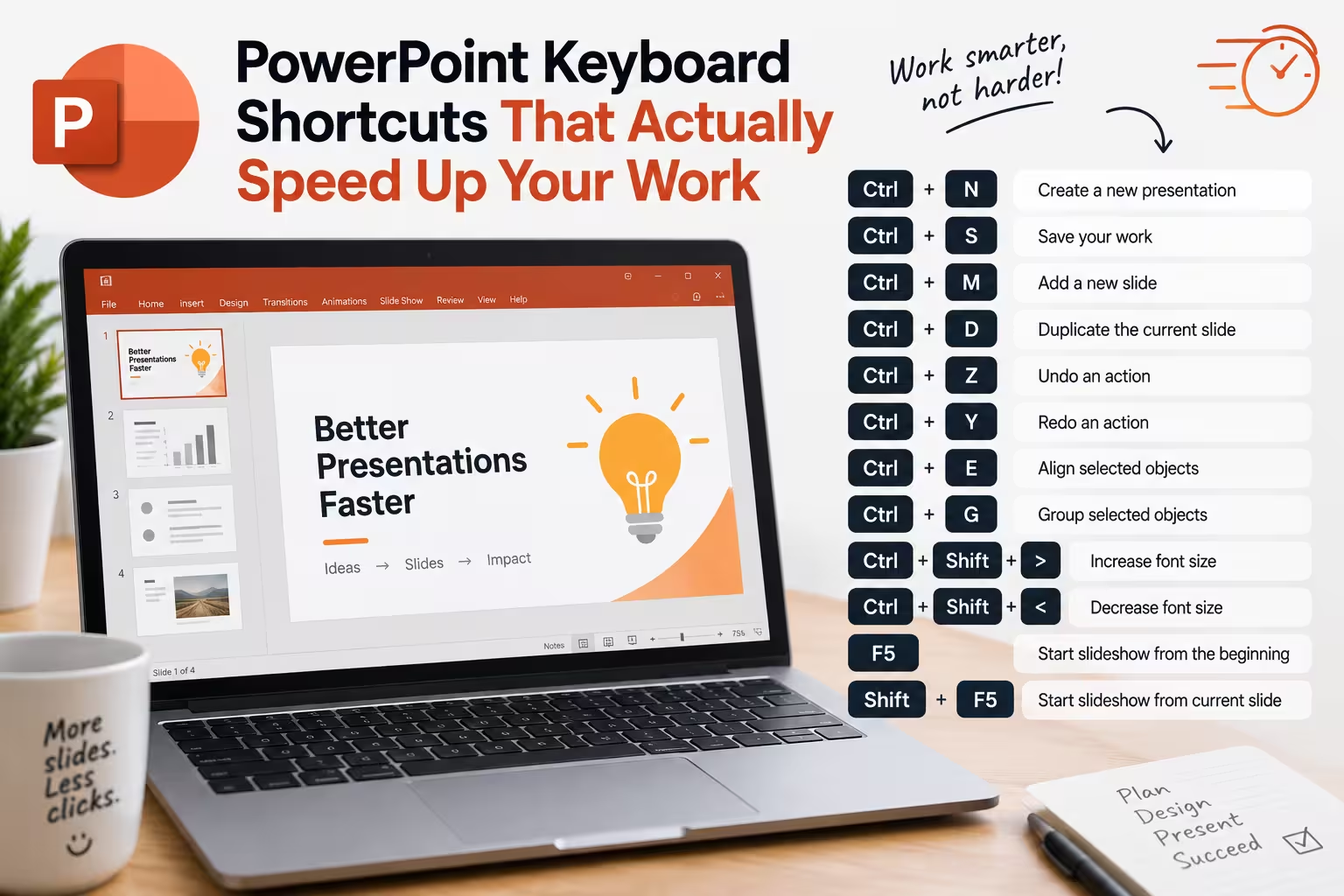
Watch someone who's genuinely fast in PowerPoint and you'll notice something odd: their hands barely leave the keyboard, and the deck still gets built. Watch someone who's "pretty comfortable" with PowerPoint and you'll see the opposite — constant trips to the ribbon, right-click menus opening and closing, a cursor doing laps around the screen to find a button they used five minutes ago. Both people know the software. Only one of them has stopped treating the mouse as the default tool.
The gap isn't really about knowing more shortcuts. Most people who've used PowerPoint for years already know Ctrl+M for a new slide and F5 to start the show. The gap is that almost nobody moves past that starter set into the shortcuts that touch the parts of the workflow that actually eat time: restructuring, repeating an action, formatting consistently across dozens of objects. That's where the real minutes are.
The shortcuts that change your rhythm, not just your trivia
Ctrl+D duplicates whatever's selected — a shape, a text box, an entire slide in the thumbnail pane — and it's the one shortcut that quietly replaces a huge amount of manual rebuilding. Need six identical boxes spaced evenly for a process diagram? Duplicate once, then use the arrow keys to nudge, and PowerPoint's smart guides will often snap the spacing for you. That's faster than drawing five new boxes and manually matching their size.
The one people skip entirely is F4. It repeats your last action — not undo, repeat. Resize one shape, select the next, hit F4, and it gets the identical resize. Change one shape's fill color, select three more, F4 three times. It sounds trivial until you're formatting the eighth box in a diagram by hand because you forgot F4 existed, which happens to almost everyone at least once.
Then there's the format painter's keyboard version: Ctrl+Shift+C to copy formatting from whatever's selected, Ctrl+Shift+V to paste it onto something else — without touching the little paintbrush icon at all. The advantage over the mouse version isn't speed on a single use, it's that you can copy once and paste onto five different objects in sequence without re-clicking the icon each time, which the mouse-driven format painter doesn't let you do without holding a modifier key most people never learn.
Restructuring a deck without ever picking up the mouse
Here's a scenario: a stakeholder asks you to move slide 12 to be slide 4, and reorder three more slides while you're at it. The instinct is to drag thumbnails around in the slide sorter, which works fine for one move and gets messy fast for four.
Open the Outline view instead — View tab, or you can toggle it, and every slide's title and bullet text appears as a nested list. Now Alt+Shift+Up and Alt+Shift+Down move an entire slide up or down in the sequence, title, content, and all, without your hand leaving the keyboard. Tab and Shift+Tab demote and promote a bullet point into or out of being its own slide title. What looks like a simple text outline is actually a full structural editor for the deck, and once you're restructuring more than two slides at once, it beats dragging thumbnails by a wide margin.
What presenting shortcuts are actually for
Most shortcut lists mention that "B" blacks out the screen during a slideshow and "W" turns it white, as if that's a party trick. It isn't. It's a way to pull attention off the slide entirely — mid-Q&A, when a hard question comes in and the current slide is now a distraction rather than an aid, pressing B and holding the room's focus on you instead of a bullet list they've already read is a genuinely useful move, not a gimmick.
Typing a slide number and hitting Enter during the show jumps straight to it — useful when someone in the back asks "can you go back to the chart on, I think, slide 9" and clicking through nine slides backward in front of a live audience would be its own kind of awkward. Ctrl+P during a slideshow turns your cursor into a pen for on-the-fly annotation, and Ctrl+E switches it to an eraser, both without exiting presenter mode.
The shortcut PowerPoint won't give you
Word and Excel both have a Customize Keyboard dialog buried in their options — you can assign your own key combination to almost any command. PowerPoint doesn't have this. There's no menu path to bind, say, Ctrl+Alt+G to "group objects" if you'd rather it not be the default Ctrl+G. This is a real limitation, not an oversight most articles bother mentioning, and it matters if you're trying to build a personal shortcut system rather than just memorize Microsoft's defaults.
The workaround is macros: recording or writing a VBA macro and assigning it to a key combination through the macro dialog, since macros — unlike native commands — can be bound to custom keys. It works, but it comes with a real cost in many workplaces: macro-enabled files trigger security warnings, and some corporate IT policies block macros outright by default, which means a shortcut system built this way might not survive being opened on a colleague's locked-down machine. I wouldn't build a workflow around custom macro shortcuts for anything you plan to hand off to someone else — keep them for your own local, single-user speed, and stick to native shortcuts for anything collaborative.
Where the real time actually goes
It's worth being honest about scale here. Brainscape's keyboard-versus-mouse analysis estimated that the average person loses around two seconds of work for every minute spent switching from the keyboard to the mouse and back — a small number per instance that compounds into real hours once you multiply it across a normal workday. Shortcuts close that specific gap: navigation, repetition, small edits.
But they don't touch the bigger time sink, which is formatting decisions rather than formatting execution — deciding what a slide should look like, then redoing that decision when brand guidelines change or a theme half-applies across a deck. No amount of Ctrl+D fixes a slide master that was never built cleanly in the first place; that's a structural formatting problem, not a speed problem, and it's worth knowing the difference before you assume faster keystrokes will fix a deck that's actually just inconsistently built. The same goes for building something like a process diagram from scratch every time instead of learning the faster native tools for it, or starting from a structured template instead of rebuilding the same layout decisions on every new deck.
Comments (0)