The projector is not just a bigger laptop screen
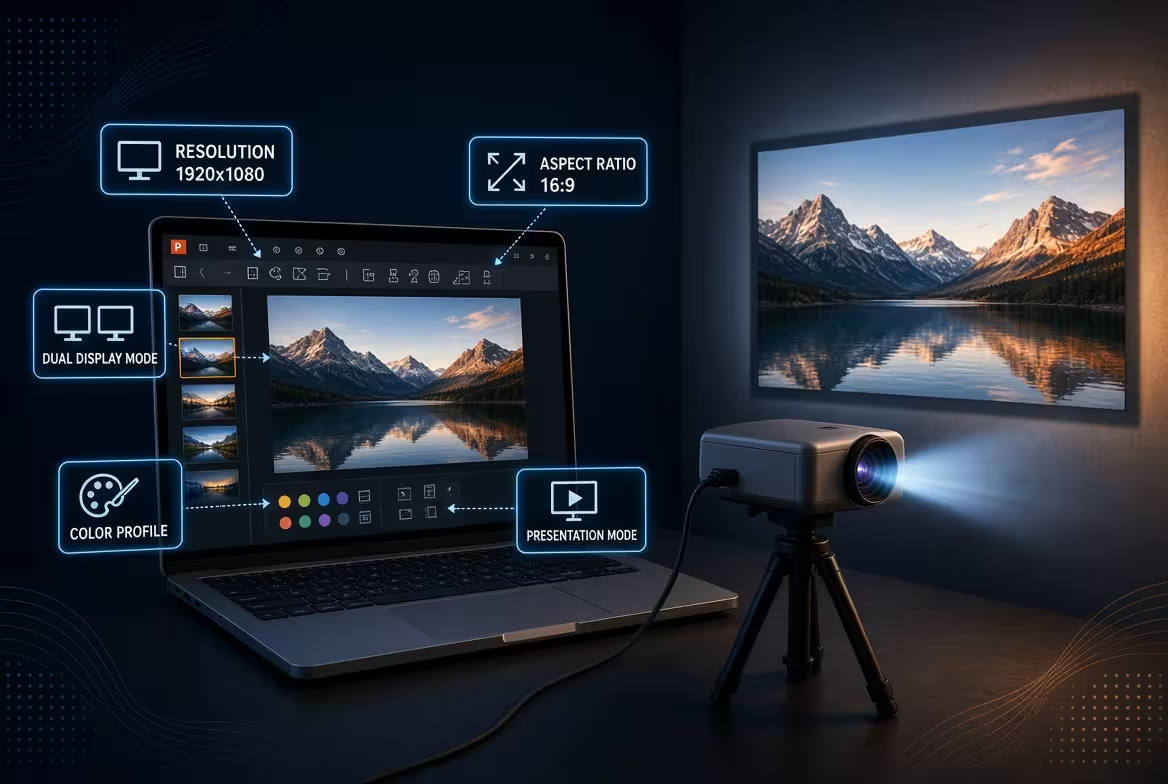
A PowerPoint presentation can look completely correct on your laptop and still appear wrong five minutes later on a projector. The problem is often not the slide design itself. It is the chain of settings between PowerPoint, the operating system, the external display, and the projector.
If you regularly present in meeting rooms, classrooms, conference halls, or training spaces, a few settings deserve attention before you press F5. Some are obvious. Others stay invisible until the exact moment an audience is watching.
Check the slide size before you connect anything
One of the easiest mistakes is treating the projector's physical screen shape as something that can be fixed at the end. It cannot always be fixed cleanly at the end.
Open your presentation and check Design → Slide Size. A modern widescreen deck will normally use 16:9, while older projection systems and some legacy meeting rooms may still use 4:3.
The important point is not that one ratio is universally better. The important point is that the slide ratio should match the environment in which the deck will actually be shown.
If your slides are designed in 16:9 but the room is effectively configured around a 4:3 output, the projector or display chain may introduce unused space, scaling, or cropping. Changing the projector's zoom later does not change the proportions of the PowerPoint canvas.
That is why I would make the slide-size decision before polishing the deck, not immediately before presenting it.
Do not confuse Duplicate with Extend
This setting causes more confusion than it deserves. When you connect a projector, Windows or macOS may give you several display options, but two matter most for presentations: Duplicate and Extend.
- Duplicate: your laptop and projector show essentially the same display.
- Extend: the projector becomes a separate display that PowerPoint can use independently.
If you want to use Presenter View, Extend is usually the useful configuration. PowerPoint can then show your notes and controls on one screen while the audience sees the clean slide show on the projector. Microsoft specifically documents this multi-monitor workflow for Presenter View.
The mistake is testing the presentation while the laptop is mirrored and assuming the same behavior will occur when you switch to Presenter View later. The display arrangement can change when the second screen becomes an independent monitor.
Before the actual presentation, press Windows + P on Windows and confirm which display mode you are using. On macOS, check the display arrangement in System Settings.
Presenter View is useful — but check which screen gets it
Presenter View solves a real problem: you want speaker notes, the next slide, and presentation controls without putting them in front of the audience. But the feature is only helpful if PowerPoint identifies the correct monitor.
With the projector connected, go to Slide Show and check Use Presenter View. PowerPoint lets you choose which monitor is used for the presenter and which one displays the slide show.
This is worth checking manually because the laptop's idea of the primary display may not match what you expect after connecting to unfamiliar conference-room equipment.
If Presenter View appears on the projector instead of your laptop, do not start rearranging the slides. The deck is probably fine. The display assignment is the first thing to inspect. Microsoft also provides a swap-display option when Presenter View opens on the wrong screen.
Resolution is not the same thing as slide quality
A projector can technically display your PowerPoint while still producing a disappointing image. The external display may be running at a lower resolution than your laptop, or the presentation system may negotiate a different resolution when Slide Show mode starts.
This is particularly easy to miss because the editing window can look sharp while the projected slide looks softer.
Check the operating system's display settings after the projector is connected, not before. Look specifically at the resolution assigned to the external display.
There is another trap: PowerPoint does not control every part of the final image. The laptop sends a signal, the projector receives it, and the projector may then scale or process that signal before it reaches the screen.
So if text suddenly looks soft, do not immediately rebuild the presentation. First determine whether the external display is receiving the resolution you expected.
The projector's own image settings can quietly change your slides
Even a perfectly prepared PowerPoint file can be altered visually by projector settings.
Look for controls such as:
- Aspect Ratio — check that it is not forcing the image into an unsuitable proportion.
- Zoom or image size — excessive zoom can crop edges of the slide.
- Overscan or similar processing — depending on the equipment, the outermost parts of the image may not be shown exactly as sent.
- Keystone correction — useful when the projector is physically misaligned, but it changes the projected geometry rather than fixing the PowerPoint layout.
- Picture mode — presentation, cinema, dynamic, and similar modes can change contrast and perceived brightness.
The practical rule is simple: if something disappears only after projection, investigate the display chain before changing the source slide.
This is also why I would avoid placing essential labels, page numbers, or small interface-like elements directly against the outer edge of the slide. The edge of the PowerPoint canvas is not necessarily the same thing as the visible edge in a real room.
Test the slides that are most likely to expose a problem
You do not need to inspect every slide for ten minutes. Test the slides that stress the projection system.
- A slide with small text.
- A slide containing a large photograph or full-bleed background.
- A slide with charts or thin lines.
- A slide containing video.
- A slide with content positioned close to the edges.
- A slide with dark backgrounds and subtle contrast.
- A slide containing animations or transitions.
This is a better test than simply opening the title slide. A title slide can look perfect even when the presentation has a serious scaling or contrast problem.
If the deck uses diagrams or editable visual structures, it can also be useful to test those elements at their actual presentation distance. ImagineLayout's PowerPoint presentation templates and editable visual assets can help when the problem is not the projector itself but the need to prepare a deck with presentation-ready layouts from the beginning.
Do not leave video and fonts until the last minute
Projector problems are not limited to static slides. A presentation can pass a visual check and still fail when you reach a video or a slide containing a font that is unavailable on the presentation computer.
If the presentation will run from another laptop, open the actual PowerPoint file on that computer. Do not rely on the fact that it worked on yours.
Pay particular attention to:
- fonts that may not be installed on the presentation computer;
- linked or embedded video;
- audio output;
- animations that depend on external media;
- charts or objects copied from other applications.
For a deck that will be presented repeatedly, using a controlled PowerPoint template system can reduce some of the last-minute formatting work. ImagineLayout's PowerPoint template collection is useful as a starting point when the visual structure needs to remain editable rather than being assembled from screenshots.
The five-minute projector check I actually recommend
Right before presenting, I would check the setup in this order:
- 1. Slide Size: confirm that the deck uses the intended aspect ratio.
- 2. External display: confirm that the projector is detected correctly.
- 3. Display mode: use Extend when you need Presenter View.
- 4. Presenter View: verify which screen shows your notes.
- 5. Resolution: check the external display rather than judging only from the laptop screen.
- 6. Projector image: check aspect ratio, zoom, cropping, and obvious picture processing.
- 7. Edge content: inspect one slide with content close to the margins.
- 8. Media: play at least one video or animation-heavy slide if the presentation contains them.
The key idea is that a projector test should not be treated as a final cosmetic check. It is a test of the entire presentation system.
A PowerPoint file is only one part of that system. The slide dimensions, computer display mode, external resolution, Presenter View configuration, and projector processing all have a role in what the audience finally sees.
That is why the safest moment to discover a projector problem is five minutes before the presentation — and not five seconds after the first slide appears.
Comments (0)