I've sat in enough client review calls to notice a pattern: a video works perfectly during rehearsal, then refuses to play the moment the deck is moved to another laptop. Nine times out of ten, the fix isn't a PowerPoint bug — it's how the video was added in the first place. So before getting into the steps, it's worth understanding the two different ways PowerPoint handles video, because that choice affects everything downstream.
Two Ways to Add Video
PowerPoint gives you two options: embed a video file or link to an online video.
- Video from a file — the actual video is inserted into the slide (either embedded in the .pptx or linked to the file on disk, depending on a setting).
- Online video — you paste an embed link (from a source that supports it), and PowerPoint streams it during playback rather than storing it.
Online video sounds convenient, but I wouldn't recommend it for anything presented without internet access — conference rooms with flaky Wi-Fi have ruined more than a few product demos I've watched from the audience. For anything client-facing or offline, an embedded local file is the safer bet.
Step-by-Step: Inserting a Video File
- Open the slide where the video should appear.
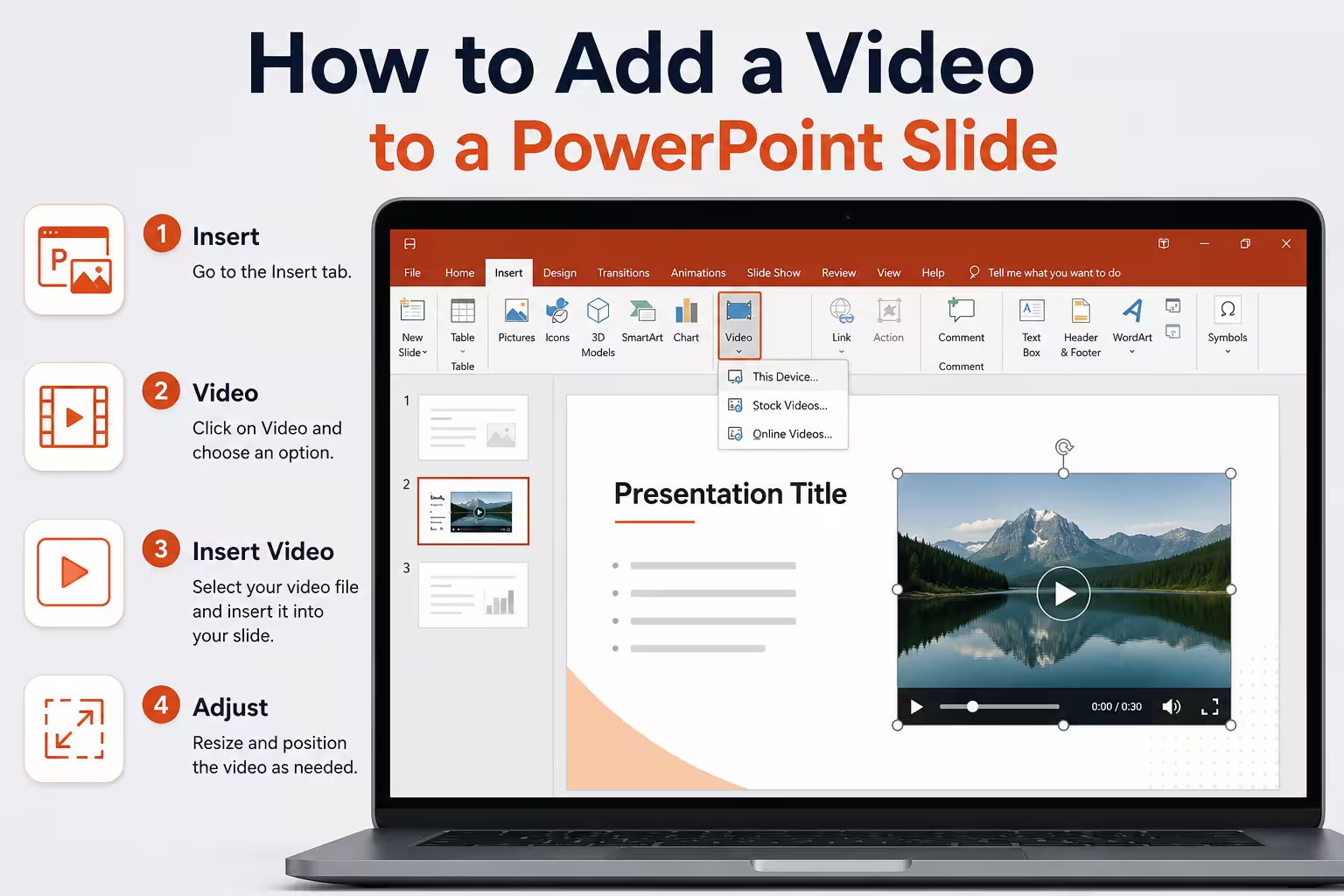
- Go to the Insert tab.
- Click Video, then choose This Device (wording varies slightly by PowerPoint version, but the icon and location are consistent across recent desktop versions).
- Browse to the video file and select it.
- PowerPoint drops it onto the slide as a placeholder you can resize, move, or crop like an image.
That's the entire mechanical process — it takes seconds. The part that actually matters is what happens after.
Formatting and Playback Options
Once the video is on the slide, a Playback tab appears in the ribbon. This is where the real editing happens:
- Trim Video — cut the start or end without touching the original file. Useful for pulling a 15-second clip out of a longer recording instead of re-exporting it.
- Fade In/Fade Out — a short fade avoids the abrupt "hard cut" look, especially when the video starts mid-scene.
- Poster Frame — set a specific frame (or a custom image) as the thumbnail shown before playback. Left alone, PowerPoint just grabs whatever frame the video happens to start on, which is sometimes a blank or dark frame that looks like an error.
- Start — choose "Automatically" or "On Click." I almost always set this to "On Click" for presenter-led decks. Autoplay is fine for kiosk-style or self-running presentations, but in a live talk, a video that starts itself while you're still talking is distracting.
- Play Full Screen / Loop until Stopped / Rewind after Playing — small checkboxes, but they change the feel of a demo significantly. Looping is handy for a background visual; it's a poor choice for anything with dialogue.
One thing people overlook: the Playback tab only shows up when the video is selected. If it seems to have vanished, click the video again — it's not gone, it's just tab-dependent.
Where This Goes Wrong
In my experience, video problems in PowerPoint almost never happen during editing — they show up on a different machine. A few recurring causes:
- Linked instead of embedded files. If the video wasn't embedded and the source file gets moved, renamed, or left off a USB drive, the slide shows a blank box. Always double-check embedding settings before sending a deck to someone else, or better, test the file on a separate machine before the actual presentation.
- Unsupported codecs. Not every video format plays reliably across every version of PowerPoint. MP4 with H.264 encoding is the safest general-purpose choice; older formats or unusual codecs are the most common source of "it won't play" tickets.
- Oversized files bloating the deck. A few embedded 4K clips can turn a 5MB presentation into a 500MB file that's painful to email or upload. Compressing media (File > Compress Media, when available) before sending the final version is a quick habit worth building.
- Sound issues nobody tested. Volume levels, muted defaults, or a laptop set to silent mode. It sounds obvious, but it's the single most common last-minute scramble I've seen backstage before a talk.
Practical Advice
If there's one habit worth adopting, it's this: never trust a video in a deck until you've played it on the actual machine and screen you'll be presenting from — not just the one you built it on. Formats, codecs, and audio settings behave differently across setups more often than people expect, and a 30-second test run beats a live troubleshooting moment in front of an audience.
Is the video actually necessary for the point you're making, or would a well-timed screenshot and a verbal explanation land just as well with a fraction of the risk?
Comments (0)