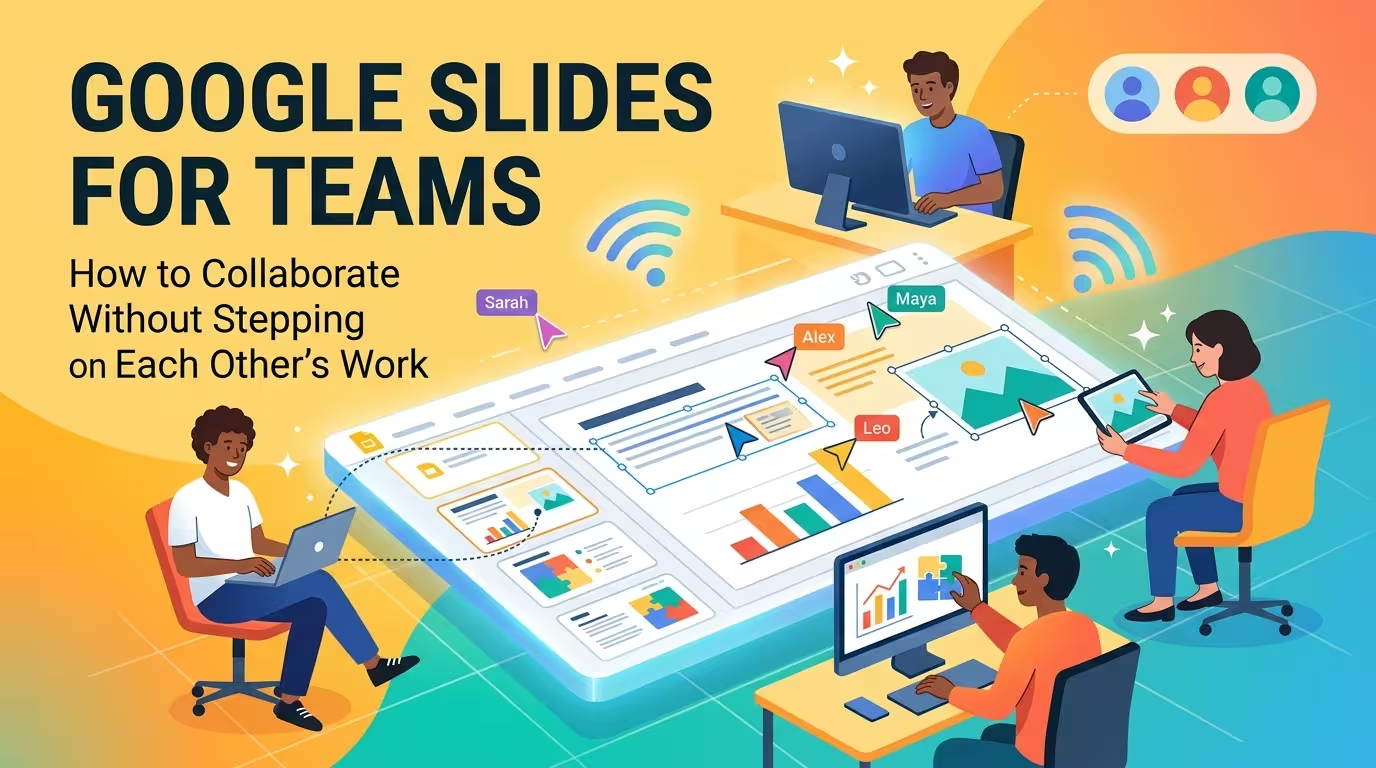
A shared Google Slides deck can look wonderfully simple: everyone opens the same file, everyone can edit, and the latest changes appear almost immediately. Then three people start changing the same slide.
That is when collaboration stops being a software problem and becomes a workflow problem. For teams building presentations together, the real challenge is deciding who changes what, when feedback becomes an edit, and which version is actually ready for review.
Google Slides already provides the technical foundation for this: multiple people can work in the same presentation, use comments and action items, follow another collaborator, and use version history to inspect or restore earlier work. :contentReference[oaicite:1]{index=1} The part teams usually have to design themselves is the operating system around those features.
Start with one deck, not five competing copies
The easiest way for a team to lose control of a presentation is to create copies whenever somebody wants to make a change.
At first, this feels safer. You might have “Presentation Final,” “Presentation Final 2,” “Presentation Final Updated,” and another file containing the designer's latest version. A few hours later, nobody knows which one contains the current edits.
For most collaborative projects, a better starting point is a single working presentation with the appropriate people given access. Google Workspace supports different access levels, while editors can work directly in the shared file and users with commenting access can participate in the review process.
This changes the question from “Which file should I edit?” to “What am I responsible for changing in this file?”
That distinction matters. A single source of truth removes one entire category of collaboration errors before they happen.
Give slides owners before giving everyone permission to redesign them
Imagine a 20-slide presentation being built by a strategist, a copywriter, a subject-matter expert, and a designer. All four have edit access.
The problem isn't that Google Slides allows simultaneous editing. The problem is that edit access says almost nothing about responsibility.
A simple team rule can solve much of this: assign an owner to each section or type of work.
- Content owner: responsible for factual accuracy and the argument on a slide.
- Copy owner: responsible for wording, headlines, labels, and shortening text.
- Design owner: responsible for layout, typography, visual hierarchy, and consistency.
- Final reviewer: checks the complete presentation against the agreed brief before delivery.
These roles do not have to belong to four different people. On a small team, one person may hold several roles. The important part is knowing who has the final say when two edits conflict.
This is particularly useful on slides that mix narrative and design. If five people independently “improve” a diagram, the result is rarely five improvements. It is usually five competing interpretations of what the diagram is supposed to communicate.
Use comments for decisions, not as a second editing layer
One of the easiest mistakes in Google Slides collaboration is leaving a comment that should have been an edit — or making an edit when the team actually needs a discussion.
Comments are useful when the decision is not settled yet. Google Slides supports comments, replies, and action items, including assigning a comment to a specific person.
For example, instead of changing a chart immediately, a teammate might leave:
“Should this show quarterly revenue or the full-year figure? The current title suggests the second.”
That comment identifies the decision. The eventual edit can then be made once the owner answers it.
By contrast, comments such as “change this,” “make bigger,” or “I don't like this” create another problem: somebody still has to interpret what action is required.
A useful internal rule is simple:
- If you know the correction and own the slide, make the edit.
- If you know something is wrong but the decision belongs to someone else, comment.
- If the comment creates a task, assign it.
- When the decision is finished, resolve the discussion.
This keeps the presentation itself from becoming a record of unfinished conversations.
Don't all review the same slide at the same time
Real-time collaboration is useful, but it creates a strange temptation: because everyone can see the deck changing, everyone starts watching everyone else's cursor.
That is rarely the best use of a team's attention.
Instead, separate the work into passes. For example, one person can work through the narrative while another checks data, while the designer handles the visual system. The team can then regroup for a focused review rather than constantly interrupting one another.
Google Slides does have a feature that can help when simultaneous work is necessary: on a computer, you can click a collaborator's avatar and follow them as they move through the presentation.
That is particularly useful during a live review or handoff. It is less useful as a permanent working method.
The distinction is important: real-time access does not require real-time coordination.
Freeze the visual system before the team starts filling slides
There is a specific kind of collaboration conflict that has nothing to do with comments or permissions. It happens when every contributor has a different idea of what a “finished” slide looks like.
One person uses a large headline. Another prefers a smaller title. Someone else changes the spacing because the content does not fit. A fourth person introduces a new color for emphasis.
None of these edits may look unreasonable individually. Together, they slowly destroy the visual language of the deck.
For that reason, establish a small design system before the presentation becomes a shared production file:
- headline and body-text hierarchy;
- approved colors and accent usage;
- standard layouts for common slide types;
- chart and diagram conventions;
- rules for images, icons, and captions.
The important point is not to document every possible design decision. It is to remove the decisions that contributors should not have to reinvent on every slide.
This is also where a prepared presentation template can save more time than trying to standardize everything manually after the deck is already crowded. ImagineLayout's Workplace PowerPoint Presentation Templates, for example, provide editable layouts that can be adapted to business presentations; the current page also states that the template can be imported into Google Slides, although some animations may need to be reapplied.
The advantage of starting from established layouts is not simply speed. It gives different contributors the same visual vocabulary before they begin working independently.
Use version history as a safety net, not as your approval process
Teams sometimes avoid making necessary changes because they are afraid someone will accidentally destroy good work. That fear is understandable, but it can lead to another bad workflow: keeping endless copies “just in case.”
Google Slides keeps version history for editable files, allowing editors to inspect earlier versions and restore a previous state. Google also notes that multiple drafts do not have to be maintained as separate files simply to preserve earlier versions.
That makes version history a useful recovery mechanism.
But there is an important distinction: version history can recover a state; it cannot decide which state the team should have approved.
If the deck has gone through several major rounds, name or otherwise clearly identify meaningful milestones in your team's process. For example, the internal workflow might distinguish between:
- content complete;
- design pass complete;
- stakeholder review;
- final approved version.
The labels are less important than having a shared understanding of what each stage means. Without that, a technically recoverable presentation can still be operationally confusing.
Separate editing time from review time
The strongest team workflows usually have a boundary between building and judging.
During production, contributors should be able to make changes quickly. During review, the goal changes: now the team needs to evaluate whether the presentation works as a whole.
Mixing the two creates endless micro-edits. Someone changes a headline while another person is discussing the chart. The chart gets changed while the first person is still answering a question about the headline. Ten minutes later, everyone has moved the same slide in different directions.
A better sequence is:
- Build the section.
- Run a focused review.
- Record unresolved decisions as comments or action items.
- Assign the required changes.
- Apply the changes.
- Run a final consistency check.
The benefit is subtle but significant: the team is no longer using the presentation file as a live meeting whiteboard and a finished deliverable at the same time.
When several people must edit, work by boundaries
Sometimes simultaneous editing is unavoidable. A deadline is close, several sections are independent, and the team needs to move quickly.
In that situation, don't divide the work by vague instructions such as “everyone take a few slides.” Define boundaries that reduce the chance of touching the same objects.
For example, one person can own slides 1–5, another 6–10, and another 11–15. A designer can then perform a separate visual pass across the entire deck.
That last step matters because section ownership can solve the collision problem while creating a consistency problem. A deck built by three people can easily feel like three presentations unless somebody reviews it across section boundaries.
The same principle applies within a slide. If a slide contains a diagram, data table, and narrative text, decide who owns the underlying content and who owns the visual treatment. Otherwise, two people can unknowingly edit different parts of the same idea in opposite directions.
A practical Google Slides team workflow
If you are setting up a collaborative presentation from scratch, the process does not need to be complicated.
Start with one shared working file. Give each contributor the minimum access they need. Establish slide or section ownership. Agree on the visual system before large-scale production. Use comments for unresolved decisions rather than vague criticism. Keep review sessions separate from production whenever possible.
Then use version history as your safety net rather than creating a new file every time somebody wants to experiment. Google Workspace's current documentation specifically supports reviewing changes and returning to earlier versions when you have edit access. :contentReference[oaicite:7]{index=7}
For business-heavy decks, a structured starting point can also reduce the number of visual decisions each contributor has to make independently. A business-oriented resource such as ImagineLayout's Business Report PowerPoint Templates can provide an editable visual starting point for reports, reviews, and other structured business presentations.
The goal is not to prevent people from touching the presentation. It is to make it obvious which changes belong to whom and which decisions still need discussion.
That is the difference between a team editing one Google Slides file and a team actually collaborating on one presentation. The software gives everyone access to the same canvas. The workflow determines whether that access produces a coherent deck or a collection of competing edits.
Comments (0)