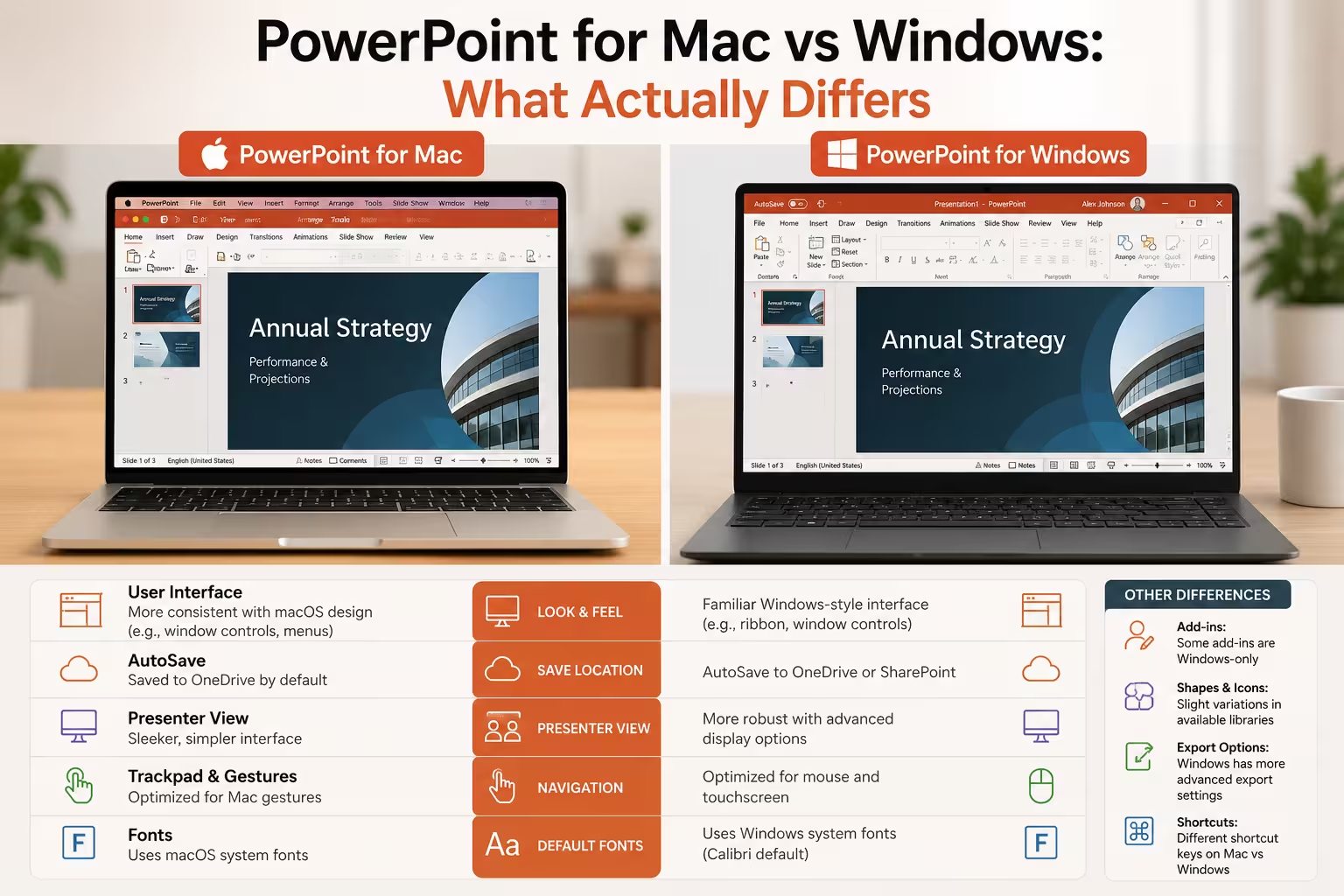
I've lost count of how many times a client has sent me a deck built on a Mac, only for a slide to look slightly "off" once I opened it on my Windows machine. Nothing dramatic — a font substitution here, an animation trigger that didn't fire quite the same way there. It's the kind of thing that makes people wonder whether PowerPoint is really the same program on both platforms.
It mostly is. But "mostly" is doing some work in that sentence, and if you build presentations for a living — or just switch between a work laptop and a personal Mac — it's worth knowing exactly where the seams show.
Animation and timing controls
This is the gap I run into most often. On Windows, PowerPoint gives you a full animation pane with a visible timeline, so you can drag effects to overlap, stagger triggers down to fractions of a second, and see everything laid out on one track. On Mac, that timeline view isn't as complete — you can still build fairly complex animation sequences, but the fine-grained visual control isn't quite at parity. Microsoft's own support forums have threads on exactly this, and it's a recurring complaint from people who move a heavily animated deck from Mac to PC (or the other way).
In my experience, if a project depends on tightly choreographed animation — text flying in on cue with a voiceover, for instance — I'll build and test that portion on Windows even if the rest of the deck was drafted on a Mac. It saves a round of "why doesn't this look like it did on my laptop" emails.
Add-ins and automation
This one trips people up more than they expect. Windows PowerPoint supports COM add-ins, which is how a lot of enterprise tools plug into Office — brand-compliance checkers, chart plugins, that sort of thing. Mac doesn't support COM add-ins at all. What Mac does support is the newer Office Add-ins model (the web-based ones) and VBA macros, though VBA behavior isn't always identical across platforms.
Practically, this means: if your organization has standardized on a specific PowerPoint add-in for something like slide auditing or asset libraries, check whether it's COM-based before assuming your Mac-using teammates can use it too. I've seen teams find out the hard way, mid-project, that half the department simply can't run the tool.
Fonts and cross-platform layout
Font handling is an old problem that hasn't fully gone away. If a deck uses a font that isn't installed on the machine opening it, PowerPoint substitutes something else — and that substitution can quietly shift line breaks, text box overflow, and spacing. This isn't unique to Mac vs Windows; it happens between any two machines with different font libraries. But it comes up disproportionately in Mac/Windows handoffs because the two platforms ship with different default font sets.
One thing people overlook: embedding fonts (Windows supports this more reliably than Mac does) helps, but it's not bulletproof, especially with more unusual typefaces. If a deck absolutely has to look identical everywhere, sticking to widely available fonts — Calibri, Arial, Segoe UI-adjacent choices — is still the safest bet, even if it feels a little boring.
Presenter View and hardware quirks
Presenter View works on both platforms, but the details around it differ. Mac users have occasionally reported friction getting Presenter View to behave correctly across multiple displays, particularly with certain external monitor or adapter setups — this is more of a hardware/driver interaction than a PowerPoint bug per se, but it's the kind of thing that catches people off guard five minutes before they're due on stage. I'd recommend testing your exact presenting setup — same laptop, same adapter, same monitor if possible — at least once before a high-stakes talk, regardless of platform.
On the flip side, Mac has a couple of small conveniences of its own. MacBook Pro models with a Touch Bar could surface quick controls there, and Mac's interface generally leans on macOS-native gestures and keyboard shortcuts that longtime Mac users find more natural. These aren't game-changing differences, but they're real, and they're part of why some designers genuinely prefer building on Mac even knowing about the animation and add-in trade-offs.
AI features and Copilot
Both platforms now expose Copilot inside PowerPoint, so the gap here has narrowed compared to a couple of years ago. Where it still shows up is at the operating-system level rather than inside PowerPoint itself: Windows 11 has its own set of system-level Copilot integrations, and macOS has Apple Intelligence features that interact with the system generally rather than PowerPoint specifically. So the AI experience around your presentation work can differ even when PowerPoint's own AI tools are roughly aligned. I wouldn't build a workflow that depends heavily on OS-level AI features being available identically on both platforms — that's still shifting too fast to treat as stable ground.
So which one should you use?
Honestly, for the everyday work of putting a deck together — writing content, designing slides, basic formatting, real-time collaboration through OneDrive — the experience is close enough that platform shouldn't be the deciding factor. Where it matters is at the edges: heavy animation work, enterprise add-ins, and presenting on unfamiliar hardware. If your work regularly touches those edges, it's worth knowing which platform you'll actually be presenting or building on before you invest hours into a design that assumes feature parity that isn't quite there.
If you're not sure which category your next project falls into, a decent test is this: open the deck's most complex slide on the other platform before you consider it finished. If nothing shifts, you're probably fine. If something does, better to catch it now than in front of a room.
Comments (0)