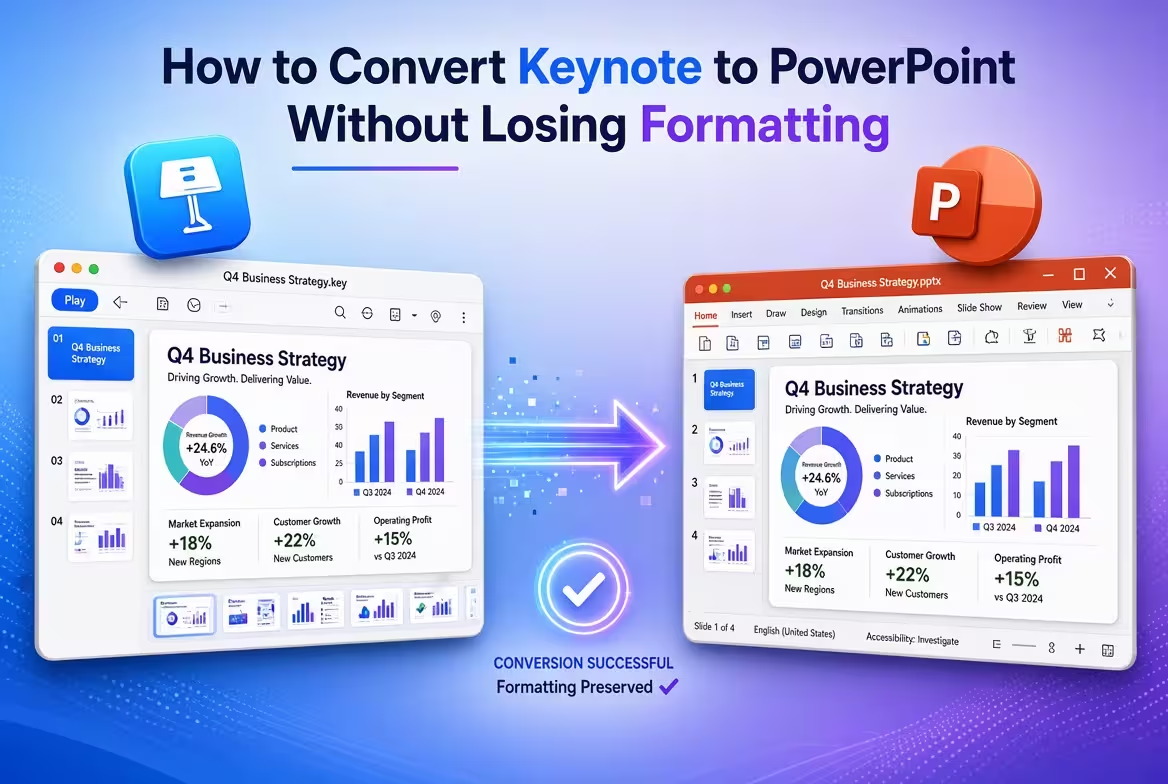
Exporting a Keynote presentation to PowerPoint takes only a few clicks. The harder part begins when you open the resulting .pptx file and discover that a font has changed, a text box has moved, or an animation no longer behaves the same way.
If you need to convert Keynote to PowerPoint for a colleague, client, classroom, or Windows-based workflow, the safest approach is to treat export as a conversion process rather than a simple file save. Keynote can export directly to an editable PowerPoint file, but the two applications do not interpret every presentation element in exactly the same way.
1. Start with the Keynote file, not a PDF
A common mistake is to export the presentation to PDF first and then try to rebuild or convert it into PowerPoint. That preserves the appearance of the slides, but it does not preserve the presentation as an editable PowerPoint deck.
If the recipient needs to edit text, move objects, change charts, or reuse individual slides, export directly from Keynote to PowerPoint. Apple specifically provides PowerPoint as an export format and produces an editable .pptx file.
Before exporting, make a quick inventory of the slides that are most likely to expose compatibility problems:
- slides using unusual fonts;
- slides with complex charts or tables;
- slides with many overlapping shapes;
- slides containing video or audio;
- slides with sophisticated builds or transitions;
- slides where text sits very close to the edge of a box or image.
You do not need to inspect every slide with the same intensity. The goal is to identify the slides where even a small conversion difference could change the meaning or visual balance.
2. Export Keynote to PowerPoint
On a Mac, open the presentation in Keynote and choose File > Export To > PowerPoint. In newer versions of Keynote, you can also use Share > Export and Send and select PowerPoint. Apple documents PowerPoint as an export option that creates a separate editable copy, leaving the original Keynote presentation unchanged.
On iPhone or iPad, open the presentation, use the export controls, select PowerPoint, and export the copy. Apple states that the resulting file can be opened and edited in Microsoft PowerPoint.
Keep the original .key file. Do not replace it with the exported PowerPoint version. The two files now have different purposes: the Keynote file remains your source, while the PPTX is the compatibility version.
If you regularly move presentations between the two applications, it is also useful to keep your working assets organized. Keynote presentation templates and PowerPoint presentation templates can be useful when you need to rebuild or standardize individual slides after a format conversion.
3. The first thing to check: fonts
A presentation can look almost identical after export and still have a serious problem: the font has been replaced.
This matters because a font substitution does not only change the appearance of letters. It can change the width of text, which changes line breaks, which changes the height of a text block, which can then push other objects out of alignment.
That means checking fonts is not a cosmetic step. It is one of the fastest ways to find the cause of a slide that suddenly looks “slightly wrong.”
Open the exported PowerPoint on the computer where it will actually be edited or presented. Check the slides with the densest text first. Look for:
- different typefaces;
- unexpected line breaks;
- titles wrapping onto another line;
- text overflowing its original box;
- changes in vertical alignment.
If the presentation uses a font that is unavailable on the target computer, replacing it deliberately is usually safer than allowing every affected text box to resolve differently.
4. Check objects that depend on precise positioning
This is where a visually polished Keynote presentation can become frustrating in PowerPoint.
Look closely at slides containing multiple overlapping elements. A small positional change may be invisible on a simple title slide but obvious when several objects are supposed to form one visual composition.
Pay particular attention to:
- groups of shapes;
- icons positioned against text;
- thin lines and connectors;
- objects aligned to image edges;
- layered diagrams;
- elements positioned close to slide boundaries.
Do not immediately start fixing every one-pixel difference you notice. First determine whether the difference is actually visible in presentation mode. A conversion is not successful because every underlying coordinate is identical; it is successful when the exported deck still communicates the intended structure and hierarchy.
For slides that rely heavily on editable diagrams, having native PowerPoint assets available can also make later maintenance easier. ImagineLayout's PowerPoint template collection includes editable presentation layouts and diagram-oriented material that can serve as a starting point when a converted slide needs to be rebuilt rather than patched.
5. Treat charts and tables as a separate inspection
A chart can survive conversion visually while becoming inconvenient to edit. That distinction matters if someone will update the underlying numbers later.
Open several representative charts in PowerPoint and check whether the data remains accessible and whether labels, legends, axes, and formatting still make sense.
Tables deserve the same treatment. Do not only look at whether the cells are still present. Check whether:
- text still fits inside the cells;
- column widths remain sensible;
- numbers retain their intended formatting;
- alignment is consistent;
- important rows or columns still have the intended emphasis.
If a slide contains a complex data visualization that is intended mainly for viewing rather than editing, a flattened visual may sometimes be the safer design decision. If the recipient must change the data, however, preserving editability is more important than achieving a visually perfect static copy.
6. Do not assume Keynote animations will behave identically
Animations and transitions are among the easiest things to overlook because a converted deck may appear completely fine when viewed as static slides.
Keynote has its own animation and transition system. When you move the presentation into PowerPoint, the important question is not “Did the slide export?” but “Does the slide still behave as intended?”
Apple treats builds and transitions as part of the presentation experience, while its export documentation separately identifies PowerPoint as the editable slide format.
After conversion, run the presentation rather than inspecting only the slide thumbnails. Pay special attention to:
- object entrance and exit animations;
- sequence of builds;
- automatic versus click-based progression;
- slide transitions;
- embedded video and audio;
- slides where animation is essential to understanding the message.
If an animation is decorative, replacing it with a simpler PowerPoint-compatible effect may be enough. If the animation explains a process, however, it deserves a full test because changing the sequence can change the meaning of the slide.
7. Compare the Keynote and PowerPoint versions side by side
The most reliable quality check is surprisingly simple: put the original Keynote presentation and the exported PowerPoint version next to each other.
Do not review the deck only from slide 1 to the end. Instead, compare the slides most likely to fail first: the densest layouts, the most heavily animated slides, charts, tables, and slides using uncommon fonts.
A useful review sequence is:
- Text: fonts, line breaks, sizes, and alignment.
- Layout: object positions, spacing, grouping, and cropping.
- Data: charts, tables, labels, and numerical formatting.
- Media: images, video, audio, and playback.
- Motion: builds, animations, and transitions.
- Output: presentation mode on the computer that will actually be used.
This order matters. There is little value in perfecting an animation if the font substitution has already changed the slide's composition.
8. What “without losing anything” really means
There is an important distinction between visual fidelity and editability.
A converted presentation can look almost exactly like the original while some objects behave differently when edited. Conversely, a presentation can remain highly editable while requiring a few visual adjustments after conversion.
So before exporting, decide what the recipient actually needs.
If the PowerPoint file is only being used to present the deck, prioritize visual fidelity and playback. If it will become a working file for another designer or colleague, prioritize editable text, charts, shapes, and other native objects.
Trying to maximize both in every single element can create unnecessary work. The better approach is to protect the elements that matter to the presentation's purpose and simplify the ones that do not.
9. A practical Keynote-to-PowerPoint workflow
If you convert presentations regularly, the process can be reduced to a repeatable sequence:
- Keep the original Keynote file untouched.
- Identify slides with unusual fonts, dense layouts, charts, media, or complex animation.
- Export a copy as PowerPoint.
- Open the resulting .pptx in the target PowerPoint environment.
- Check fonts and text wrapping first.
- Check positioning and overlapping objects.
- Inspect charts and tables for editability.
- Run the presentation to test animations, transitions, and media.
- Fix only the elements that materially changed.
- Save the verified PowerPoint version separately from the original Keynote file.
The last step is easy to underestimate. Once you have corrected the exported file, treat that PPTX as the version intended for PowerPoint users. If the Keynote original is edited later, do not assume the corrected PPTX will automatically stay synchronized with it.
Converting Keynote to PowerPoint is therefore less about finding a hidden conversion trick and more about knowing where the two presentation environments can disagree. The export itself is straightforward; the professional part is the short inspection that follows it.
If the deck depends heavily on editable slide structures, starting with assets designed for the target format can also reduce conversion work. ImagineLayout maintains separate Keynote and PowerPoint template collections, which makes it easier to choose the format that matches the final editing environment from the beginning.
Comments (0)