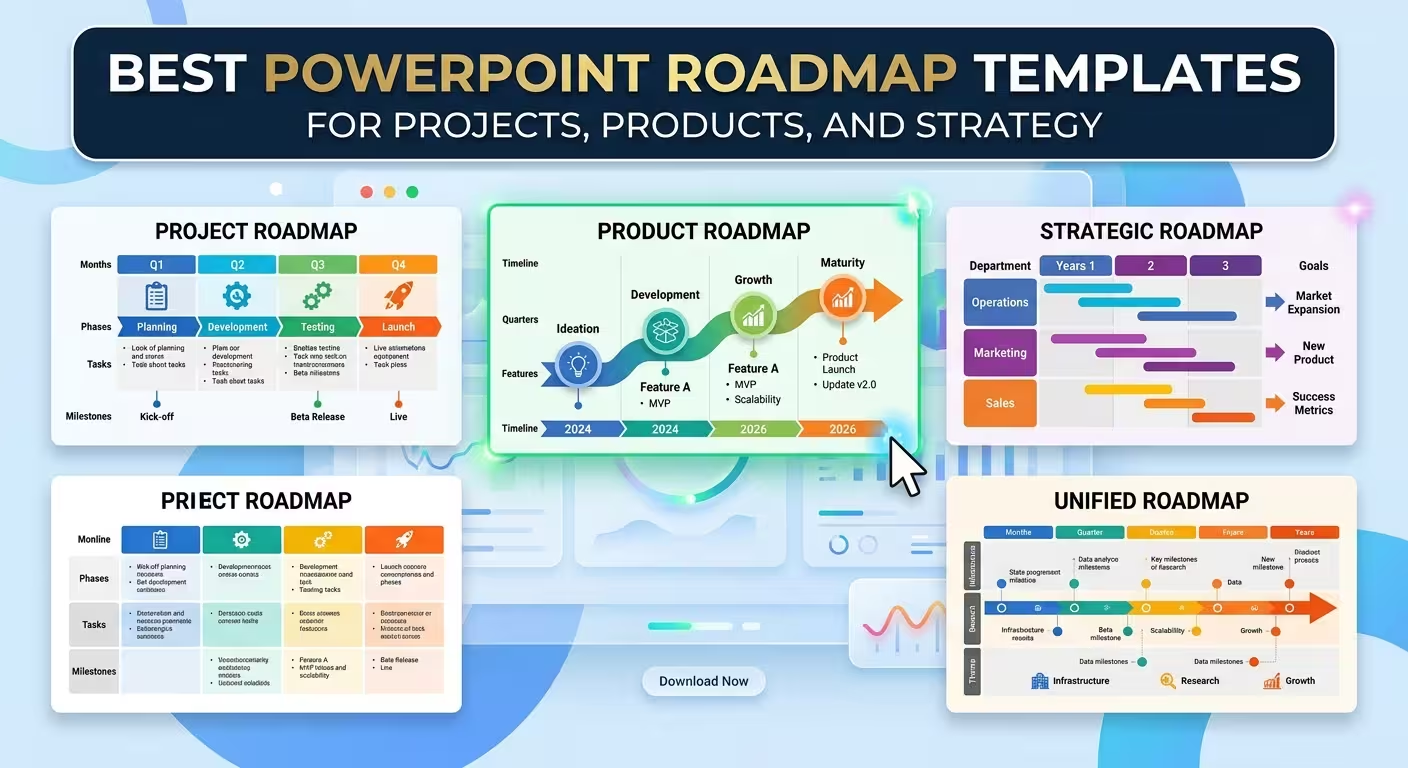
A roadmap slide can look impressive and still fail at its actual job: helping the audience understand what happens next. The problem is rarely a lack of arrows, milestones, or attractive graphics. More often, the template is showing the wrong kind of information for the conversation.
This guide looks at the best PowerPoint roadmap templates available on ImagineLayout by matching each type to a practical presentation need — from a high-level project plan to a product release roadmap or a strategic transformation story. The goal is not to choose a template because it looks good in isolation, but because its structure already fits the information you need to communicate.
Start With the Roadmap's Job, Not Its Shape
Two roadmap slides can both run from left to right and still communicate completely different things.
A product manager may need to show upcoming releases. A project manager may need to show implementation phases. An executive presentation may need to explain strategic direction without exposing every task underneath it.
That distinction matters because a roadmap is not simply a decorative timeline. A timeline primarily establishes sequence and time; a roadmap usually adds direction, priorities, phases, or intended outcomes. ImagineLayout's own guidance makes the same distinction and recommends deciding what the roadmap actually represents before building the visual. How to Create a Roadmap in PowerPoint explains this approach in more detail.
Before choosing a template, identify the dominant question your slide must answer:
- Where are we going? Use a strategic or directional roadmap.
- What happens during the project? Use a project-plan or implementation structure.
- What are we releasing and when? Use a product or milestone roadmap.
- When do events happen? A timeline may be more appropriate than a roadmap.
- Who is responsible for different streams? Look for a multi-lane or grouped structure.
This simple decision prevents one of the most common roadmap problems: forcing a detailed project schedule into a slide that was supposed to communicate strategic direction.
For Executive and Strategic Presentations: Planning Board Layouts
Imagine a leadership meeting where the audience has two minutes to understand a twelve-month initiative. A slide filled with individual tasks gives them more information but can actually make the direction harder to see.
For this situation, a planning-board structure is useful because it lets you group work into larger phases and decisions instead of presenting the project as a task list.
The Planning Board PowerPoint Template is built around this type of planning visual. The current ImagineLayout listing provides PowerPoint and Keynote formats and presents the layout as a framework for business and educational planning.
A related option is the Planning Board Keynote Template, which is also available in PowerPoint and focuses on timelines, milestones, and roadmap-style planning.
Use this structure when: the audience needs to understand the plan's major blocks rather than inspect individual tasks.
Watch the trade-off: once a planning-board slide starts carrying owners, dozens of tasks, dependencies, and exact dates, it is no longer doing an executive communication job particularly well. Move that detail to supporting slides.
For Project Roadmaps: Connect Phases to Execution
A project roadmap becomes much more useful when every major phase has a visible purpose. “Planning → Development → Testing → Launch” is easy to draw, but without outcomes or milestones it can remain little more than a sequence of labels.
The Implementation Plans Keynote Template is a practical starting point when the roadmap needs to explain how a strategy moves into execution. Its current listing describes it as a planning framework for business leaders, project managers, and teams and includes editable PowerPoint layouts.
Another option is Creating Dynamic Project Plans PowerPoint Templates. The current template includes project-planning layouts and is positioned for project roadmaps and sprint plans as well as product-launch timelines.
For a project roadmap, I recommend thinking in three levels:
- Phase: the major block of work.
- Milestone: the point that tells the audience something important has happened.
- Outcome: what exists, changes, or becomes possible after the phase.
The third level is the one frequently missing from roadmap slides. Without an outcome, the audience can see activity but has to infer why the activity matters.
If your slide needs task durations, resource allocation, or detailed dependencies, however, you are moving toward a project schedule or Gantt chart rather than a presentation roadmap. That distinction is also reflected in ImagineLayout's project-planning templates, which explicitly separate roadmap-style communication from live date-driven scheduling.
For Product Roadmaps: Make Releases the Visual Anchors
Product roadmaps have a different problem. A product team can easily fill the slide with features, requests, versions, experiments, and technical work until the roadmap becomes a backlog displayed horizontally.
The better question is not “What can we put on the roadmap?” but “What does the audience need to understand about the product's direction?”
A useful product roadmap can organize information around:
- product themes or strategic goals;
- major release windows;
- important capabilities;
- customer-facing outcomes;
- dependencies that materially change the sequence.
The Invent & Implement Ideas PowerPoint Template is relevant when the story begins with an idea and needs to progress toward implementation. The current ImagineLayout page describes a set of diagrams that move from ideation toward actionable planning, making it useful when the roadmap is part of a broader innovation or product story.
For a release-oriented presentation, a timeline structure can also work well. ImagineLayout's Free Timeline PowerPoint Template provides editable timeline layouts and is positioned for project roadmaps, product launch timelines, and related planning presentations.
The important distinction is that a product roadmap should not become a substitute for the product backlog. A presentation has limited space. If a feature does not change the audience's understanding of direction, timing, priority, or outcome, it may belong in another document.
When a Timeline Template Is Actually Better Than a Roadmap
Search results for roadmap templates often mix roadmaps and timelines together. There is a practical reason for that: both use progression, dates, and milestones. But they answer different questions.
Imagine you are presenting a company transformation. If the audience needs to see the sequence of major events from January through December, a timeline may be enough. If the audience needs to understand strategic workstreams, priorities, and intended outcomes across those periods, a roadmap provides more context.
The Timeline Planning Keynote Template is designed around this chronological presentation problem and currently contains multiple editable timeline layouts in PowerPoint/Keynote format.
ImagineLayout also maintains a broader collection of timeline-oriented presentation resources, which can be useful when the visual requirement is fundamentally chronological rather than strategic.
A useful test is to temporarily remove all the dates from your draft. If the slide still communicates a meaningful strategic direction, you probably have a roadmap. If removing the dates destroys the meaning, you may actually need a timeline.
For Strategy and Transformation: Use Diagrams When the Path Is Not Linear
Not every strategy moves neatly from Phase 1 to Phase 2 to Phase 3.
Transformation programs often contain parallel workstreams. Marketing plans may have several channels running simultaneously. Digital strategies can involve infrastructure, products, customers, and operations at the same time.
In these cases, a single arrow across the slide can create a misleading impression of sequential work.
The Digital Strategies PowerPoint Template is designed around strategic diagrams rather than a single linear roadmap. The current ImagineLayout listing describes multiple diagrams and layouts for mapping a strategy from concept to execution.
Similarly, Strategic PowerPoint Diagrams can be useful when the presentation needs flows, pyramids, relationships, or other structures instead of one continuous path.
This is an important template-selection rule: do not use a linear roadmap to imply a linear strategy when the underlying work is parallel. The visual structure should reflect the logic of the plan.
What to Look for Before Choosing a PowerPoint Roadmap Template
A template can have an attractive preview and still be the wrong starting point for your deck. Before downloading one, inspect the actual structure rather than judging the thumbnail alone.
- Editable structure: Can phases, connectors, labels, and markers be changed without rebuilding the slide?
- Information density: Is there enough room for your real content without shrinking the type?
- Phase count: Does the layout support the number of stages you actually need?
- Milestone treatment: Are milestones visually distinct from ordinary activities?
- Parallel work: Can multiple streams be shown without turning the slide into a spreadsheet?
- Brand adaptation: Can the visual system be recolored and adjusted to match the rest of your presentation?
- Audience distance: Will the roadmap remain readable when projected in a meeting rather than viewed at full size on your monitor?
That last point is easy to overlook. A roadmap may look perfectly legible while you are editing it at 100% zoom and become difficult to scan when projected. Test the slide from the back of the room or in Slide Show mode before adding more information.
Which ImagineLayout Roadmap Template Type Fits Your Presentation?
There is no single roadmap structure that works equally well for every presentation. The useful choice depends on what the audience must understand in the few seconds after the slide appears.
- Strategic direction: start with a planning board or strategic diagram.
- Project execution: use an implementation or project-planning structure.
- Product releases: use milestone or timeline-based layouts with release points as visual anchors.
- Chronological events: choose a timeline instead of forcing the content into a strategic roadmap.
- Complex transformation: consider a diagram or multi-stream strategy layout rather than one linear path.
- Marketing initiatives: use planning diagrams that can separate campaigns, stages, or channels.
For marketing-specific planning, the Marketing Plan Steps PowerPoint Diagrams collection provides editable layouts designed around marketing plans and strategic communication.
ImagineLayout currently offers a large presentation library spanning PowerPoint templates, diagrams, charts, timelines, maps, and other presentation assets, so a roadmap does not necessarily have to remain a single isolated slide.
The strongest roadmap is usually the one that makes the underlying plan easier to understand without pretending that every task deserves a place on the executive slide. Start by identifying the decision, direction, or progress story the audience needs. Then choose the template whose visual structure already matches that story. The editing work becomes considerably easier when you are adapting the right framework rather than repairing the wrong one.
Comments (0)