I once watched a colleague spend twenty minutes manually resizing forty icons to the same size, one by one. She had no idea Align and Distribute existed. That's PowerPoint in a nutshell — most people use maybe 10% of what's actually there, and the other 90% quietly sits behind a ribbon tab nobody clicks.
This isn't a "top 10 tips" listicle. It's a working reference — the kind of thing I wish someone had handed me a decade ago when I started building decks for a living. Some of these will be obvious to power users. Others genuinely surprise people who've used PowerPoint for years. I've grouped them by what they actually help you do, because a flat list of 50 bullet points is useless if you can't find the one you need.
Layout and Alignment (the stuff that makes decks look "designed")
- Align and Distribute (Format tab → Align) — instantly evens out spacing between objects instead of eyeballing it.
- Smart Guides — the pink dashed lines that appear automatically when objects line up. Toggle them under View if they've been turned off.
- Gridlines and Guides (Shift + F9 / Alt + F9) — for pixel-level consistency across slides.
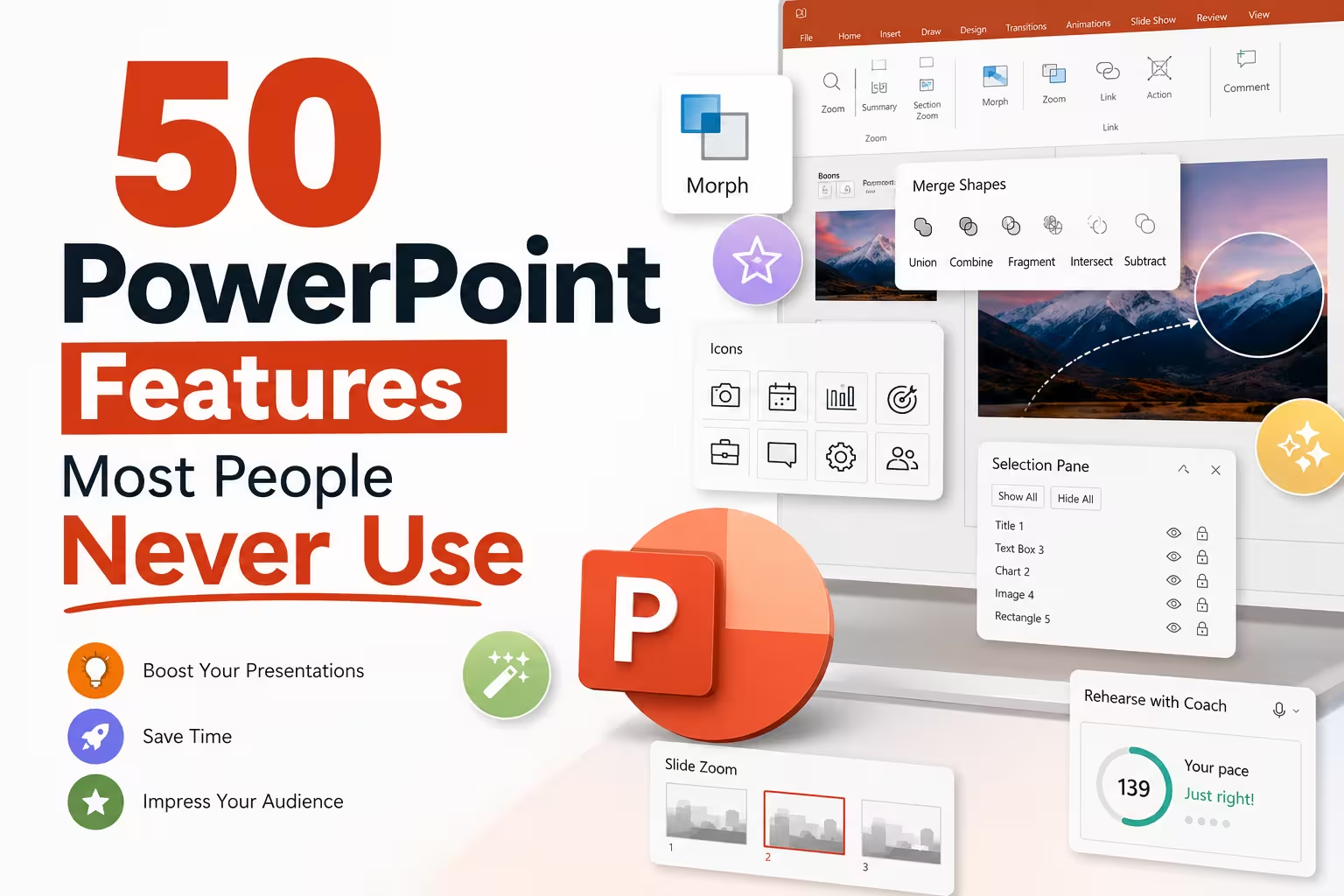
- Selection Pane (Alt + F10) — lets you rename, hide, and reorder overlapping objects instead of clicking blindly through stacked shapes.
- Snap objects to grid settings under Format → Align, useful when Smart Guides feel too aggressive.
- Group and Ungroup (Ctrl + G / Ctrl + Shift + G) — obvious to some, but I still see people move six shapes individually.
- Set as Default Shape — right-click any styled shape to make all new shapes inherit its formatting.
- Merge Shapes (Format → Merge Shapes) — combine, subtract, or intersect shapes to build custom icons without leaving PowerPoint.
- Eyedropper tool for color picking — grabs the exact hex value from any pixel on screen, including images.
- Reuse Slides (Insert → Reuse Slides) — pull slides from another deck while keeping or matching the current theme.
Text and Typography
- Format Painter double-click — click it twice to keep it "on" and paint multiple objects in a row instead of one at a time.
- Text Autofit options — under the text box's format options, you can stop PowerPoint from auto-shrinking your font when text overflows.
- Line and Paragraph Spacing shortcuts — fine control lives under Home → Paragraph dialog launcher, not just the quick buttons.
- Ligatures and stylistic sets for OpenType fonts, under Format Text Effects → some fonts support this and it's rarely touched.
- WordArt Transform effects for curved or warped text — dated when overused, but occasionally the right call for a title slide.
- Vertical text and text direction options inside a text box's Format Shape pane.
- Superscript/Subscript shortcuts (Ctrl + Shift + Plus / Ctrl + Equal) instead of digging through the font dialog.
Images and Media
- Background Removal tool (Picture Format → Remove Background) — genuinely useful for product shots without needing Photoshop.
- Picture compression settings (File → Compress Pictures) — one of the most-skipped steps, and the reason so many decks balloon to 80MB.
- Crop to Shape — crop an image directly into a circle, arrow, or custom shape.
- Corrections and Color adjustments under Picture Format for quick brightness/contrast/saturation fixes without leaving the app.
- Screen Recording (Insert → Screen Recording) — capture a short screen demo directly into a slide, no external tool needed.
- Trim Video/Audio (Playback tab) — cut clips down without an external editor.
- Picture as fill for shapes — instead of inserting an image, fill a shape with one for cleaner masking.
- Alt Text panel (Format → Alt Text) — beyond accessibility compliance, it's also how screen readers and some AI tools interpret your slide content.
Animation and Transitions
- Morph transition — arguably the most underused feature in modern PowerPoint. Duplicate a slide, move objects slightly, apply Morph, and PowerPoint animates the difference automatically.
- Animation Painter — same idea as Format Painter, but for copying animation settings between objects.
- Trigger-based animations (Animation Pane → Trigger) — start an animation when a specific object is clicked, useful for interactive menus.
- Motion Path animations — move an object along a custom-drawn path instead of a preset direction.
- Animation Pane timeline — lets you layer, delay, and sequence animations with actual precision instead of guessing with "With Previous / After Previous."
Navigation and Interactivity
- Zoom feature (Insert → Zoom) — Summary Zoom, Slide Zoom, and Section Zoom let you build a non-linear, clickable menu of slides.
- Action Buttons and Hyperlinks to slides — for building interactive dashboards or self-navigating decks.
- Custom Slide Show (Slide Show → Custom Slide Show) — present a different subset or order of slides from the same file, without duplicating it.
- Presenter View rehearsal timer — tracks per-slide timing during rehearsal, which is genuinely helpful for pacing a talk.
- Laser pointer / pen / highlighter during Slide Show mode (Ctrl + L, Ctrl + P) for live annotation.
- Subtitles/Captions live during Slide Show (Slide Show → Always Use Subtitles) — real-time captioning during presentation, useful for accessibility.
Design and Branding
- Slide Master — the single most under-touched feature in the entire app. One update here changes every slide using that layout.
- Design Ideas / Designer — suggests layout variations automatically based on content, though I wouldn't rely on it for anything client-facing without adjustment.
- Theme Colors and Theme Fonts customization — define once, apply everywhere, instead of manually matching hex codes slide by slide.
- Section organization (right-click in slide panel → Add Section) — for long decks, this alone makes navigation and collaboration much easier.
- Custom Slide Size — beyond 16:9 and 4:3, you can set any dimension, useful for social carousels or posters.
- Save as Template (.potx) — turn a finished deck's styling into a reusable base for future projects.
Collaboration and Review
- Comments with @mentions — tag a specific collaborator inside a comment thread rather than a generic note.
- Compare feature (Review → Compare) — merge and review changes between two versions of the same deck, similar to Word's track changes.
- Co-authoring in real time via OneDrive/SharePoint — multiple people editing simultaneously with visible cursors.
- Version History (File → Info → Version History) — roll back to an earlier save without needing separate backup files.
Data and Export
- Linked Excel charts — insert a chart linked to its source spreadsheet so updates in Excel can refresh the slide.
- Export to Video (File → Export → Create a Video) — bakes narration, timing, and animations into an MP4.
- Export to PDF with Notes Pages — useful for sending a version that includes your speaker notes without narrating the whole deck.
- Record Slide Show with narration and ink — layer a full narrated walkthrough on top of the existing deck for async sharing.
Nobody uses all fifty of these, and you shouldn't try to. In my experience, the biggest wins come from three places most people ignore: the Slide Master (fix your design once instead of fifty times), Morph (turns a static deck into something that feels alive), and picture compression (keeps files from becoming email attachments nobody can open). Start there, and work outward as your decks get more ambitious.
If you had to guess, how many of these have you actually used — five, fifteen, thirty?
Comments (0)