What Makes a PowerPoint Strategy Map Template Useful?
A strategy can be perfectly clear in a planning meeting and surprisingly difficult to explain on a slide. The problem is usually not the strategy itself. It is the relationship between goals, actions, priorities, risks, and expected outcomes.
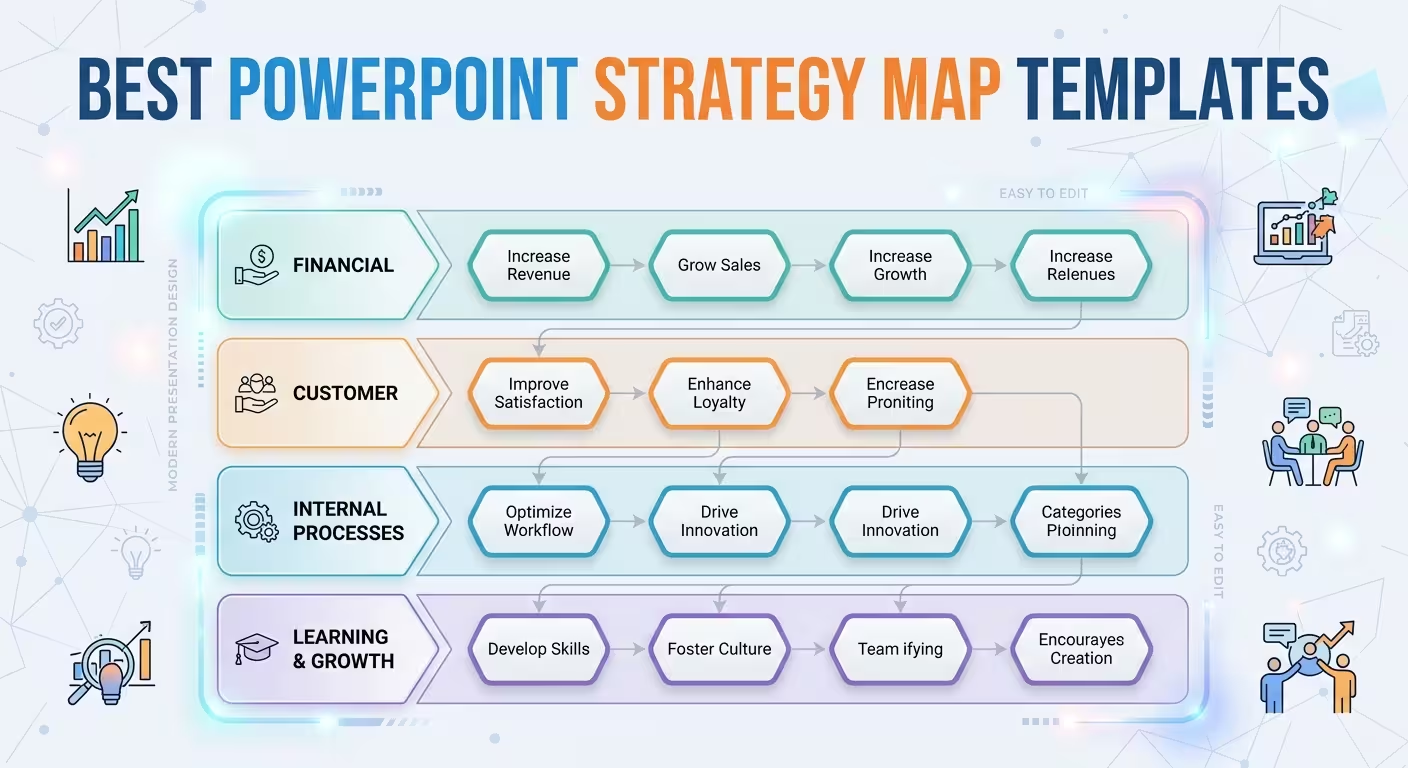
A good PowerPoint strategy map template gives those relationships a visual structure. Instead of filling a blank slide with boxes and arrows, you can start with a layout designed to show how strategic elements connect.
ImagineLayout has several PowerPoint templates that approach strategy from different directions. Some focus on strategic thinking and planning, while others provide broader business-strategy diagrams or layouts for goals, risks, and implementation.
1. Strategy: Think, Plan, Manage PowerPoint Templates
If the presentation needs to explain strategy at a high level, the Strategy: Think, Plan, Manage PowerPoint templates provide a compact starting point.
The template is available in PowerPoint format with a 16:9 aspect ratio and includes editable layouts, vector icons, color variations, and presentation elements that can be adapted to a strategic narrative.
Its main advantage for strategy mapping is the straightforward relationship between thinking, planning, and management. That makes it useful when the presentation is less about detailed analysis and more about showing the path from strategic direction to organized action.
Use this type of template when you need to present:
- high-level strategic direction;
- business planning concepts;
- management priorities;
- strategic initiatives;
- project or business roadmaps;
- an overview for an executive presentation.
It is particularly useful when the audience needs to understand the strategic story quickly rather than study a large collection of analytical charts.
2. Business Strategy PowerPoint Template
Some strategy presentations need more than a single visual path. They need goals, tactics, risks, milestones, and supporting diagrams in the same presentation.
The Business Strategy PowerPoint Template is built around that broader requirement. The current ImagineLayout page describes strategic diagrams covering areas such as SWOT analysis, roadmap timelines, goal hierarchies, tactic maps, risk analysis, milestones, and outcome-oriented visuals.
That makes this type of template appropriate when the strategy map is only one part of a larger strategic presentation.
For example, a business strategy deck could move through a sequence such as:
- Where are we now?
- What objectives are we pursuing?
- Which strategic initiatives support those objectives?
- What risks could interfere with execution?
- Which milestones indicate progress?
- What outcomes should the strategy produce?
The advantage of this structure is that the strategy map does not have to carry the entire presentation by itself. Different diagrams can explain different layers of the strategy.
3. Preparation of Business Strategy PowerPoint Template
A strategy map often becomes useful only when it connects objectives with actual planning. The Preparation of Business Strategy PowerPoint Template is designed around that planning process.
According to the current product page, the template includes strategic diagrams for areas such as SWOT matrices, Gantt timelines, PESTLE analysis, goals, actions, and KPIs. It also provides modular sections that can be adapted to different strategic planning scenarios.
This makes it particularly relevant when the presentation needs to answer a practical question: How does the strategy move from an objective to execution?
A useful structure might connect:
- Vision — where the organization wants to go.
- Objectives — what must change or be achieved.
- Actions — what teams will actually do.
- KPIs — how progress will be monitored.
- Risks — what could disrupt the plan.
- Milestones — when important stages should be reached.
This approach works well for strategic planning sessions, management presentations, project planning, and business reviews where the audience expects more than a conceptual diagram.
How to Choose the Right Strategy Map Template
The phrase “strategy map” can describe several different presentation needs. Choosing a template becomes easier when you start with the question the slide needs to answer.
When the audience needs the big picture
Use a high-level strategy layout when executives or stakeholders need to understand the overall direction without going deeply into operational details.
When you need goals and tactics together
Choose a broader business strategy template when the presentation needs to connect objectives with tactics, risks, milestones, and expected outcomes.
When strategy must lead directly to execution
A planning-oriented template is more appropriate when the audience needs to see how objectives become actions, KPIs, timelines, and measurable progress.
The distinction matters because a strategy map can become less useful when every possible detail is placed on the same slide. The purpose of the visual is to expose relationships, not to replace the entire strategic plan.
What Should a Strategy Map Show?
Before choosing a template, define the relationships you actually need to communicate. A useful strategy map usually has a clear hierarchy rather than a collection of equally weighted boxes.
Depending on the presentation, the map might connect:
- vision to strategic objectives;
- objectives to initiatives;
- initiatives to actions;
- actions to KPIs;
- risks to mitigation plans;
- milestones to expected outcomes.
The exact structure depends on the strategy. A market-expansion strategy may need geographic or competitive elements, while an internal transformation strategy may focus more heavily on capabilities, processes, people, and measurable outcomes.
The template should support that logic rather than dictate it.
Strategy Map vs. Strategy Presentation
One of the easiest mistakes is to treat a strategy map as the entire strategy presentation.
A map is a visual model of relationships. A strategy presentation usually needs context around that model.
For example, an executive deck might use one slide to establish the current situation, another to define strategic objectives, a strategy map to connect those objectives, and additional slides to explain initiatives, risks, timelines, and KPIs.
This is where a broader PowerPoint strategy template can save more time than a single-purpose diagram. You can keep the visual language consistent while giving each part of the strategic argument its own slide.
How to Make a Strategy Map Easier to Read
The most useful strategy maps usually have a clear starting point and destination. If the viewer cannot tell where the strategy begins or what the connected elements are supposed to achieve, adding more arrows rarely solves the problem.
Before finalizing the slide, check three things.
- Hierarchy: Can the audience distinguish objectives from supporting actions?
- Relationships: Are the connections between elements meaningful rather than decorative?
- Outcome: Is it clear what the strategy is ultimately trying to achieve?
Keep detailed explanations outside the map when possible. A short label can identify an initiative; the following slide can explain its budget, owner, timeline, or KPI.
When to Use Strategy Map Templates Instead of Building From Scratch
Building a strategy diagram manually is reasonable when the model is highly specific to one organization. But for recurring presentations, workshops, consulting decks, and strategic reviews, starting from an editable template can remove much of the repetitive layout work.
The real benefit is not simply having attractive graphics. It is having a tested visual structure that can be adapted to the information you already need to communicate.
ImagineLayout's strategy-oriented PowerPoint templates cover several levels of the process: high-level strategic thinking, broader business strategy, and detailed planning. Choosing between them should depend on the story your presentation needs to tell.
A strong strategy map does not try to show everything. It shows how the important pieces connect — and leaves the supporting detail to the slides that follow.
Comments (0)