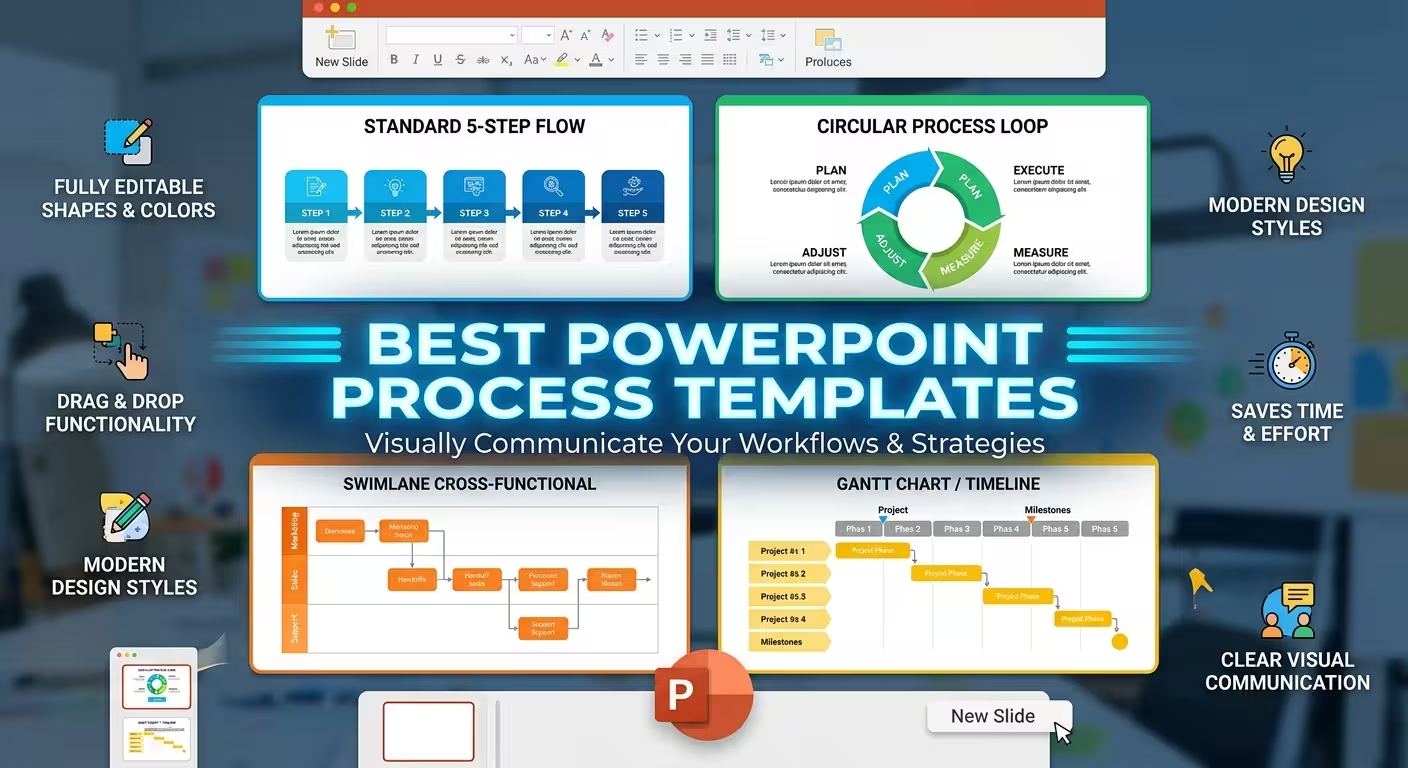
A process can be perfectly logical on paper and still become difficult to follow once it is placed on a PowerPoint slide. The problem is often not the information itself, but the way the sequence, dependencies, and decision points are displayed. The right process template gives those relationships a visual structure before you start filling in the details.
For business presentations, project reviews, training sessions, and workflow documentation, PowerPoint process templates can turn a complicated sequence into something an audience can understand at a glance. But different processes need different visual structures. A simple sequence does not need the same layout as a branching approval workflow or a production system with several parallel stages.
What Makes a PowerPoint Process Template Useful?
The most useful process templates are not simply collections of arrows and boxes. They give you a visual framework that matches the logic of the process you need to explain.
Before choosing a template, identify what actually changes from one stage to the next. If the process is strictly sequential, a linear flow may be enough. If responsibilities move between departments, you need a structure that makes ownership visible. If decisions split the workflow into different paths, branching diagrams are more appropriate.
This is where pre-designed process diagrams can save substantial editing time. Instead of manually aligning shapes, connectors, labels, and supporting elements, you can start with a layout designed around a specific type of relationship.
Best PowerPoint Process Templates for Different Presentation Needs
There is no single process diagram that works equally well for every presentation. The best choice depends on what the audience needs to understand.
1. Element of Process PowerPoint Template
When your presentation needs several ways to explain a process, a diagram collection can be more useful than a single repeated layout. The Element of Process PowerPoint Template provides multiple process-oriented diagram structures, including linear flows, cyclical processes, decision paths, and other visual approaches.
This type of template works well when the same presentation contains different process stories. For example, an opening slide might explain inputs and outputs, while later slides show a decision path or an iterative improvement cycle. Having related diagrams in one visual system makes it easier to change the structure without redesigning the presentation from scratch.
It is particularly useful for project management, operational reviews, business analysis, training, and presentations where several process models need to appear in the same deck.
2. Process Block Schemes PowerPoint Template
Some processes are easier to understand when each operation is treated as a distinct block. The Process Block Schemes PowerPoint Template is designed around this idea, with editable blocks, arrows, tables, and process elements.
This structure is a practical fit for manufacturing workflows, administrative procedures, service processes, and operational presentations. A block can represent an action, department, machine operation, approval, or another defined stage, while connectors show how the stages interact.
The important advantage is that the visual hierarchy follows the process itself. Instead of explaining a long sequence through paragraphs of text, you can give every major operation a visible position in the workflow.
3. Process Steps PowerPoint Charts
Not every workflow requires complex diagrams. Sometimes the real challenge is showing a sequence of steps without making the slide look like a numbered list.
Process Steps PowerPoint Charts focuses on sequential process layouts and provides multiple editable arrangements for presenting stages from beginning to end. This makes it useful for onboarding procedures, implementation plans, business methods, educational explanations, and step-by-step workflows.
Use this kind of template when the order of actions is the main message. If the audience only needs to understand “what happens first, next, and after that,” adding unnecessary branches or complex relationship diagrams can actually make the explanation harder to follow.
How to Match the Template to Your Process
A useful way to choose a process template is to describe the workflow in one sentence before opening PowerPoint.
- “First this happens, then this happens.” Choose a sequential process or step diagram.
- “This operation leads to several possible outcomes.” Look for branching or decision-based diagrams.
- “Different teams handle different stages.” Use a layout that can distinguish responsibilities and handoffs.
- “The process repeats continuously.” A circular or iterative process diagram is usually more appropriate.
- “The process has several operations happening together.” Look for a structure that can show parallel paths rather than forcing everything into one line.
This small classification step prevents a common presentation problem: choosing a visually attractive template first and then forcing the actual workflow into it.
Why Editable Process Templates Matter
A process rarely stays exactly as it looked in the first draft. A project stage may be renamed, a responsibility may move to another team, or an approval step may be removed. For that reason, editability matters as much as the initial appearance.
Editable PowerPoint diagrams allow you to change text, rearrange stages, modify colors, resize elements, and adapt the structure to your actual workflow. This is especially important when the presentation will be reused for recurring project reviews or updated as an operational process changes.
Vector-based diagrams are also useful when the presentation needs to work at different sizes. A process graphic may appear on a standard presentation slide today and later be reused in a larger report or training document.
When a Process Template Is Better Than Building from PowerPoint Shapes
PowerPoint already includes arrows, rectangles, connectors, SmartArt, and other drawing tools. For a very simple three-step process, building the slide yourself may be perfectly reasonable.
The calculation changes when the workflow contains multiple relationships. Once you have several stages, branches, repeated elements, labels, icons, or parallel paths, manual construction becomes an alignment exercise rather than a communication task.
A ready-made process template gives you a starting geometry that has already been organized around the visual problem. You can spend your time deciding what the audience needs to understand instead of repeatedly adjusting connectors and spacing.
Use Process Templates to Explain the Logic, Not Just the Sequence
The strongest process slides do more than show that one step follows another. They help the audience understand why the sequence is structured that way.
For example, a project presentation might use one visual to show the main stages and another to explain where approvals occur. A production presentation could show the movement of materials while using a second diagram to clarify quality-control checkpoints. A training deck might present the standard workflow first and then show what happens when a decision point produces a different outcome.
That is why having several related process layouts can be more valuable than relying on one diagram style throughout an entire presentation. The visual structure should change when the underlying relationship changes.
When selecting from the best PowerPoint process templates, start with the logic of your workflow. Decide whether the audience needs to see sequence, responsibility, branching, repetition, or parallel activity. Once that is clear, choosing the right visual format becomes much easier — and the template becomes a tool for explaining the process rather than simply decorating the slide.
Comments (0)