 Click to zoom
Rocket Space PowerPoint Template - Editable PPTX | ImagineLayout
| Format | .pptx |
| Slides | 3 unique layouts |
| Aspect ratio | 16:9 |
| Compatibility | PowerPoint |
| Animated | No |
| Language | English |
| License | Commercial |
| File size | — |
| Version | v1.0 |
| Last updated | August 2026 |
What's inside
28 Slides, 7 Color Schemes: What You Get
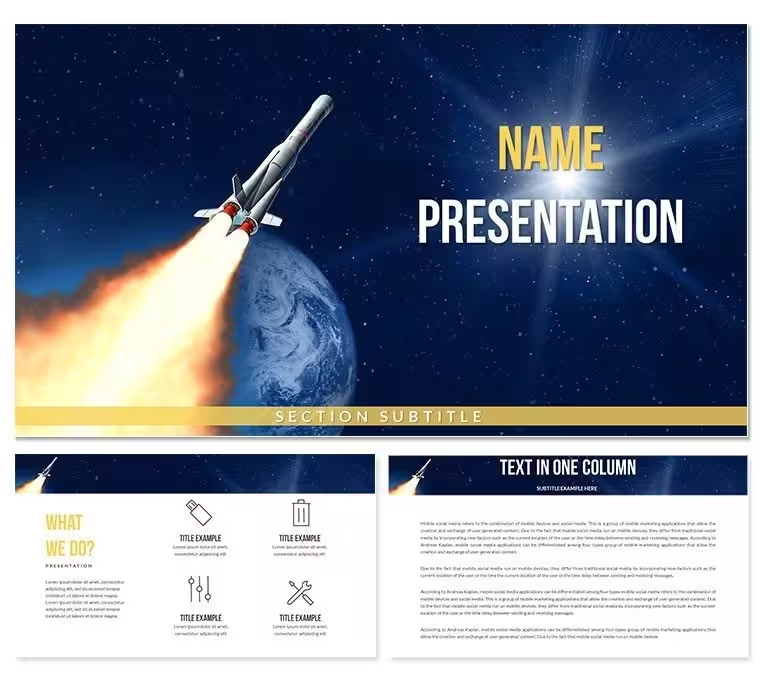
Deep cosmic blues, shimmering star-field imagery, and a prominently featured rocket illustration define the visual character of this PowerPoint presentation template before a single word of content is added. The paid package ($20.00) includes 28 diagrams across 7 color scheme presets - dark space-blue, deep black, and five additional palette variants that shift the background temperature while keeping the rocket and star elements legible. Three slide masters and three background layouts are included at the $10.00 entry tier; the full diagram set requires the $20.00 package.
The 28 diagrams cover the content range needed for science communications, motivational presentations, and business pitches that use space exploration as a visual metaphor: title and opening frames, multi-point feature slides, timeline sequences, image-with-caption layouts, comparison slides, and closing frames. A science educator building a unit on rocketry and a startup founder using a launch metaphor for a pitch deck draw on the same diagram structures - the visual theme carries both uses without requiring layout customization per audience.
The project lead asked for a space-themed deck by end of the working day. The analyst assigned to the task had never built a space-visual presentation before. "Do I need to find rocket illustrations separately?" she asked. "No - it's all in the file," the lead replied. Forty minutes later, 12 slides were complete: title, three feature slides, a timeline, and a closing frame. All rocket and star-field elements were pre-positioned; only the text required replacement.
What is a Rocket Space PowerPoint template? A Rocket Space PowerPoint template is a pre-built presentation file featuring rocket and cosmos-themed visuals, editable diagram layouts, and deep-space color schemes - compatible with Microsoft PowerPoint 2016 and later, available in .pptx and .potx formats.
How to Make It Yours in Under 20 Minutes
Open the .pptx file in PowerPoint. Spend the first two minutes reviewing all 28 slide thumbnails in the left panel to identify which layouts match your content structure - title frame, feature points, timeline, and closing slide. The rocket illustration appears at different scales and positions across slide types: full-bleed on title slides, panel-inset on content slides, and as a small accent on timeline frames. Understanding which position serves each content type before editing prevents the common mistake of using title-frame layouts for body-copy slides.
Color is the next decision, and the slide master is the right place to make it. Go to View - Slide Master - Colors and select from the 7 built-in presets. Dark space-blue reads best on projected displays in low-light environments; lighter presets work for video calls and screen-recorded delivery. Make the selection before replacing any text - changing the master color after text edits occasionally causes theme-linked text colors to reset, adding a correction step.
Text replacement takes the bulk of the editing time: 8-12 minutes for a 12-slide deck, 15-18 minutes for all 28 slides. Click each text placeholder directly - do not double-click into the graphic group. Rocket and star elements are grouped separately from text layers, so clicking a text box activates only the label, not the underlying illustration. Export via File - Save As (.pptx) for editable distribution or File - Export - Create PDF/XPS for fixed-layout sharing.
Editing difficulty: Beginner for text and color preset selection. Repositioning or rescaling the rocket illustration group requires Moderate PowerPoint skill - right-click - Edit Group to access individual layers within the illustration.
Download and start editing immediately
What You'd Need to Replicate This Yourself
Constructing a dark-background rocket presentation from scratch requires sourcing a rocket illustration in vector or high-resolution raster format, placing and scaling it correctly across 28 slide layouts, configuring a star-field background that doesn't produce JPEG compression artifacts at 1920x1080 resolution, and building all content layout structures - timelines, feature grids, comparison slides - around the illustration position. That process, done carefully, takes 4-6 hours for a designer with PowerPoint proficiency. Without prior experience building dark-background slides, common problems include text rendered in colors that disappear against the background, star-field graphics that print as muddy gray, and rocket elements that shift misaligned when slides are resized.
In space-themed presentation design, the rocket illustration's trajectory angle carries meaning that gets ignored in scratch-built alternatives. A rocket angled at roughly 45-60 degrees from horizontal reads as mid-launch - active, ascending, directional. A vertical rocket reads as static - pre-launch, not moving. Flat horizontal placement reads as crashing. The angle embedded in this template's illustration is calibrated to the mid-launch reading, which is the one that supports motivational and forward-looking presentation contexts. That is a compositional decision made during illustration design, not during slide assembly - and it is the reason that substituting a differently-angled stock rocket image breaks the visual logic of the deck.
Editing skill required: Beginner to Moderate - text, color, and layout selection need no design background. Illustration layer editing requires basic shape-group familiarity in PowerPoint.
Download and start editing immediately
Frequently Asked Questions
Which PowerPoint versions are compatible with this template?The .pptx and .potx files work correctly in Microsoft PowerPoint 2016, 2019, and Microsoft 365 on both Windows and Mac. Dark-background gradient layers and grouped illustration elements may not render identically in PowerPoint 2013 or earlier versions due to transparency and shape effect limitations. Google Slides imports .pptx files, but star-field gradient backgrounds and grouped rocket illustrations may lose fidelity. For accurate visual output, use PowerPoint 2016 or a later version.
How do I change the color scheme across all slides at once?Go to View - Slide Master in PowerPoint and select the top-level master slide in the left panel. From the Slide Master ribbon, click Colors and choose one of the 7 built-in presets or select Customize Colors to enter your own hex values. Closing Slide Master view applies the change globally. Theme-linked fills - including most text and shape elements - update automatically. Rocket illustration layers that use directly applied colors may require individual adjustment via right-click - Edit Group - Format Shape.
What is included in the entry tier versus the full package?The $10.00 entry tier includes 3 slide masters and 3 background layouts - the space-visual foundation without content slide structures. The $20.00 full package adds 28 diagrams and 7 color scheme variants. The 28 diagrams contain the title, feature, timeline, comparison, and closing slide layouts needed to build a complete presentation. For anyone building a full deck - whether for a science lecture, business pitch, or motivational talk - the $20.00 package is the correct purchase.
Is this template licensed for commercial and educational use?The standard license covers use in business presentations, educational lectures, conference talks, and client-facing decks where the template is embedded in the final file. Distributing the template file itself - as a download, within a course materials package, or as part of a design asset bundle - is not permitted under standard terms. Educational institutions using the template across multiple classrooms or departments should confirm the applicable license scope with ImagineLayout before institutional distribution.
What is the refund policy?Refunds are available when the downloaded file cannot be opened in the specified software version or does not match the product description as shown. Requests must be submitted to ImagineLayout's support before significant edits are applied. Digital downloads are generally non-refundable once accessed, but technical failures - such as a corrupted file or format incompatibility with the stated software version - are eligible for review. The full refund conditions are on the Refund Policy page of the ImagineLayout website.
Does this template support animation, and how do I remove or add transitions?Animation support depends on the specific diagram layouts included; dark-background templates commonly include entrance animations for text and illustration elements. To review existing animations, go to Animations - Animation Pane in PowerPoint to see a list of all animated objects on the active slide. To remove an animation, select the object in the Animation Pane and press Delete. To add a new transition, go to the Transitions tab, select the slide in the left panel, and choose a transition type. Applying the same transition to all slides is done via Transitions - Apply To All.
Good for
- Project roadmaps and sprint plans
- Product launch timelines
- Quarterly or annual review decks
- Company history and milestone summaries
Licence
reviews
Used for a product backlog prioritization, the moSCoW method grid is clear.
The must/should/could/won't columns are helpful.
Good for a agile product management.
FAQ
Will it work in Google Slides?
Are fonts embedded?
Can I use this for client work?
What's the refund policy?
Do you update the template after purchase?
Similar templates
See all PowerPoint Templates →
All 1 slides