 Click to zoom
Healthy Life Vegetable PowerPoint Template - Editable PPTX | ImagineLayout
| Format | .pptx |
| Slides | 3 unique layouts |
| Aspect ratio | 16:9 |
| Compatibility | PowerPoint |
| Animated | No |
| Language | English |
| License | Commercial |
| File size | — |
| Version | v1.0 |
| Last updated | April 2026 |
What's inside
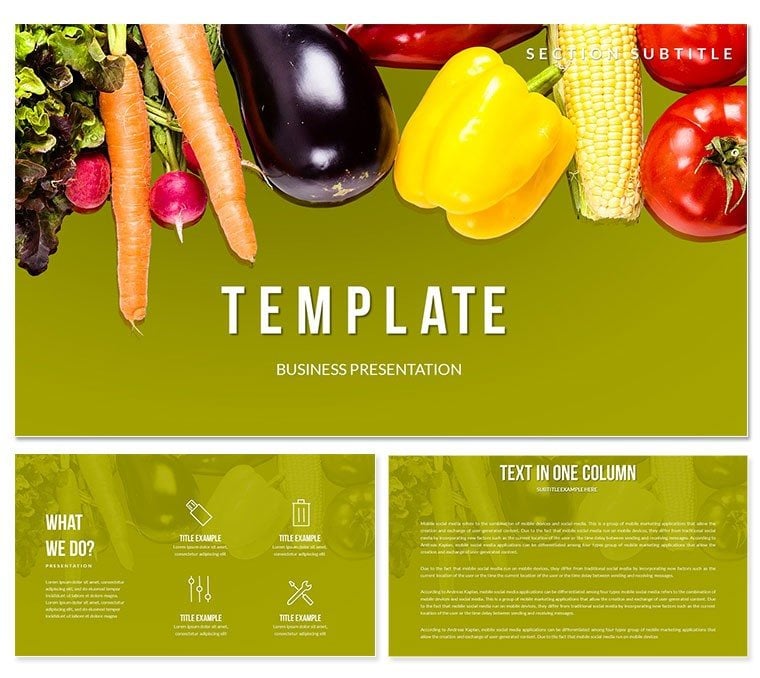
What is a thematic PowerPoint template for healthy eating? A thematic PowerPoint template for healthy eating is a pre-designed slide set built around a specific visual concept - in this case, fresh vegetable imagery - with editable placeholders, color masters, and diagram layouts ready to populate with your own content.
Package Contents
28 diagrams organized across 7 color schemes make up the paid version of this download. Each scheme applies a different palette - from deep greens to warm orange-red tones - across all diagram slides simultaneously via the slide master. The free version includes 3 masters and 3 backgrounds, which gives enough structure to test the template against your existing content before committing to the full set.
The diagram slides cover a range of layout compositions: timeline sequences, comparison blocks, circular flow structures, and text-image split layouts. Taken together, they serve presentations that need both data-adjacent visuals and narrative storytelling - a nutrition seminar covering dietary phases, for example, or a wellness workshop with a session-by-session agenda. The variety means one download can support a multi-section presentation without layout repetition.
Unlike sets focused purely on abstract data flows or single-chart layouts, this package grounds every layout in a photographic and illustrative vegetable aesthetic. The imagery isn't decorative filler - it functions as a visual anchor that signals the topic before a word is read, which matters in live audience settings where attention arrives unevenly.
Adapting the Template to Your Brand
Difficulty level: Beginner. Open the .pptx file in PowerPoint 2016 or later. The first place to check is the slide master - access it through View - Slide Master. All 7 color schemes are managed here, meaning a single change to the master palette updates every diagram slide at once. Most users are done with global recoloring in under 4 minutes.
Once the color scheme matches your brand, move to individual slides. Text placeholders accept direct typing - no ungrouping required. Photo areas, where present, accept drag-and-drop image replacement. The .potx format is useful for teams: save the branded version as a .potx file and distribute it as the team's starting point for all health and wellness decks.
- Step 1 - Open the .pptx in PowerPoint 2016 or later (1 min)
- Step 2 - Go to View - Slide Master, select the target color scheme (2-3 min)
- Step 3 - Return to Normal view and replace placeholder text on each diagram (5-10 min)
- Step 4 - Swap in any brand photos via drag-and-drop (2-4 min)
- Step 5 - Save as .pptx for delivery or .potx for team reuse (1 min)
Where This Template Fits Your Work
Three hours before a nutrition seminar, the slide deck still had placeholder text and mismatched colors pulled from three different sources. A registered dietitian at a regional hospital outpatient center needed diagrams that matched both the clinical setting and the accessible, patient-facing tone of the session. She opened the .pptx, applied the green color scheme through the slide master, replaced all text in 22 minutes, and exported. No design software. No external help.
A second scenario: a food science lecturer at a mid-sized university ran the same template across four consecutive semester modules on plant-based nutrition. Each time, the color scheme rotated - one scheme per module - so students could visually track which unit they were in. The 28 diagrams provided enough layout variety that no two consecutive slides in any module looked structurally identical.
Download and start editing immediately
Why This Template, Not a Blank Slide
Building an equivalent 28-slide deck from scratch in PowerPoint requires sourcing vegetable imagery under a commercial license, creating consistent diagram layouts across each slide, and setting up a master palette that applies globally. A competent designer needs 6-8 hours for that scope. A non-designer typically spends 12+ hours and still ends up with inconsistent spacing and font sizing across slides.
In health education presentations, the visual weight of food imagery on thematic slides serves a specific cognitive function: it activates prior associations before the speaker begins talking. A plain white slide with text does not do this. A layout where a fresh vegetable photograph anchors the left panel while a structured diagram fills the right creates a pre-attentive signal that tells the audience "this is about eating and health" in under 200 milliseconds - long before the speaker reaches the first data point. That pre-loading effect reduces the time the audience spends orienting and increases the time they spend listening.
The .potx format extends this value over time. Set the template up once, save it as a .potx, and every future presentation in the series opens from the same branded starting point. No re-importing logos. No re-entering hex values.
Download and start editing immediately
Frequently Asked Questions
Which versions of PowerPoint are compatible with this template?The .pptx and .potx files are compatible with PowerPoint 2016, 2019, and Microsoft 365, on both Windows and Mac. PowerPoint 2013 will open the files but may not render some master palette features correctly. If you are using PowerPoint for Mac via Microsoft 365, all features - including the slide master color schemes - work as expected. Older versions such as PowerPoint 2010 or 2007 are not recommended, as the .potx format may generate compatibility warnings and some grouped elements may shift position on older rendering engines.
How do I change the color scheme across all slides at once?Open the file in PowerPoint and go to View - Slide Master. The master slide at the top of the left panel controls the color palette for all 28 diagram slides simultaneously. Click on any colored shape in the master, open Format - Shape Style, and change the fill to your brand hex value. That change propagates to every slide that uses the same color variable. To switch between the 7 built-in color schemes, select the corresponding master layout in the left panel. Avoid editing colors directly on individual slides unless you need a one-off exception - editing through the master is faster and keeps all slides consistent.
What does the free version include, and what is added in the paid version?The free version includes 3 slide masters and 3 backgrounds - enough to build a basic branded presentation structure. The paid version at $24.00 adds 28 diagram slides and 7 complete color schemes for those diagrams. The diagrams are the primary functional content: timeline layouts, comparison blocks, circular flow structures, and text-image combinations. If your presentation needs only a cover slide, section dividers, and a closing slide, the free tier may be sufficient. If you need structured content layouts throughout the deck, the paid version provides the full range.
Can I use this template for paid client work or commercial presentations?The standard license covers personal use, internal organizational presentations, and educational settings. Use in paid client deliverables - for example, a nutrition consultancy delivering branded slide decks to paying clients as part of a service - requires reviewing ImagineLayout's Terms of Use for extended license conditions. The template may not be resold as a standalone file, redistributed, or included in other template bundles. If you are preparing presentations for your own organization's internal health programs or public-facing seminars, the standard license applies without restriction.
How do I insert my own photographs into the image areas?Some diagram slides include designated image placeholder areas alongside the diagram structure. To replace a placeholder image, click directly on the image area to select it, then go to Insert - Pictures - This Device (or drag-and-drop a file from your desktop). PowerPoint will fit the image into the placeholder frame. If the proportions don't match, right-click the image and choose Format Picture - Crop to adjust the visible area within the frame. For slides without a designated placeholder, insert an image via Insert - Pictures, then right-click and use Send to Back to position it behind the diagram layer.
What is the refund policy if the template doesn't work as expected?ImagineLayout's refund policy applies to purchases where the file is defective or materially different from what is shown on the product page. If the file fails to open in a compatible version of PowerPoint, or if the diagram layouts are missing, a refund request is appropriate. Refunds are generally not issued once the file has been downloaded and used successfully. To initiate a refund, contact ImagineLayout support through the Contact page with your order number and a description of the issue. Review the full refund policy at imaginelayout.com/refund-policy/ for specific conditions and timeframes.
Good for
- Project roadmaps and sprint plans
- Product launch timelines
- Quarterly or annual review decks
- Company history and milestone summaries
Licence
reviews
Used the process diagrams for a workflow presentation. They are straightforward
but I wish there were more options for branching paths.
It's a solid pack for basic diagrams. I used a Venn diagram that was perfect for a conference talk.
Couldn't find a good chart in my standard deck
so I grabbed this. It has a good mix of options.
but the design is a bit plain. It'll do for internal stuff
but I'd want something nicer for a client.
Needed a quick org chart for a team meeting. This one was easy to edit and looks clean.
FAQ
Will it work in Google Slides?
Are fonts embedded?
Can I use this for client work?
What's the refund policy?
Do you update the template after purchase?
Similar templates
See all PowerPoint Templates →


All 1 slides