 Click to zoom
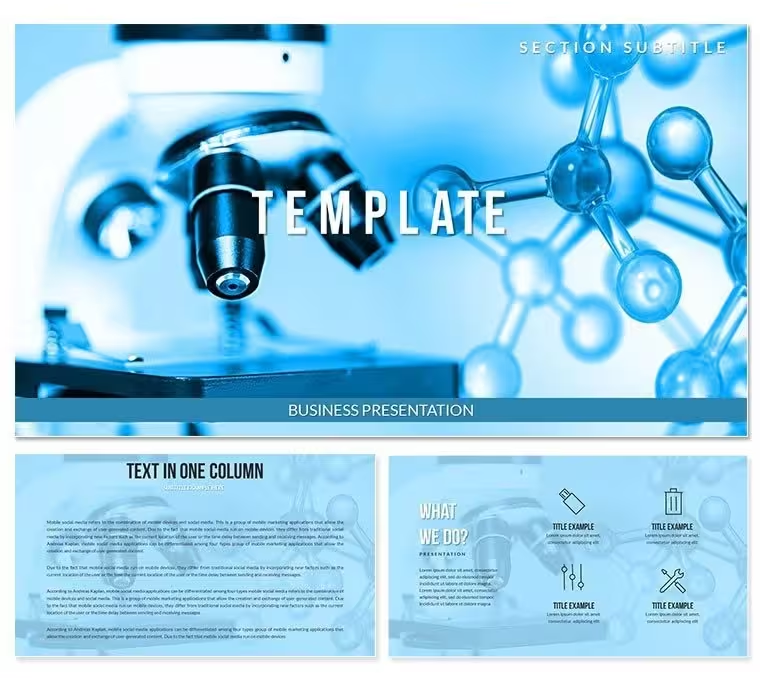
Engineering Science Keynote Template - Fully Editable
| Format | .pptx |
| Slides | 3 unique layouts |
| Aspect ratio | 16:9 |
| Compatibility | PowerPoint |
| Animated | No |
| Language | English |
| License | Commercial |
| File size | — |
| Version | v1.0 |
| Last updated | September 2026 |
What's inside
Files and Formats Included
What is an Apple Keynote diagram template? A Keynote diagram template is a pre-built .key or .kth file containing editable diagrams, masters, and color schemes that open directly in Apple Keynote 12 or later - no design software required.
28 diagrams delivered across 7 color schemes, plus 3 masters and 3 backgrounds in .key and .kth format. The paid tier at $24 includes everything: all 28 diagrams, all 7 color variants, and both file formats. The $12 base tier covers the 3 masters and 3 backgrounds only, without the diagram set.
The diagram types span visual structures well-suited to science and engineering content - process flows, comparison layouts, hierarchical breakdowns, data summary panels, and multi-step sequence diagrams. Each diagram is a standalone slide; they don't depend on each other, so you can pick the four or five relevant to a specific lecture or briefing without loading the full set.
Unlike diagram-only collections that ship with a single neutral palette, this set delivers each diagram in 7 pre-built color schemes. Switching from the default blue-teal palette to an earthy amber variant takes one click in the slide master - no manual recoloring of individual shapes. That distinction matters when a researcher needs to match a university brand guideline or a department's presentation standards on short notice.
Key Specifications At a Glance
FeatureDetailsDiagrams included28 across 7 color schemesMasters and backgrounds3 masters, 3 backgroundsFile formats.key (editable), .kth (theme file)Keynote compatibilityKeynote 12 and later on macOS and iPadOSEditable shapesDiagram segments resize and recolor independently via the master paletteText placeholdersLabels update without ungrouping or unlocking diagram elementsColor theme adjustmentsAll 7 schemes accessible through Keynote master slide palette - one-click swapFree vs paid difference$12 tier: 3 masters + 3 backgrounds only. $24 tier: adds 28 diagrams and all 7 color schemesExport options.key for editing, .kth to install as reusable theme, PDF for distributionWho Reaches for This Template
A university lecturer in biochemistry needs 12 slides for a Thursday seminar - not a full deck rebuild. She opens the .key file in Keynote 14, drops her faculty color into the master palette in under 2 minutes, selects 4 process-flow diagrams from the set, replaces the placeholder labels with her reaction-pathway terminology, and exports as PDF for student handouts. Total preparation time: under 40 minutes for a visually structured lecture slide set.
A research engineer at a materials science consultancy presents preliminary findings to an industrial client. The comparison and data-summary layouts in this set let him place two material properties side by side without manually aligning boxes and arrows. He reused the same file structure across three consecutive client briefings by swapping the color scheme and updating labels - reducing deck setup time from 2 hours to 30 minutes per report.
Educators working across chemistry, physics, biology, and engineering disciplines rely on a structured Keynote diagram template to maintain consistent visual presentation across a semester's worth of lectures, rather than rebuilding layouts from scratch each week.
Download and start editing immediately - both .key and .kth files included.
Customization in 5 Steps
How do I change the color scheme in this Keynote template? Open the master slide palette in Keynote, select the desired color scheme from the 7 pre-built options, and the change applies across all 28 diagrams simultaneously - no individual shape editing required.
- Step 1 - Open the .key file in Keynote 12 or later (1 minute)
- Step 2 - Replace placeholder text labels with your own terminology (3-5 minutes)
- Step 3 - Apply your brand or department colors via the master slide palette (2 minutes)
- Step 4 - Select the relevant diagrams for your specific lecture or presentation - delete unused slides (2 minutes)
- Step 5 - Export as .key for further editing, or PDF for distribution (1 minute)
Editing difficulty: Beginner. No design background is required. The grouped diagram elements maintain their proportions when resized, and text placeholders are accessible without unlocking any grouped layers.
Why This Template, Not a Blank Slide
Building a process-flow diagram in Keynote from a blank slide requires drawing and aligning each shape manually, connecting arrows individually, and matching colors across all elements - a task that typically takes 45-90 minutes per diagram for someone without a design background. 28 diagrams built from scratch would consume an entire working day before a single word of content has been written.
The pre-built diagram structure here places labels outside the diagram shapes, connected by thin lines. That layout choice is deliberate: labels inside shapes become unreadable when projected on a screen at distances above 4 meters. Labels outside the shapes remain legible at projection scale without requiring any font size increases that would disrupt the overall layout balance.
Color segmentation across the 7 schemes follows contrast-based logic - each scheme uses hues with sufficient lightness difference to remain distinguishable on projectors with varying brightness settings, including the lower-output projectors common in university lecture halls.
Download and start editing immediately - .key and .kth files ready to open.
Frequently Asked Questions
Which versions of Keynote open this template?The .key and .kth files are compatible with Keynote 12 and later on macOS and iPadOS. Keynote 12 was introduced with macOS Monterey in 2021, so any Mac running macOS Monterey, Ventura, Sonoma, or later will open the files without compatibility issues. Older Keynote versions (9 or 10) may open the file but could display layout differences due to master slide changes introduced in version 12. If you're on an older system, updating Keynote via the Mac App Store resolves this - Keynote updates are free.
How do I switch between the 7 color schemes?Each color scheme is pre-built into the master slide palette. To switch, open Keynote, go to View → Edit Master Slides, select the desired color variant, and close the master editor - the change applies across all diagrams simultaneously. You don't need to recolor individual shapes manually. If you only want specific diagrams in a different color while keeping others unchanged, duplicate those slides before switching the master, then reassign them to the alternative master variant.
What is the difference between the $12 and $24 versions?The $12 tier includes 3 masters and 3 backgrounds - the structural theme files without the diagram slides. The $24 tier adds all 28 diagrams across 7 color schemes on top of the same masters and backgrounds. For anyone presenting science or engineering content that requires process flows, comparison layouts, or data summaries, the $24 version is the practical choice - the diagram set is the primary working asset. The $12 tier suits buyers who need only the background and master slide structure to build their own slides.
Can I use this template for paid client or commercial work?The license permits use in presentations for internal business use, academic lectures, client-facing deliverables, and commercial projects where the template is embedded inside the final presentation. Reselling the template files themselves, sublicensing the source .key or .kth files, or distributing the template as a standalone product is not permitted. If you're preparing presentations for multiple clients across separate projects, a single purchase covers all of those uses without requiring additional licenses.
What is the refund policy?ImagineLayout offers refunds under specific conditions - the primary qualifying situation is a confirmed technical defect where the file cannot be opened in the stated compatible software versions. Because the files are digital downloads, refunds are not available for change-of-mind purchases after the file has been downloaded. If you encounter a technical issue, contact ImagineLayout support with a description of the problem and your Keynote version number; the support team assesses each case individually. Review the full refund policy on the site before purchasing if you have questions about eligibility.
Does the template include animations?Animation support depends on the .key file - the Keynote format supports build-in and build-out animations natively, and the master slides in this template are structured to accommodate them. Pre-set animations are not applied by default, which means you control exactly which elements animate and in what order. To add an animation, select a diagram element, open the Animate panel in Keynote, and assign a build type. This approach is intentional: pre-applied animations in downloaded templates frequently conflict with a presenter's preferred pacing and require more time to remove than to add from scratch.
Good for
- Project roadmaps and sprint plans
- Product launch timelines
- Quarterly or annual review decks
- Company history and milestone summaries
Licence
reviews
I downloaded this for a technical report presentation.
The charts worked well for showing statistics.
Some icons looked outdated but usable.
The layouts stayed clean after editing.
FAQ
Will it work in Google Slides?
Are fonts embedded?
Can I use this for client work?
What's the refund policy?
Do you update the template after purchase?
Similar templates
See all Keynote templates →



All 1 slides