 Click to zoom
Computer Technician Keynote Template - Instant Download | ImagineLayout
| Format | .pptx |
| Slides | 3 unique layouts |
| Aspect ratio | 16:9 |
| Compatibility | PowerPoint |
| Animated | No |
| Language | English |
| License | Commercial |
| File size | — |
| Version | v1.0 |
| Last updated | September 2026 |
What's inside
What is a Keynote diagram template for IT professionals? A Keynote diagram template for IT professionals is a pre-structured Apple Keynote file containing technology-themed slide layouts, icon layers, and editable diagram frameworks designed for technical briefings, training sessions, and client presentations in the computing and software fields.
Files and Formats Included
28 diagram slides across 7 color schemes - that is what the full $24 package delivers. The base tier at $12 provides 3 master slides and 3 backgrounds in .key and .kth formats. Both tiers include the same file formats: .key for direct editing in Keynote and .kth for applying the theme to an existing presentation deck.
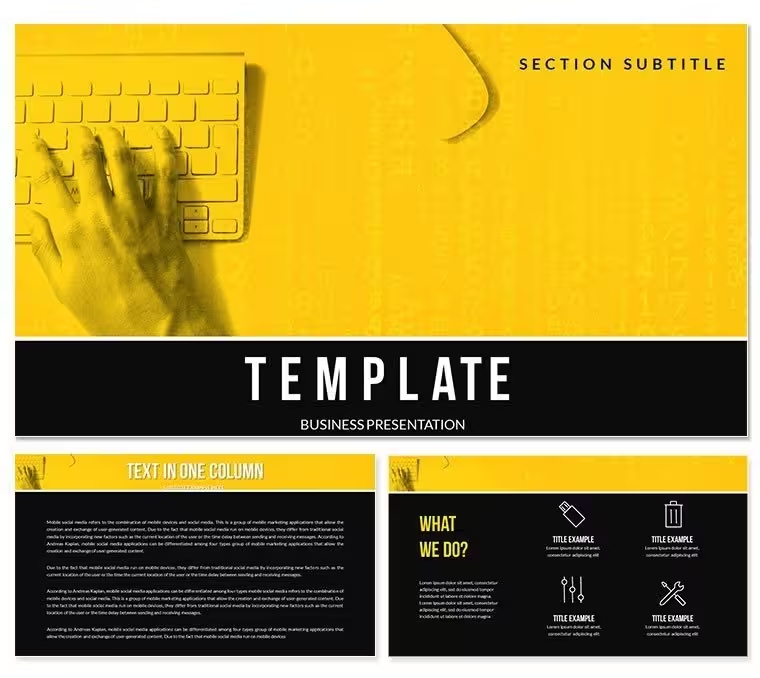
The diagram set is built around technology communication workflows: network topology layouts, service-tier structures, system component diagrams, and training-flow sequences. The cool-blue and accent-color palette visible in the main preview reinforces a technical, trustworthy visual register - appropriate for presenting to both technical and non-technical audiences without visual mismatch.
Compared to single-diagram sets covering only flowcharts or only hierarchies, this package covers multiple layout categories within the IT and computing theme. A technician can use the same file for a training session on hardware diagnostics, a client proposal for network upgrades, and a progress update for project stakeholders - without redesigning the deck each time. That multi-purpose range is the structural differentiator here.
Three Situations Where This Pays Off
An IT support specialist at a managed services company needed to present a quarterly infrastructure review to a mixed audience of technical engineers and senior management. The technical diagrams needed to communicate network topology without alienating non-technical viewers. Using the system component layouts in this set, she structured the deck in under 40 minutes, reserving the simplified service-tier diagrams for the executive summary slides and the detailed topology layouts for the engineering section.
A freelance IT consultant preparing a proposal for a mid-size retail client used the same .key file across three separate client proposals in one month by switching color schemes and swapping brand-relevant icons. Each proposal looked distinct while sharing the same underlying structure - saving roughly 2 hours per proposal compared to rebuilding from blank slides.
Corporate trainers in technical education also find this layout well-suited to classroom settings. One trainer running a software onboarding program for 20 new hires adapted the training-flow diagram to map the onboarding steps, updated icon labels to match internal systems, and exported a PDF for post-session reference - all within a single editing session of under 30 minutes.
Download and start editing immediately.
From Download to Final Deck
How do I adapt this template for a client presentation? Open the .key file, replace placeholder text with your content, update the slide master color palette to match your client's brand, then swap any icons that don't fit the technical context. The full workflow takes 15-25 minutes for a standard 10-slide presentation.
- Step 1 - Open the .key file in Keynote 12 or later (1 minute). Check that all fonts and icon layers load correctly before editing.
- Step 2 - Replace placeholder text across diagram labels (4 minutes). Text fields are independent - editing one does not shift adjacent shapes.
- Step 3 - Update brand colors via slide master palette (2 minutes). Navigate to View - Edit Master Slides and apply your color choices globally.
- Step 4 - Swap icon layers if needed (3 minutes). Icons sit on dedicated layers and can be replaced using Keynote's built-in shape library or imported SVGs.
- Step 5 - Export as .key or PDF (1 minute). Use PDF when distributing to clients who do not have Keynote installed.
Editing difficulty: Beginner to Moderate. Basic Keynote familiarity is sufficient. Replacing icon layers requires one extra step but is clearly documented in Keynote's help resources.
Building From Scratch vs. Starting Here
Constructing a system component diagram in Keynote from a blank slide involves drawing each shape, aligning connectors manually, sizing text to fit within shape boundaries, and then replicating the layout across multiple slides with consistent spacing. For a 6-diagram technical presentation, that process typically runs 3-4 hours for someone with intermediate Keynote skills.
One design reasoning detail worth noting: the diagrams in this set use connector lines with explicit directional arrows between components rather than color proximity to imply relationships. Color proximity - using matching colors to suggest that two components belong together - works on large-format displays but loses clarity when the deck is printed or shared as a compressed PDF. Directional arrows maintain the logical relationship at any output size or resolution.
Replicating the 7-color-scheme master structure manually requires building a complete slide master from scratch - a task that most presenters skip and later regret when a brand color update forces them to manually recolor 28 slides individually. The master-based structure here means a single palette change propagates everywhere in seconds.
Download and start editing immediately.
Frequently Asked Questions
Which version of Keynote is required to open this template?Keynote 12 or later on macOS is required for full compatibility. Keynote 12 is available as a free update from the Mac App Store and runs on macOS Monterey and later. Earlier versions of Keynote may open the .key file but could display font substitutions or misaligned icon layers. The .kth file format is used to apply the theme to an existing presentation and also requires Keynote 12 for accurate theme rendering.
How do I switch between the 7 color schemes?All 7 color schemes are built into the slide master. To switch, go to View - Edit Master Slides in Keynote, select the active master, and open the slide master color settings. Applying a different preset from the 7 available options updates all shapes, connectors, and backgrounds across the entire presentation simultaneously. No individual slide editing is needed when switching between color schemes.
What is the difference between the $12 and $24 purchase options?The $12 base package includes 3 master slides and 3 background variations in .key and .kth formats. It provides the visual theme and layout structure without the full diagram library. The $24 package adds all 28 diagram slides and the complete set of 7 color schemes. For anyone who needs ready-built IT and computing diagrams - system components, service tiers, training flows - the $24 full package is the practical choice. The base tier is sufficient only if you plan to build custom slide content using the theme alone.
Is this template licensed for commercial client presentations?The license covers use in presentations created for clients, internal business communications, and training programs where the template provides the design foundation for your own content. The template files themselves may not be resold, sublicensed, or redistributed as standalone design assets. Using the completed presentation in a paid client engagement is permitted. Refer to ImagineLayout's Terms of Use for the authoritative license conditions before commercial use.
Can I add animations to the diagrams?No animations are included in the download - all diagrams are static. This is intentional: static layouts load consistently across macOS versions and avoid the compatibility issues that preset animations sometimes trigger when a file is opened on a different machine. Any Keynote build-in or build-out animation can be applied manually after opening the file. Select any shape or text element, open the Animate panel on the right, and assign the animation style and timing that fits your presentation flow.
What is the refund policy for this download?ImagineLayout reviews refund requests for digital downloads when the file fails to open as described or when the content does not match the product specifications on the page. Since the file is a digital product, all refund decisions are made on a case-by-case basis. To initiate a request, contact ImagineLayout's support team with your order number and a description of the issue. Full terms are available on the Refund Policy page at imaginelayout.com.
Good for
- Project roadmaps and sprint plans
- Product launch timelines
- Quarterly or annual review decks
- Company history and milestone summaries
Licence
reviews
Used it for a last-minute school presentation and the arrow charts made it easier to explain my points
I just needed something quick for work report and it did the job without much editing
The layout is simple but I had to adjust some colors because it felt a bit too plain
Slides are easy to follow but nothing really stands out
It’s okay overall, I would use it again if I’m in a rush
FAQ
Will it work in Google Slides?
Are fonts embedded?
Can I use this for client work?
What's the refund policy?
Do you update the template after purchase?
Similar templates
See all Keynote templates →



All 1 slides