 Click to zoom
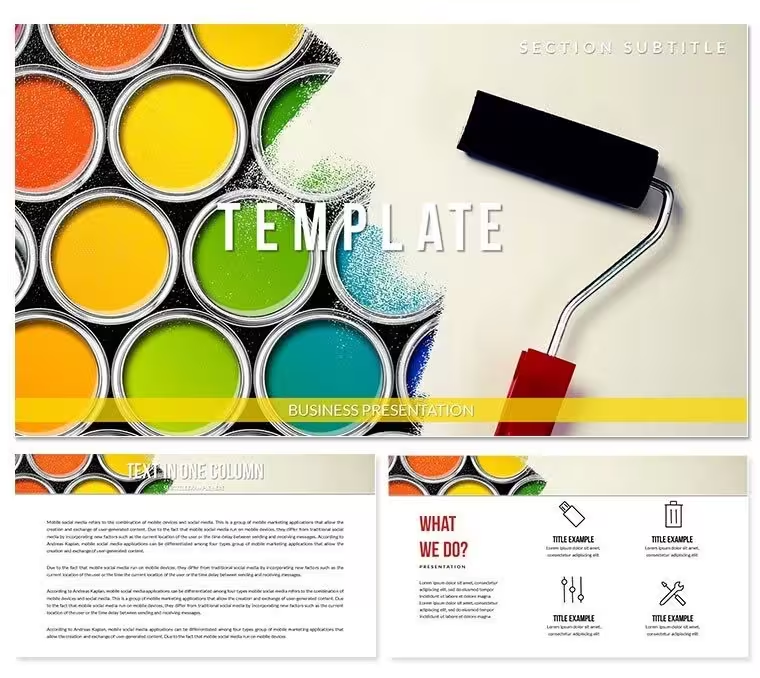
Paint Types Repair Keynote Template - Editable KEY
| Format | .pptx |
| Slides | 3 unique layouts |
| Aspect ratio | 16:9 |
| Compatibility | PowerPoint |
| Animated | No |
| Language | English |
| License | Commercial |
| File size | — |
| Version | v1.0 |
| Last updated | September 2026 |
What's inside
Files and Formats Included
What is a Keynote diagram template? A Keynote diagram template is a pre-built .key or .kth file containing editable diagram layouts, color schemes, and master slides - ready to open in Apple Keynote and fill with your own content.
28 diagrams across 7 color schemes ship in this download alongside 3 slide masters and 3 background variants. File formats are .key and .kth, both opening natively in Apple Keynote 12 or later on macOS. No third-party plugins or fonts are required to open the file.
The diagram set is structured to cover the full arc of a paint-type classification or renovation-planning presentation - from material overview slides to comparison layouts and process flow diagrams. Each diagram type serves a distinct communication role: overview slides introduce categories, comparison layouts contrast material properties side by side, and flow diagrams show application sequences step by step.
Unlike single-background sets that ship with one dominant visual and no structural diagram layouts, this file combines a topic-specific photographic theme with a full working diagram library. A project manager presenting coating specifications gets both a credible visual identity and the structural slides needed to walk an audience through a technical decision - without building either element from scratch.
Key Specifications At a Glance
FeatureDetailsDiagrams included28 across 7 color schemes (4 diagrams per scheme)Editable text placeholdersLabels update independently - no need to ungroup diagram shapesColor theme adjustmentsApply brand palette via master slide color controls in KeynoteDiagram connectorsArrows and flow lines adjust in direction and weight without breaking layoutMasters and backgrounds3 masters, 3 backgrounds included in both free and paid tiersFile formats.key for editing in Keynote; .kth for applying as a theme to existing filesAspect ratioStandard 16:9 widescreenFree vs paid differenceFree tier: 3 masters + 3 backgrounds. Paid tier ($24): adds 28 diagrams and all 7 color schemesWho Reaches for This Template
A construction project coordinator preparing a client handover needs to explain coating specifications across five surface types in a 20-minute walk-through. Building that from a blank Keynote file typically takes 2-3 hours of diagram work alone. With this file, the same coordinator adapted four diagram slides and swapped the color scheme to match company branding in under 40 minutes - reusing the same deck layout across three separate client projects by changing only labels and colors.
Interior designers working on renovation proposals use the structured comparison layouts to contrast paint finishes visually for homeowner approval meetings. A regional sales director at a building materials distributor used the flow diagram slides to map out a product line decision tree for a dealer network training session - cutting deck preparation from 3 hours to 45 minutes.
- Construction project coordinators presenting coating specifications
- Interior design consultants preparing renovation proposals
- Building materials sales teams running dealer training sessions
- Facility managers documenting surface treatment procedures
Download and start editing immediately - the .key file opens with no additional setup required.
Customization in 5 Steps
Adapting this Keynote diagram template to your own content takes under 20 minutes for most users.
- Step 1 - Open the .key file in Keynote 12 or later (1 minute). The file opens directly from Finder - no import wizard required.
- Step 2 - Select your diagram layout (2 minutes). Browse the 28 diagrams and duplicate any slide you plan to use, keeping originals intact.
- Step 3 - Apply your brand colors via the master slide palette (3 minutes). Open Master Slides, select the active master, and update the color swatches - all diagram instances update simultaneously.
- Step 4 - Replace placeholder text labels (5-8 minutes). Click any text label and type directly. Grouped elements keep their position; labels do not need to be ungrouped first.
- Step 5 - Export as .key or PDF (1 minute). Use File - Export To - PDF for distribution-ready output, or keep the .key for live editing during the meeting.
Editing difficulty: Beginner. No design background is required to customize diagrams, swap colors, or adapt labels.
Building From Scratch vs. Starting Here
Constructing 28 structured diagram slides in Keynote from a blank file requires building each shape grouping manually, aligning connectors by hand, and duplicating color logic across 7 palette variants. A designer comfortable with Keynote's vector tools would need 6-10 hours to replicate the full set at comparable quality. A non-designer attempting the same task without a template would likely produce inconsistent alignment, irregular connector weights, and color combinations that don't hold up on a projection screen.
One design decision worth noting: the diagram labels in this set sit outside the shape boundaries rather than inside them. Text placed inside compact shapes gets cropped or scaled down when the presenter edits the label. Positioning labels externally - connected by thin lines - maintains readability at all font sizes and keeps the diagram readable when projected at distances above 4 meters.
The 7 color schemes are not decorative variations. Each palette was built to maintain sufficient contrast between adjacent diagram zones. A single-color version of the same diagrams would force audiences to rely on text alone to distinguish sections - eliminating the visual hierarchy that makes the diagram faster to scan.
Download and start editing immediately - no design tools or fonts to install.
Frequently Asked Questions
Which version of Keynote is required to open this file?The .key file requires Keynote 12 or later on macOS. Keynote 12 ships with macOS Monterey and is available as a free update from the Mac App Store for users on macOS Big Sur or later. The .kth theme file is compatible with the same versions. iOS versions of Keynote (iPad, iPhone) can open .key files for viewing and basic editing, though master slide edits should be completed on macOS for full control. If you are on an older macOS version, verify your Keynote version number under Keynote - About Keynote before purchasing.
How do I change the color scheme to match my brand?Open the Master Slides panel via View - Edit Master Slides. Select the master slide currently applied to your diagrams, then click any colored shape to open the Fill options in the right panel. Replace the existing color with your brand hex or RGB value. All slides using that master update automatically. For diagrams using a specific color scheme variant, apply the same process to each variant master. Most users complete a full brand color swap in 3-5 minutes once the master slide panel is open.
What does the paid version include that the free version does not?The free version ($12) includes 3 master slides and 3 background variants - enough to build a branded presentation shell. The paid version ($24) adds the full diagram library: 28 diagrams organized across 7 color schemes. The diagram slides are the main deliverable for users who need structured content layouts, not just a visual theme. If your presentation requires only custom-designed slides with no pre-built diagrams, the base version covers the essentials.
Can I use this template in paid client work?The license permits use in client presentations, internal reports, and commercial business contexts. Redistribution of the template itself - including selling, sublicensing, or sharing the original files with third parties outside your organization - is not permitted. You may create as many presentations as needed for your own or your clients' use. For multi-seat team licenses or custom licensing questions, contact ImagineLayout support directly via the contact page.
Does the template support animations or transitions?The template does not include pre-built animations or slide transitions - diagrams and text placeholders are static by default. Adding animations in Keynote is straightforward: select any element, open the Animate panel on the right, and apply a Build In or Build Out effect. Standard Keynote transitions such as Magic Move or Dissolve can be applied between slides without affecting the diagram layout. Keeping the file animation-free by default reduces file size and ensures compatibility across different Keynote versions.
What is the refund policy?ImagineLayout offers refunds in accordance with their published refund policy, available at imaginelayout.com/refund-policy/. Because the product is a digital download, refund eligibility typically depends on whether the file has been downloaded. Review the policy before purchasing if this is a concern. For any issues with file delivery, missing files, or technical problems opening the download, contact the support team via the Contact page - technical issues are typically resolved faster than a refund request.
Good for
- Project roadmaps and sprint plans
- Product launch timelines
- Quarterly or annual review decks
- Company history and milestone summaries
Licence
reviews
No reviews yet. Be the first!
FAQ
Will it work in Google Slides?
Are fonts embedded?
Can I use this for client work?
What's the refund policy?
Do you update the template after purchase?
Similar templates
See all Keynote templates →



All 1 slides