 Click to zoom
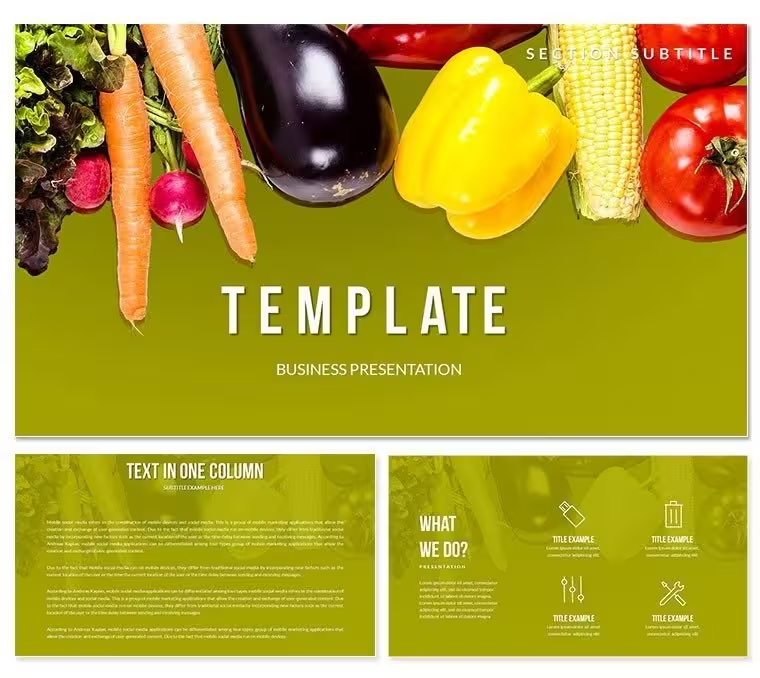
Vegetables Keynote Template - Fully Editable | ImagineLayout
| Format | .pptx |
| Slides | 3 unique layouts |
| Aspect ratio | 16:9 |
| Compatibility | PowerPoint |
| Animated | No |
| Language | English |
| License | Commercial |
| File size | — |
| Version | v1.0 |
| Last updated | September 2026 |
What's inside
What is a Keynote diagram template for vegetables and nutrition topics? A Keynote diagram template for vegetables and nutrition topics is a .key file with pre-structured diagram layouts, editable text placeholders, and multiple color schemes designed for food industry, agriculture, health education, and diet-focused presentations in Apple Keynote 12 or later.
28 Diagrams Across 7 Layouts: Full Contents
28 diagrams and 7 color schemes are included in the $20.00 paid version of this Keynote diagram template, product ID KT02553. The layouts cover recommendation and ranking structures, product comparison frames, nutritional benefit diagrams, and category breakdown layouts - all oriented toward vegetables, diet, and food commerce content. Each of the 28 diagrams is available in all 7 color schemes, providing 196 usable layout variations from a single file.
The $10.00 base tier includes 3 Keynote slide masters and 3 backgrounds only. The diagram library is exclusive to the $20.00 paid version. For anyone building a structured nutrition briefing, diet recommendation deck, or agriculture product presentation, the paid version is the functional choice. The file ships in .key and .kth formats - the .key file for direct editing in Keynote, the .kth file for installation as a reusable theme.
Compared to single-concept food templates that use one dominant visual motif throughout, the 28-diagram set here covers multiple structure types - ranking diagrams, comparison grids, and benefit breakdown frames - within a single purchase. That structural variety means one file covers a seasonal produce briefing, a retail nutrition display, and an educational diet session without requiring a separate template for each presentation type.
Three Situations Where This Pays Off
A nutritionist at a corporate wellness program needs a monthly employee health briefing deck covering seasonal vegetables, nutritional recommendations, and diet comparison data. Building comparison and ranking diagram frames from scratch in Keynote is not the primary skill of a nutritionist. Using the pre-structured layouts, the briefing deck was assembled in 40 minutes instead of the three hours a blank-file build would require - reused across five consecutive monthly sessions by updating the content while keeping the layout intact.
An agricultural product manager at a food distribution company uses the category breakdown and ranking diagram layouts for internal quarterly briefings to the sales team. The structured frames hold SKU comparison data and regional sales performance figures clearly, replacing the ad-hoc table builds that previously misaligned on the conference room projector. The 7 color schemes allowed the same base file to carry three regional variations by applying a different scheme per territory.
A secondary school home economics teacher uses the recommendation and benefit diagram structures for a nutrition education unit. The visual hierarchy of the ranking layouts communicates vegetable nutritional value comparisons more clearly than a text list - students process the information faster when the diagram structure does the categorical sorting. The teacher adapted the same file across four consecutive class groups without rebuilding the layout once.
Download and start editing immediately
How to Make It Yours in Under 20 Minutes
How do I edit this vegetables Keynote template for my presentation? Open the .key file in Keynote 12 or later, replace placeholder text with your vegetable and nutrition content, apply a color scheme via the master slide, and export. Most users complete the full customization in under 20 minutes on a first attempt.
- Step 1 - Open the .key file in Keynote 12 or later (1 minute) - All 28 diagrams, 3 masters, and 3 backgrounds load on file open. No additional installation needed.
- Step 2 - Replace placeholder text with your content (5 minutes) - Click any text field; vegetable names, benefit labels, and category headers update directly without ungrouping elements.
- Step 3 - Apply a color scheme via the master slide palette (2 minutes) - View → Master Slides; select the scheme that fits your brand or presentation context. The change applies globally.
- Step 4 - Adjust diagram sizing and layout proportions if needed (5 minutes) - Drag segment handles to resize ranking bars or comparison frames; connectors adjust automatically.
- Step 5 - Export as .key or PDF (1 minute) - PDF for print or email distribution; .key for live presenting with ongoing edit access.
Editing difficulty: Beginner. No design experience required. The master slide system and independently editable shapes cover all standard customization needs without manual element-by-element adjustments.
The Cost of Not Using a Template
Replicating 28 nutrition and vegetable diagram layouts from a blank Keynote file means building each ranking frame geometry, establishing consistent visual hierarchy across comparison diagrams, aligning text columns with diagram shapes, and producing seven coordinated color variants. A designer with Keynote experience needs approximately 5-7 hours. A subject-matter expert - a nutritionist, educator, or product manager - without design experience takes considerably longer and typically produces layouts with inconsistent spacing that reduces readability on projected screens.
One layout decision embedded in the ranking and recommendation diagrams is worth noting from a design standpoint: the hierarchy structures use color saturation to indicate priority rather than size alone. High-priority items carry the highest-saturation version of the active color scheme; lower-priority items step down in saturation. This approach communicates ranking visually before the audience reads any text, which reduces cognitive load during live presentations. Placing color saturation as a secondary encoding layer on top of size is a deliberate visual hierarchy decision - it works particularly well for recommendation content where the presenter needs the audience to absorb the ranking quickly.
Download and start editing immediately
Frequently Asked Questions
Which Keynote version is required to open and edit this file?The .key file is compatible with Keynote 12 or later on macOS. Keynote 13, available free on macOS Ventura and Sonoma via the Mac App Store, is the recommended version for full master slide editing and color scheme switching. Earlier Keynote versions (pre-12) may not render the master slide color themes correctly, which can cause inconsistent color display across the 28 diagram layouts. iOS Keynote allows viewing and basic text editing but does not support master slide palette adjustments, so color scheme changes should be performed on a Mac. The .kth file installs the design as a reusable theme in your Keynote theme browser.
What does the $10 version include versus the $20 version?The $10.00 base tier includes 3 Keynote slide masters and 3 background designs - a styled Keynote theme suitable for text-based or photo-accompanied presentations. The $20.00 paid version adds all 28 diagram layouts and all 7 color schemes. The diagrams are where the structural value of this file lives - ranking frames, comparison grids, and recommendation layouts. If your presentation requires organized visual structures for nutrition, diet, or food product content, the $20.00 version is the one that delivers those tools. The diagram library is not available separately and is only accessible in the full paid tier.
Can this template be used for commercial food industry or client presentations?The standard license covers personal and internal business use, including presentations produced as part of your own professional role. If you are a consultant, agency, or designer creating presentations as a paid deliverable for clients in the food, agriculture, or nutrition sector, verify the applicable license scope with ImagineLayout before distributing the final file. Reselling or redistributing the template files in original or modified form is not permitted under any tier. Contact ImagineLayout support for clarification on multi-client or commercial use arrangements before purchasing.
How do I switch between the 7 color schemes in Keynote?Open the .key file and navigate to View → Master Slides in the Keynote menu bar. The 7 pre-configured color schemes appear as separate master variants in the master panel. Click the master that corresponds to your desired scheme; the color change propagates automatically across all 28 diagram layouts linked to that master. To use different schemes in different sections - for example, a separate visual identity for each vegetable category or product group - assign slides to different masters individually via the left-hand slide panel. No per-slide manual color edits are required when using the master system.
Does the template include animations?The page description does not list pre-built animations as part of the download package. All of Keynote's native animation tools - build-in, build-out, and action transitions - are fully compatible with every diagram element in the file. To add a build, select a shape or text element, open the Animate panel from the right sidebar, and choose the build type. For nutrition and food industry presentations used in educational or retail contexts, simple Appear or sequential build animations work well for ranking diagrams - they reveal items in order, which reinforces the recommendation or priority structure of the layout. No pre-existing animations need to be removed from the file.
What is the refund policy?ImagineLayout processes refunds for technically defective files - files that fail to open, are corrupted on download, or do not function as described with the stated Keynote version. Refunds are not available for purchases where the file was successfully downloaded and opened but the style or layout did not match buyer expectations. The product page displays 28 preview images of the actual slide and diagram layouts; review them thoroughly before completing the purchase. For any technical defect, contact ImagineLayout support with your order number and a description of the issue to request a refund or replacement file.
Good for
- Project roadmaps and sprint plans
- Product launch timelines
- Quarterly or annual review decks
- Company history and milestone summaries
Licence
reviews
I liked the clean title slides more than the chart ones honestly.
Needed something quick for class and this worked.
A few layouts felt repetitive after scrolling through all slides.
The graphs were easy enough to customize.
Nothing fancy but it’s usable.
FAQ
Will it work in Google Slides?
Are fonts embedded?
Can I use this for client work?
What's the refund policy?
Do you update the template after purchase?
Similar templates
See all Keynote templates →



All 1 slides